Where an employee uses a company car for both business and personal journeys, you can configure Expenses to track business and personal mileage separately. This ensures the company only reimburses business miles, and that any personal mileage funded via a fuel card is correctly accounted for.
This involves three configuration steps:
Updating the company car vehicle record.
Disabling the vehicle checklist declaration.
Excluding the Business Mileage category from export (optional).
Updating the vehicle record
Go to Setup > Vehicles.
Click the Edit icon on the company car record.
Select Calculate Personal Mileage. This enables odometer readings on the claimant's expense submissions, allowing personal mileage to be calculated and excluded from claims.
Optionally, select Refund Personal Mileage. This creates a deduction on the claim to reimburse the cost of personal mileage back to the organisation. Use this where the employee has a fuel card.
Select Available for all users if the vehicle should be accessible to all claimants.
Click Save.
.png)
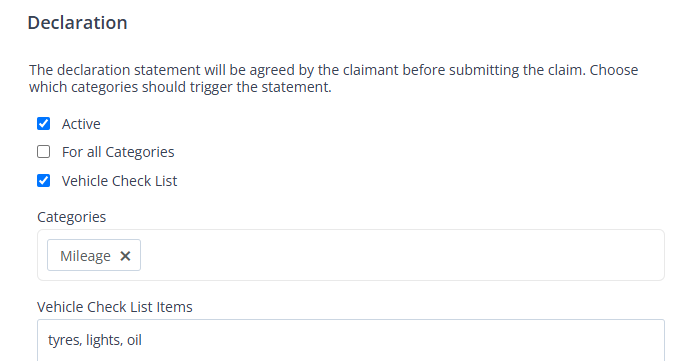
Disabling the vehicle checklist declaration
Go to Setup > Settings > Declaration.
Click the Edit icon on the Vehicle Check List record.
Ensure Vehicle Check List Declaration is set to inactive.
Click Save.
Excluding Business Mileage from export (optional)
As the company car and fuel card are already paid for, the claim amount should not be passed to your accounting software. Excluding the category from export sets the claim amount to zero and prevents it from being included in accounting updates.
Before you exclude the category: this only works if every claim under the category is for company car mileage. If any employees use their own personal car for business journeys, they need a separate, reimbursable category for that mileage.
To exclude the category from export: if you already have a Business Mileage category and need to stop reimbursing it:
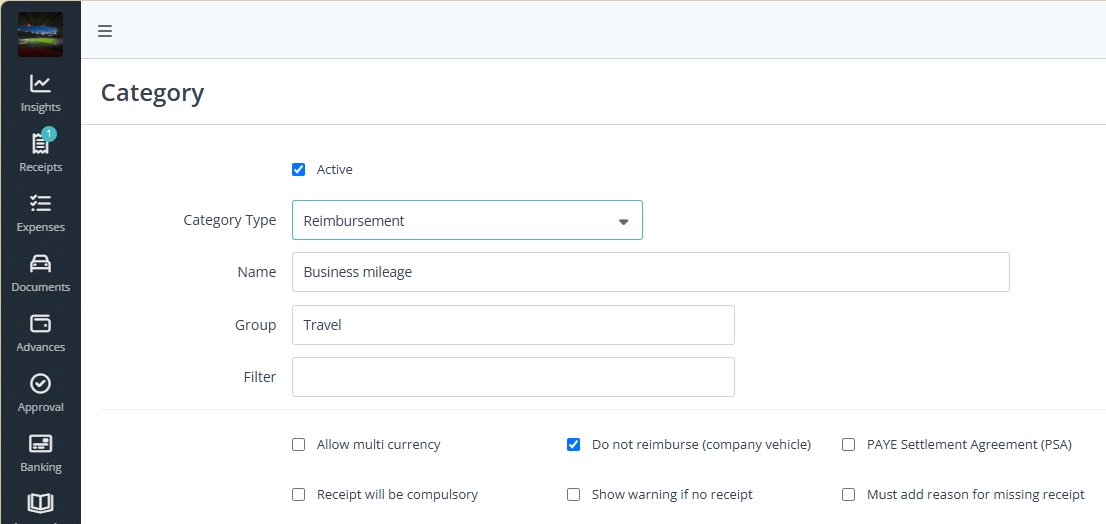
Go to Setup > Categories.
Click the Edit icon on the Business Mileage record.
Select Do not reimburse (company vehickles).
Click Save.
Once claims are submitted, you can review business and personal mileage in the claimant's vehicle log. See Review a user's vehicle log.