Available in:
HR Essentials
HR Success
Who can do this:
HR Manager
Administrator
Introduction
When you upgrade your account from our Cintra People HR Leave to Cintra People HR Essentials, you'll be given access to the additional areas listed in this article.
Some of these areas may not appear on your account initially - they are also switched off for all employees until you are ready to go live.
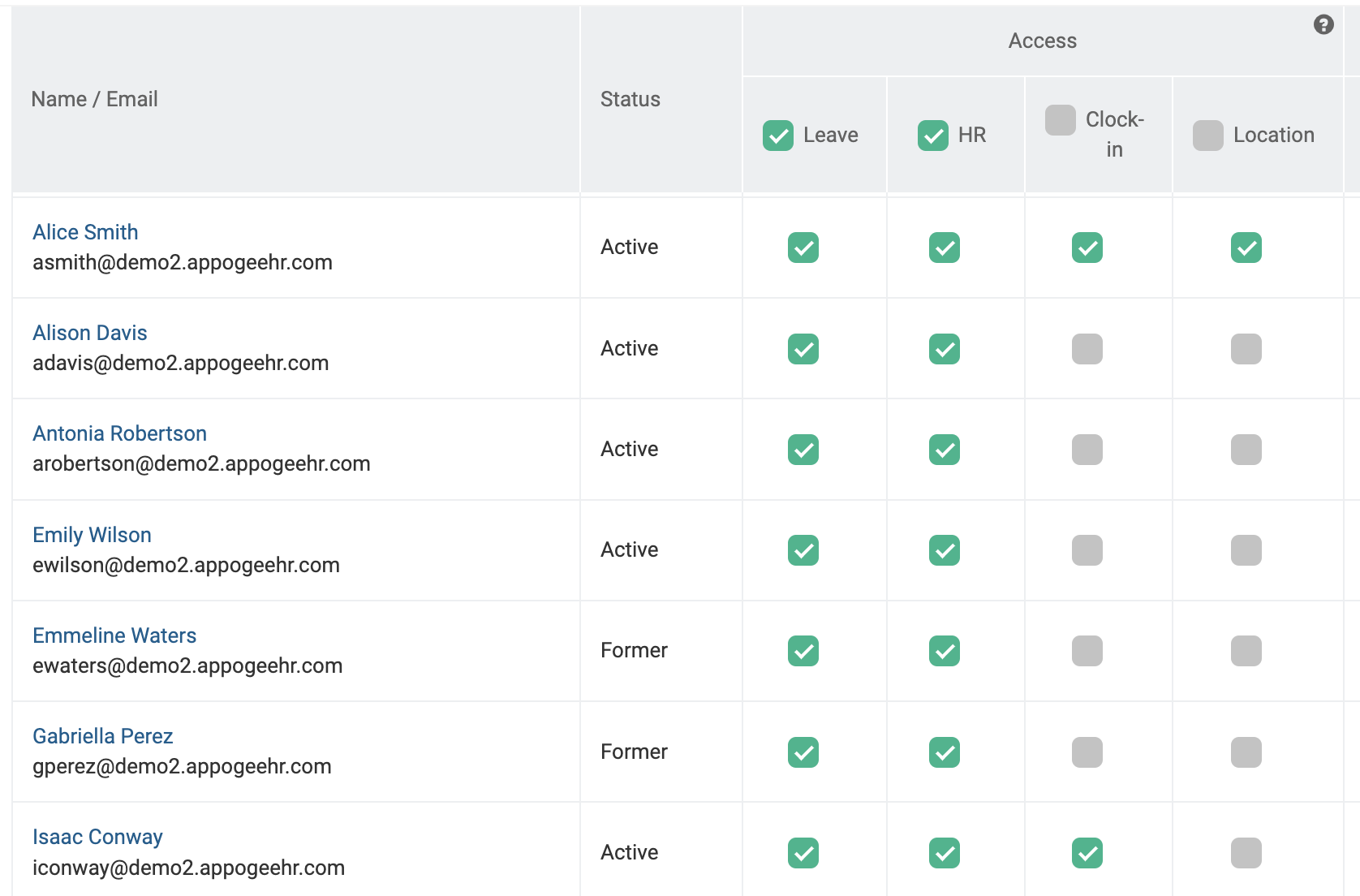
To add the HR elements to your own profile so you can set up the HR Essentials features, go to Roles & Access > Login & Access and tick the required areas in the Access column for your account.
HR - this will give you Company Docs, Profiles & Checklists
Clock in - this will give you access to the clock in & out feature for timesheets
Location - this will give you access to the Location module for employee working location tracking
This article will take you through the key configuration options for the HR Essentials package.
Company Docs
Company Documents are documents or files that are related to the company and can be shared by all employees or at a team level. A Company Document can be a file, link or note that you wish to make available to multiple employees.
You can read more about Company Docs and Acknowledgements in the following articles: Company Docs and Company Document Acknowledgements.
Profile
Employee information is held within the Profile area. Within Profile, you will see the high level areas of Personal, Employment, Performance, Learning and Assets.
Within each process area, you will see categories and fields - this is where you can input employee information. You can customise these categories and fields so that the data you store about your employees is displayed in the way you would like. Additionally, you can choose what level of access Employees & Team Managers have to each of these fields.
You can read more about the customisation options within the Profile in the following articles: Categories & Fields and Making changes to Categories & Fields.
Clock in / out
The Clock in / out module allows employees to mark when they have started and finished working, as well as track when they've taken breaks. Clock in and out times are then automatically added into Timesheets. You can read more about the Clock in / out options in the following article: Timesheets.
Location
Location is where employees can plan and mark where they are working from. You can set up different Office Locations and Zones within these, as well as set capacities in any of these areas for further location management.
You can read more about Location Planning and Capacity Management in the following articles: Office Locations and Location Recording.
Checklists
A Checklist is a list of items or tasks that an employee must complete, related to a process in your business. The most common types of Checklists are for Onboarding and Offboarding, but you can use them for many other processes.
To find out more, see Checklists.
HR Reporting & Notifications
HR Reporting allows you to collate your employee data from the Profile areas in one view. You can save report templates so that you can run them on a regular basis without having to recreate them each time. Saved reports can also be set up to automatically generate on a weekly or monthly basis.
To find out more, see HR Reporting.
HR Notifications allow you to be informed when a change occurs on an Employee Profile. You can choose whether the notification goes to users with certain roles or specific employees. Notifications can either be triggered when a Profile is updated - either information is added or changed - or relative to a date occurring, e.g. 1 month before Right to Work Expiry Date.
To find out more, see HR Notifications.