---
title: "Where do I collect MCR data?"
slug: "where-do-i-collect-mcr-data"
updated: 2026-06-10T11:26:23Z
published: 2026-06-10T11:26:23Z
canonical: "help.cintra.co.uk/where-do-i-collect-mcr-data"
---

> ## Documentation Index
> Fetch the complete documentation index at: https://help.cintra.co.uk/llms.txt
> Use this file to discover all available pages before exploring further.

# Where do I collect MCR data?

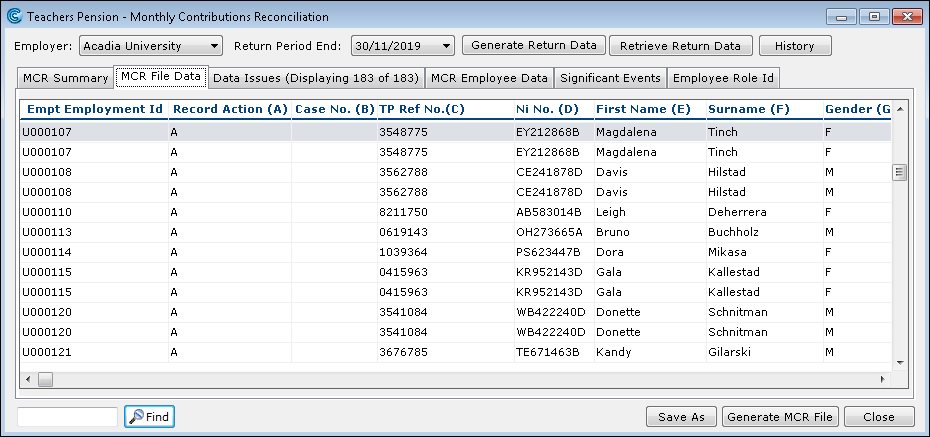
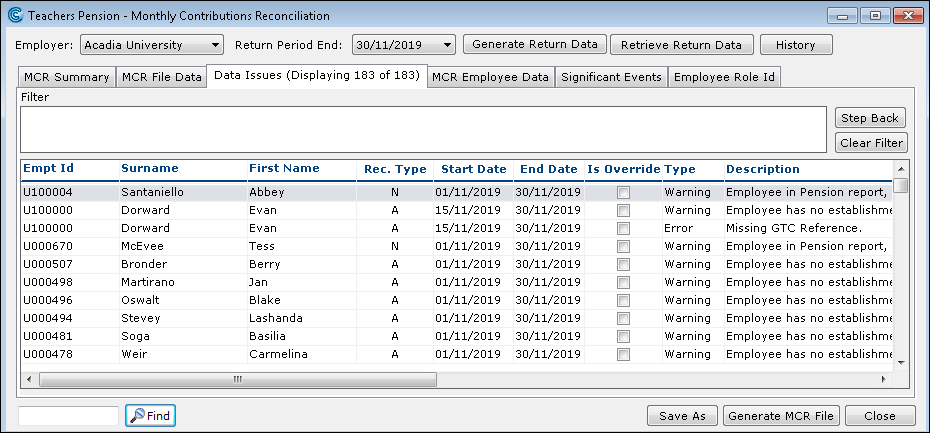
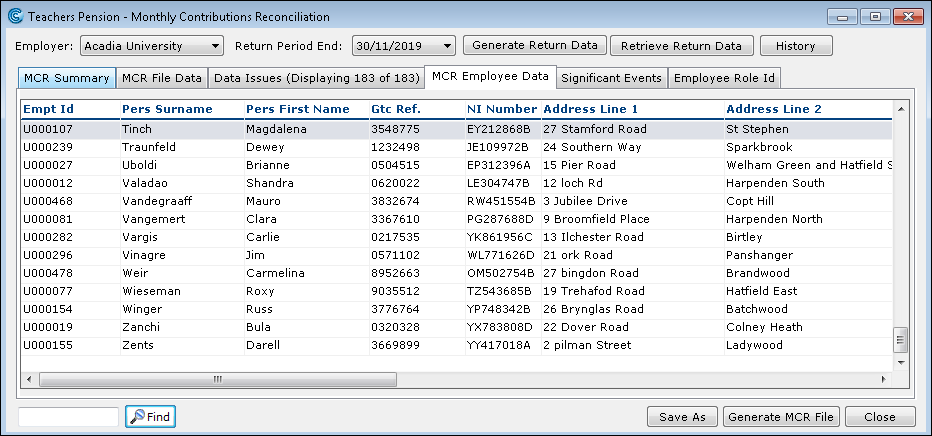
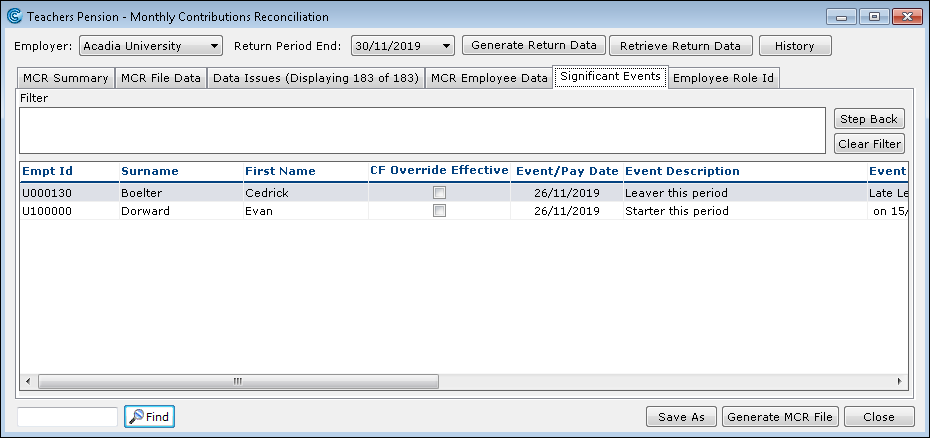
<html><head></head><body><p data-block-id="mpwnef60-mt1s9t-317">Within <strong>Cintra iQ</strong>, you can create a <strong>Monthly Contributions Reconciliation (MCR)</strong> report by extracting data through <strong>MCR</strong>. Previously, as an employer, once you were on board with monthly data collection, you had to submit to <strong>Teachers' Pension (TP)</strong> each month, one file that included all the <strong>TP</strong> members' required service and salary information. Now, <strong>TP</strong> allows you to transition from <strong>Monthly Data Collection (MDC)</strong> to <strong>Monthly Contributions Reconciliation (MCR)</strong> from October 2020 until October 2021.</p><p data-block-id="mpwnenrb-vvdbea-373"><strong>MCR </strong>consolidates the current <strong>MDC</strong>, <strong>Monthly Contributions Breakdown</strong> and <strong>Enrolment</strong> data collection processes and replaces them with the one <strong>MCR</strong> submission. The purpose for the <strong>MCR</strong> is for <strong>TP</strong> to know who has multiple contracts and if that member has then opted out of a particular one. This is so that <strong>TP</strong> can find out if it makes a difference to the member's final benefits when they leave the <strong>Teacher's Pension </strong>scheme.</p><p data-block-id="mpwnexcz-qk5hey-374">As an employer, you need to report each contract of employment and/or different roles under one contract of employment as individual rows of data on the <strong>MCR</strong> submission. <strong>MCR</strong> allows you to perform a reconciliation on the contribution deduction amounts you provide for each employee.</p><p data-block-id="mpwnf21j-onrtpa-375">​<span type="spanMark"><span type="spanNode">Within </span></span><span type="spanNode"><strong>Cintra iQ</strong></span><span type="spanMark"><span type="spanNode">, you can generate a return for every month since the start date of the </span></span><span type="spanNode"><strong>Monthly Contributions Reconciliation (MCR) </strong></span><span type="spanMark"><span type="spanNode">was set. The </span></span><span type="spanNode"><strong>Teachers Pensions - Monthly Contribution Reconciliation</strong></span><span type="spanMark"><span type="spanNode"> window allows you to perform the following:</span></span></p><ul data-block-id="mplfe8hm-o5a8sq-056"><li data-block-id="mplfe8hm-hn2gx9-057"><p data-block-id="mpwnef60-5mc0v0-318"><span type="spanMark">Generate <strong>Role Ids</strong>.</span></p></li><li data-block-id="mplfe8hm-6r2jfd-058"><p data-block-id="mpwnef60-nky8k4-319">Generate <strong>Return Data</strong>.</p></li><li data-block-id="mplfe8hn-tcq2ip-059"><p data-block-id="mpwnef60-blolef-320">Retrieve <strong>Return Data</strong>.</p></li><li data-block-id="mplfe8hn-fr1rxm-060"><p data-block-id="mpwnef60-5sar6a-321">Review <strong>Data Issues</strong>.</p></li><li data-block-id="mplfe8hn-zuxsxd-061"><p data-block-id="mpwnef60-tegikl-322">Recalculate <strong>Employee</strong> <strong>Data</strong>.</p></li><li data-block-id="mplfe8hn-9z619v-062"><p data-block-id="mpwnef61-9audyf-323">Generate the <strong>MCR</strong> file.</p></li></ul><h2 data-block-id="mplfe8hn-mkufhm-064" id="about-the-monthly-contributions-reconciliation-window">About the Monthly Contributions Reconciliation Window</h2><p data-block-id="mpwnef61-m08nwk-324">Within this window, you can generate data and also modify data depending on which tab you are in. After which you can produce a <strong>Monthly Contributions Reconciliation</strong> file to send to <strong>Teachers' Pensions.</strong> &nbsp;Go to <strong>Cintra iQ</strong>: Payroll&gt; Payroll Tools&gt; Payroll Reports&gt; Monthly Data Contribution Reconciliation<img data-block-id="mplfe8hn-clo1zu-065" src="https://cdn.document360.io/fc2cda72-4645-4b36-96bf-60439ec11f11/Images/Documentation/204001066510.png" class="adv-wysiwyg-img" mediatype="img" alt="MCR_Summary_tab.png" width="auto" height="auto" dataalign="left" datadisplay="flex" data-type="media-content" fixaspectratio="false" autoaspectratio="false" shadow="no" border="no" round="no" link="" newtab="" style="width:auto;height:auto;"></p><h2 data-block-id="mplfe8hn-mjzwae-066" id="employer">Employer</h2><p data-block-id="mpwnef61-vjjfco-325">You can select the Employer payroll to which the return applies.</p><h2 data-block-id="mplfe8hn-pgfqn6-067" id="return-period-end">Return Period End</h2><p data-block-id="mpwnef61-cm4o73-326">You can select the month end date for which you want to generate or view return data</p><h3 data-block-id="mplfe8hn-ehh54m-068" id="buttons">Buttons</h3><div data-type="table-content"><table width="974" class="editor360-table fit-width" borderstyle="solid" style="max-width:974px;width:974px;"><colgroup><col style="width:487px;"><col style="width:487px;"></colgroup><tbody><tr><th colspan="1" rowspan="1" colwidth="487"><p data-block-id="mpwnef61-wxdnzo-327" style="text-align:center;">Name</p></th><th colspan="1" rowspan="1" colwidth="487"><p data-block-id="mpwnef62-7lc19i-328" style="text-align:center;">Description</p></th></tr><tr><td colspan="1" rowspan="1" colwidth="487"><p data-block-id="mplfe8ho-j22o3l-069"><span type="spanNode"><strong>Generate Return Data</strong></span></p></td><td colspan="1" rowspan="1" colwidth="487"><p data-block-id="mplfe8ho-33jta0-070"><span type="spanMark"><span type="spanNode">Click this button to generate the data specific to the </span></span><span type="spanNode"><strong>Teachers' Pensions MCR</strong></span><span type="spanMark"><span type="spanNode"> submission for the selected return period.</span></span></p><blockquote data-block-id="mplfe8hp-eklcu0-071" class="infoBox" data-background="#ddf7ff" data-border="#006a8a" style="background:rgb(221, 247, 255);border-left:4px solid rgb(0, 106, 138);overflow:auto;"><p data-block-id="mplfe8hp-4yhgkv-073"><strong>Note: </strong>A message appears if you attempt to generate data for a month that has already been generated</p></blockquote></td></tr><tr><td colspan="1" rowspan="1" colwidth="487"><p data-block-id="mplfe8hp-c44p02-074"><span type="spanNode"><strong>Retrieve Return Data</strong></span></p></td><td colspan="1" rowspan="1" colwidth="487"><p data-block-id="mplfe8hq-z5ykch-075"><span type="spanMark"><span type="spanNode">Click this button to retrieve the data already generated for the selected return period.</span></span></p></td></tr><tr><td colspan="1" rowspan="1" colwidth="487"><p data-block-id="mplfe8hq-a1vt1x-076"><span type="spanNode"><strong>History</strong></span></p></td><td colspan="1" rowspan="1" colwidth="487"><p data-block-id="mplfe8hq-shyveh-077"><span type="spanMark"><span type="spanNode">Click this button to display the </span></span><span type="spanNode"><strong>TP MCR</strong></span><span type="spanMark"><span type="spanNode"> &nbsp;</span></span><span type="spanNode"><strong>Return History</strong></span><span type="spanMark"><span type="spanNode"> window which displays existing returns and generated files.</span></span></p></td></tr><tr><td colspan="1" rowspan="1" colwidth="487"><p data-block-id="mplfe8hr-yotd4z-078"><span type="spanNode"><strong>Close</strong></span></p></td><td colspan="1" rowspan="1" colwidth="487"><p data-block-id="mplfe8hr-rb7jou-079"><span type="spanMark"><span type="spanNode">Click this button to close the window.</span></span></p></td></tr></tbody></table></div><h2 data-block-id="mplfe8hr-9rzjm8-080" id="mcr-summary-tab"><span type="spanMark">MCR Summary tab</span></h2><p data-block-id="mplfe8hr-uchlgn-081"><span type="spanMark">Within the<strong> MCR Summary</strong> tab, you can view the summary of the generated <strong>MCR</strong> data for the selected period.</span></p><p data-block-id="mpwnef64-5kdzxp-329"><span type="spanMark"><img data-block-id="mplfe8hr-2wl6kt-082" src="https://cdn.document360.io/fc2cda72-4645-4b36-96bf-60439ec11f11/Images/Documentation/204001066510.png" class="adv-wysiwyg-img" mediatype="img" alt="MCR_Summary_tab.png" width="auto" height="auto" dataalign="left" datadisplay="flex" data-type="media-content" fixaspectratio="false" autoaspectratio="false" shadow="no" border="no" round="no" link="" newtab="" style="width:auto;height:auto;"></span></p><h3 data-block-id="mplfe8hr-4d448c-083" id="data-pane"><span type="spanMark">Data Pane</span></h3><p data-block-id="mplfe8hs-eodyms-084"><span type="spanMark">This pane contains a break down of the employer contributions and employee (member) contributions as well as contribution totals under each contribution tier percentage. It also summarises the employees' total salary.</span></p><h3 data-block-id="mplfe8hs-n0pj7q-085" id="buttons1"><span type="spanMark"><span type="spanNode">Buttons</span></span></h3><div data-type="table-content"><table width="974" class="editor360-table fit-width" borderstyle="solid" style="max-width:974px;width:974px;"><colgroup><col style="width:487px;"><col style="width:487px;"></colgroup><tbody><tr><th colspan="1" rowspan="1" colwidth="487"><p data-block-id="mpwnef64-r5f04q-330" style="text-align:center;">Name</p></th><th colspan="1" rowspan="1" colwidth="487"><p data-block-id="mpwnef65-lkbvzf-331" style="text-align:center;">Description</p></th></tr><tr><td colspan="1" rowspan="1" colwidth="487"><p data-block-id="mplfe8hs-i68ukw-086"><span type="spanNode"><strong>Save As</strong></span></p></td><td colspan="1" rowspan="1" colwidth="487"><p data-block-id="mplfe8ht-bz2i0e-087"><span type="spanMark"><span type="spanNode">Click this button to save all the data to a .csv format.</span></span></p></td></tr><tr><td colspan="1" rowspan="1" colwidth="487"><p data-block-id="mplfe8ht-txd67t-088"><span type="spanNode"><strong>Generate MCR File</strong></span></p></td><td colspan="1" rowspan="1" colwidth="487"><p data-block-id="mplfe8hu-d4uf4r-089"><span type="spanMark"><span type="spanNode">Click this button to generate the </span></span><span type="spanNode"><strong>Monthly Contributions Reconciliation</strong></span><span type="spanMark"><span type="spanNode"> .csv file, which you can upload to the </span></span><span type="spanNode"><strong>Teachers' Pensions</strong></span><span type="spanMark"><span type="spanNode"> website and/or import into the </span></span><span type="spanNode"><strong>TP MCR</strong></span><span type="spanMark"><span type="spanNode"> template.</span></span></p></td></tr><tr><td colspan="1" rowspan="1" colwidth="487"><p data-block-id="mplfe8hu-l87xoz-090"><span type="spanNode"><strong>Close</strong></span></p></td><td colspan="1" rowspan="1" colwidth="487"><p data-block-id="mplfe8hv-o8odwn-091"><span type="spanMark"><span type="spanNode">Click this button to close the window.</span></span></p></td></tr></tbody></table></div><h2 data-block-id="mplfe8hv-cgz8jc-092" id="mcr-file-data-tab"><span type="spanMark">MCR File Data tab</span></h2><p data-block-id="mpwnef66-4tjryq-332"><span type="spanMark">This tab displays the generated data.</span></p><blockquote data-block-id="mplfe8hw-qdwp56-093" class="infoBox" data-background="#ddf7ff" data-border="#006a8a" style="background:rgb(221, 247, 255);border-left:4px solid rgb(0, 106, 138);overflow:auto;"><p data-block-id="mplfe8hw-epfrmd-095"><strong>MCR File </strong></p><p data-block-id="mpwnflor-6d3u96-376">If you are satisfied with the data, you can produce the MRC file by clicking the Generate MCR File button.</p></blockquote><p data-block-id="mpwnef67-948jxr-333"><img data-block-id="mplfe8hw-bfqnwh-096" src="https://cdn.document360.io/fc2cda72-4645-4b36-96bf-60439ec11f11/Images/Documentation/204001066512.png" class="adv-wysiwyg-img" mediatype="img" alt="MCR_File_Data.png" width="auto" height="auto" dataalign="left" datadisplay="flex" data-type="media-content" fixaspectratio="false" autoaspectratio="false" shadow="no" border="no" round="no" link="" newtab="" style="width:auto;height:auto;"></p><h3 data-block-id="mplfe8hw-4bunvc-097" id="data-pane1">Data Pane</h3><p data-block-id="mpwnef67-mza5r8-334"><span type="spanMark">This pane contains the data that is required for the <strong>MCR</strong> return. For more information about the field contents, refer to the <strong>Teachers' Pensions Monthly Contributions Reconciliation User Guide</strong> on the <strong>Teachers' Pensions</strong> web site.</span></p><blockquote data-block-id="mplfe8hw-m5nhot-098" class="warningBox" data-background="#fdf2ce" data-border="#7f6416" style="background:rgb(253, 242, 206);border-left:4px solid rgb(127, 100, 22);overflow:auto;"><p data-block-id="mplfe8hw-u99pp7-100"><strong>Important: </strong>Each letter in the column name corresponds to the template column where the data is going to appear.</p></blockquote><h3 data-block-id="mplfe8hw-l7q9ti-101" id="buttons2">Buttons</h3><div data-type="table-content"><table width="974" class="editor360-table fit-width" borderstyle="solid" style="max-width:974px;width:974px;"><colgroup><col style="width:487px;"><col style="width:487px;"></colgroup><tbody><tr><th colspan="1" rowspan="1" colwidth="487"><p data-block-id="mpwnef67-e43nwd-335" style="text-align:center;">Name</p></th><th colspan="1" rowspan="1" colwidth="487"><p data-block-id="mpwnef67-rmoy61-336" style="text-align:center;">Description</p></th></tr><tr><td colspan="1" rowspan="1" colwidth="487"><p data-block-id="mplfe8hy-wu8gxq-102"><span type="spanNode"><strong>Find</strong></span></p></td><td colspan="1" rowspan="1" colwidth="487"><p data-block-id="mplfe8hz-xi873k-103"><span type="spanMark"><span type="spanNode">Click this button to find the keyword entered in the </span></span><span type="spanNode"><strong>Search</strong></span><span type="spanMark"><span type="spanNode"> box.</span></span></p></td></tr><tr><td colspan="1" rowspan="1" colwidth="487"><p data-block-id="mplfe8i0-jv5fue-104"><span type="spanNode"><strong>Save As</strong></span></p></td><td colspan="1" rowspan="1" colwidth="487"><p data-block-id="mplfe8i0-jy0irz-105"><span type="spanMark"><span type="spanNode">Click this button to save all the data to a .csv format.</span></span></p></td></tr><tr><td colspan="1" rowspan="1" colwidth="487"><p data-block-id="mplfe8i0-vq2bt9-106"><span type="spanNode"><strong>Generate MCR File</strong></span></p></td><td colspan="1" rowspan="1" colwidth="487"><p data-block-id="mplfe8i0-td3phx-107"><span type="spanMark"><span type="spanNode">Click this button to generate the </span></span><span type="spanNode"><strong>Monthly Contributions Reconciliation</strong></span><span type="spanMark"><span type="spanNode">.csv file, which you can upload to the </span></span><span type="spanNode"><strong>Teachers' Pensions</strong></span><span type="spanMark"><span type="spanNode"> website.</span></span></p></td></tr><tr><td colspan="1" rowspan="1" colwidth="487"><p data-block-id="mplfe8i1-qm4rhr-108"><span type="spanNode"><strong>Close</strong></span></p></td><td colspan="1" rowspan="1" colwidth="487"><p data-block-id="mplfe8i1-o7rwgb-109"><span type="spanMark"><span type="spanNode">Click this button to close the window.</span></span></p></td></tr></tbody></table></div><h2 data-block-id="mplfe8i2-fy8vpz-110" id="data-issues-tab"><span type="spanMark">Data Issues tab</span></h2><p data-block-id="mpwnef6a-4bja3k-337"><span type="spanMark">Within this tab, you can view any data issues that may have occurred when the return data was generated.</span></p><blockquote data-block-id="mplfe8i2-oa6f89-111" class="warningBox" data-background="#fdf2ce" data-border="#7f6416" style="background:rgb(253, 242, 206);border-left:4px solid rgb(127, 100, 22);overflow:auto;"><p data-block-id="mplfe8i2-cdtub2-113"><strong>Important: </strong>If there are any errors after the MCR file is uploaded to the Teachers' Pensions website, you may receive an error email from Teachers' Pensions advising necessary corrections. Once the file is returned to Cintra iQ, you can make modifications to the affected data.</p></blockquote><p data-block-id="mpwnef6a-d2jflh-338"><span type="spanMark"><img data-block-id="mplfe8i2-kay045-114" src="https://cdn.document360.io/fc2cda72-4645-4b36-96bf-60439ec11f11/Images/Documentation/204001066513.png" class="adv-wysiwyg-img" mediatype="img" alt="Data_Issues.png" width="auto" height="auto" dataalign="left" datadisplay="flex" data-type="media-content" fixaspectratio="false" autoaspectratio="false" shadow="no" border="no" round="no" link="" newtab="" style="width:auto;height:auto;"></span></p><div data-type="table-content"><table width="974" class="editor360-table fit-width" borderstyle="solid" style="max-width:974px;width:974px;"><colgroup><col style="width:487px;"><col style="width:487px;"></colgroup><tbody><tr><th colspan="1" rowspan="1" colwidth="487"><p data-block-id="mpwnef6b-q51i98-339" style="text-align:center;">Name</p></th><th colspan="1" rowspan="1" colwidth="487"><p data-block-id="mpwnef6b-e36kkj-340" style="text-align:center;">Description</p></th></tr><tr><td colspan="1" rowspan="1" colwidth="487"><p data-block-id="mplfe8i3-3xsroy-115"><strong>Filter Pane</strong></p></td><td colspan="1" rowspan="1" colwidth="487"><p data-block-id="mpwnef6c-cnsc77-341"><span type="spanMark">This pane displays the criteria used to filter the data. Once you have double-clicked within a column, the column header and data is displayed in the pane. You can retrace your steps to reduce your filter options by clicking the <strong>Step Back</strong> button. Click the <strong>Clear Filter</strong> button to clear the pane completely.</span></p><p data-block-id="mpwng2p1-1k7ccw-377"><span type="spanMark">Because each error is itemised, you can apply the filter to a particular employee to see only those errors that pertain to the employee or filter by description to see which employees are affected by a particular error.</span></p></td></tr><tr><td colspan="1" rowspan="1" colwidth="487"><p data-block-id="mplfe8i3-h4uc7x-116"><strong>Data Pane</strong></p></td><td colspan="1" rowspan="1" colwidth="487"><p data-block-id="mplfe8i4-k2m0f8-117"><span type="spanMark">This pane displays a list of error descriptions which indicate that you should return to the necessary form(s) and enter the appropriate information.</span></p></td></tr></tbody></table></div><h3 data-block-id="mplfe8i4-yjmmv7-118" id="buttons3">Buttons</h3><div data-type="table-content"><table width="974" class="editor360-table fit-width" borderstyle="solid" style="max-width:974px;width:974px;"><colgroup><col style="width:487px;"><col style="width:487px;"></colgroup><tbody><tr><th colspan="1" rowspan="1" colwidth="487"><p data-block-id="mpwnef6c-taxalw-342" style="text-align:center;">Name</p></th><th colspan="1" rowspan="1" colwidth="487"><p data-block-id="mpwnef6c-waoeem-343" style="text-align:center;">Description</p></th></tr><tr><td colspan="1" rowspan="1" colwidth="487"><p data-block-id="mplfe8i4-3cdhw4-119"><span type="spanNode"><strong>Find</strong></span></p></td><td colspan="1" rowspan="1" colwidth="487"><p data-block-id="mplfe8i4-34x8ic-120"><span type="spanMark"><span type="spanNode">Click this button to find the keyword entered in the </span></span><span type="spanNode"><strong>Search</strong></span><span type="spanMark"><span type="spanNode"> box.</span></span></p></td></tr><tr><td colspan="1" rowspan="1" colwidth="487"><p data-block-id="mplfe8i5-voi8jf-121"><span type="spanNode"><strong>Save As</strong></span></p></td><td colspan="1" rowspan="1" colwidth="487"><p data-block-id="mplfe8i5-y4dqs1-122"><span type="spanMark"><span type="spanNode">Click this button to save all the data to a .csv format.</span></span></p></td></tr><tr><td colspan="1" rowspan="1" colwidth="487"><p data-block-id="mplfe8i5-75c74q-123"><span type="spanNode"><strong>Generate MCR File</strong></span></p></td><td colspan="1" rowspan="1" colwidth="487"><p data-block-id="mplfe8i6-4cktp6-124"><span type="spanMark"><span type="spanNode">Click this button to generate the </span></span><span type="spanNode"><strong>Monthly Contributions Reconciliation</strong></span><span type="spanMark"><span type="spanNode">.csv file, which you can upload to the </span></span><span type="spanNode"><strong>Teachers' Pensions</strong></span><span type="spanMark"><span type="spanNode"> website.</span></span></p></td></tr><tr><td colspan="1" rowspan="1" colwidth="487"><p data-block-id="mplfe8i6-mniomh-125"><span type="spanNode"><strong>Close</strong></span></p></td><td colspan="1" rowspan="1" colwidth="487"><p data-block-id="mplfe8i6-4wgz2s-126"><span type="spanMark"><span type="spanNode">Click this button to close the window.</span></span></p></td></tr></tbody></table></div><h2 data-block-id="mplfe8i6-stst0k-127" id="mcr-employee-data-tab"><span type="spanMark">MCR Employee Data tab</span></h2><p data-block-id="mplfe8i7-fvri3w-128">This tab displays the employees and their details.</p><p data-block-id="mpwnef6e-omvgad-344"><span type="spanMark"><img data-block-id="mplfe8i7-zou6jh-129" src="https://cdn.document360.io/fc2cda72-4645-4b36-96bf-60439ec11f11/Images/Documentation/204001066515.png" class="adv-wysiwyg-img" mediatype="img" alt="MCR_Employee_Data.png" width="auto" height="auto" dataalign="left" datadisplay="flex" data-type="media-content" fixaspectratio="false" autoaspectratio="false" shadow="no" border="no" round="no" link="" newtab="" style="width:auto;height:auto;"></span></p><h3 data-block-id="mplfe8i7-j2ry9u-130" id="data-pane2">Data Pane</h3><p data-block-id="mpwnef6f-vby75v-345"><span type="spanMark">Within this pane you can modify an employee's details by clicking on the desired employee record.</span></p><h3 data-block-id="mplfe8i8-3sqrkd-132" id="buttons4"><span type="spanMark">Buttons</span></h3><div data-type="table-content"><table width="974" class="editor360-table fit-width" borderstyle="solid" style="max-width:974px;width:974px;"><colgroup><col style="width:487px;"><col style="width:487px;"></colgroup><tbody><tr><th colspan="1" rowspan="1" colwidth="487"><p data-block-id="mpwnef6f-twexjn-346" style="text-align:center;">Name</p></th><th colspan="1" rowspan="1" colwidth="487"><p data-block-id="mpwnef6f-0e99g7-347" style="text-align:center;">Description</p></th></tr><tr><td colspan="1" rowspan="1" colwidth="487"><p data-block-id="mplfe8i8-awwtvi-133"><span type="spanNode"><strong>Find</strong></span></p></td><td colspan="1" rowspan="1" colwidth="487"><p data-block-id="mplfe8i9-3c7782-134"><span type="spanMark"><span type="spanNode">Click this button to find the keyword entered in the </span></span><span type="spanNode"><strong>Search</strong></span><span type="spanMark"><span type="spanNode"> box.</span></span></p></td></tr><tr><td colspan="1" rowspan="1" colwidth="487"><p data-block-id="mplfe8i9-p1eel0-135"><span type="spanNode"><strong>Save As</strong></span></p></td><td colspan="1" rowspan="1" colwidth="487"><p data-block-id="mplfe8i9-52qz8s-136"><span type="spanMark"><span type="spanNode">Click this button to save all the data to a .csv format.</span></span></p></td></tr><tr><td colspan="1" rowspan="1" colwidth="487"><p data-block-id="mplfe8ia-xnr2y5-137"><span type="spanNode"><strong>Generate MCR File</strong></span></p></td><td colspan="1" rowspan="1" colwidth="487"><p data-block-id="mplfe8ia-nka14q-138"><span type="spanMark"><span type="spanNode">Click this button to generate the </span></span><span type="spanNode"><strong>Monthly Contributions Reconciliation</strong></span><span type="spanMark"><span type="spanNode">.csv file, which you can upload to the </span></span><span type="spanNode"><strong>Teachers' Pensions</strong></span><span type="spanMark"><span type="spanNode"> website.</span></span></p></td></tr><tr><td colspan="1" rowspan="1" colwidth="487"><p data-block-id="mplfe8ia-7zx6rv-139"><span type="spanNode"><strong>Close</strong></span></p></td><td colspan="1" rowspan="1" colwidth="487"><p data-block-id="mplfe8ib-22kkpo-140"><span type="spanMark"><span type="spanNode">Click this button to close the window.</span></span></p></td></tr></tbody></table></div><h2 data-block-id="mplfe8ib-hpvig0-141" id="significant-events-tab">Significant Events Tab</h2><p data-block-id="mpwnef6h-i48pqn-348"><span type="spanMark">This tab displays the records of those employees who are absent due to maternity leave, paternity, adoption, shared parental or unpaid leave, or long term sickness etc. </span><img data-block-id="mplfe8ib-20zx6f-142" src="https://cdn.document360.io/fc2cda72-4645-4b36-96bf-60439ec11f11/Images/Documentation/204001066516.png" class="adv-wysiwyg-img" mediatype="img" alt="Significant_Events.png" width="auto" height="auto" dataalign="left" datadisplay="flex" data-type="media-content" fixaspectratio="false" autoaspectratio="false" shadow="no" border="no" round="no" link="" newtab="" style="width:auto;height:auto;"></p><div data-type="table-content"><table width="974" class="editor360-table fit-width" borderstyle="solid" style="max-width:974px;width:974px;"><colgroup><col style="width:487px;"><col style="width:487px;"></colgroup><tbody><tr><th colspan="1" rowspan="1" colwidth="487"><p data-block-id="mpwnef6h-ttllgb-349" style="text-align:center;">Name</p></th><th colspan="1" rowspan="1" colwidth="487"><p data-block-id="mpwnef6i-asrev1-350" style="text-align:center;">Description</p></th></tr><tr><td colspan="1" rowspan="1" colwidth="487"><p data-block-id="mplfe8ic-w2conx-143"><strong>Filter Pane</strong></p></td><td colspan="1" rowspan="1" colwidth="487"><p data-block-id="mpwnef6i-jiovqx-351">This pane displays the criteria used to filter the data. Once you have double-clicked within a column, the column header and data is displayed in the pane. You can retrace your steps to reduce your filter options by clicking the <strong>Step Back </strong>button. Click the <strong>Clear Filter</strong> button to clear the <strong>Filter</strong> pane completely.</p></td></tr><tr><td colspan="1" rowspan="1" colwidth="487"><p data-block-id="mplfe8ic-h1ybre-144"><strong>Data Pane</strong></p></td><td colspan="1" rowspan="1" colwidth="487"><p data-block-id="mplfe8id-8frehv-145">Within this pane, you can view whether the event's description and the dates the event took place. You can also view any employees that are in the <strong>Teachers' Pensions </strong>scheme but are not included in the return, because they have not been categorised into a teaching role.</p></td></tr></tbody></table></div><h3 data-block-id="mplfe8id-totqbv-148" id="buttons5">Buttons</h3><div data-type="table-content"><table width="974" class="editor360-table fit-width" borderstyle="solid" style="max-width:974px;width:974px;"><colgroup><col style="width:487px;"><col style="width:487px;"></colgroup><tbody><tr><th colspan="1" rowspan="1" colwidth="487"><p data-block-id="mpwnef6j-n5o7yy-352" style="text-align:center;">Name</p></th><th colspan="1" rowspan="1" colwidth="487"><p data-block-id="mpwnef6j-lle0fk-353" style="text-align:center;">Description</p></th></tr><tr><td colspan="1" rowspan="1" colwidth="487"><p data-block-id="mplfe8ie-zva4fy-149"><span type="spanNode"><strong>Find</strong></span></p></td><td colspan="1" rowspan="1" colwidth="487"><p data-block-id="mplfe8ie-vop4g3-150"><span type="spanMark"><span type="spanNode">Click this button to find the keyword entered in the </span></span><span type="spanNode"><strong>Search</strong></span><span type="spanMark"><span type="spanNode"> box.</span></span></p></td></tr><tr><td colspan="1" rowspan="1" colwidth="487"><p data-block-id="mplfe8if-ux4zb2-151"><span type="spanNode"><strong>Save As</strong></span></p></td><td colspan="1" rowspan="1" colwidth="487"><p data-block-id="mplfe8if-1ubez9-152"><span type="spanMark"><span type="spanNode">Click this button to save all the data to a .csv format.</span></span></p></td></tr><tr><td colspan="1" rowspan="1" colwidth="487"><p data-block-id="mplfe8if-45ezhw-153"><span type="spanNode"><strong>Generate MCR File</strong></span></p></td><td colspan="1" rowspan="1" colwidth="487"><p data-block-id="mplfe8if-lj49cs-154"><span type="spanMark"><span type="spanNode">Click this button to generate the </span></span><span type="spanNode"><strong>Monthly Contributions Reconciliation</strong></span><span type="spanMark"><span type="spanNode">.csv file, which you can upload to the </span></span><span type="spanNode"><strong>Teachers' Pensions</strong></span><span type="spanMark"><span type="spanNode"> website.</span></span></p></td></tr><tr><td colspan="1" rowspan="1" colwidth="487"><p data-block-id="mplfe8ig-kzdkzi-155"><span type="spanNode"><strong>Close</strong></span></p></td><td colspan="1" rowspan="1" colwidth="487"><p data-block-id="mplfe8ig-ua0861-156"><span type="spanMark"><span type="spanNode">Click this button to close the window.</span></span></p></td></tr></tbody></table></div><h2 data-block-id="mplfe8ig-61oyey-157" id="employee-role-id-tab">Employee Role Id tab</h2><p data-block-id="mpwnef6l-ryzsz0-354">Within this tab, you can view a list of <strong>Employee in Post</strong> records, which contain system generated Role Ids. The list contains only active posts for the selected return period. Their <strong>From</strong> and <strong>To </strong>dates correspond with the dates that cover the selected period.</p><blockquote data-block-id="mplfe8ig-h8y219-158" class="warningBox" data-background="#fdf2ce" data-border="#7f6416" style="background:rgb(253, 242, 206);border-left:4px solid rgb(127, 100, 22);overflow:auto;"><p data-block-id="mplfe8ig-wb4ajw-160"><strong>Important: </strong>The Employee in Post records data is derived from the employee's post history record and contribution records. For more information , see each employee's Post History and Expenses &amp; Benefits Pension &amp; Benefit Schemes.</p></blockquote><p data-block-id="mpwnef6l-0gvz14-355"><img data-block-id="mplfe8ig-6nnx28-161" src="https://cdn.document360.io/fc2cda72-4645-4b36-96bf-60439ec11f11/Images/Documentation/204001066517.png" class="adv-wysiwyg-img" mediatype="img" alt="Employee_Role_ID.png" width="auto" height="auto" dataalign="left" datadisplay="flex" data-type="media-content" fixaspectratio="false" autoaspectratio="false" shadow="no" border="no" round="no" link="" newtab="" style="width:auto;height:auto;"></p><div data-type="table-content"><table width="974" class="editor360-table fit-width" borderstyle="solid" style="max-width:974px;width:974px;"><colgroup><col style="width:487px;"><col style="width:487px;"></colgroup><tbody><tr><th colspan="1" rowspan="1" colwidth="487"><p data-block-id="mpwnef6l-zr6er4-356" style="text-align:center;">Name</p></th><th colspan="1" rowspan="1" colwidth="487"><p data-block-id="mpwnef6l-4mguaq-357" style="text-align:center;">Description</p></th></tr><tr><td colspan="1" rowspan="1" colwidth="487"><p data-block-id="mplfe8ih-5ob6bl-162"><strong>Filter Pane</strong></p></td><td colspan="1" rowspan="1" colwidth="487"><p data-block-id="mpwnef6m-ksraqo-358">This pane displays the criteria used to filter the data. Once you have double-clicked within a column, the column header and data is displayed in the pane. You can retrace your steps to reduce your filter options by clicking the <strong>Step Back</strong> button. Click the <strong>Clear Filter</strong> button to clear the <strong>Filter</strong> pane completely.</p></td></tr><tr><td colspan="1" rowspan="1" colwidth="487"><p data-block-id="mplfe8ih-3i8hch-163"><strong>Data Pane</strong></p></td><td colspan="1" rowspan="1" colwidth="487"><p data-block-id="mpwnef6m-6wpzt5-359">This pane displays a list of <strong>Employee in Post </strong>records. Within each <strong>Employee in Post</strong> record, you can perform the following:</p><ul data-block-id="mplfe8ih-we9ivd-164"><li data-block-id="mplfe8ih-haha98-165"><p data-block-id="mpwnef6m-esltnz-360">Attach a <strong>Add On</strong> contract to an <strong>Employee in Post</strong> record. Select the desired <strong>Add On Contract</strong> checkbox and save.</p><blockquote data-block-id="mplfe8ii-6jtz4w-170" class="infoBox" data-background="#ddf7ff" data-border="#006a8a" style="background:rgb(221, 247, 255);border-left:4px solid rgb(0, 106, 138);overflow:auto;"><p data-block-id="mplfe8ii-ok4r3k-172"><strong>Note: </strong>Once an Add On is selected for an Employee in Post record, the Role Rule Id is updated. You can only attach an Add On to an employee who has multiple posts. For more information about Role Rules, see <a href="/iq/docs/mcr-what-are-role-rule-categories" target="_self" rel="noopener">What are Role Rule Categories?</a></p></blockquote></li><li data-block-id="mplfe8ii-89d2py-173"><p data-block-id="mpwnef6m-rbg20h-361">Assign a <strong>Role Id</strong> to an <strong>Employee in Post</strong> record by manually changing the <strong>Role Id</strong> on the <strong>Employee in Post</strong> record, or saving the role ids to a template, editing the template and then reimporting it back into the <strong>Employee Role IDs</strong> pane.</p></li></ul><ul data-block-id="mplfe8ii-h6i5sw-174"><li data-block-id="mplfe8ii-vr6dag-175"><p data-block-id="mpwnef6m-kw19q3-362">View the <strong>Role Id History</strong> for the employee by clicking on the desired record and clicking the<strong> Role ID History for Employee</strong> button. This read-only window is useful in order to view the <strong>Role IDs</strong> attached to the different posts during the employee's career.</p></li></ul></td></tr></tbody></table></div><h2 data-block-id="mplfe8ii-hnfyoj-176" id="tasks"><span type="spanMark"><span type="spanNode">Tasks</span></span></h2><div data-type="table-content"><table width="974" class="editor360-table fit-width" borderstyle="solid" style="max-width:974px;width:974px;"><colgroup><col style="width:487px;"><col style="width:487px;"></colgroup><tbody><tr><th colspan="1" rowspan="1" colwidth="487"><p data-block-id="mpwnef6n-oe8bj6-363" style="text-align:center;">Name</p></th><th colspan="1" rowspan="1" colwidth="487"><p data-block-id="mpwnef6n-q4n3fs-364" style="text-align:center;">Description</p></th></tr><tr><td colspan="1" rowspan="1" colwidth="487"><p data-block-id="mplfe8ij-hby028-177"><span type="spanNode"><strong>Find</strong></span></p></td><td colspan="1" rowspan="1" colwidth="487"><p data-block-id="mplfe8ij-m4i5ch-178"><span type="spanMark"><span type="spanNode">Enter the desired employee's name in the search field and click this button to find their details within the Employee in Post record list.</span></span></p></td></tr><tr><td colspan="1" rowspan="1" colwidth="487"><p data-block-id="mplfe8ik-m21s6q-179"><span type="spanNode"><strong>Generate Role Ids</strong></span></p></td><td colspan="1" rowspan="1" colwidth="487"><p data-block-id="mplfe8ik-58ky2l-180"><span type="spanMark"><span type="spanNode">Click this button to generate the </span></span><span type="spanNode"><strong>Role Ids</strong></span><span type="spanMark"><span type="spanNode"> to appear in the </span></span><span type="spanNode"><strong>Role Id</strong></span><span type="spanMark"><span type="spanNode"> column.</span></span></p></td></tr><tr><td colspan="1" rowspan="1" colwidth="487"><p data-block-id="mplfe8ik-fi4jhe-181"><span type="spanNode"><strong>Save to Role Id Template</strong></span></p></td><td colspan="1" rowspan="1" colwidth="487"><p data-block-id="mplfe8ik-ag47rx-182"><span type="spanMark"><span type="spanNode">Click this button to save the </span></span><span type="spanNode"><strong>Role Ids</strong></span><span type="spanMark"><span type="spanNode"> to a csv template. For more information as to how to edit a </span></span><span type="spanNode"><strong>Role Ids Template</strong></span><span type="spanMark"><span type="spanNode">, see </span></span><a href="/iq/docs/mcr-how-do-i-edit-role-identifiers-in-bulk" target="_self" rel="noopener"><span type="spanNode"><u>How Do I Edit Roles Identifiers in Bulk?</u></span></a></p></td></tr><tr><td colspan="1" rowspan="1" colwidth="487"><p data-block-id="mplfe8il-tf8p9j-183"><span type="spanNode"><strong>Import Role Ids</strong></span></p></td><td colspan="1" rowspan="1" colwidth="487"><p data-block-id="mplfe8il-sz61al-184"><span type="spanMark"><span type="spanNode">Click this button to import the updated </span></span><span type="spanNode"><strong>Role Id</strong></span><span type="spanMark"><span type="spanNode"> file. Note: You can only import .csv files.</span></span></p></td></tr><tr><td colspan="1" rowspan="1" colwidth="487"><p data-block-id="mplfe8im-mn624j-185"><span type="spanNode"><strong>Role Id Edit? </strong></span></p></td><td colspan="1" rowspan="1" colwidth="487"><p data-block-id="mplfe8im-hltpe8-186"><span type="spanMark"><span type="spanNode">Select this option to edit previously submitted </span></span><span type="spanNode"><strong>Role Ids</strong></span><span type="spanMark"><span type="spanNode">.</span></span></p></td></tr><tr><td colspan="1" rowspan="1" colwidth="487"><p data-block-id="mplfe8in-7ggv5a-187"><span type="spanNode"><strong>Save As</strong></span></p></td><td colspan="1" rowspan="1" colwidth="487"><p data-block-id="mplfe8in-oovsab-188"><span type="spanMark"><span type="spanNode">Click this button to save all the data to a .csv format.</span></span></p></td></tr><tr><td colspan="1" rowspan="1" colwidth="487"><p data-block-id="mplfe8in-fc85zl-189"><span type="spanNode"><strong>Save</strong></span></p></td><td colspan="1" rowspan="1" colwidth="487"><p data-block-id="mplfe8in-psydhj-190"><span type="spanMark"><span type="spanNode">Click this button to save any updates made on screen.</span></span></p></td></tr><tr><td colspan="1" rowspan="1" colwidth="487"><p data-block-id="mplfe8io-9wk1zq-191"><span type="spanNode"><strong>Close</strong></span></p></td><td colspan="1" rowspan="1" colwidth="487"><p data-block-id="mplfe8io-y92mhv-192"><span type="spanMark"><span type="spanNode">Click this button to close the window.</span></span></p></td></tr></tbody></table></div><h2 data-block-id="mplfe8io-0dflqz-193" id="mcr-maintain-role-id-form">MCR Maintain Role Id form</h2><p data-block-id="mpwnef6r-gx0mi3-365">Within the <strong>MCR Maintain Role ID</strong> form, you can perform the following:</p><ul data-block-id="mplfe8io-6aqyyr-194"><li data-block-id="mplfe8io-9db60w-195"><p data-block-id="mpwnef6r-axxl32-366">View the employee's employment details.</p></li><li data-block-id="mplfe8io-sc0cx1-196"><p data-block-id="mpwnef6r-u57zp6-367">View the Role Rule that is attached to the employee in post record.</p></li><li data-block-id="mplfe8io-n60ue0-197"><p data-block-id="mpwnef6r-7wauu0-368">Edit the employee's Role Id.</p></li><li data-block-id="mplfe8io-f1b1yg-198"><p data-block-id="mpwnef6r-en5tul-369">View the Role Id of the current post.</p></li><li data-block-id="mplfe8io-x8jjr0-199"><p data-block-id="mpwnef6r-rin8ri-370">View the Role Id History for the current post.</p></li><li data-block-id="mplfe8io-f3jlw7-200"><p data-block-id="mpwnef6r-oel232-371">View the Role Id history of all the posts the employee has held via the Role ID History for Employee button.</p></li></ul><p data-block-id="mpwnef6r-lrq0gb-372">Within the <strong>Employee Role Id</strong> tab, you can access the <strong>MCR Maintain Role ID</strong> form by right-clicking: <strong>Open</strong> on the desired employee in post record or double-clicking on the desired record.</p><p data-block-id="mplfe8io-d83las-201"><img data-block-id="mplfe8io-kjqd42-202" src="https://cdn.document360.io/fc2cda72-4645-4b36-96bf-60439ec11f11/Images/Documentation/204001066518.png" class="adv-wysiwyg-img" mediatype="img" alt="MCR_Maintain_Role_ID_window.png" width="auto" height="auto" dataalign="left" datadisplay="flex" data-type="media-content" fixaspectratio="false" autoaspectratio="false" shadow="no" border="no" round="no" link="" newtab="" style="width:auto;height:auto;"></p></body></html>