You can either add users individually, or by importing them using the User Accounts template.
Note: The same spreadsheet is used for both exporting or importing users from Expenses.
Downloading the User Account template / exporting users
In Setup > People, open the Actions menu and select Export.
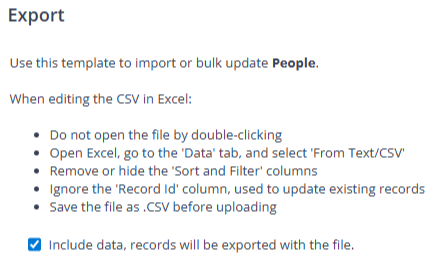
Choose one of the following options:
Include data — exports all existing user account records.
Exclude data — exports column headers only. Use this as a template for importing new user data.
.png)
.png)
Completing the template
Open the spreadsheet and start adding users. For information on each of the fields, see user types.
Do not edit the Integration Record ID column.
.png)
Importing the template
When you’re finished, open the Actions menu again, and select Import.
Click Find File, then locate and add the spreadsheet.
Click Import. The user(s) will be added to the system and you can then send them an invite. See Creating and editing users - Inviting to Expenses.