Expenses integrates with Iplicit to streamline expense management. Before syncing, clear any existing categories that share names with Iplicit records to avoid conflicts.
Integrating iPlicit with Expenses
Note: You must be a system administrator to access this functionality.
Preparing for record Sync / removing existing items in categories and tax records.
Important: We recommend you clear out categories before syncing with Iplicit. There could be potential issues if you sync and there are categories already in Expenses with the same name in Iplicit.
Before running a sync, remove any existing tax records and categories to avoid duplicates.
To remove tax records: go to Setup > Tax Records and use the delete icon on each record.
To remove categories: go to Setup > Categories and delete records individually, or go to Actions > Export, set the Delete column to Y for each record, save the file, and import it back.
Once cleared, click Record Sync in the right-hand action menu. This syncs your tax records, categories (products), people, and tags (cost centres, projects, and departments).
To sync individual areas in future, go to the relevant section (for example, Setup > Tags) and use the Actions dropdown.
Connecting to Iplicit
Go to Setup > Settings > Integration tab.
Select Iplicit.
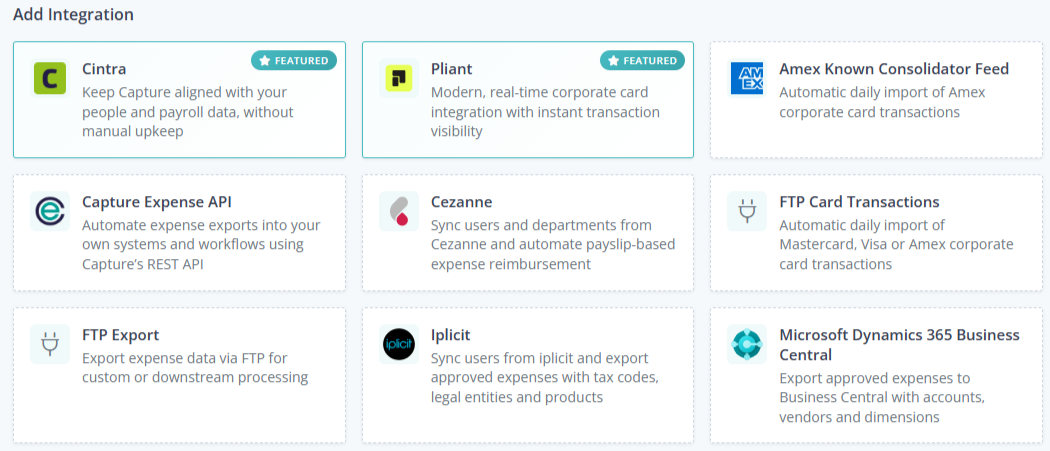
The Iplicit connection details are displayed.
Complete the Domain, Username and API Key fields.
Contact Iplicit if you need assistance with these details.
Once complete, click Save in the right-side action menu.
An additional field will be displayed for Legal Entity, complete with your details.
Click Save.
Setting up tags
Tags must be associated with either expenses or people records before they appear in export reports.
To assign a tag at the expense level:
Go to Setup > Tags,
Edit the relevant tag (e.g. Department),
Enable Allow edit by expense.
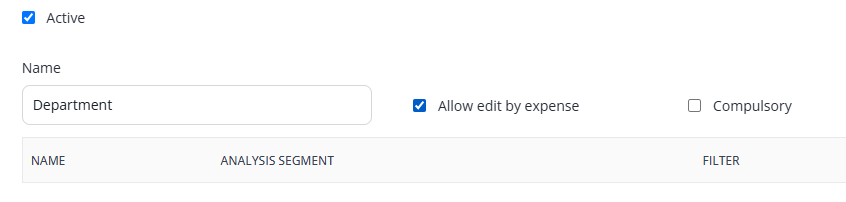
Users will then be able to select that tag when creating an expense.
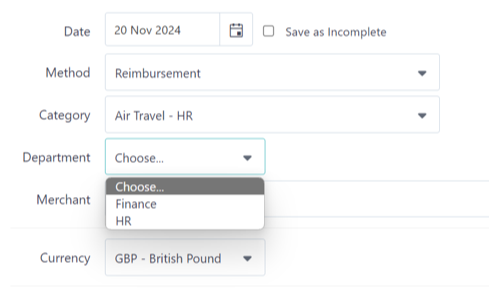
To assign a tag at the people level:
Go to Setup > Tags,
Edit the relevant tag
Leave Allow edit by expense unticked.
Go to Setup > People.
Select a user and click Edit.
Scroll down to the tag field, select a value from the dropdown, and click Save.
To update tags in bulk
Go to Setup > People > Actions > Export,
Update the Tag Codes column (comma-separated),
Save the file,
Import it back into Cintra Expense.
Exporting into iPlicit
Note: You must have a user type of Finance to access this functionality.
In the side menu, select Accounting.
You can filter the claims by date, credit card, amount etc.
Select the claim(s) to be exported.
.png)
If not already auto-populated, from the Export Format dropdown select the Iplicit.
Complete the date and reference, then press Export.
A popup box appears with Cancel or Update.
Updated transaction will be moved from Accounting into Expenses > Archive.
Cancelled transactions will remain in Accounting.
Note: The export may take a few moments as the transaction data, files, and receipts are being collated and sent across.
If an item fails to import into Iplicit, you can update the transaction in question and re-export. Iplicit will check to see if the transaction already exists, create new items if required, or update an existing item.