Recurring expenses are automatically raised on a schedule, removing the need to raise the same expense manually each time. You can configure them to generate as draft (for review before submission) or approved (for immediate processing).
Note: Only Admins can setup recurring expenses
Before you start
Make sure the relevant expense categories and custom tags are already configured in your organisation's settings.
Set up a recurring expense
Go to Setup > Settings and select the Recurring tab.
Select + Recurring Expense (or open an existing recurring expense to edit it).
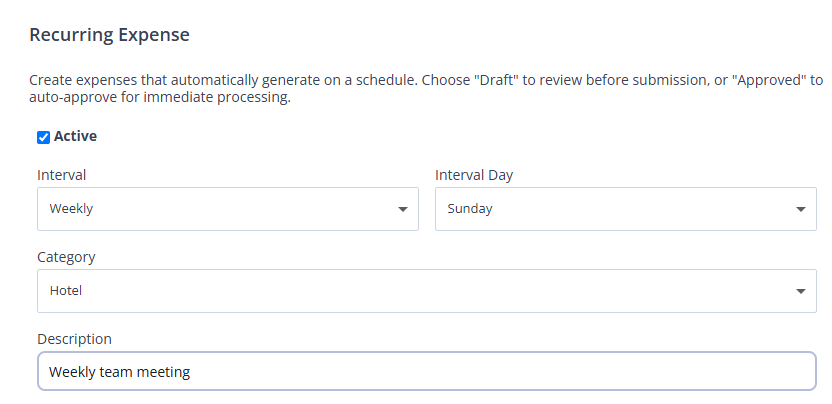
Complete the fields:
Field | Description |
|---|---|
Active | Select this checkbox to enable the recurring expense. Clear it to pause without deleting. |
Interval | How often the expense is raised. Select Weekly or Monthly. |
Interval Day | The day of the week (or date of the month) on which the expense is raised. |
Category | The expense category to assign to the generated expenses. |
Description | A description that will appear on each generated expense. |
Gross | The expense amount. |
Approval status | Select Draft to raise expenses for review before submission, or Approved to auto-approve them for immediate processing. |
Under Tags, select one or more tags to target specific users. If no tags are selected, all users in your organisation will receive the expense.
Select Save.
What happens next
The expense is raised automatically at noon on each scheduled day for every qualifying user. Users with any of the selected tags receive the expense; if no tags are selected, it goes to everyone in the organisation.
Expenses raised as Draft appear in the user's expense list for review before they are submitted. Expenses raised as Approved are processed immediately without requiring any action from the user.