Who can do this:
HR Manager
Administrator
You can add employees to Cintra People HR either one at a time or in bulk. This guide takes you through adding employees one by one.
To find out how to add your employees to Cintra People HR in bulk, take a look at the following article: Bulk adding new employees.
Add a new employee
From the left side menu, select Add Employee. The tabs underneath your blue licence count will guide you through the key steps of adding an employee.
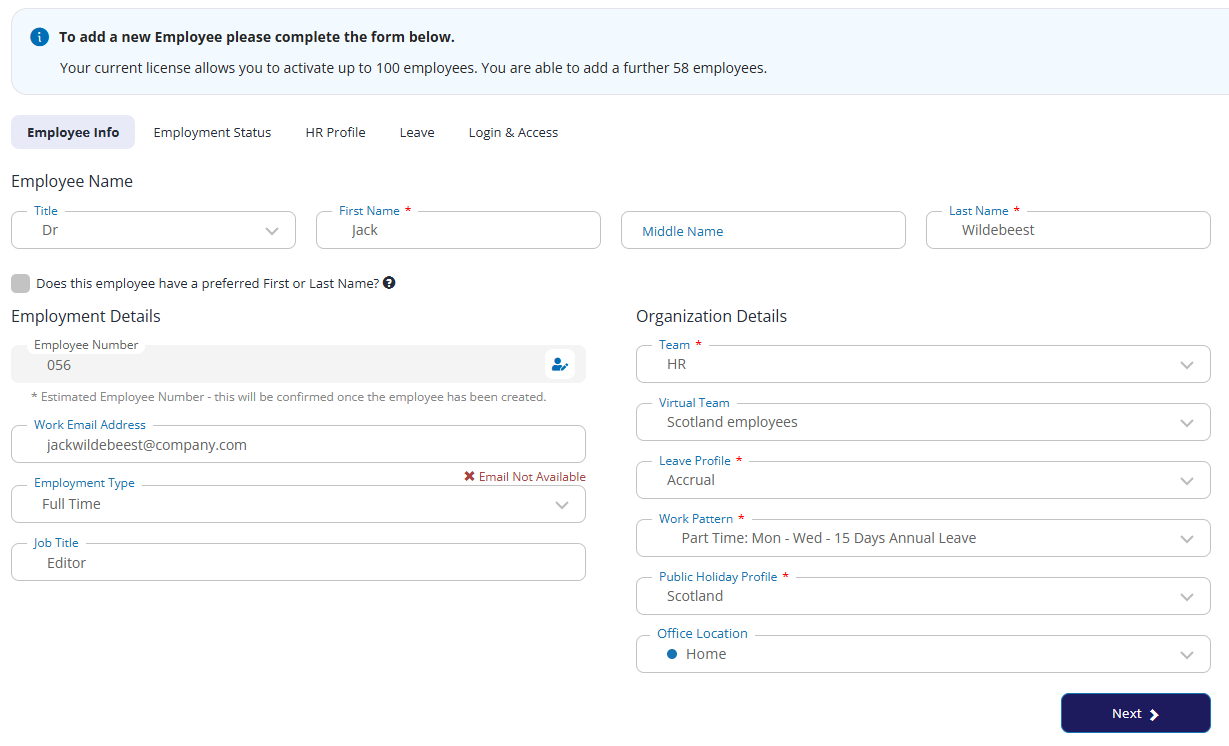
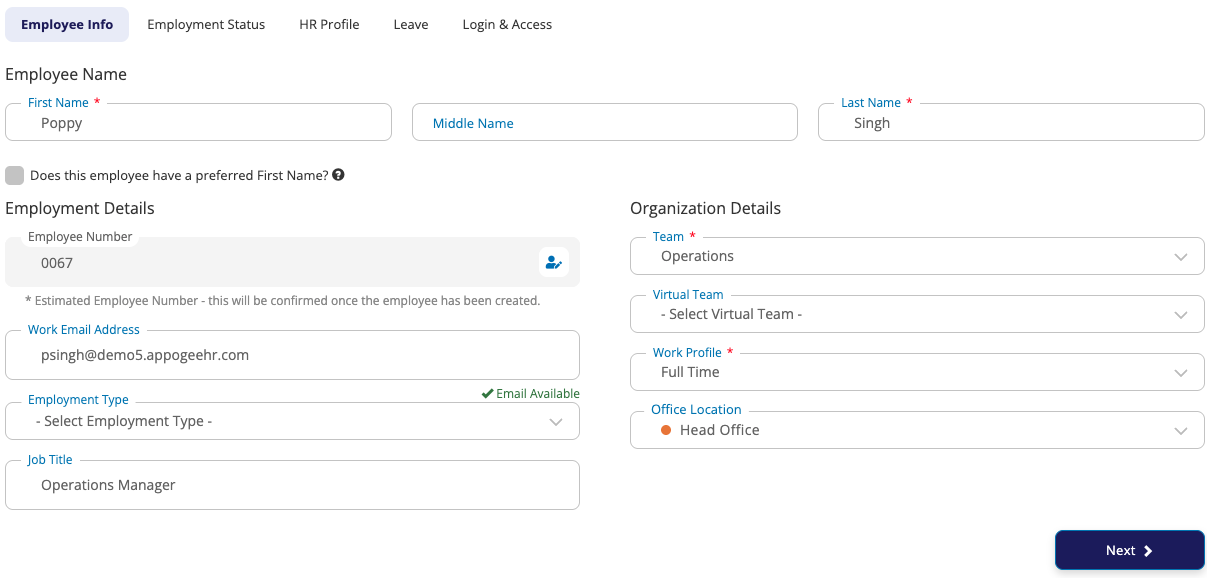
Employee Info
On the Employee Info tab, you can enter the employee’s email address, employment type (Permanent, Temporary, or Casual), job title and office location (which can include home). You must also enter information into the following fields:
Division: If your work in a larger organisation and this feature has been activated, you must select the organisational unit the employee belongs to. See Divisional units.
Team / Virtual Team: The team within the division that the employee is assigned to. See Setting up and editing teams.
Leave Profile: Defines the employee’s holiday and sickness entitlement. See Guide: Leave profiles.
Work Pattern: Defines the employee’s working rota. See Guide: Work patterns.
Public Holiday Profile: The public holiday schedule applied to the employee, typically based on their working location. See managing public holidays.
Office Location
The Employee Number will be auto generated for you, this can be edited if you have the override option switched on.
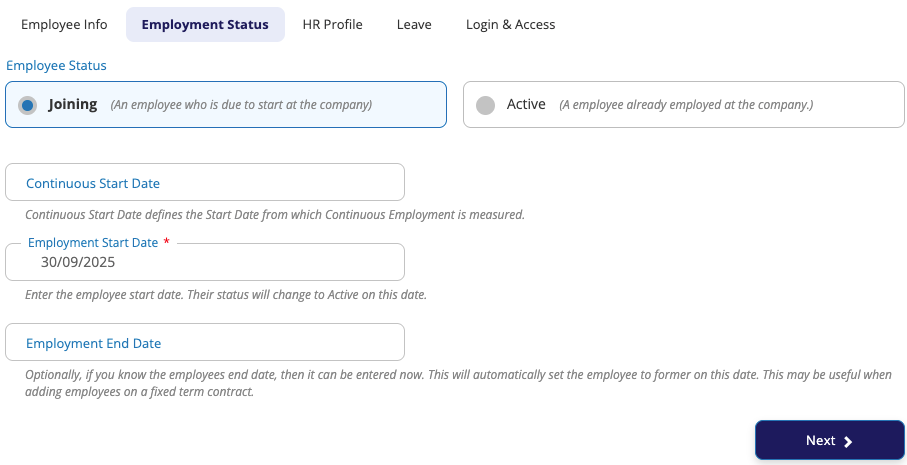
Employment Status
If you set the employee’s status as Joining, you'll need to set the Employment Start Date in the future.
If you set the employee’s status to Active, select a start date as today or in the past.
Warning: You cannot add an employee’s start date more than 42 days before today’s date
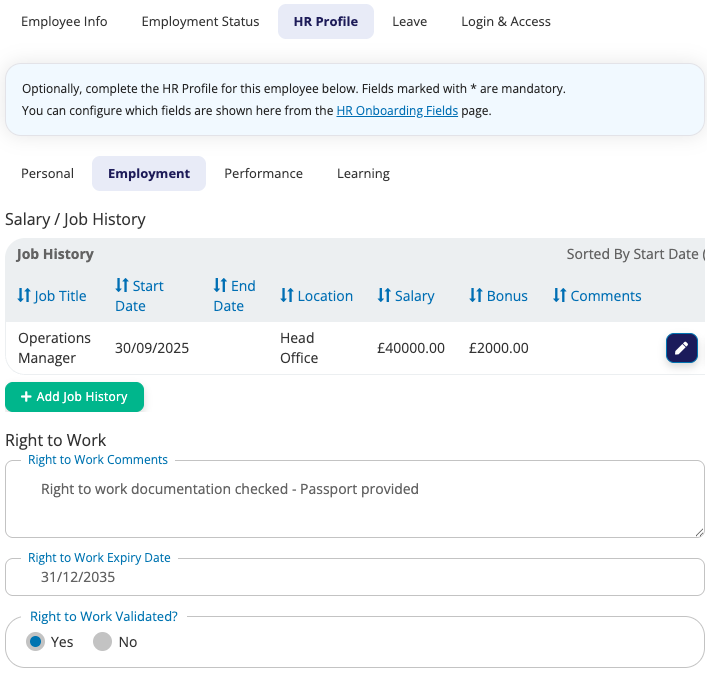
HR Profile (HR Essentials & Advanced Customers only)
If you have HR Essentials or HR Advanced, you can add additional HR-related fields to the Add Employee process. To set this up, please read the information in the section below.
Complete any fields on the HR Profile tab with information you have about the new starter.
Leave
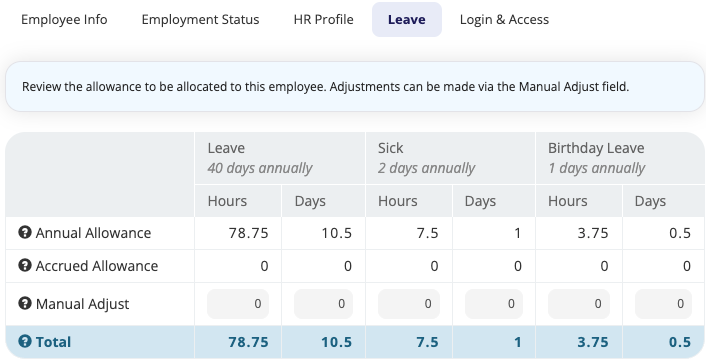
The Leave tab will show you how much Leave, Sick & Custom Allowances have been allocated to the new starter based on your settings & the leave profile they are being added to.
Review the amounts and use the Manual adjust tool if necessary.
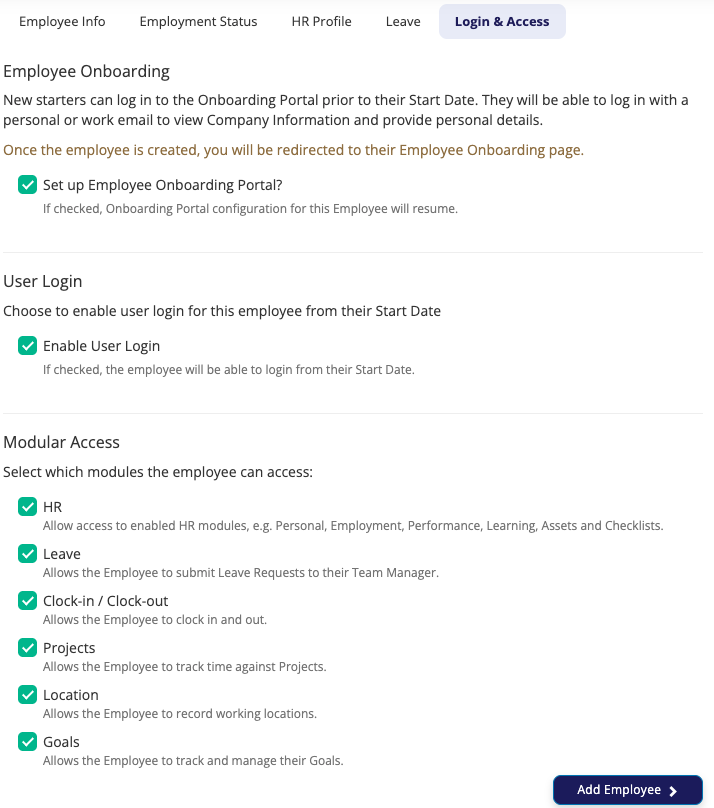
Access
Click which modules you would like the new starter to have access to and enable their login.
For customers with HR Advanced, you can click through to set up the Onboarding portal.
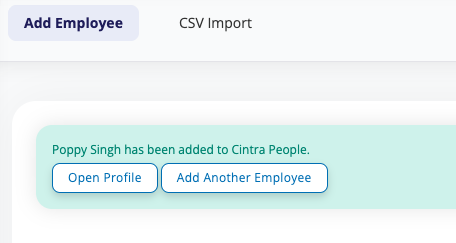
Once complete, you'll see a message to confirm the employee has been added to the system.
Adding users to Expenses
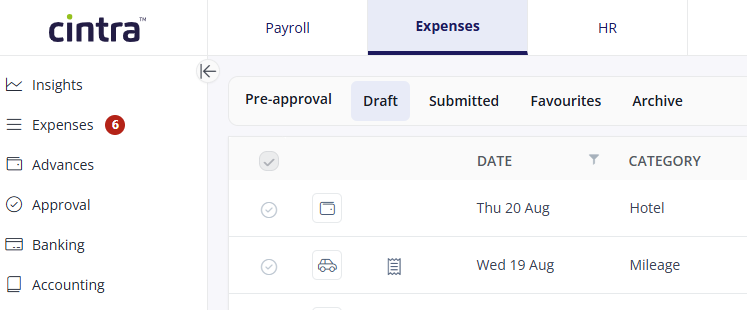
If your organisation uses Expenses, changes made when you add or edit an employee are synced to Expenses automatically every hour. You can also sync manually within the user list by going to the Expenses tab, then Setup > People > Actions > Sync Users.
The following details are sent to Expenses:
First name.
Surname.
Email address.
Postcode.
Line manager (if assigned).
Whoever is assigned as the employee’s approver in HR will also be assigned as the approver of their expenses in Expenses, although this can be edited within the Expenses tab. See Creating and editing Expenses users.