Who can do this:
HR Manager
Administrator
Note: System roles may still be referred to as User roles in your version of Cintra People HR.
Users with the Admin and HR Manager roles are able to assign different system roles (formerly user roles) to employees in order to control who has access to certain sections and features of the application. Roles determine access to data and to functions within the system. All users have the Employee role as standard and Admins/HR Managers can assign additional roles to any active employee.
For more information on system roles and their defaults, see System roles overview.
Administering changes to employees' roles
To change an employee's role, go to Roles & Access, and in the User Roles & Permissions tab, select System Roles.
Here, you can select which users have roles in addition to the standard employee role (which is assigned to every active member).
Team Manager is automatically assigned when a user is made the manager of a team, these boxes are greyed out and you can’t assign the role to users here.
Performance Manager is assigned in the Employee Admin section so these are also greyed out. (Go to Organisation > Employees > edit employee > User, Login & Security > Performance Management to assign the Performance Manager role. See Performance manager role.
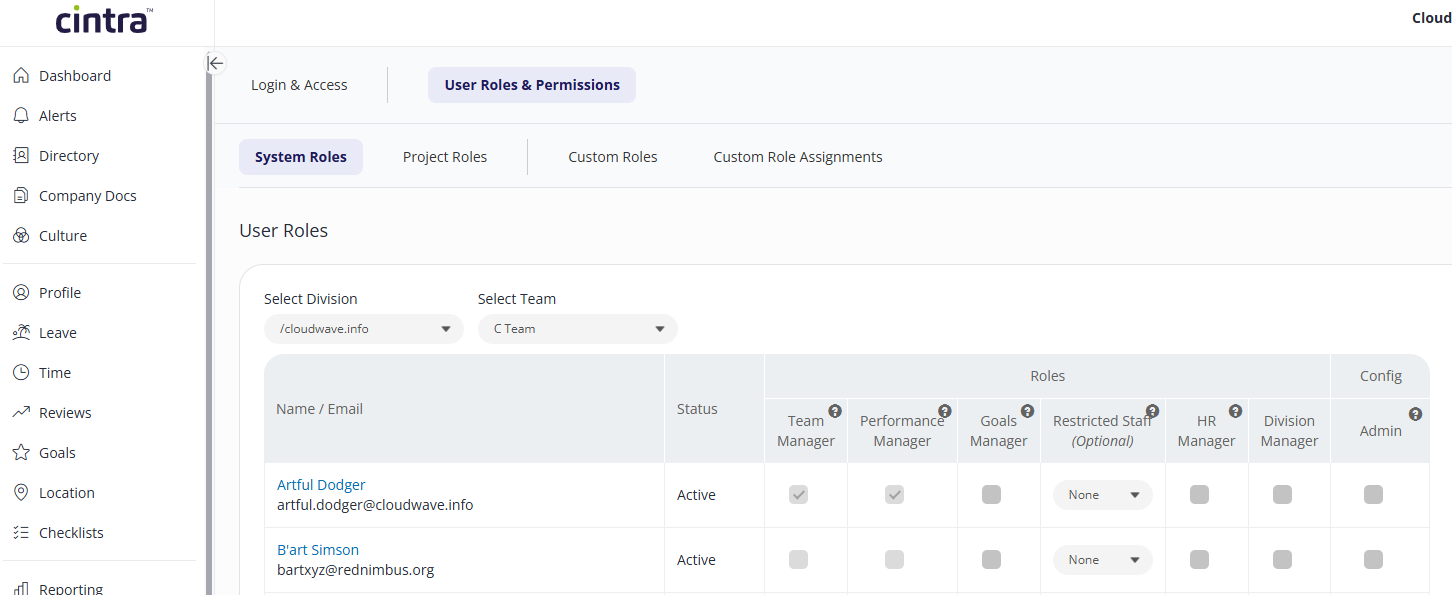
Tick / untick the boxes to assign / unassign roles to users. Click Save Changes when you’re finished.
NOTE: It is strongly recommended you check the Field Security configuration before you administer any role changes to ensure you are happy with the access for each role. For more info, see categories and fields.
To set which areas of Cintra People HR users can access, and to view their 2FA status, see Managing login and access to Cintra People HR.
Additional configurations for restricted staff roles
In addition to assigning employees different roles, it is also possible to configure the Leave and Company Documents access for each of the Restricted Roles.
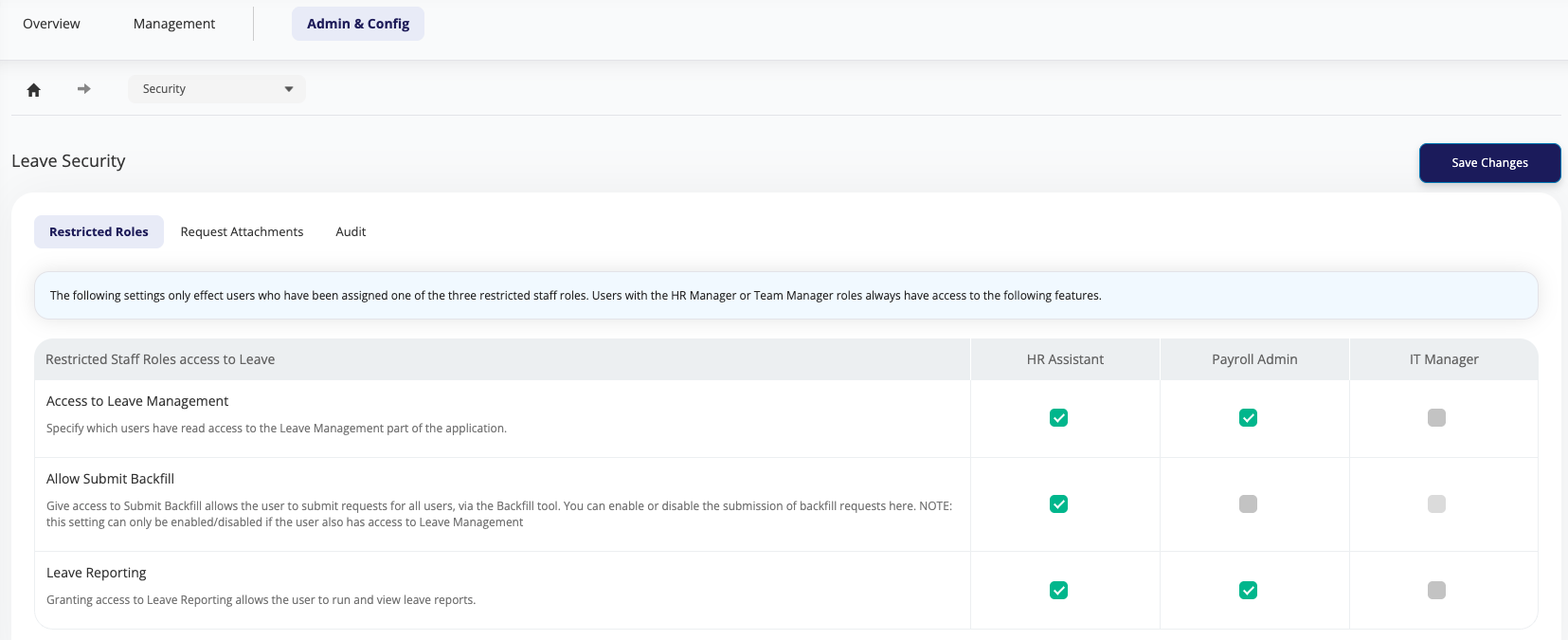
In Leave security, there are three options:
Access to Leave Management - specify which users have access to view other employee's Leave Management sections of the application in addition to their own
Allow Submit Backfill - allow users to submit requests for others using the Backfill tool
Leave Reporting - allow users the ability to run Leave reports
Go to Leave > Admin & Config > Security.
Administer the access by selecting the tick boxes for the roles you want then click Save Changes.
If you have HR Essentials or HR Advanced, you can give access to users to edit, view & create Company Documents.
Go to Company Docs > Config > Document Types.
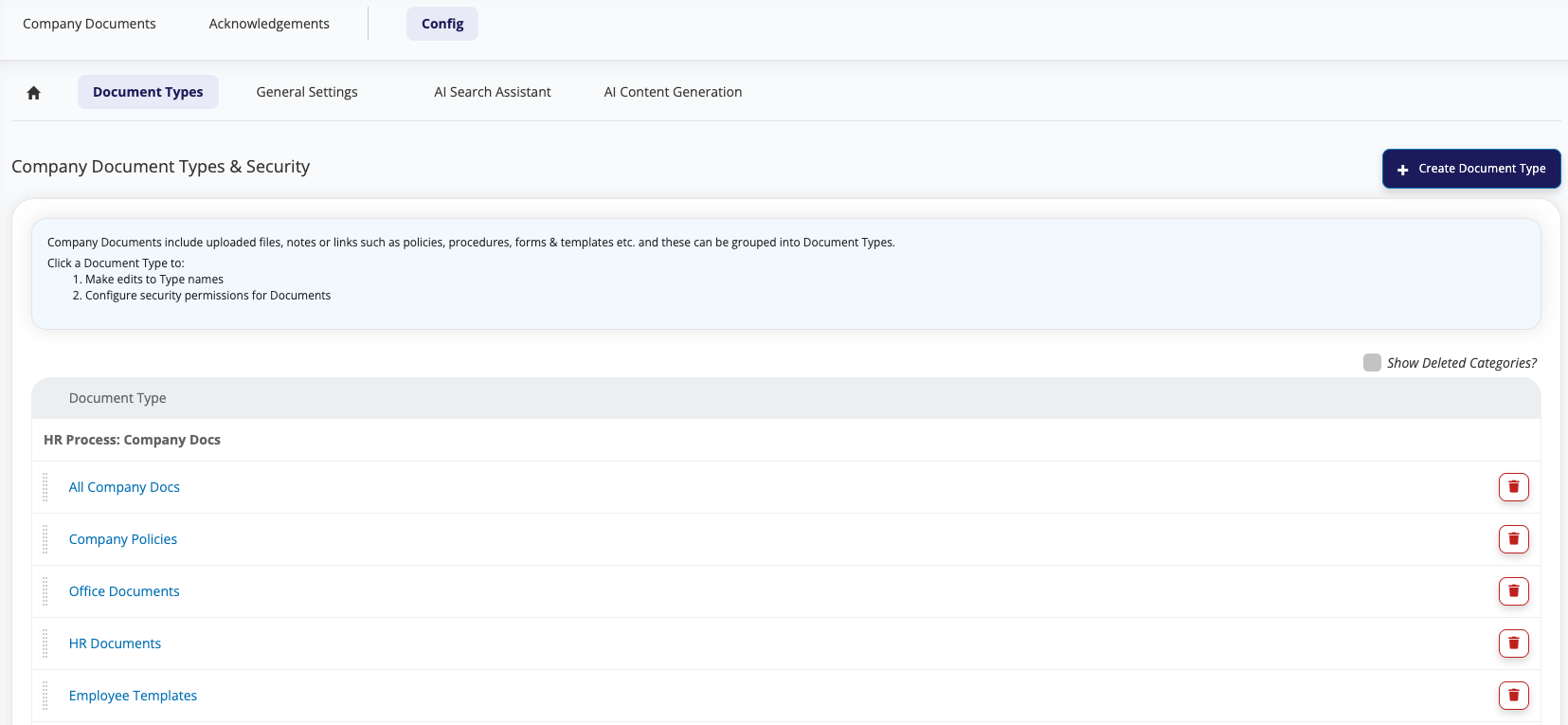
Click on the Document Type you wish to change the access for and then click Document Type Security. You can select which roles are able to create new Company Documents by using the tick boxes and you can change the access rights using the dropdowns.
When you are happy with the access, Click Save Changes.
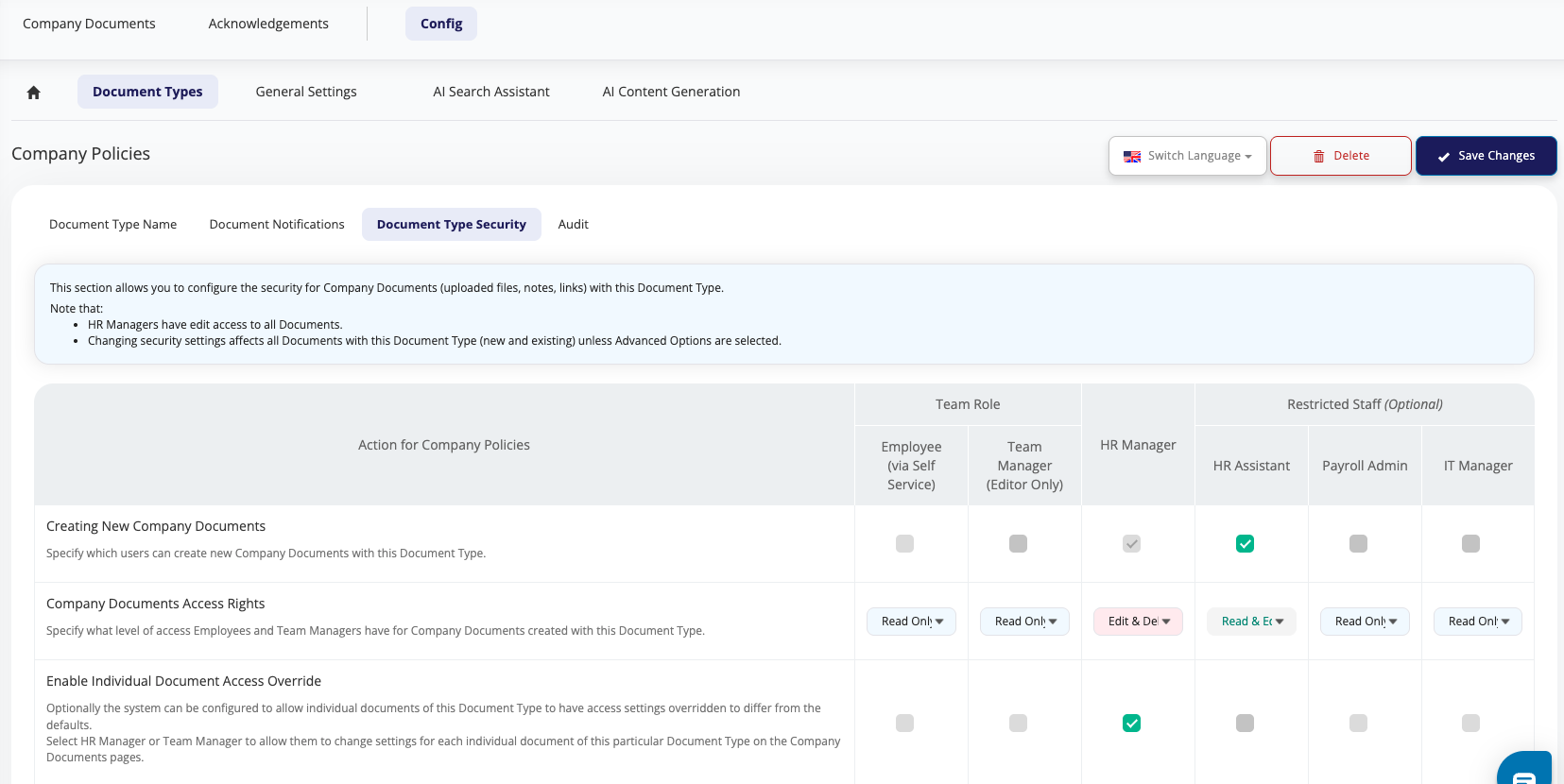
NOTE: The Restricted Staff (optional) roles column will still show in this view even if the roles are not assigned to any employee.