Note: Custom roles are currently being rolled out to Cintra People HR. Therefore, it may not yet be available in your organisation.
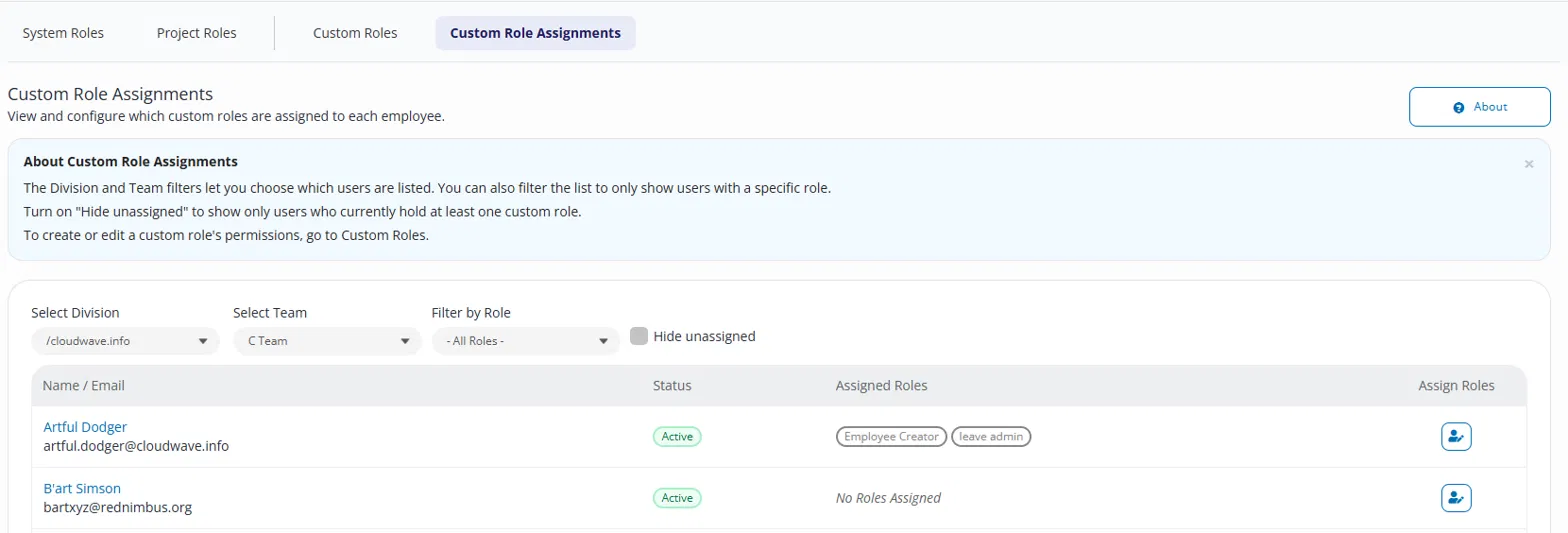
Custom Role Assignments controls which Custom Roles apply to each employee, and whether a role applies across the entire organisation or to specific teams only.
Filtering the list
Use the Division and Team dropdowns to control which employees are listed.
Filter by Role narrows the list to employees holding a specific custom role.
Turn on Hide unassigned to show only employees who currently hold at least one custom role.
Assigning roles to an employee
Go to Roles & Access > User Roles & Permissions > Custom Role Assignments.
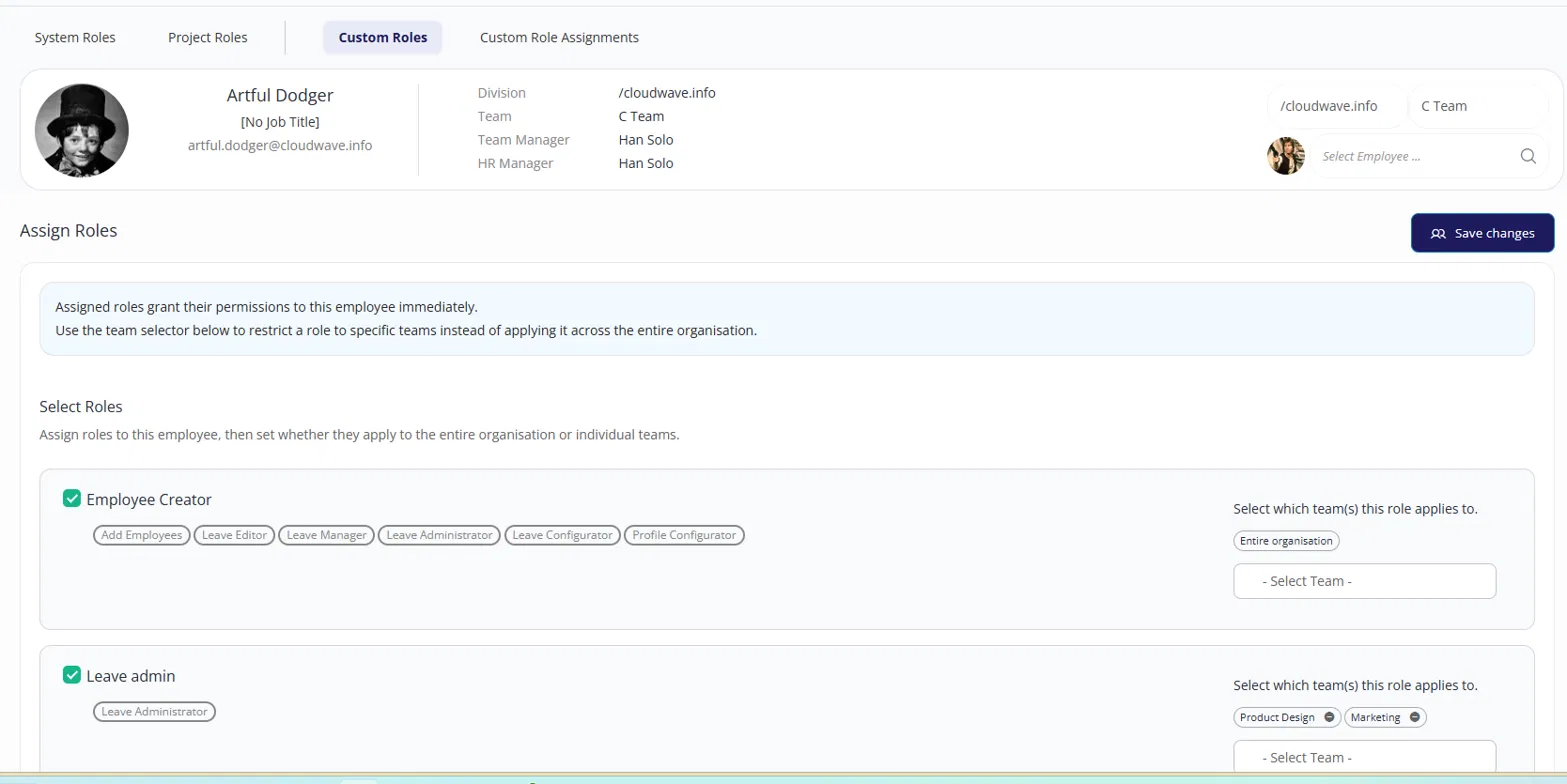
Select the Assign Roles icon beside an employee's name to open their individual assignment screen.
Tick the roles to assign to this employee. Assigned roles take effect once saved.
For each assigned role, choose whether it applies to Entire organisation or one or more individual Teams.
Select Save Changes to commit every change made on this screen.
Tip: you can search for a different employee directly from this screen using the employee search box in the top right, rather than returning to the main list first.
Changing a role's permissions
This page only controls who holds a role, not what the role grants. To change a role's permissions, go to Custom Roles.