Available in:
HR Advanced
Access and Dashboard
If you are using the standalone version of Cintra People HR, you can access Cintra People HR from app.appogeehr.com. There are three ways to log in - Email address and Password, Google Workspace (G Suite) Log in or Office 365 Log in. Your details will be in your welcome email, or alternatively contact your administrator.
If you are using the integrated Cintra People HR+Payroll, you can access the system from cintra.cloud.
Once you're logged in, you'll be presented with the Dashboard, this shows your Leave Summary and a calendar of who's off.
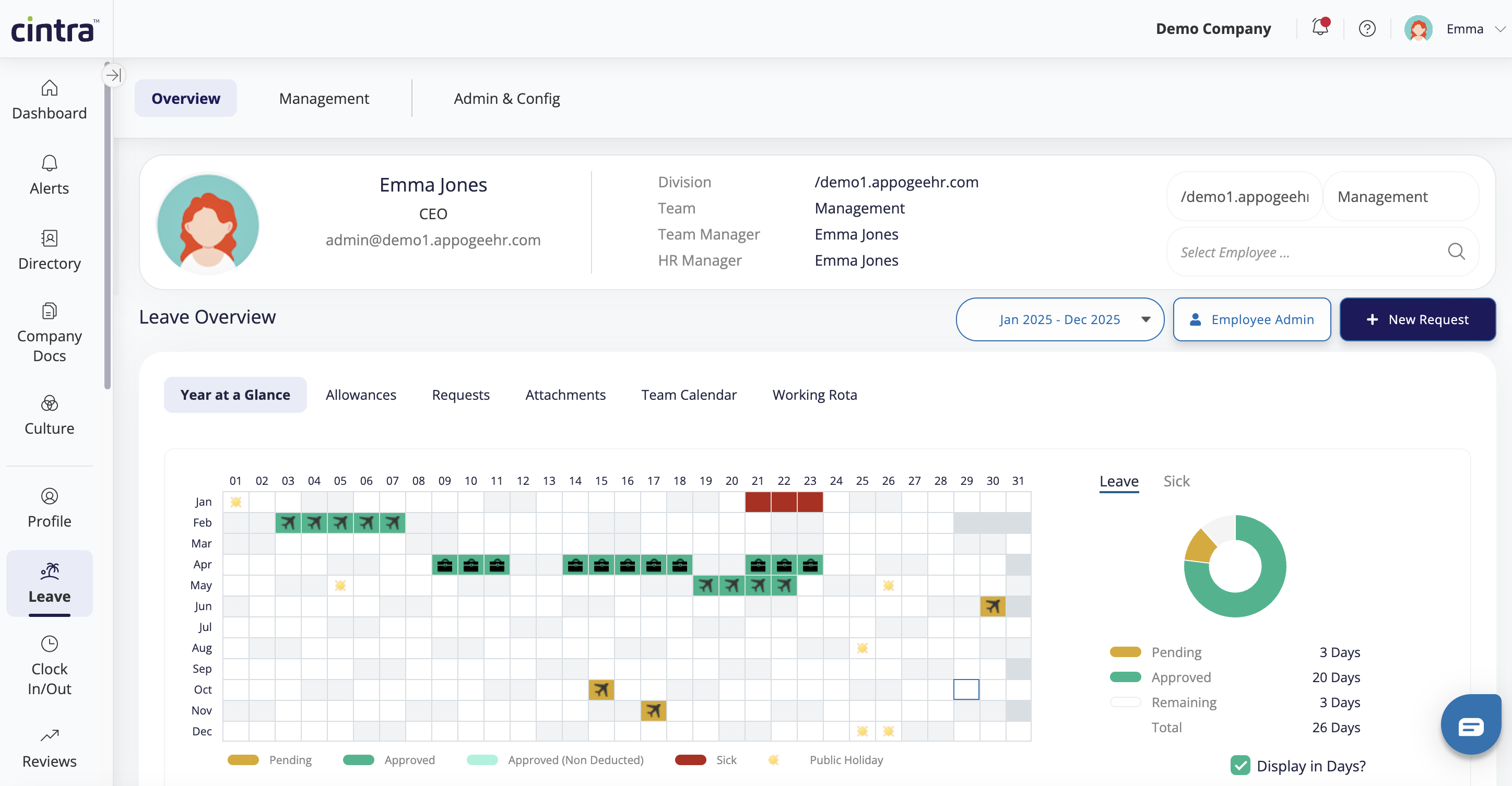
Your Leave will be shown in the Year at a Glance feature on the Dashboard.
Approved Leave shows in Green
Pending Leave shows in Orange
Sickness shows in Red.
There's an Allowance donut widget on the right and a calendar, which shows you how much of your allowance is used up. The Dashboard will also notify you if you need to be marked back to work after sickness and who is off in your team and view what days have been off or sick through the calendar.
Company Docs
This section shows Company Documents that are visible to you.
You may be asked to read and or acknowledge a document.
.png)
Leave
If you go to your Leave Overview, you'll see the Year at a Glance calendar again as well as other options - Requests, Allowances, Attachments and Team Calendar.
Clock In/Out
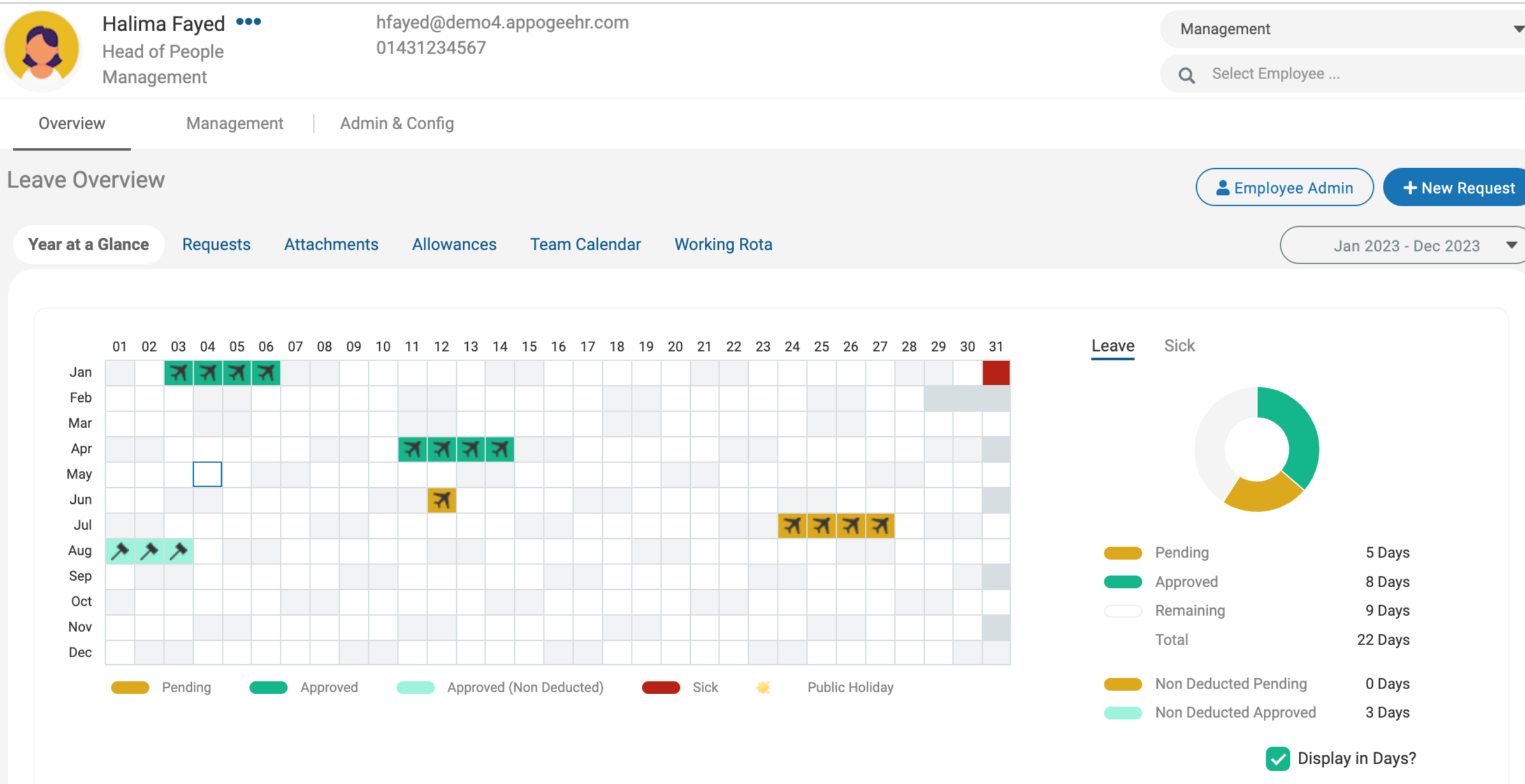
The Clock In / Out section allows you to clock in at the beginning of the day, take breaks & clock out. This will automatically create a timesheet of your working hours. This can be useful for Payroll and monitoring productivity and help track timings throughout a certain period of time and help with managing of absence or lateness.
Location
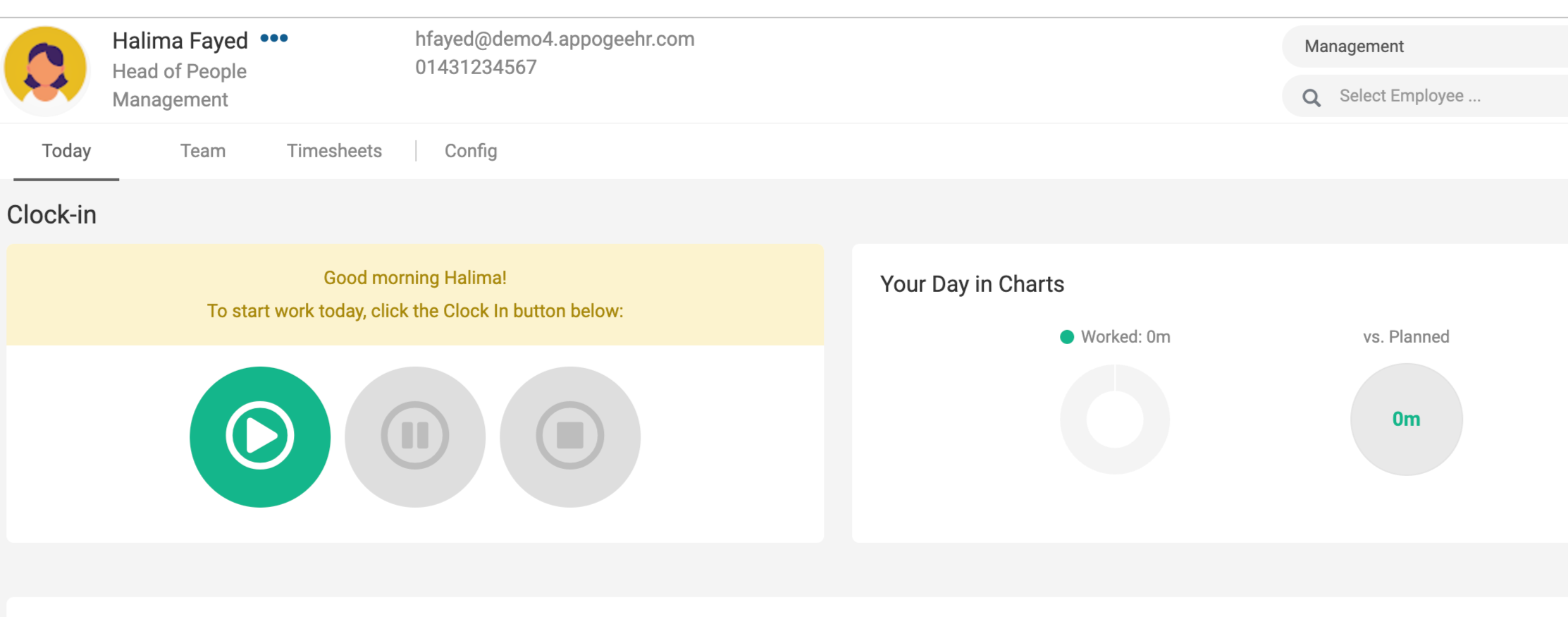
The Location feature allows you to mark where you plan on working. You can also see a calendar view of where your colleagues are working on any given day. The Location Planner can be used to monitor and configure attendance amounts for different working locations.
Profile
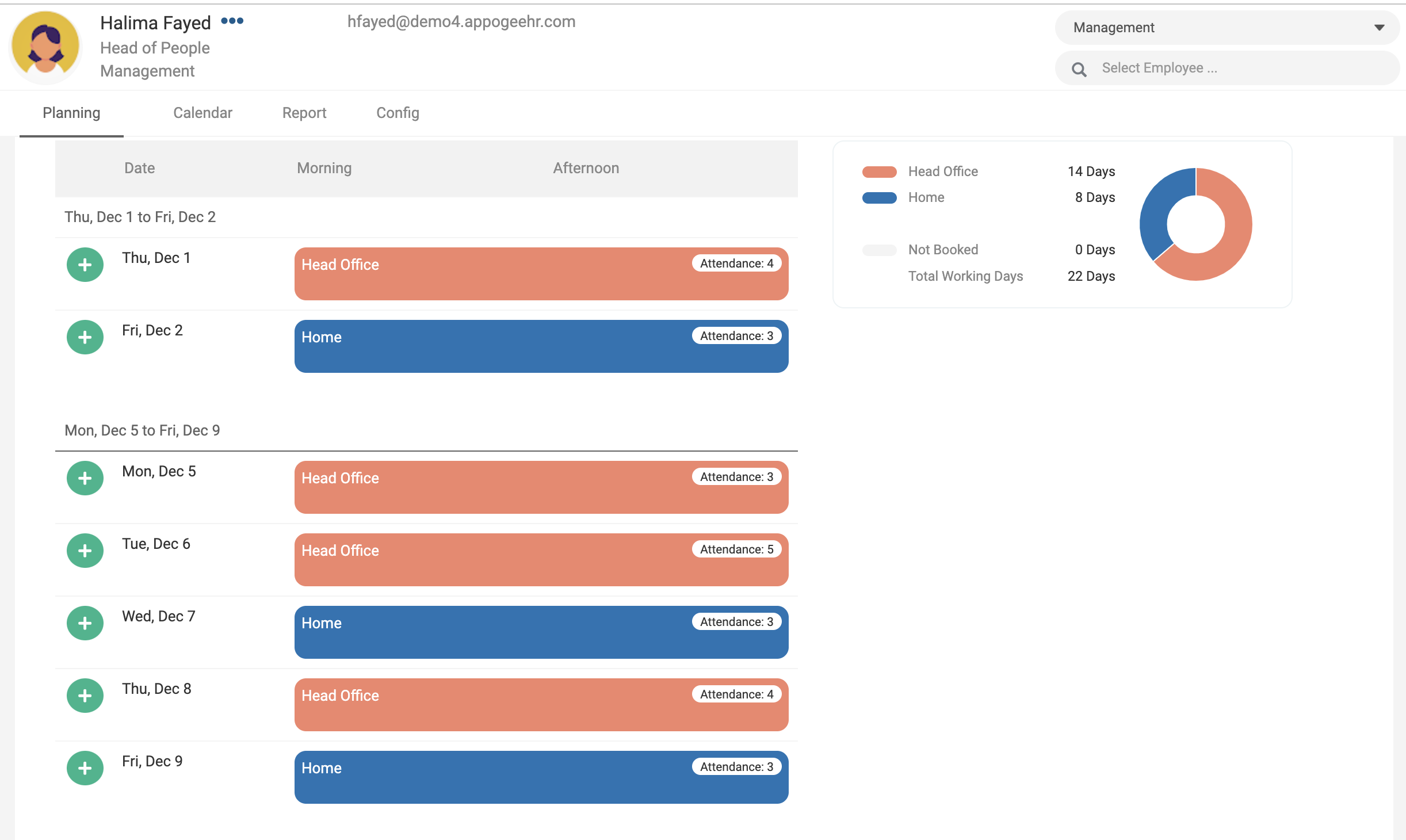
Along the top of most pages is your ribbon - this shows your photo, manager & team.
You can click on your profile picture to upload a new one.
If you click on Profile, you will be taken to the first section of your HR Profile. This is split into Personal, Employment, Performance, Learning & Assets.
Any of the fields that are white can be edited by you, and any fields that are grey have been configured to be read-only, these permissions are set up by your admin.
Some fields might be shown as a set of asterisks. Their contents can be viewed by clicking on the icon next to the field.
These are often used for sensitive information such as bank and salary information.
Where you enter the information yourself, remember to save your changes.
To the right, you will see a section called Records. You may be configured to upload your own to be stored on your profile. If you click the blue Records button, this will give you a different view and the opportunity to do a quick upload of records.
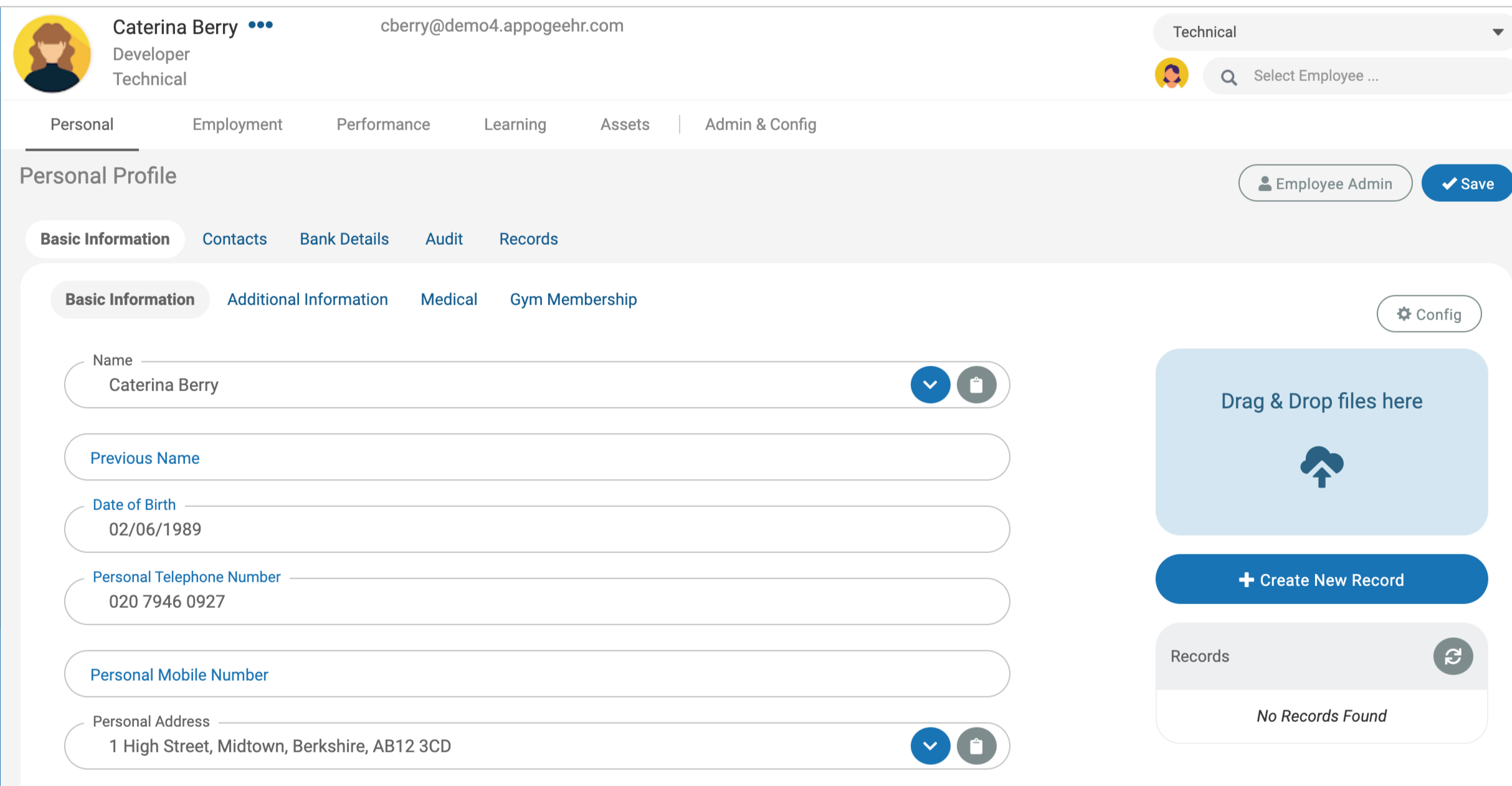
You can use the drag-and-drop feature to upload multiple files to the profiles if you want to attach further documentation relevant to the employee such as a right-to-work document or passport copy provided they are up to 5MB. For larger files, you can create and use the file upload dialogue to attach the required documentation to the employee profile
Checklists
You may be assigned a Checklist to complete. This will be accessible from your Notifications or by going to Checklists.
Work through the items on your Checklist by ticking them off, you can optionally add comments.
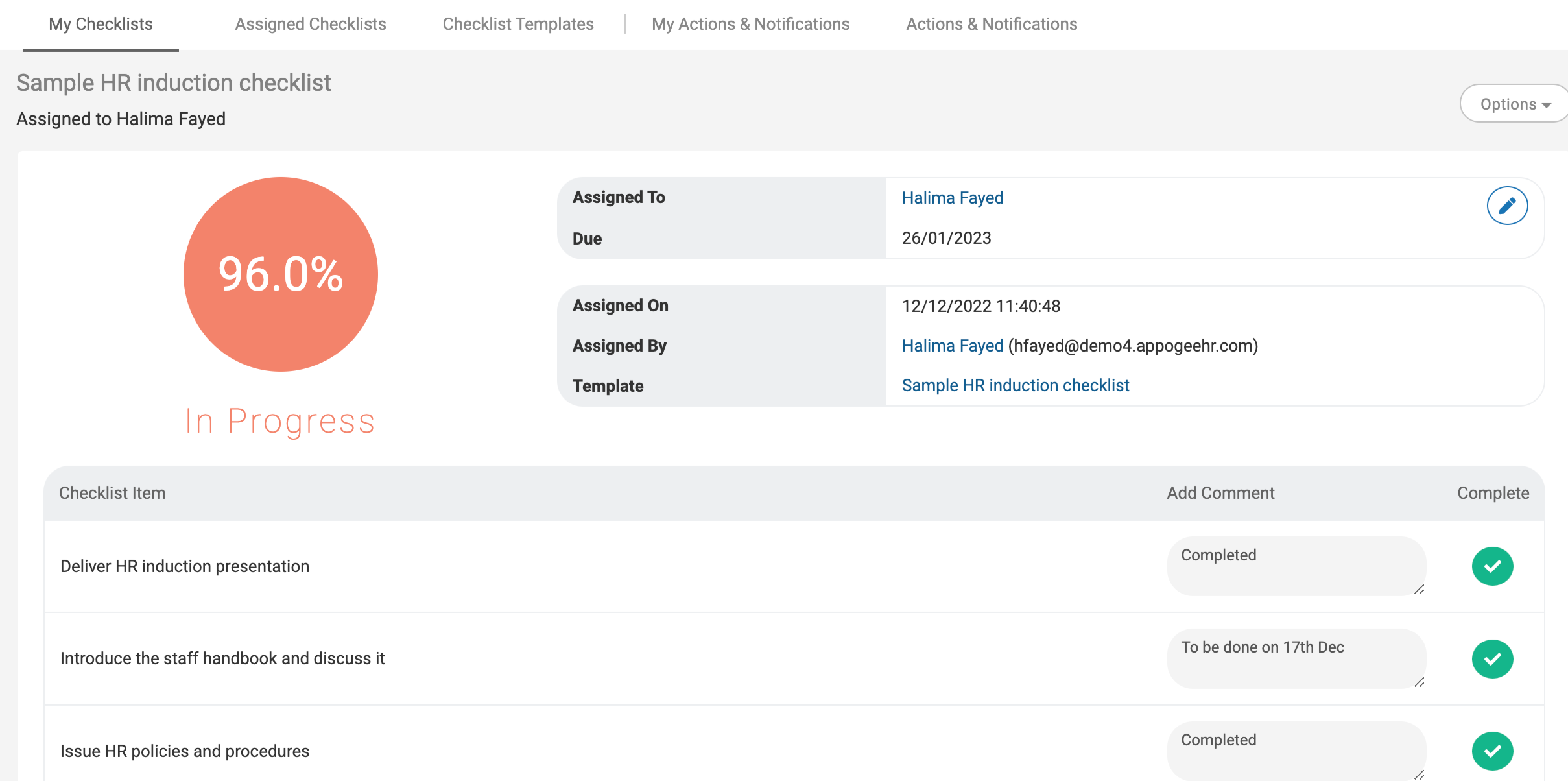
Checklists can be used to help with gathering information relevant to the employee and can be used as a useful tool for helping to monitor certain tasks that have been done or information provided if needed by the organisation.
Reviews
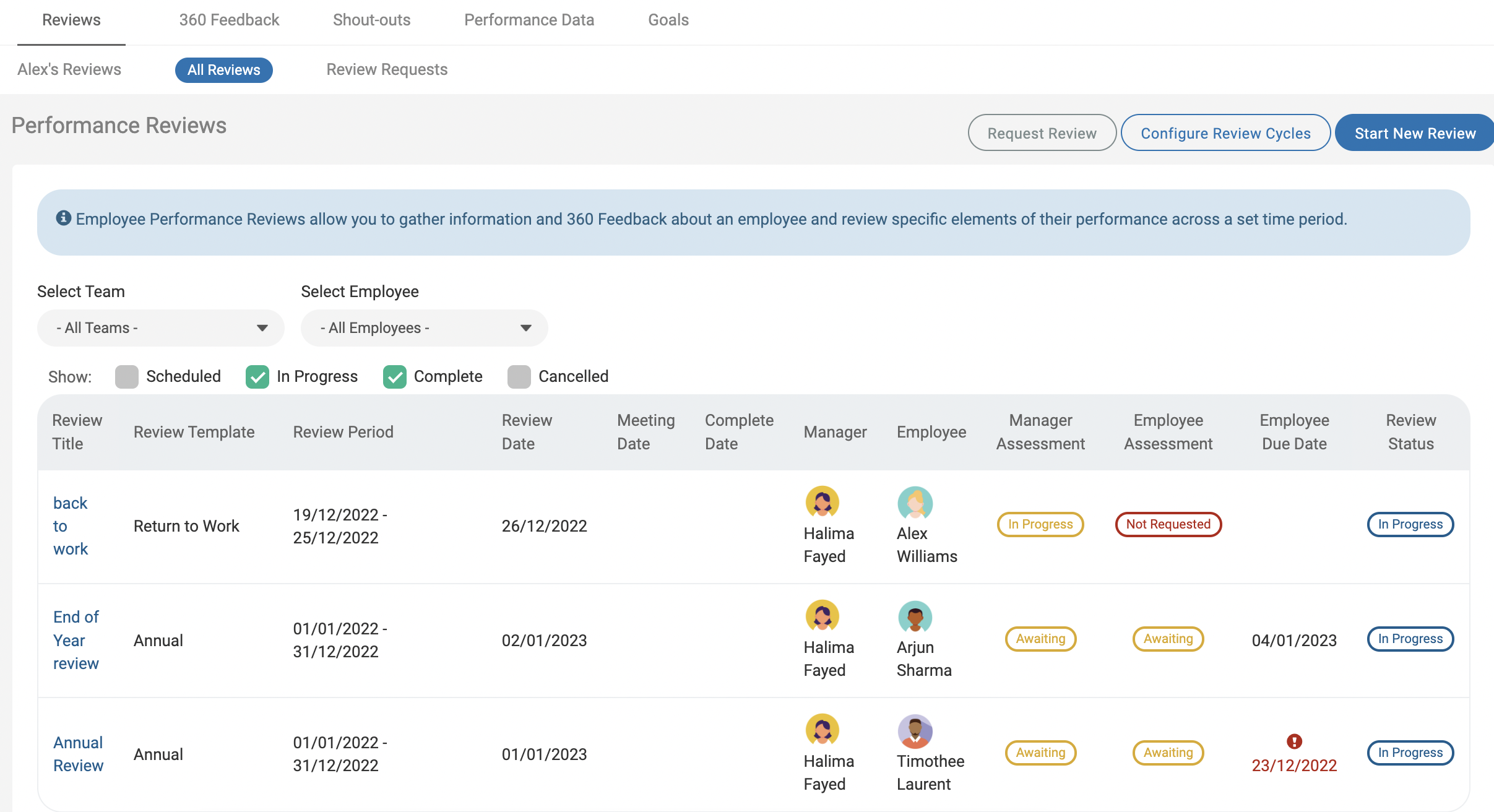
This is where you will find your Performance Reviews. You may have a Review to submit self-assessment topics for. Add your answer to each of the topics and click to submit to your manager.
Another feature of this is 360 feedback which allows comments from co-workers and used to gather feedback for that particular employee, so if you have a request to complete, fill out the peer assessment topics and click submit.
Goals
Goals is where you can set and update your objectives. Make a change to your Key results to update the overall progress of your goals. You can also view other goals across the company in the alignment view. There are three types of Goals company , team and personal. You can set goals yourself or from you manager depending on permission given.
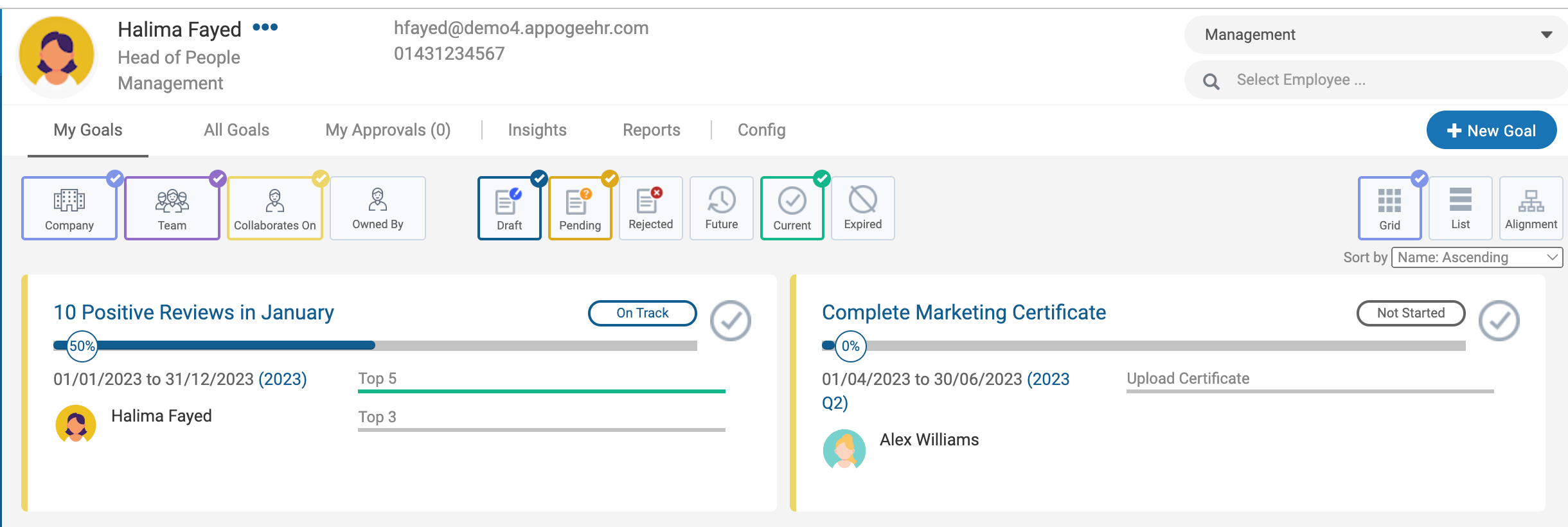
Goals can be linked to each other using the alignment feature and can be used as tool to measure productivity.