If you need to import employee absence data into Cintra People (HR), you will first need to export it from Cintra iQ. To do this:
In Cintra iQ, in the folder section on the left, select People > Employment Records.
A list of employment records will be displayed in the navigator in the centre of the screen.
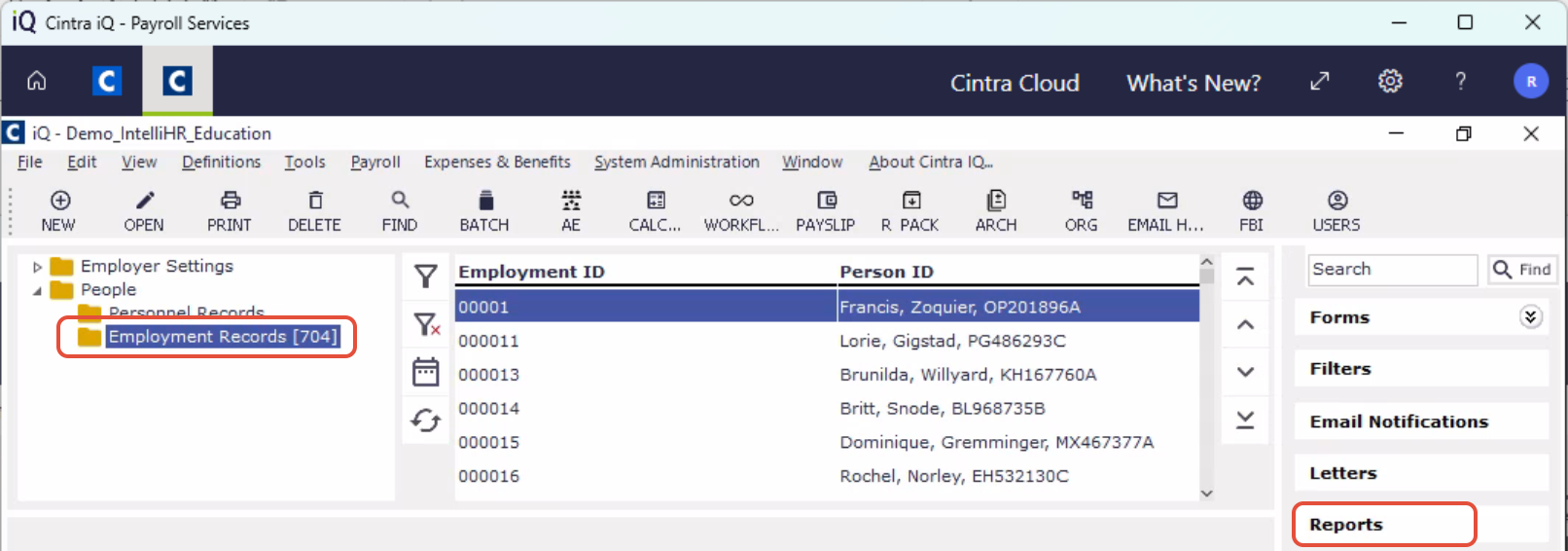
On the right of the screen click Reports.
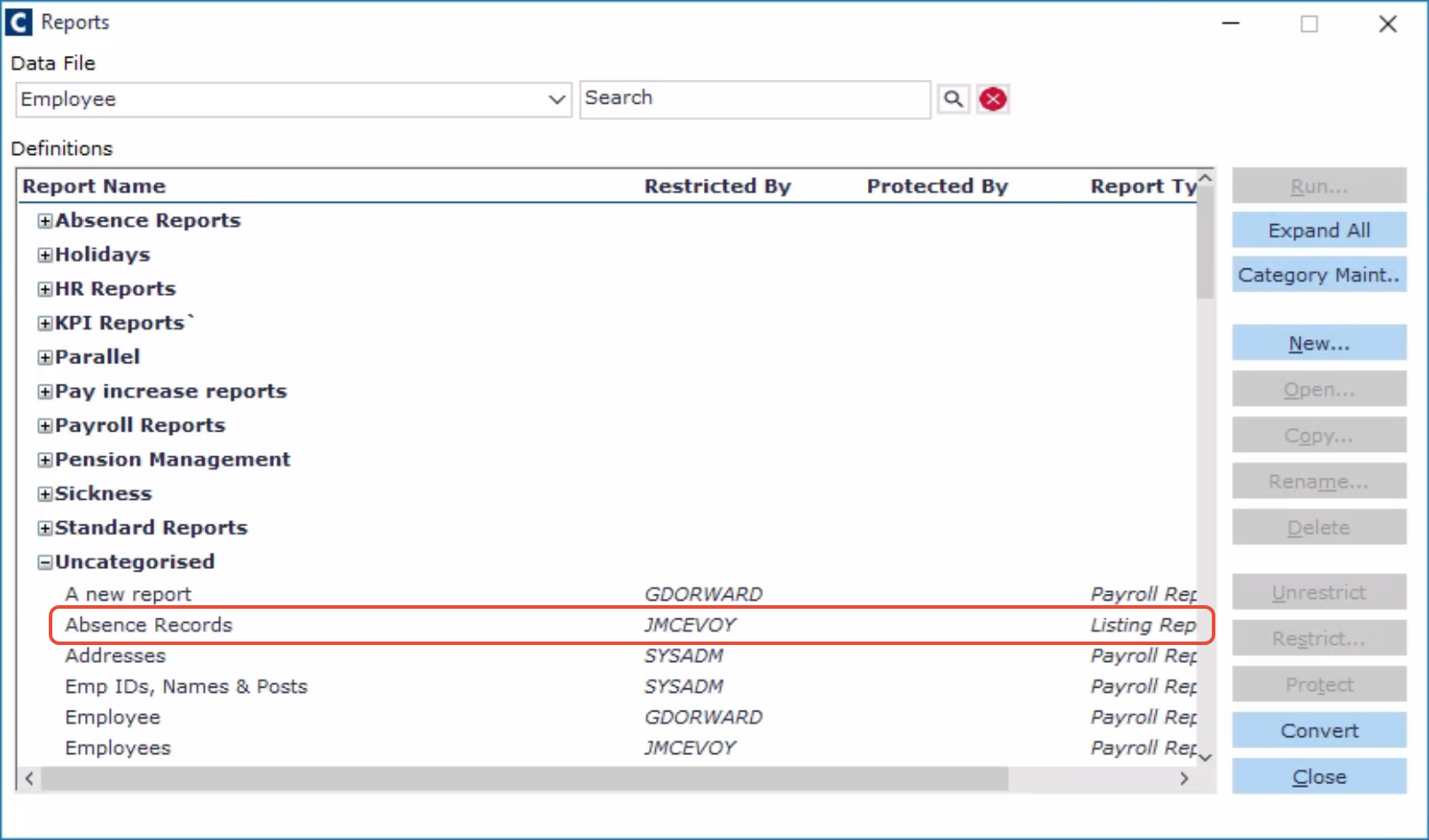
In the Reports screen, click New, select Listing Report, then click OK.
Within the Listing Definition screen, assign a suitable title.
Every field is located in a tree structure. You can expand the structure by clicking any parent item. To add each field, either double-click it, or select its name and click Add.
If you can't find a specific field, enter its name into the Search field and press Enter.
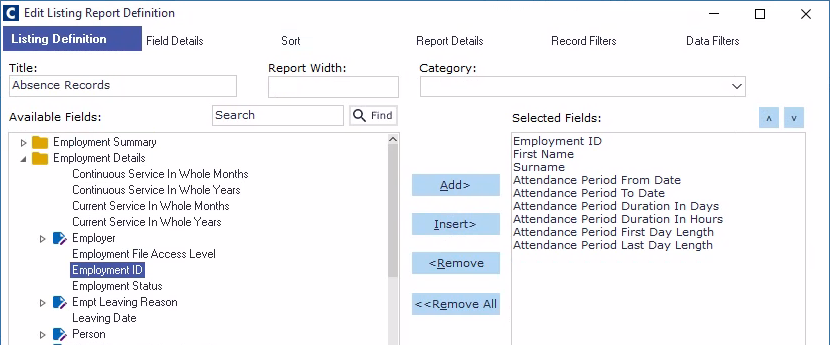
You should add the following fields to the report:
Employment ID (located in the Employment Details folder)
First Name (Employment Details -> Person)
Surname (Employment Details -> Person)
Attendance Period From Date (Calendar -> Attendance Period)
Attendance Period To Date (Calendar -> Attendance Period)
Attendance Period Duration in Day (Calendar -> Attendance Period)
Attendance Period Duration in Hours (Calendar -> Attendance Period)
Attendance Period First Day Length (Calendar -> Attendance Period)
Attendance Period Last Day Length (Calendar -> Attendance Period)
Attendance Category (Calendar -> Attendance Period -> Attendance Period Category)
Click OK.
Your new report will now in the list of reports. Select it, then click Run.
You must specify which records to add to the report by selecting All records, entering a specific date, or entering a date range, then OK.
After a few seconds, your report will be displayed in Cintra iQ.
Click download/save to save the .csv report to your PC.
You can then import it into Cintra People or view / filter it in a spreadsheet application.