Within the Post History window, you can assign a post to an employee and manually assign spine points via the Spine Point History tab to pay employees.
Note: If you have chosen not to use posts, but you do pay employees by grade and/or pay spine, then the Grade form will be available to you and configured to allow the input of grade history and/or spine point history for an employee.
The Insert Employee in Post At Spine Point form ties the Grade and Spine Point to the Post.
How do I assign spine points to employee posts?
Select an employee in the Navigator, then go to Forms > Post History
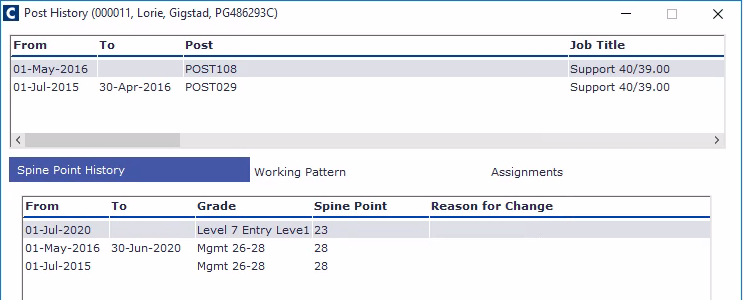
Highlight the open Post History record.
In the Spine Point History, right-click and select New.
If the employee has an existing record, you need to close it before you can create a new one. Or you can edit an existing record with the affected date.
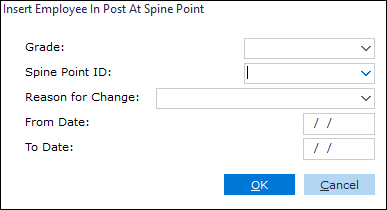
Right-click: New. The Insert Employee in Post At Spine Point form appears.
Select the Grade & Spine Point ID.
Enter the From Date.
Click the OK button. The record appears in the Spine Point History tab.