Within Cintra iQ, you can check the details of an employee's payslip for any current or historic period.
Accessing a payslip
Within the Folders section on the left, select Employment Records.
In the Navigator in the centre, select an employee record.
In the list of Forms on the right, select Payslip. The employee's payslip summary appears.
Selecting a different employee from the Navigator will automatically display the selected employee's payslip.
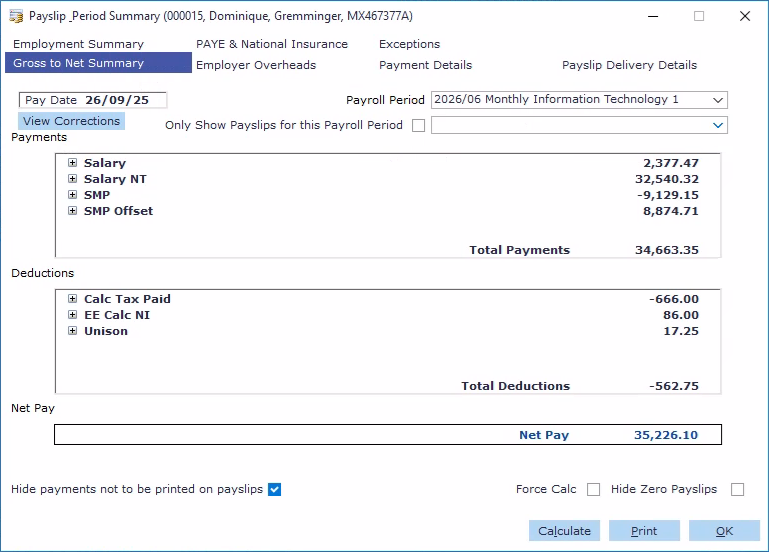
Summary Screen
View corrections
You can view all the corrections made against any individual’s payslip by clicking the View Corrections button.
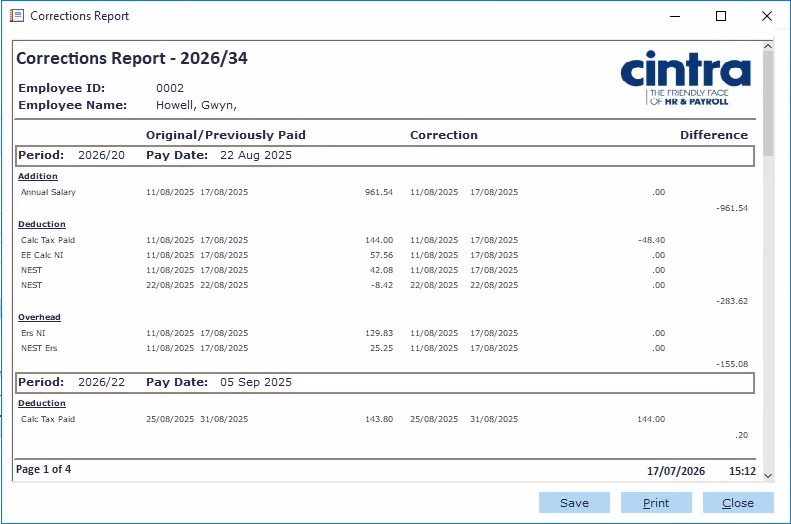
The Corrections Report shows every correction affecting a specific employee's pay, broken down by pay period.
For each period, the report groups corrections under Addition, Deduction, and Overhead, matching the sections you'd see on the payslip itself. Within each group, every affected item is listed with:
Original/Previously Paid: the dates and amount originally recorded for that period.
Correction:the dates and amount now applied, following the fix.
Difference: the change between the two, which is the figure that appears as a correction on the current payslip.
Each period section also shows a running total for that group underneath the individual lines, so you can see the overall effect on additions, deductions, and overheads separately, as well as line-by-line.
Calculating / Force calculating the payslip
You can also (re)calculate the employee's pay from this screen. For more information on calculating payroll, see How do I perform a payroll calculation?
Payslip & Period Summary window tabs
Tab | Description |
|---|---|
Gross to Net Summary tab | Within the Gross to Net tab, you can select the Payroll Period you want to view by using the Payroll Period drop down selection. You can view all payment details of all deductions made on net pay. You can view the Payment or Deduction calculations in greater detail in the Gross to Net Summary tab by double-clicking in either pane, or clicking the + beside a payment or deduction. |
Employment Summary tab | Within the Employment Summary tab, you can view the employee's administrative details such as Employee number, Status etc for the selected Payroll Period. |
Employer Overheads tab | Within the Employer Overheads tab, you can view the Employer's contributions and overhead costs for the selected Payroll Period. This includes the employees' national insurance and any employee's pension contributions. |
PAYE & National Insurance tab
| Within the PAYE & National Insurance tab, you can view the PAYE Tax information and National Insurance earnings and contributions for the selected period. |
Payment Details tab
| Within the Payments Details tab, you can view the BACS Payments and any other payment details of the employee's Net Pay for the selected period.
|
Statutory Benefits tab
| Within the Statutory Benefits tab, you can view the details of any SAP, SMP, SPP, SBP, SHPP, and/or SSP payments made to the employee. |
Exceptions tab
| Within the Exceptions tab, you can view any exceptions that occurred when the payroll was calculated for the selected period. |
Payslip Delivery Details tab
| Within the Payslip Delivery Details tab, you can view the employee's current address, pay point details and where the payslip is to be delivered for the selected period. |