Before Occupational Sick Pay (OSP) records can be created for an employee, the employee must first be assigned to a Company Sick Pay Scheme. This is usually done when an employee starts employment. This module covers how to assign employees to Occupational Sick Pay Scheme Membership.
If you wish to create an hourly sick pay scheme, you must first set up the appropriate addition headings. See Adjustment headings for more information.
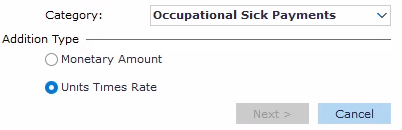
To create a new OSP
Navigate to the Occupational Sickness Schemes window.
Go to Cintra iQ: Payroll > Payroll Setup > Benefit Schemes > Occupational Sick Pay.Click the New button.
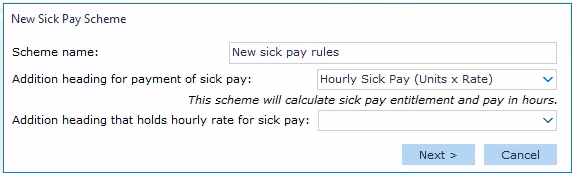
Enter a unique name for your scheme.
Select the Addition Heading for the payment. You can use different headings for different schemes.
If you select a heading marked (Units x Rate) creates an hourly scheme:
A message confirms that this scheme will calculate sick pay entitlement and pay in hours
An Addition heading that holds hourly rate for sick pay field appears. Select the heading that holds the rate to use for the calculation. This can be the employee's basic rate, or another rate such as one that includes an allowance like London weighting.
Selecting any other heading creates a standard scheme, based on the employee's pro-rated salary.
Click the Next button. The Occupational Sickness Scheme window appears.
Enter the scheme's details.
Note: If you intend to take on any history for sickness records you must ensure that the date the scheme started is before your oldest record. The scheme will not be effective until this date starts.
Enter the scheme's Entitlement.
Enter the scheme's Full Pay elements.
Assign employees to the Scheme Membership .
Click the OK button.
For more help on the OSP screen details, see What are occupational sick pay (OSP) schemes?
See also: