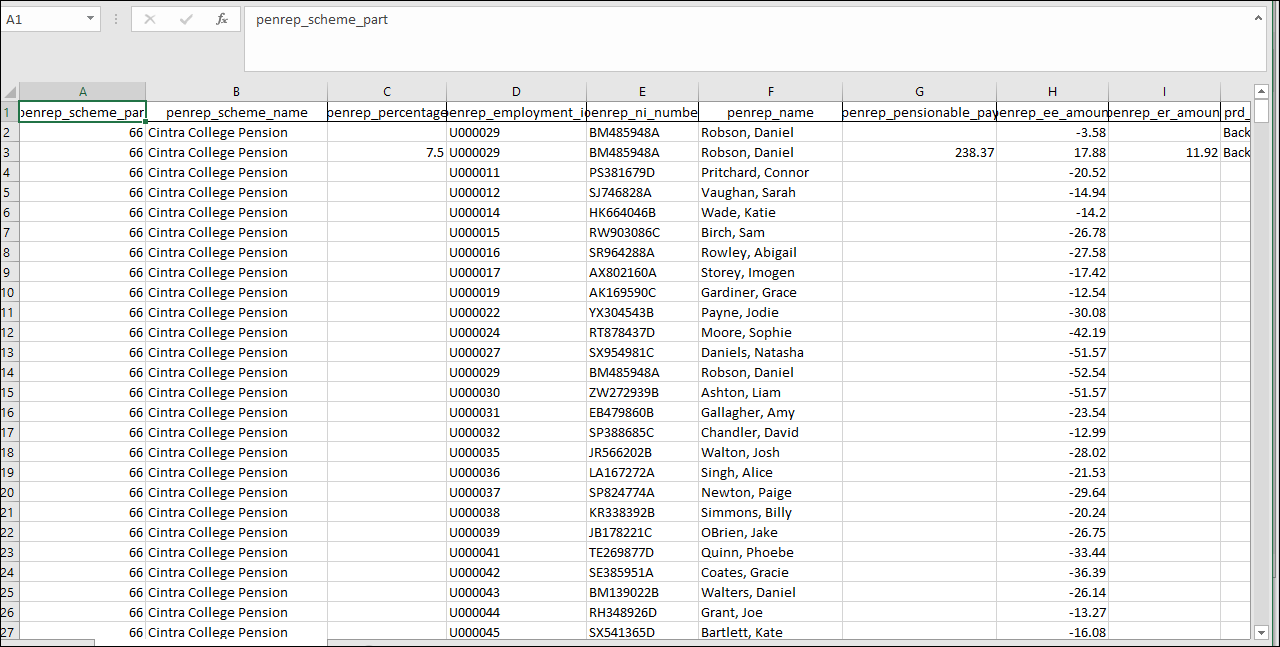
The Pension/Benefits report within Cintra iQ displays details of pension contributions and other benefit types. The report includes relevant pay levels, EEs and ERs contributions and a head count for each scheme part. You can report on the following:
Name | Description |
|---|---|
Individual pension scheme | This report focuses on the details of a specific Pension Scheme. |
All pension schemes summary | This report displays all of the totals by Pension Scheme and headcount. |
All benefit schemes summary | This report displays all of the totals by Benefit Scheme and headcount. |
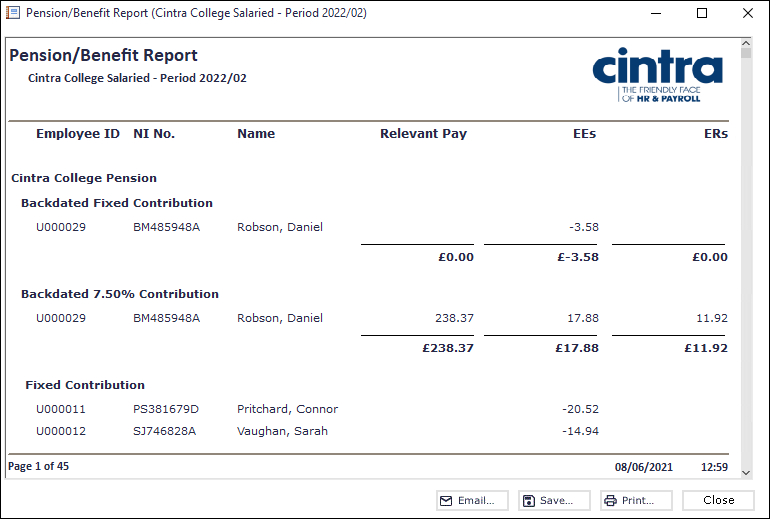
To produce the report
Go to Cintra iQ: Payroll > Payroll Tools > Payroll Reports > Pension/Benefit Report. The Pension/Benefit Report-Select Pension/Benefit Scheme form appears.
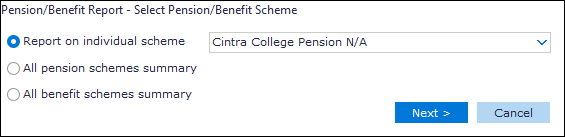
Select the desired scheme or scheme summary.
Click the Next button. The Pension/Benefit Report - Select Reporting Period form appears.
Depending on what payroll period option you've selected and clicked the Next button, perform either of the following:
Payroll Period Option
Description
Payroll periods for a specific payroll
The Pension/Benefit Report - Select Reporting Period range form appears.
Select the desired Payroll.
Select the desired period range.
Click the Next button. The Pension/Benefit Report - Selection Summary form appears.
Payroll period within a range of dates
The Pension/Benefit Report - Select Payrolls to include and Period Range for each form appears.
Select the Payroll Period and range(s).
Click the Next button. The Pension/Benefit Report - Select Subtotals and Sort Order form appears.
Select the desired sort order(s) and/or subtotals.
Click the Next button. The Pension/Benefit Report - Selection Summary form appears.
Year-to-date figures for a specific payroll
The Pension/Benefit Report - Select Payroll and Year-to-date period form appears.
Select the desired Payroll.
Select the desired period.
Click the Next button. The Pension/Benefit Report - Select Subtotals and Sort Order form appears.
Select the desired sort order(s) and/or subtotals.
Click the Next button. The Pension/Benefit Report - Selection Summary form appears.
Year-to-date figures for multiple payrolls
The Pension/Benefit Report - Select Payrolls to include form appears.
Select the desired Payroll Period and ranges.
Click the Next button. The Pension/Benefit Report - Select Subtotals and Sort Order form appears.
Select the desired sort order(s) and/or subtotals.
Click the Next button. The Pension/Benefit Report - Selection Summary form appears.
Accounting period
Note: Before you confirm the relevant accounting period, you can see its Accounting Period details and associated Payroll Periods by clicking the Details button.
Click the Next button. The Pension/Benefit Report - Select Subtotals and Sort Order form appears.
Select the desired sort order(s) and/or subtotals.
Click the Next button. The Pension/Benefit Report - Selection Summary form appears.
Review the summary.
Click the Run button. The Pension/Benefit Report is displayed.
Continue to Archive, Email, Save and/or Print the report.
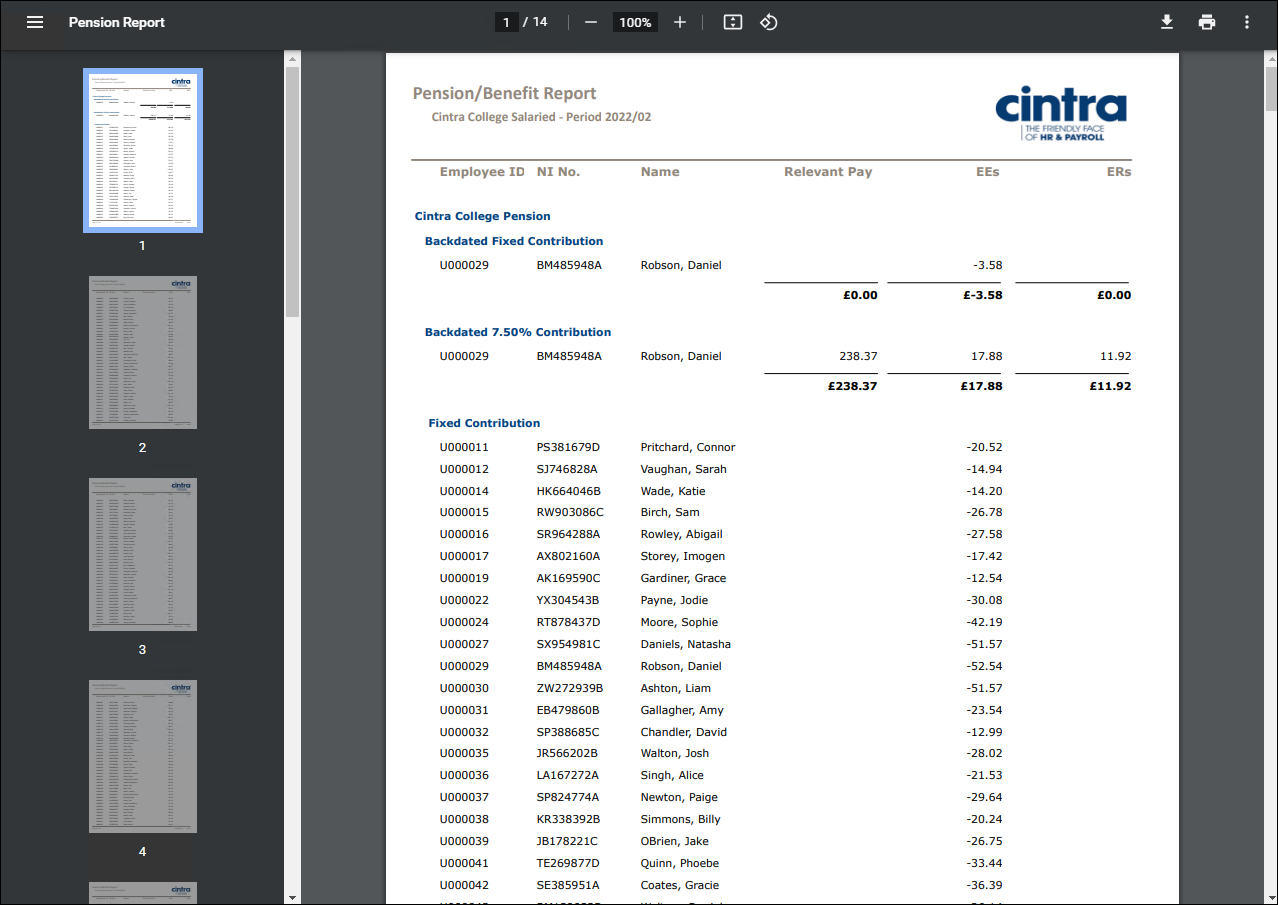
PDF Output example
Spreadsheet Output example