Cintra iQ holds the functionality to produce a costing file that is relevant to your accounting system, so that you can upload the file without having to manually enter the data.
Example: In my company, I have a monthly payroll for the office staff. I have a weekly payroll for the factory staff. My accounting year runs from 01 July to 30 June. It runs in months. There are twelve accounting months and the first will be in July. In July, I'll need Journals covering the month of July payroll and weeks 14-17 of the weekly payroll. I need to produce a journal for those weeks.
Before you can produce a Journal of your company accounts, you need to set up an Accounting Structure in order to apply logic to all your accounting journals, and enable pay periods to be aligned with company accounting.
Important: Once an Accounting Group is set up, you will need to maintain it for each new accounting year.
About Accounting Groups
Accounting Groups allow you to define a structure for a payroll or group of payrolls so that their pay periods are assigned to accounting periods to match the accounting system logic. The Accounting Group defines the accounting periodicity eg Lunar or Monthly. It can be used to group payroll periods together and also define how each payroll pay period is assigned to an accounting period. This can be based on any one of the following:
Normal Pay Date
Tax Period From Date
Tax Period To Date
Pay Period From Date
Pay Period To Date.
You can rename a period to a descriptive accounting term name, if required.
To rename an accounting period
Navigate to the Account Reporting Group definition window.
Go to Cintra iQ: Payroll > Payroll Tools > Accounting > Accounting GroupSelect the desired definition.
Click the Open button. The Edit - group window appears.
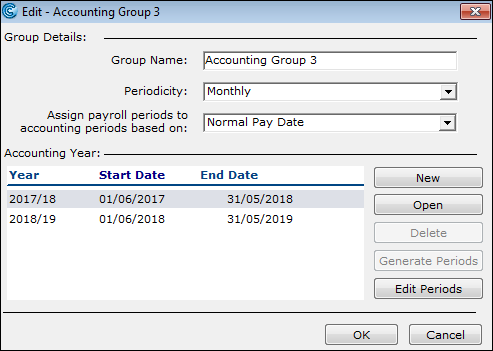
Select the desired Accounting Year.
Click the Edit Periods button. The Accounting Periods window appears.
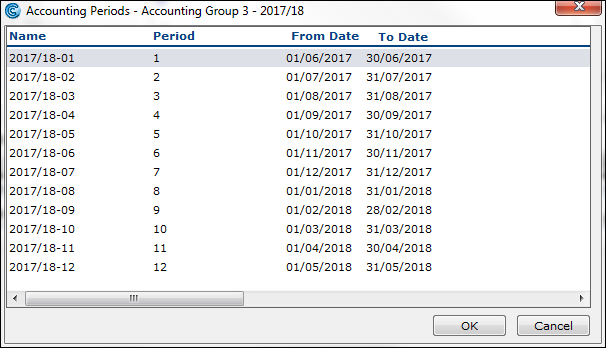
Right-click: Open on the desired period. The Edit Period Month form appears.
Change the name of the period to suit your needs.
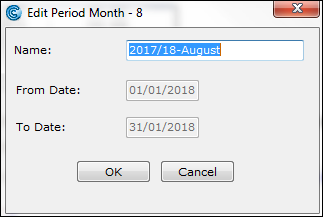
Click the OK button. The change appears in the Accounting Periods window.
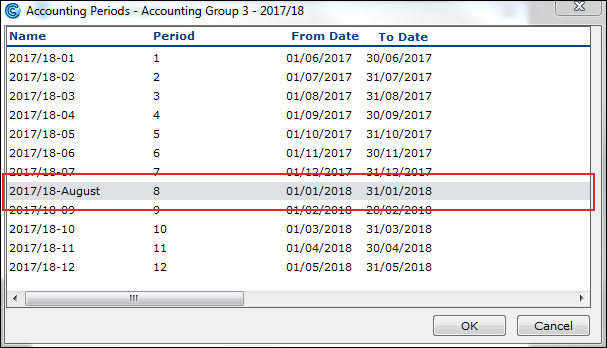
Click the OK button to save and exit.