---
title: "How do I set up MCR?"
slug: "how-do-i-set-up-mcr"
updated: 2026-06-10T11:26:23Z
published: 2026-06-10T11:26:23Z
canonical: "help.cintra.co.uk/how-do-i-set-up-mcr"
---

> ## Documentation Index
> Fetch the complete documentation index at: https://help.cintra.co.uk/llms.txt
> Use this file to discover all available pages before exploring further.

# How do I set up MCR?

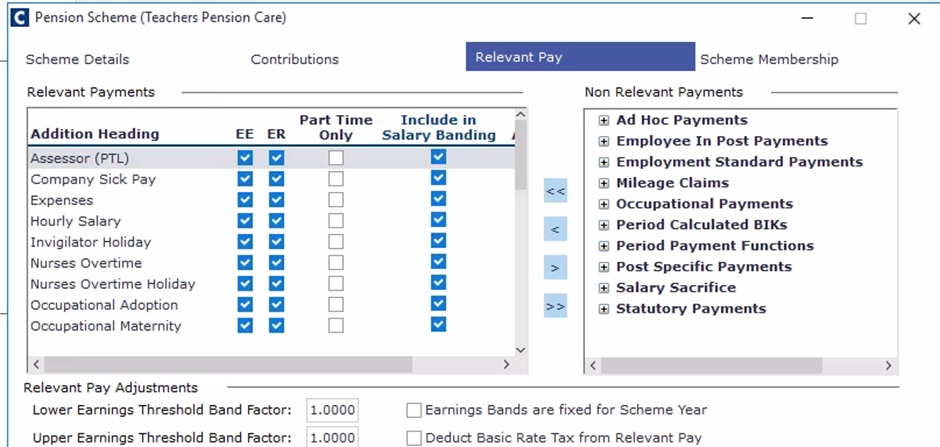
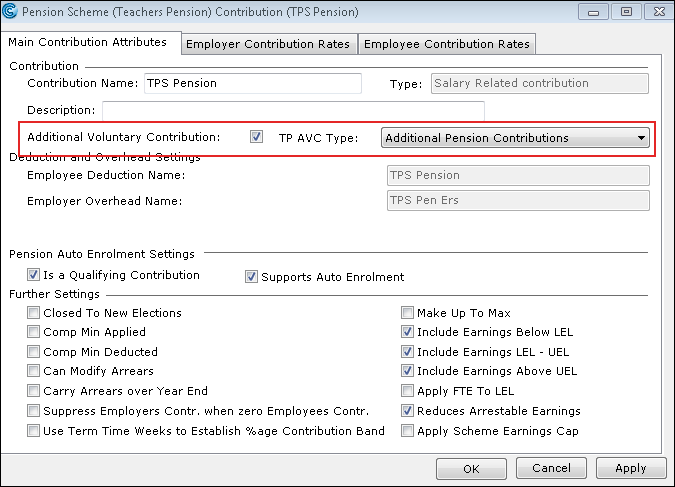
<html><head></head><body><h2 data-block-id="mpwnmw6c-xbhse4-531" id="before-you-begin">Before you begin... </h2><p> Before generating a Monthly Contributions Reconciliation (MCR) return for Teachers' Pension (TP), set up the MCR's Start Date and Payment Method. You can also set up voluntary contributions if needed. &nbsp; </p><h2 data-block-id="mpwnmw6c-1hc2dz-532" id="1-enable-the-mcr-functionality">1. Enable the MCR Functionality</h2><ol data-block-id="mpwnmw6d-wdi9if-533" start="1" style="--start:0;"><li data-block-id="mpwnmw6d-14tsi9-534"><p>Go to <strong>Cintra iQ</strong>: System Administration &gt; Preferences/Installation Name... &gt; Preferences tab.</p></li><li data-block-id="mpwnmw6d-lqd84k-535"><p data-block-id="mpwno3hf-o6i0n0-593">Set <strong>Teacher's Pensions - Monthly Contributions Reconciliation</strong> to <strong>yes</strong>.</p><blockquote data-block-id="mpwno53o-x8yf2j-594" class="infoBox" data-background="#ddf7ff" data-border="#006a8a" style="background:rgb(221, 247, 255);border-left:4px solid rgb(0, 106, 138);overflow:auto;"><p data-block-id="mpwno3hf-o6i0n0-593"><strong>Note:</strong> Please ensure that <strong>yes</strong> is set to lowercase, otherwise your entry will be rejected.</p></blockquote></li><li data-block-id="mpwnmw6d-d03ma8-537"><p data-block-id="mpwnnw5k-wmtioh-590"><strong>Update </strong>and <strong>Save</strong>.</p></li></ol><h2 data-block-id="mpwnmw6d-xueoo0-538" id="2-set-the-start-date-for-the-mcr-return-process">2. Set the Start Date for the MCR Return Process</h2><p> The <strong>MCR's Start Date</strong> can be any month and be set retrospectively. Once the first return is filed, you can only move forward and not skip any months. &nbsp; &nbsp; &nbsp; &nbsp; &nbsp; &nbsp; &nbsp; &nbsp; &nbsp; &nbsp;</p><blockquote data-block-id="mpwnmw6d-qrpn2g-539" class="infoBox" data-background="#ddf7ff" data-border="#006a8a" style="background:rgb(221, 247, 255);border-left:4px solid rgb(0, 106, 138);overflow:auto;"><p data-block-id="mpwnmw6d-nnex2c-540"><strong>Note: </strong>The first MCR return was generated on 01/04/2019, then I tried to generate another one for 01/03/2019. This was rejected as I can only generate the return for 01/05/2019.</p></blockquote><ol data-block-id="mpwnmw6d-spvtv9-541" start="1" style="--start:0;"><li data-block-id="mpwnmw6d-m4qvi9-542"><p data-block-id="mpwnof6t-gj1g9a-595">Navigate to the <strong>Employer</strong> definition window.<br type="inline">Go to <strong>Cintra iQ</strong>: Payroll &gt; Payroll Setup &gt; Employer Setup &gt; &nbsp;Employer.</p></li><li data-block-id="mpwnmw6d-utpbls-544"><p>Open the desired <strong>Employer</strong> definition.</p></li><li data-block-id="mpwnmw6d-6t4xiy-545"><p>Navigate to the <strong>Education Details </strong>tab.</p></li><li data-block-id="mpwnmw6d-djxn1b-546"><p>Enter the desired date in the <strong>Teachers Pension Monthly Contributions Reconciliation Start Date</strong> field.</p></li><li data-block-id="mpwnmw6d-zx7ngn-547"><p>Click the <strong>OK</strong> button.</p></li></ol><h2 data-block-id="mpwnmw6d-8qf79x-548" id="3-set-up-a-payment-method-for-the-mcr-return">3. Set up a Payment Method for the MCR Return</h2><ol data-block-id="mpwnmw6d-pqf72n-549" start="1" style="--start:0;"><li data-block-id="mpwnmw6d-u9owl1-550"><p data-block-id="mpwnoqxa-obwyim-596">Navigate to the <strong>Employer </strong>definition window. <br type="inline">Go to <strong>Cintra iQ</strong>: Payroll &gt; Payroll Setup &gt; Employer Setup &gt; &nbsp;Employer.</p></li><li data-block-id="mpwnmw6e-d2lm05-552"><p>Open the desired <strong>Employer </strong>definition.</p></li><li data-block-id="mpwnmw6e-yfbepv-553"><p>Navigate to the <strong>Education Details </strong>tab.</p></li><li data-block-id="mpwnmw6e-7dwa53-554"><p>From the <strong>Teachers Pension Monthly Contributions Reconciliation Payment Method</strong> drop down list, select the desired payment method.</p></li><li data-block-id="mpwnmw6e-mv8qk9-555"><p>Click the <strong>OK</strong> button. The payment method appears on the <strong>MCR </strong>return.</p></li></ol><h2 data-block-id="mpwnmw6e-q92zij-556" id="4-ensure-schemes-are-set-up-correctly">4. Ensure schemes are set up correctly</h2><ol data-block-id="mpwnmw6e-9khzq3-557" start="1" style="--start:0;"><li data-block-id="mpwnmw6e-cjvwh0-558"><p>Teachers' Pension requires two schemes to be set up: Final Salary and Career Average.</p></li><li data-block-id="mpwnmw6e-q3mtvg-559"><p>For the TPA Final Salary scheme, include a line for contributions.</p></li><li data-block-id="mpwnmw6e-cwaqa3-560"><p>The TPA Career Average scheme requires additional setup details.</p></li><li data-block-id="mpwnmw6e-0y3o4k-561"><p>Set the bandings for employer and employee contributions, updating them as needed when Teachers' Pension changes the percentage rates.</p></li><li data-block-id="mpwnmw6e-nj1lr3-562"><p data-block-id="mpwnp1jc-bhw77h-598">Ensure all pensionable headings are set up in the relevant pay tab and tick the section if included in the salary banding.</p><p data-block-id="mpwnp1jc-bhw77h-598"><img data-block-id="mpwnp2ff-uqf8ur-599" src="https://cdn.document360.io/fc2cda72-4645-4b36-96bf-60439ec11f11/Images/Documentation/204001066524.png" class="adv-wysiwyg-img" mediatype="img" alt="" width="auto" height="auto" dataalign="left" datadisplay="flex" data-type="media-content" fixaspectratio="false" autoaspectratio="false" shadow="no" border="no" round="no" link="" newtab="" style="width:auto;height:auto;"></p></li></ol><h2 data-block-id="mpwnmw6e-jmz2j3-565" id="5-verify-additional-voluntary-contributions">5. Verify Additional Voluntary Contributions</h2><p> Within <strong>Cintra iQ</strong>, if the <strong>Teacher's Pension</strong> scheme type is either <strong>Final Salary</strong> or <strong>Career Average</strong>, you can allow your <strong>TP</strong> members make additional contributions to the scheme, by setting the <strong>Additional Voluntary Contributions</strong> flag and selecting the type of contribution to be made. </p><ol data-block-id="mpwnmw6e-9zd4ez-566" start="1" style="--start:0;"><li data-block-id="mpwnmw6e-4rbfav-567"><p data-block-id="mpwnpbh5-54jeto-600">Navigate to the <strong>Pension/Benefits Scheme</strong> definition window.<br type="inline">Go to <strong>Cintra iQ</strong>: Payroll &gt; Payroll Setup &gt; Benefit Schemes</p></li><li data-block-id="mpwnmw6e-m6odlc-569"><p>Open the desired <strong>Pension/Benefit Scheme</strong> definition.</p></li><li data-block-id="mpwnmw6e-twzyfe-570"><p>Navigate to <strong>Contributions </strong>tab.</p></li><li data-block-id="mpwnmw6e-b63bhr-571"><p>Open the desired contribution.</p></li><li data-block-id="mpwnmw6e-3srs59-572"><p data-block-id="mpwnnfbp-lti5mu-586">On the <strong>Main Contribution Attributes</strong> tab, select the <strong>Additional Voluntary Contributions </strong>check box. The <strong>TP AVC Type</strong> drop down becomes active.<br type="inline"><img data-block-id="mpwnmw6e-3oc06w-575" src="https://cdn.document360.io/fc2cda72-4645-4b36-96bf-60439ec11f11/Images/Documentation/204001066527.png" class="adv-wysiwyg-img" mediatype="img" alt="Pension_Scheme_Contribution.png" width="auto" height="auto" dataalign="left" datadisplay="flex" data-type="media-content" fixaspectratio="false" autoaspectratio="false" shadow="no" border="no" round="no" link="" newtab="" style="width:auto;height:auto;"></p></li><li data-block-id="mpwnmw6e-z0uxem-576"><p>Select the desired option from the <strong>TP AVC Type</strong> drop down.</p></li><li data-block-id="mpwnmw6e-qnvrif-577"><p>Click the <strong>Apply</strong> button when finished.</p></li></ol><h2 data-block-id="mpwnmw6e-qgeq5l-578" id="6-establish-and-verify-role-identifiers-for-my-employees">6. Establish and Verify Role Identifiers for My Employees?</h2><p data-block-id="mpwnpi7d-icwap1-601">To generate a <strong>MCR</strong> return, you must establish unique <strong>Role Identifiers</strong>. The <strong>Role Identifier (RI)</strong> has been introduced to allow <strong>Concurrent Service</strong> within the same establishment to be reported without the need for employers to "roll up" the service into one row of data.</p><p data-block-id="mpwnprje-e4c6sp-602">An <strong>RI </strong>is an employer-generated reference number, following specific naming conventions, which identify each employment contract and the individual post(s) &nbsp;role under that contract.</p><p data-block-id="mpwnptgn-b5upps-603">The <strong>RI </strong>is based on the contractual arrangement you, the employer, have with the <strong>Teachers' Pension</strong> member. &nbsp; &nbsp; &nbsp; &nbsp; &nbsp; &nbsp; &nbsp; &nbsp; &nbsp; &nbsp;</p><blockquote data-block-id="mpwnmw6f-3cw1h5-579" class="infoBox" data-background="#ddf7ff" data-border="#006a8a" style="background:rgb(221, 247, 255);border-left:4px solid rgb(0, 106, 138);overflow:auto;"><p data-block-id="mpwnmw6f-nqzm46-580"><strong>Note: </strong>When generating the RI, you need to understand the member’s contractual arrangement as this ultimately determines the format in which this identifier is produced.</p></blockquote><p data-block-id="mpwnnnaq-gsyuff-589">The purpose of the <strong>Role Identifiers</strong> is to identify the rows relating to individual contracts and employee roles for a person that require independent calculations within the <strong>MCR </strong>template/submission.</p><p data-block-id="mpwnq0g6-moizuk-604">Within <strong>Cintra iQ</strong>, the <strong>Role Identifier</strong> identifies the employee's contracts/roles and is held on the employee post post-history record. </p><ul data-block-id="mpwnmw6f-syt3gt-581"><li data-block-id="mpwnmw6f-q7fs51-582"><p data-block-id="mpwnnj3l-9vjn3i-587">For more information about role identifiers, see <a href="/iq/docs/mcr-what-are-unique-role-identifiers" target="_self" rel="noopener noreferrer">What are Unique Role Identifiers? </a></p></li><li data-block-id="mpwnmw6f-cszf29-583"><p data-block-id="mpwnnk44-fqgrnj-588">For more information about the <strong>Employee Role Id</strong> tab, see the <strong>Employee Role Id tab</strong> section in <a href="/iq/docs/where-do-i-collect-mcr-data" target="_self" rel="noopener noreferrer">Where Do I Collect MCR Data?</a></p></li></ul><blockquote data-block-id="mpwnmw6f-do10d1-584" class="infoBox" data-background="#ddf7ff" data-border="#006a8a" style="background:rgb(221, 247, 255);border-left:4px solid rgb(0, 106, 138);overflow:auto;"><p data-block-id="mpwnmw6f-d30cz0-585"><strong>Note: </strong>If you have multiple establishments, you need to carry out an extra setup step. For more information, see <a href="/iq/docs/mcr-how-do-i-report-on-teachers-in-more-than-one-authority" target="_self" rel="noopener">How Do I Report on Teachers in More Than One Authority?</a></p></blockquote><p></p></body></html>