Within Cintra iQ, you can create a Monthly Contributions Reconciliation (MCR) report by extracting data through MCR. Previously, as an employer, once you were on board with monthly data collection, you had to submit to Teachers' Pension (TP) each month, one file that included all the TP members' required service and salary information. Now, TP allows you to transition from Monthly Data Collection (MDC) to Monthly Contributions Reconciliation (MCR) from October 2020 until October 2021.
MCR consolidates the current MDC, Monthly Contributions Breakdown and Enrolment data collection processes and replaces them with the one MCR submission. The purpose for the MCR is for TP to know who has multiple contracts and if that member has then opted out of a particular one. This is so that TP can find out if it makes a difference to the member's final benefits when they leave the Teacher's Pension scheme.
As an employer, you need to report each contract of employment and/or different roles under one contract of employment as individual rows of data on the MCR submission. MCR allows you to perform a reconciliation on the contribution deduction amounts you provide for each employee.
Within Cintra iQ, you can generate a return for every month since the start date of the Monthly Contributions Reconciliation (MCR) was set. The Teachers Pensions - Monthly Contribution Reconciliation window allows you to perform the following:
Generate Role Ids.
Generate Return Data.
Retrieve Return Data.
Review Data Issues.
Recalculate Employee Data.
Generate the MCR file.
About the Monthly Contributions Reconciliation Window
Within this window, you can generate data and also modify data depending on which tab you are in. After which you can produce a Monthly Contributions Reconciliation file to send to Teachers' Pensions. Go to Cintra iQ: Payroll> Payroll Tools> Payroll Reports> Monthly Data Contribution Reconciliation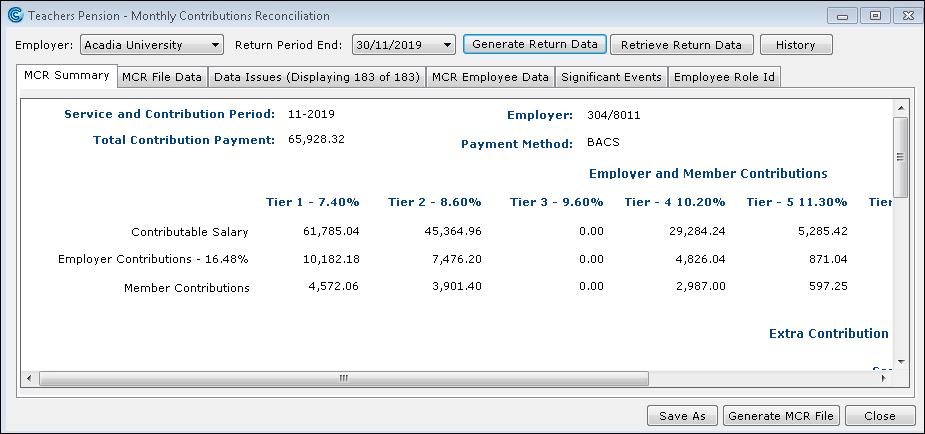
Employer
You can select the Employer payroll to which the return applies.
Return Period End
You can select the month end date for which you want to generate or view return data
Buttons
Name | Description |
|---|---|
Generate Return Data | Click this button to generate the data specific to the Teachers' Pensions MCR submission for the selected return period.
|
Retrieve Return Data | Click this button to retrieve the data already generated for the selected return period. |
History | Click this button to display the TP MCR Return History window which displays existing returns and generated files. |
Close | Click this button to close the window. |
MCR Summary tab
Within the MCR Summary tab, you can view the summary of the generated MCR data for the selected period.
Data Pane
This pane contains a break down of the employer contributions and employee (member) contributions as well as contribution totals under each contribution tier percentage. It also summarises the employees' total salary.
Buttons
Name | Description |
|---|---|
Save As | Click this button to save all the data to a .csv format. |
Generate MCR File | Click this button to generate the Monthly Contributions Reconciliation .csv file, which you can upload to the Teachers' Pensions website and/or import into the TP MCR template. |
Close | Click this button to close the window. |
MCR File Data tab
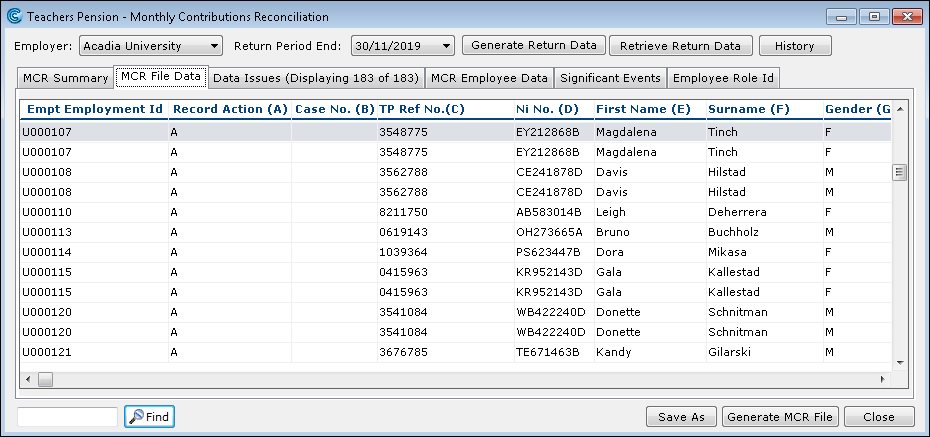
This tab displays the generated data.
MCR File
If you are satisfied with the data, you can produce the MRC file by clicking the Generate MCR File button.
Data Pane
This pane contains the data that is required for the MCR return. For more information about the field contents, refer to the Teachers' Pensions Monthly Contributions Reconciliation User Guide on the Teachers' Pensions web site.
Important: Each letter in the column name corresponds to the template column where the data is going to appear.
Buttons
Name | Description |
|---|---|
Find | Click this button to find the keyword entered in the Search box. |
Save As | Click this button to save all the data to a .csv format. |
Generate MCR File | Click this button to generate the Monthly Contributions Reconciliation.csv file, which you can upload to the Teachers' Pensions website. |
Close | Click this button to close the window. |
Data Issues tab
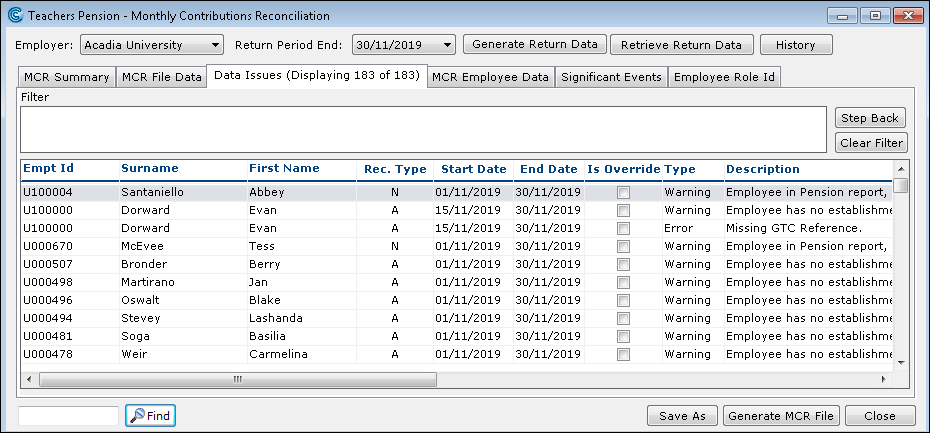
Within this tab, you can view any data issues that may have occurred when the return data was generated.
Important: If there are any errors after the MCR file is uploaded to the Teachers' Pensions website, you may receive an error email from Teachers' Pensions advising necessary corrections. Once the file is returned to Cintra iQ, you can make modifications to the affected data.
Name | Description |
|---|---|
Filter Pane | This pane displays the criteria used to filter the data. Once you have double-clicked within a column, the column header and data is displayed in the pane. You can retrace your steps to reduce your filter options by clicking the Step Back button. Click the Clear Filter button to clear the pane completely. Because each error is itemised, you can apply the filter to a particular employee to see only those errors that pertain to the employee or filter by description to see which employees are affected by a particular error. |
Data Pane | This pane displays a list of error descriptions which indicate that you should return to the necessary form(s) and enter the appropriate information. |
Buttons
Name | Description |
|---|---|
Find | Click this button to find the keyword entered in the Search box. |
Save As | Click this button to save all the data to a .csv format. |
Generate MCR File | Click this button to generate the Monthly Contributions Reconciliation.csv file, which you can upload to the Teachers' Pensions website. |
Close | Click this button to close the window. |
MCR Employee Data tab
This tab displays the employees and their details.
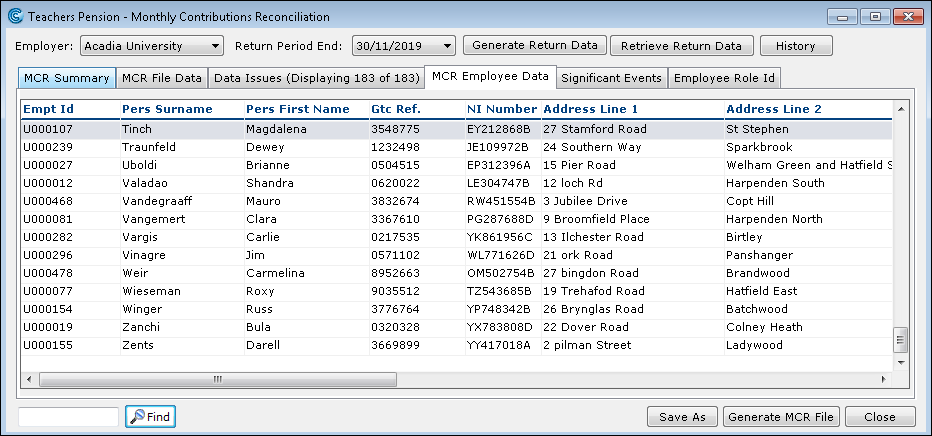
Data Pane
Within this pane you can modify an employee's details by clicking on the desired employee record.
Buttons
Name | Description |
|---|---|
Find | Click this button to find the keyword entered in the Search box. |
Save As | Click this button to save all the data to a .csv format. |
Generate MCR File | Click this button to generate the Monthly Contributions Reconciliation.csv file, which you can upload to the Teachers' Pensions website. |
Close | Click this button to close the window. |
Significant Events Tab
This tab displays the records of those employees who are absent due to maternity leave, paternity, adoption, shared parental or unpaid leave, or long term sickness etc. 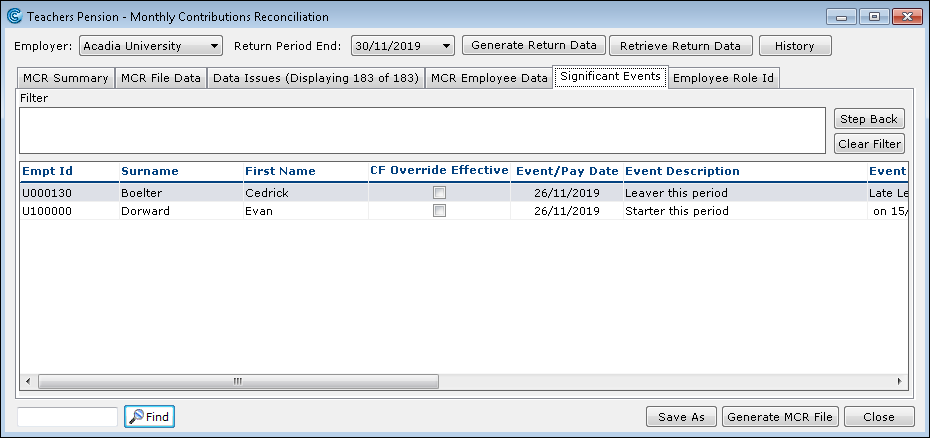
Name | Description |
|---|---|
Filter Pane | This pane displays the criteria used to filter the data. Once you have double-clicked within a column, the column header and data is displayed in the pane. You can retrace your steps to reduce your filter options by clicking the Step Back button. Click the Clear Filter button to clear the Filter pane completely. |
Data Pane | Within this pane, you can view whether the event's description and the dates the event took place. You can also view any employees that are in the Teachers' Pensions scheme but are not included in the return, because they have not been categorised into a teaching role. |
Buttons
Name | Description |
|---|---|
Find | Click this button to find the keyword entered in the Search box. |
Save As | Click this button to save all the data to a .csv format. |
Generate MCR File | Click this button to generate the Monthly Contributions Reconciliation.csv file, which you can upload to the Teachers' Pensions website. |
Close | Click this button to close the window. |
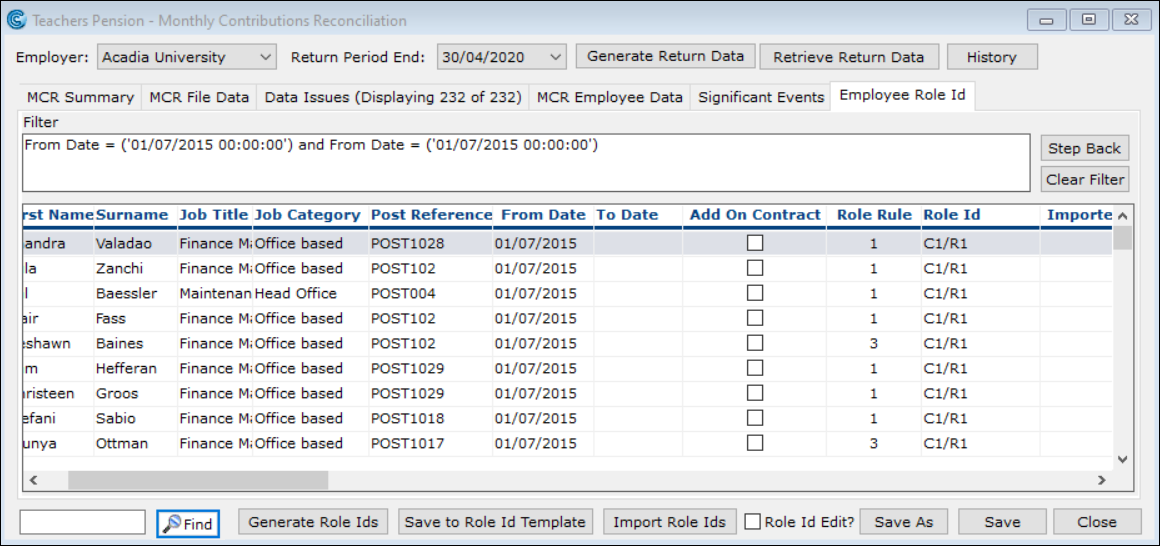
Employee Role Id tab
Within this tab, you can view a list of Employee in Post records, which contain system generated Role Ids. The list contains only active posts for the selected return period. Their From and To dates correspond with the dates that cover the selected period.
Important: The Employee in Post records data is derived from the employee's post history record and contribution records. For more information , see each employee's Post History and Expenses & Benefits Pension & Benefit Schemes.
Name | Description |
|---|---|
Filter Pane | This pane displays the criteria used to filter the data. Once you have double-clicked within a column, the column header and data is displayed in the pane. You can retrace your steps to reduce your filter options by clicking the Step Back button. Click the Clear Filter button to clear the Filter pane completely. |
Data Pane | This pane displays a list of Employee in Post records. Within each Employee in Post record, you can perform the following:
|
Tasks
Name | Description |
|---|---|
Find | Enter the desired employee's name in the search field and click this button to find their details within the Employee in Post record list. |
Generate Role Ids | Click this button to generate the Role Ids to appear in the Role Id column. |
Save to Role Id Template | Click this button to save the Role Ids to a csv template. For more information as to how to edit a Role Ids Template, see How Do I Edit Roles Identifiers in Bulk? |
Import Role Ids | Click this button to import the updated Role Id file. Note: You can only import .csv files. |
Role Id Edit? | Select this option to edit previously submitted Role Ids. |
Save As | Click this button to save all the data to a .csv format. |
Save | Click this button to save any updates made on screen. |
Close | Click this button to close the window. |
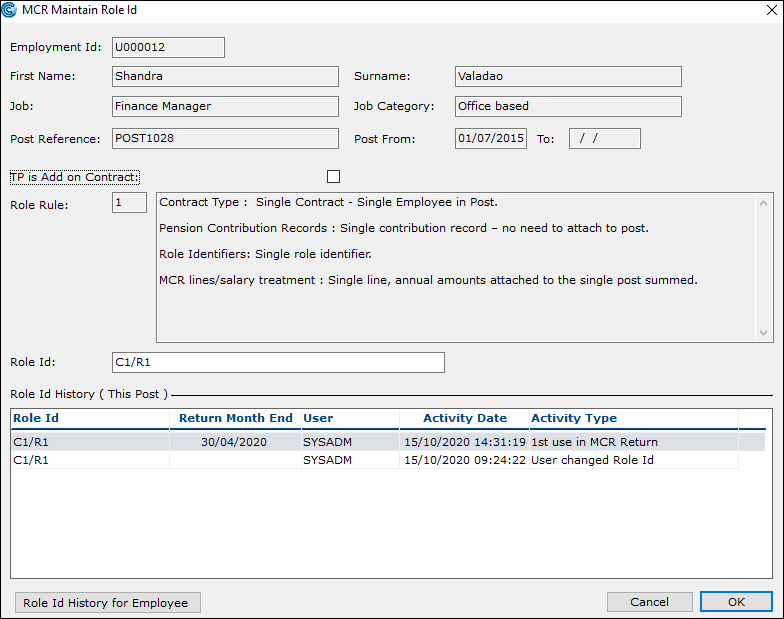
MCR Maintain Role Id form
Within the MCR Maintain Role ID form, you can perform the following:
View the employee's employment details.
View the Role Rule that is attached to the employee in post record.
Edit the employee's Role Id.
View the Role Id of the current post.
View the Role Id History for the current post.
View the Role Id history of all the posts the employee has held via the Role ID History for Employee button.
Within the Employee Role Id tab, you can access the MCR Maintain Role ID form by right-clicking: Open on the desired employee in post record or double-clicking on the desired record.