You can upload multiple documents into the Cintra iQ database at one time, which can be viewed in Self-Service in Personal Documents or within Cintra iQ.
Before you begin...
Create a CSV
Create a .csv (comma separated) file containing the following information for each employee you wish to upload the document.
Person Identifier.
Location of where the file resides.
Note: This should include the full path and name of the file on your network.
Category of document.
Description of each document.
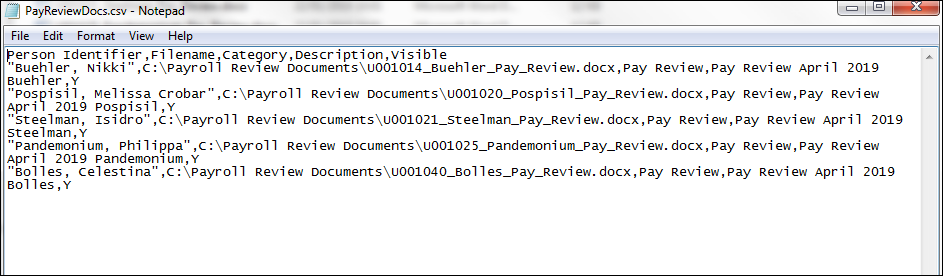
Note: You can set up the information in Microsoft Excel and save the file in a .csv (comma separated) format.
Display the Document in Self-Service
Set Visible to Y to display the document in Self-Service. You are now ready to import the file into Cintra iQ.
Note: You can review the .csv content rules in the Multiple Document Upload window, by clicking the (?) Information button.
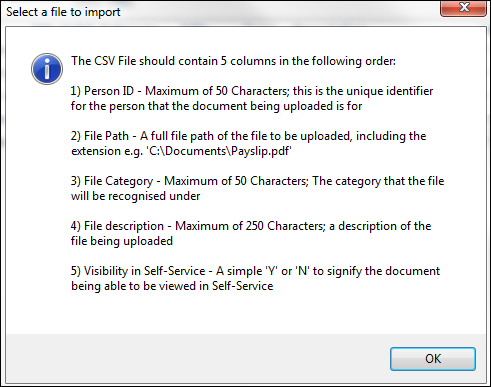
To upload multiple documents
Navigate to the Multiple Document Upload window.
Go to Cintra iQ: File > Import > Bulk Document UploadSearch for the desired Import File. The pane is populated.
Click the Precheck button to check for any errors in the document.
Fix any errors where necessary.
Click the Upload button.
The documents are now uploaded to the employee's Personal Documents in Self-Service.
The documents are now available to view in the employee's Related Documents > Uploaded Documents tab.
Note: the default filename location for the documents is \\tsclient\Cintra iQ Drive\Uploads\FileName.