Profile
Personal Information Section
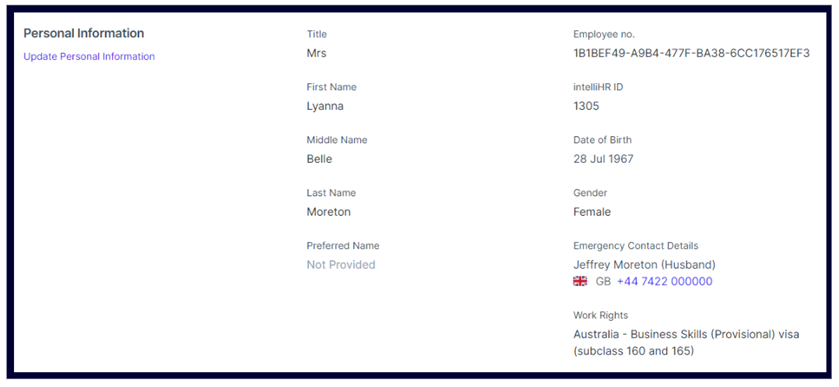
HR Field | Payroll Field |
|---|---|
Title | Title |
First Name | First Name |
Middle Name | Middle Name |
Surname | Surname |
Preferred Name | Not Transferred |
Employee no | Not Transferred |
IntelliHR ID | Not Transferred |
Date of Birth | Date of Birth |
Gender | Gender
|
Emergency Contact Details | Not Transferred |
Work Rights | Not Transferred |
Payroll Information Section

HR Field | Payroll Field |
|---|---|
National Insurance Number | National Insurance Number |
Continuous Service Date | Employment Continuous Service Date |
Payroll Number | Employment ID
|
Email Address Section

HR Field | Payroll Field |
|---|---|
Primary email address | Main Email Address
|
Address Section

HR Field | Payroll Field |
|---|---|
Address | Address L1-4 |
Postcode | Postcode |
Job
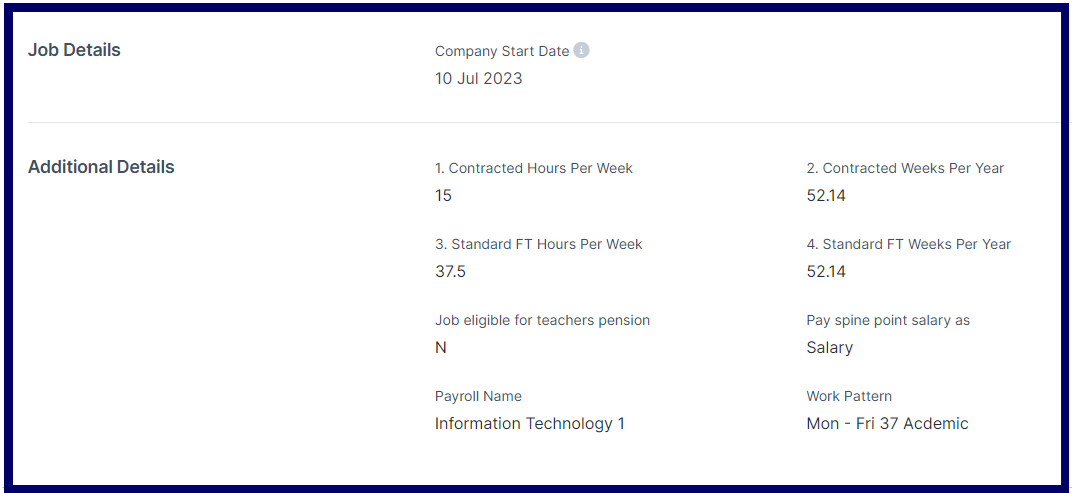

For the details above, the following information is transferred over to payroll:
HR Field | Payroll Field |
|---|---|
Company Start Date | Employment Start date
|
Contracted Hours Per Week | Post History -> Working pattern-> Contracted Hours Per Week |
Contracted Weeks Per Year | Post History ->Working Pattern ->Contracted Weeks Per Year |
Standard FT Hours Per Week | Post History ->Working Pattern Full Time Hours Per Week |
Standard FTE Weeks Per Year | Post History ->Working Pattern ->Standard Full Time Weeks Per Year |
Job eligible for teachers pension | Job category (teaching/non- teaching), held for employee via the Post History |
Pay spine point salary as | Post History->Spine Point Salary Paid As |
Payroll Name | Will allocate payroll membership. Use a value of 'Not Applicable' if the person should not be joined to a payroll. |
Note: The FTE value in payroll can be calculated from the values entered in the hours/weeks fields above if desired, or alternatively the FTE value in payroll can be taken directly from the FTE value entered in the FTE field in HR (see Position Arrangements below).
Position Details Section
HR Field | Payroll Field |
|---|---|
Position Title | Employee position title
|
Business Unit | Organisation unit
|
Location | Pay point |
Business Entity | Employer
|
Position Arrangements
HR Field | Payroll Field |
|---|---|
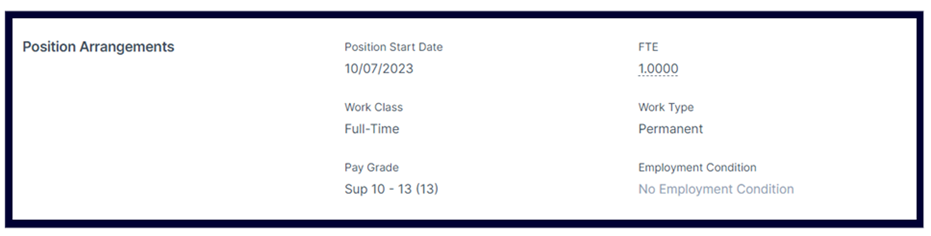
Position Start Date | Position History -> From Date |
Work Class | Not transferred |
Pay Grade | Position History -> Spine Point History -> Grade |
Pay Grade (Step) | Position History -> Spine Point History -> Spine Point |
FTE | FTE in payroll can be calculated from contractual working time data, or transferred from the FTE field in HR (see FTE configuration options). |
Work Type | Not transferred |
Employment Condition | Not transferred |
Remuneration Schedule
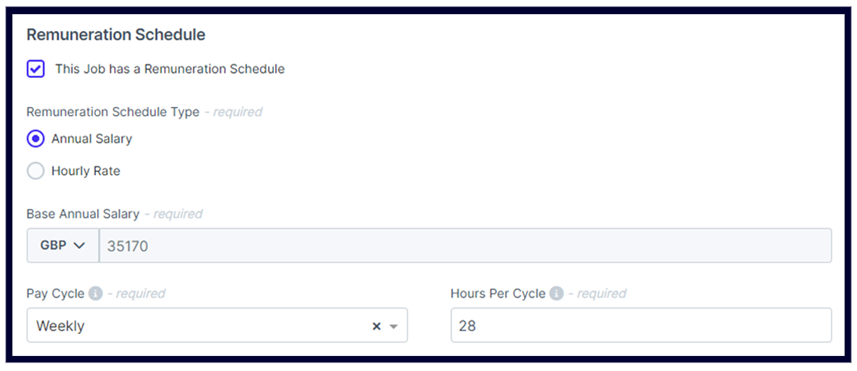

HR Field | Payroll Field |
|---|---|
Annual Salary/ Hourly Rate | Full Time annual salary derived from grade/step if pay grade is entered.
|
Pay Cycle | Not transferred to payroll.
|
Hours Per Cycle | Not transferred to payroll.
|
Cost Code | Cost code fields will be configured to match your payroll cost code fields. When enabled in HR, the cost code will transfer to the employee default cost code fields in payroll, with an allocation of 100%. |
Lookup Fields
The following lookup fields are automatically updated from Cintra iQ to CintraHR when a new record is created in Cintra iQ
For each of these data items, a new record must be created in CintraIQ with the appropriate definition (i.e. create a work pattern with its day definition, a pay grade with its spine point details). Once it exists in CintraIQ, then the new record will be picked up and added to CintraHR lookup values. This updates happens approximately every ten minutes.
Cintra iQ Data Item | Maps to Cintra HR Item |
|---|---|
Employer | Business Entity |
Payroll | Payroll Name |
Pay Grade (with spine points) | Pay Grade (with Pay Steps) |
Work Pattern | Work Pattern |
Spine point pay heading | Pay Spine Point Salary As |
Default Cost Codes | Cost Codes fields under Remuneration Schedule |
If there are options that do not want to be made available in HR (e.g. a historic payroll may no longer be a relevant choice for the payroll list), then the value can be disabled in CintraHR.
N.B. Once a Pay Grade exists, any updates to salary values must be applied in both CintraIQ and CintraHR, this will not automatically be synched from CintraIQ.
The following lookup fields are updated from Cintra HR to Cintra iQ when a new value is created in Cintra HR and then used against an employee
CintraHR Data Item | Maps to Cintra iQ Item |
|---|---|
Business Unit | Organisation Unit |
Location | Pay Point |