How do I assign roles to an employee record?
As the user administrator, you can create Self-Service accounts and send Self-Service users emails which contain their usernames and password. When a user first logs into Self-Service with the emailed password, they are prompted to change their password to one of their own choice. Each new user is automatically assigned one or more roles, depending on how they are set up.
Before you begin, ensure that the roles are created through the Edit Roles menu, in order for them to be available in the Create Users - Setup Accounts page.
To assign roles:
Within the desired employee record, click the Edit Roles button. The Set Roles for [employee] form appears.
Select the desired role(s).
Click the Update Roles button. The name of the Role(s) appears under the Edit Roles button.
How do I edit roles for multiple employees at the same time?
As the user administrator, you can create Self-Service accounts and send Self-Service users emails which contain their usernames and password. When a user first logs into Self-Service with the emailed password, they are prompted to change their password to one of their own choice. Each new user is automatically assigned one or more roles, depending on how they are set up. You can edit roles for multiple employees at the same time.
To edit roles:
Click the Edit Multiple Roles button. A column next to the Identifier appears as well as the Add/Remove Roles button.
Select the desired employees to update their roles. The Add/Remove Roles button becomes active.
Click the Add/Remove button. The Add/Remove Roles for Selected Users form appears.
Perform either of the following:
Select the desired role(s) and click the Add Roles button. The selected role(s) is added to the selected employee(s) and appear listed under each Edit Roles button.
Select the desired role(s) and click the Remove Roles button. The selected role(s) is removed from the the selected employee(s).
Click the Stop Editing Multi Roles button when finished.
Click the Next button. The employee's user account is now created and you are ready to review the user account details.
How do I identify which employees need user accounts?
As the user administrator, you can create Self-Service accounts and send Self-Service users emails which contain their usernames and password. When a user first logs into Self-Service with the emailed password, they are prompted to change their password to one of their own choice. Each new user is automatically assigned one or more roles, depending on how they are set up.
To identify users:
Login to Self-Service as the User Administrator.
Within the Users menu, click Create Users. The Create Users - Select Employees page appears.
In order for the employee to have an account, they need to have an active employment record and have no existing user account.
Search for the desired employee(s).
Enter the employee's name in the Search box. They appear in the Employees with no User Account pane.
Transfer the desired employee(s) to the User Accounts to Create pane.
Click the Next button. The employee record(s) appear listed in the Create Users - Setup Accounts page.
How do I update a user name?
As the user administrator, you can create Self-Service accounts and send Self-Service users emails which contain their usernames and password. When a user first logs into Self-Service with the emailed password, they are prompted to change their password to one of their own choice. Each new user is automatically assigned one or more roles, depending on how they are set up. You can update the employee's User Name when required.
Go to the Create Users-Setup Accounts page.
Within the desired employee record, click the Username. The Change Username popup appears.
Enter the New Username.
Click the OK button. The username is updated.
How do I email logon credentials to employees?
As the user administrator, you can create Self-Service accounts and send Self-Service users emails which contain their usernames and password. When a user first logs into Self-Service with the emailed password, they are prompted to change their password to one of their own choice. Each new user is automatically assigned one or more roles, depending on how they are set up. Once the employee's user account is set up, you can send them their logon details.
Select the desired user account. The Email Credentials button becomes active.
Click the Email Credentials button. The Confirm Email Sending popup appears.
Review the employee(s)'s email address.
Click the Send Emails button. The welcome and username emails are sent to the employee(s).
Please be aware that login and password details can only be emailed at this point. These details cannot be sent once the page is exited.
How do I resend login credentials to employees?
From time-to-time, an employee may have deleted the link to their Self-Service login credentials and you have to send it to them again.
Sign-in to Self-Service as user.admin.
Go to Edit Users> Edit Users page.
Enter the desired employee name in the search box.
Click the Search button. The employee(s) record appears.
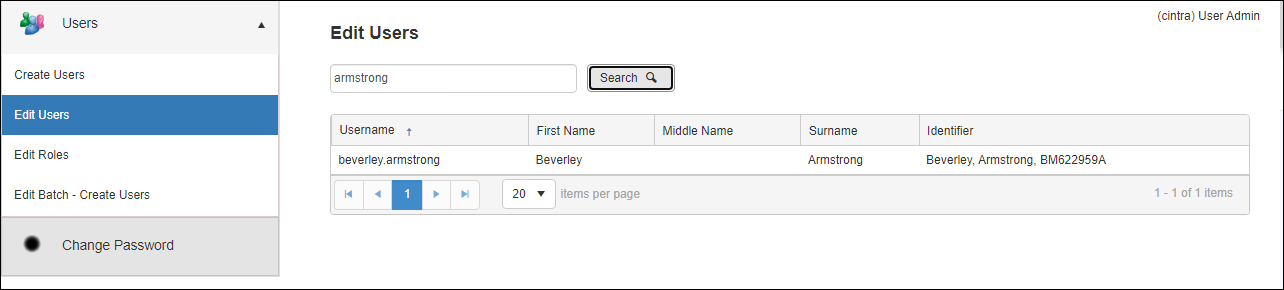
Open the desired employee record. The Edit User Details for [employee] form appears.
Click the Generate Password button.
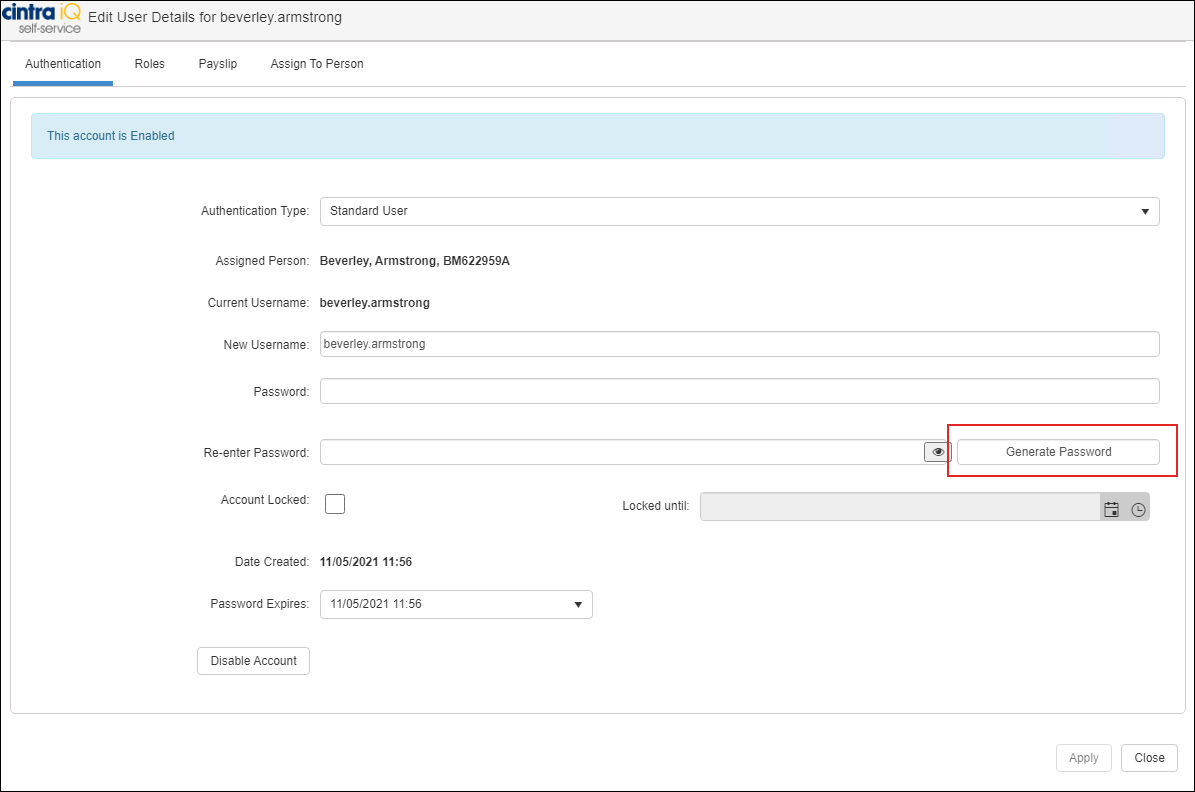
Both the Password and Re-enter Password fields are automatically populated.
The Send notification of the new password/username message appears.
Select the check box to resend the password to the employee.
Click the Apply button. The password is updated and resent to the employee.