You can create a Deputy in Self-Service if a manager needs to delegate tasks, such as approving holidays or needs to deputise all of their responsibilities for brief periods. In order for the Deputies functionality to work in Self-Service, you need to set up the Deputy role.
The Deputies functionality uses its own communication structure, which is automatically generated within Cintra iQ.
How do I set up deputies?
Login to Self-Service as Cintra.
Ensure the Deputies roles are set up for the Manager.
Login to Self-Service as user.admin.
Go to Self-Service: Menu panel> Users> User Admin> user.admin> Edit Roles.
Select the desired role by clicking the Edit button. The Editing Role page appears for that user.
Transfer the Deputies functions from the Available Functions pane, to the Functions in Role pane, by clicking each option.
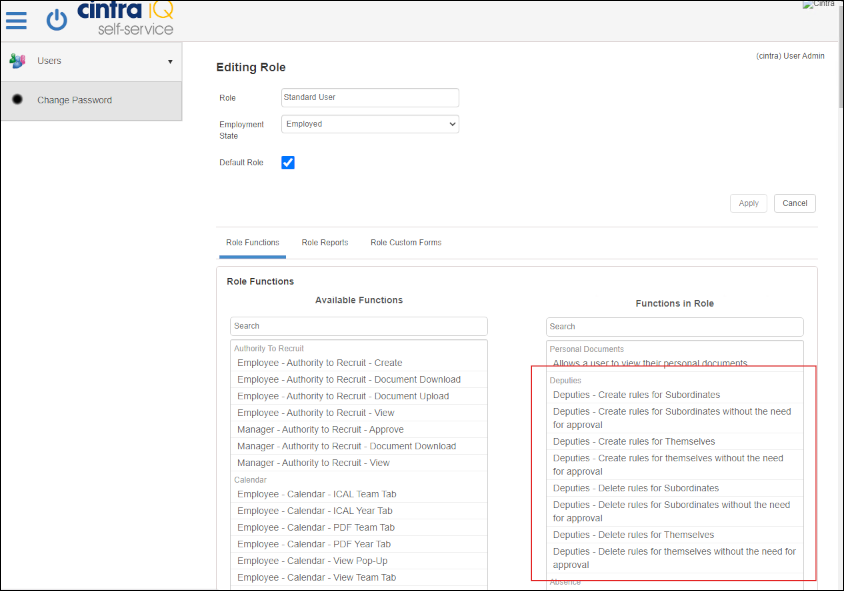
Click the Apply button. You are returned to the Edit Role page.
Click the Apply button. A message appears stating that the role is successfully updated.
Continue to assign the Role to the desired user.
How do I assign the role of deputy to a user?
Now that you have set up the Deputy functionality within Self-Service, you can assign a Deputy to a manager if they need to delegate tasks, such as approving holidays or if they need to deputise all of their responsibilities for brief periods. In order for the Deputies functionality to work in Self-Service, you need to assign the role of Deputy to a user.
To assign the role
Sign into Self-Service as the Manager.
Navigate to Management > Deputies. The Deputy Management page appears.
Click the Create Deputy button. The Deputy Assignment form appears.
Select the Responsibility.
Note: These options are created in the Communication Structure within Cintra iQ.
Select the desired Managers Post.
Select the Deputies Post.
Enter the From Date.
Enter the To Date.
Enter any Notes.
Click the Save button. The Deputy Management record is created. When the Deputy signs into Self-Service, they can now perform the duties of the manager and approve Holiday and Sickness requests.
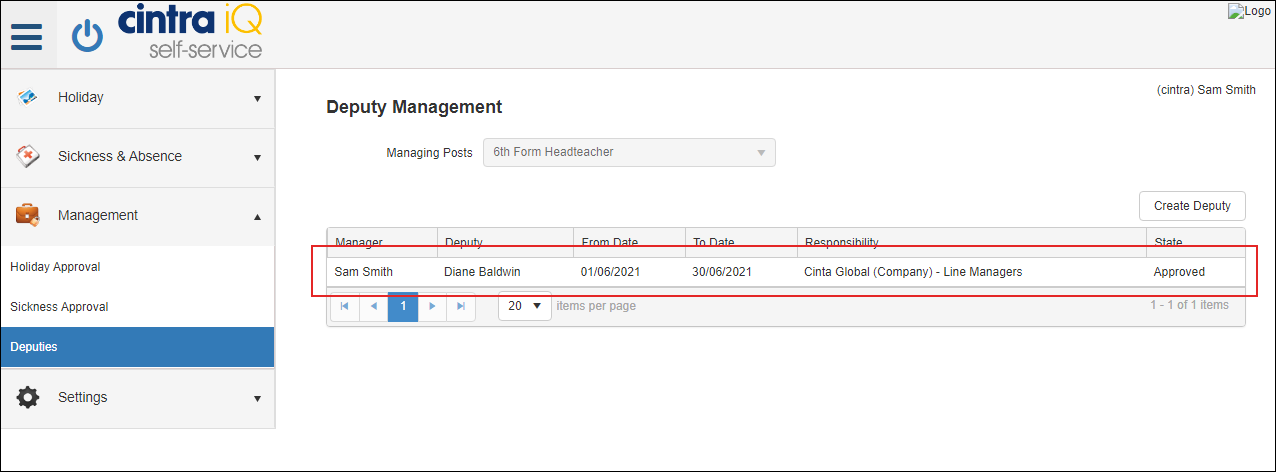
A manager can resume their responsibilities by deleting the Deputy assignment.
How do I end the deputy role for a user?
You can create a Deputy in Self-Service if a manager needs to delegate tasks, such as approving holidays or deputise all of their responsibilities for brief periods. Once the period of deputisation is over, the manager can resume their responsibilities.
To resume responsibilities
The manager can create the Deputy Assignment record and enter a date range.
Once the To Date has expired, the assignment will no longer be valid and the responsibilities are reverted back.
Deleting the Deputy record as Manager
The manager can open and delete the the Deputy Assignment record when necessary, and the responsibilities are reverted back.
Sign into Self-Service as the Manager.
Go to Management > Deputies > Deputy Management page.
Open the Deputy Assignment record.
Click the Delete button. The record is removed and the responsibilities are reverted back to the original manager.
Deleting the Deputy record as Deputy
Sign into Self-Service as the Deputy.
Go to Management > Deputies > Deputy Management page.
Open the Deputy Assignment record.
Click the Delete button. The record is removed and the responsibilities are reverted back to the original manager.