If you encounter an error message stating "Save document, error writing target file" when trying to print the P45s.
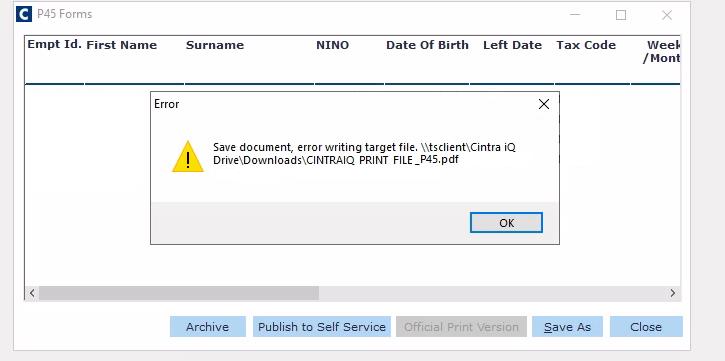
Follow these steps to resolve the issue:
Choose the "Save As" Option
Instead of selecting the "official print version" option, click on the "Save as" option located next to it.

Grant Permission to Download
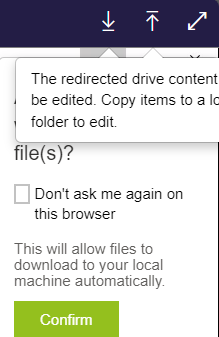
After clicking on "Save as," a pop-up box will appear in the top right corner requesting permission to download the file.
Ensure you tick the checkbox labelled "Don't ask me again on this browser." Click "confirm" to grant the necessary permissions.
Important: Make sure your browser settings permit downloads. If you need further guidance, contact your IT department.
Save the P45
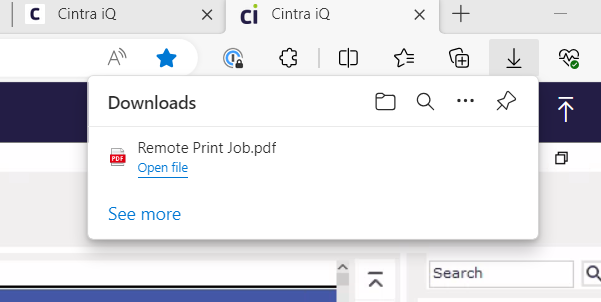
Once the permissions are granted, click on the "official print version." The P45 should then be saved automatically to your downloads folder.
Note: The issue arises because the browser requires permission to save the file. By following the steps above, you're giving the browser the necessary permission, ensuring that the P45 is saved in the correct location.