What are record filters?
Record Filters are used to identify and select records based on shared characteristics, such as specific selection criteria, Payroll, or Post. These filters can be applied to the Navigator to modify the displayed record count.
Record Filters window
In the main menu, select Definitions, then Filters.
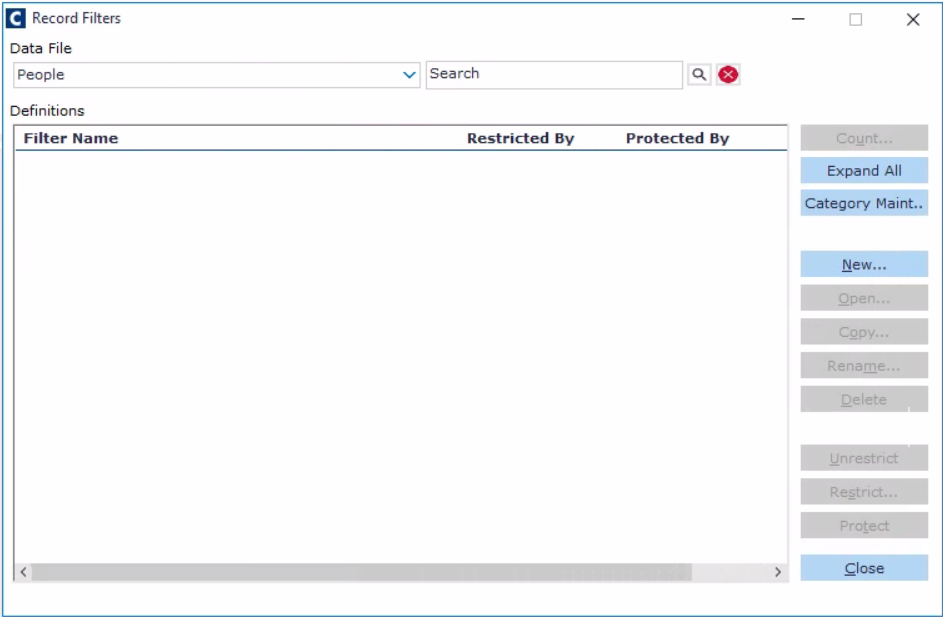
The Record Filters window will open.
The Records Filter window allows you to perform the following:
Create and maintain categories for grouping filter definitions.
Create record filter definitions.
Test record filters.
Name | Description |
|---|---|
Data File | This displays the sub folder you wish to filter. The location of where you are in Cintra iQ determines which sub folder appears in the Data File drop-down list. i.e. When the Employment Records sub folder is selected in the Folders pane, the Employee data file appears in the Record Filters window. If you wish to change sub folders, close the Record Filters window, select another sub folder in the Folders pane and then click Filters to reopen the Record Filters window. The new selection appears in the Data File drop-down list. |
Search | Search the record filter titles within the Definitions pane by keyword. |
Definitions pane | View the various record filter definitions that are grouped into categories. A newly created category is hidden from view until a record filter is attached to it. If you do not save your new filter to a specific category, it is automatically saved to the Uncategorised category. |
Note: If you do not save your new filter to a specific category, it is automatically saved to the Uncategorised category.
Actions / buttons
Use the following buttons to perform various tasks.
Name | Description |
|---|---|
Unreserve | Click this button to unlock the selected filter for editing by a single user.
|
Count | Click this button to count the number of records the system selects when you apply the record filter. For more information, see Counting Records in the side menu. |
Expand All | Click this button to display the record filter definitions in all categories listed in the Definitions pane. |
Category Maint | Click this button to create, edit or delete categories. |
New | Click this button to create a record filter definition. |
Open | Click this button to open and amend a record filter definition. |
Copy | Click this button to create a similar filter definition. |
Rename | Click this button to change the name of the filter definition. |
Delete | Click this button to delete the filter. |
Unrestrict | Click this button to allow all users access to the filter. |
Restrict | Click this button to restrict access to the filter definition, from all or various users. |
Protect | Click this button to protect the filter definition from changes made by anyone but its creator. |
Unprotect | Highlight a filter definition and click this button to remove its protection and allow anyone to amend it. |
Close | Click this button to save the record filter definitions and close the window. |
Example: You may want to create a filter that finds all Employees who are New Starters in the current Payroll pay period.
Example: You may want to create a filter to find which Employee records have missing NI numbers. By grouping the records by filter, you can see immediately the record that needs updating.
Example: You may want to create a filter to group together departments so you can update absence information and report on sickness for that month.
A filter is saved under the sub folder where it was created i.e. if you create a filter while in Employment Records, you are only able to view, amend or use the filter while in Employment Records.
To check whether a filter has already been applied to the Navigator by viewing the display at the bottom right-hand corner of the Cintra iQ window.

Filters can also be used with the following functionality:
Name | Description |
|---|---|
Email Notifications | Filters can be used when sending email notifications and creating emails. |
Letters | Filters can be used when managing letters. It can be applied to the records in the Navigator for those Employees for whom the letter is intended. For more information, see the Letters module. |
Reports | Filters can be used when running reports. If you run a Listing report and have a filter applied to the Navigator, only records shown in the Navigator are selected in the report. You can also embed filters into reports so no matter when you run the report or what filters you have applied to the Navigator, you will always be selecting the required records. This is done via: Lower right-hand corner > Reports or Definitions > Reporting > Reports > Reports window > Report Type: Listing Report > Creating Listing Reports Definition window > Record Filters tab. For more information, see the Reports module. |