Capture Expense gives you several ways to submit your receipts to fit with how you work best. While you can still add receipts from the app or web versions of Expenses, you can also add them without even needing to log into Expenses, by sending them through email, What’s App, or Teams.
You can add a receipt at any point before submitting an expense for approval.
Desktop
If your receipt is stored on your computer, you can click Scan to locate and upload it. If you have a scanner attached to your PC, you can also scan receipts this way. See Raise draft expense claims.
You can submit your receipts via email. To do this, send an email to receipts@captureexpense.com and add the receipt(s) as an attachment.
If you have a Receipt inbox, your receipt will be added to it.
If you don’t have a receipts inbox, your receipt will automatically be added to a draft expense claim.
What’s App:
When you’re logged in to Expenses, click your initials at the top-right.
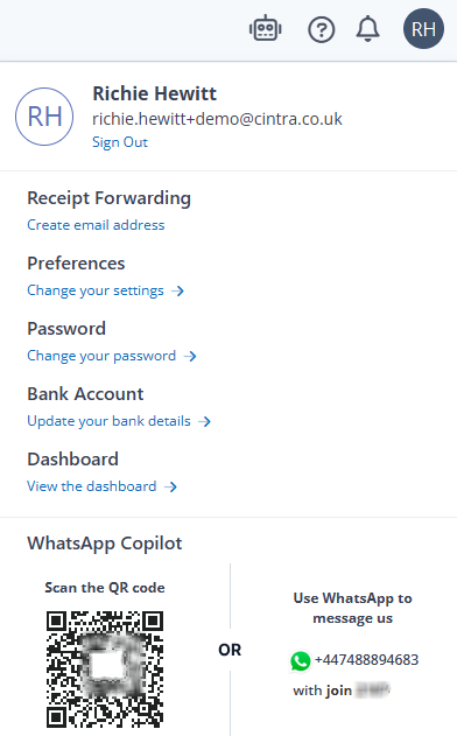
Either scan the QR code, or text join + the code shown to +44 (0)7488894683
Doing this will associate your phone number with your organisation’s Expenses account.
You will receive a welcome message. You can now:
Send photos of your receipts
Log mileage claims
Submit your claims
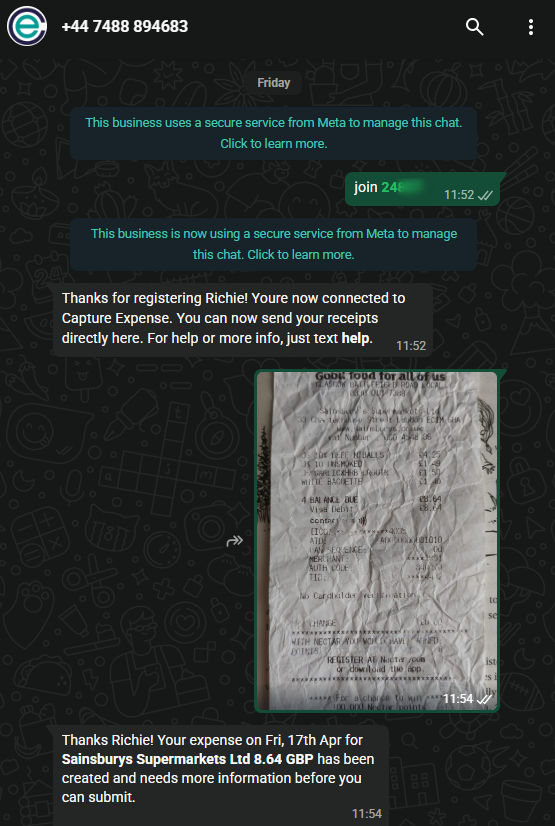
Once connected, you can also type and send Help for more information.
Teams
If your organisation has set up the integration, you can also submit expenses via Teams.