The most and reliable way to set up a connection to your provider is to use a direct SFTP link.
Once configured, transactions will flow into the system and be distributed to the user (Expenses > Drafts) where the receipts will auto match, where possible, and the user can complete any additional details required before submitting.
The instructions below will differ, depending on which provider you wish to set up a feed with. You will require admin permissions to perform these steps.
Mastercard SmartData feed setup
Set up the connection and get your Organisation ID
Go to Setup > Settings > Integrations > select FTP Card Transactions.
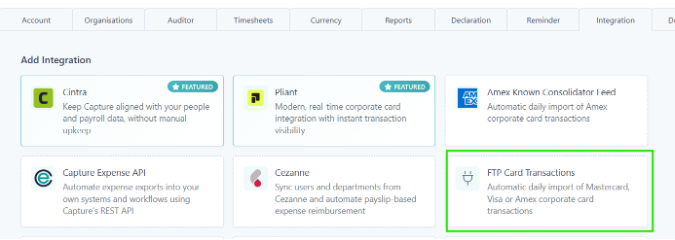
Update the Description field, for example, with your card provider or organisation name.
From the Bank Provider dropdown, select Mastercard SmartData.
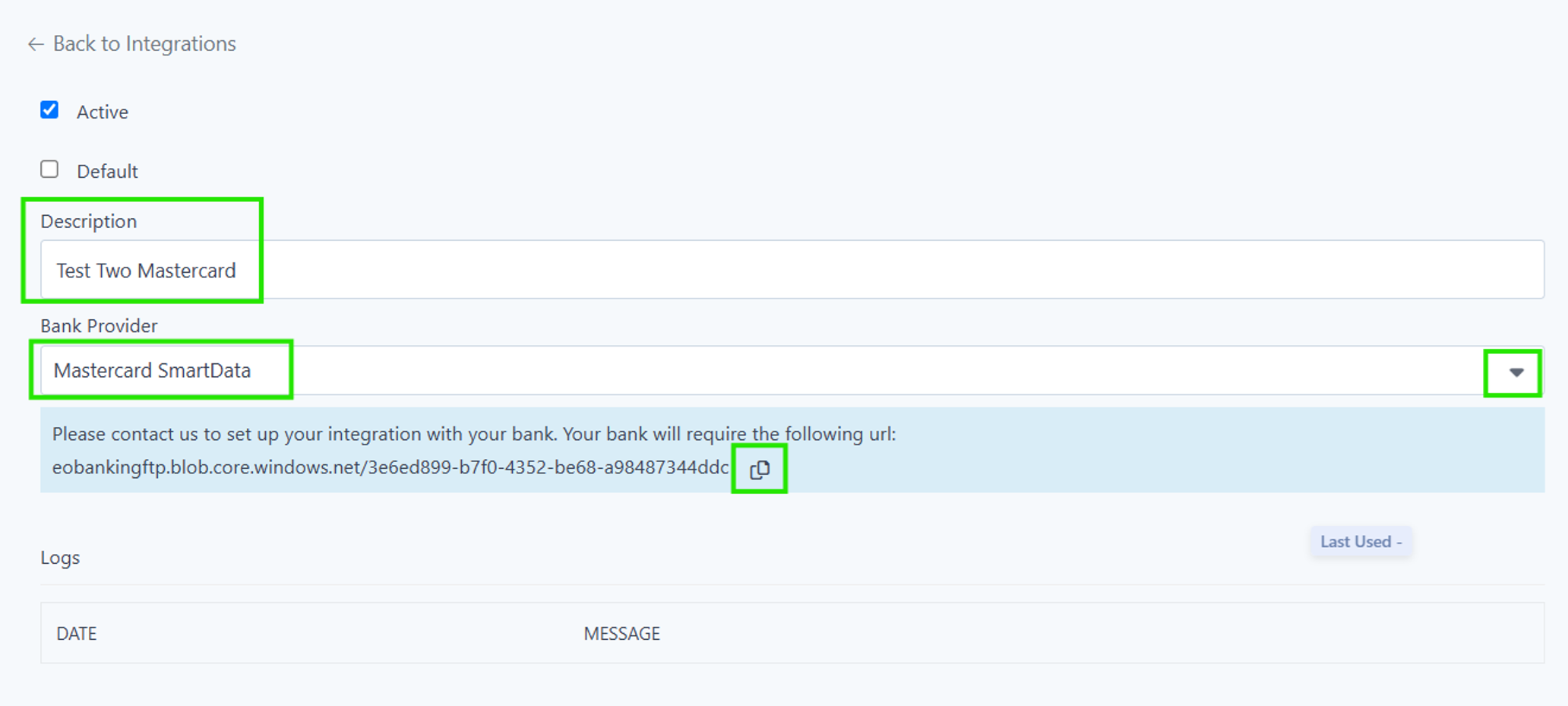
Click Save.
Your Organisation ID will then be displayed on a blue bar, which you will need to give to your card provider. Click the
 icon to copy it.
Contact your card provider
Contact your corporate card provider and request that they initialise a Mastercard SmartData connection with: Capture Expense – Capture Business Solutions Ltd.
When your provider configures the feed, they must ensure that the filename is prefixed with the Organisation ID you copied in step 5 above.
Connection activation
Once your card provider has activated the connection, your card transaction data will flow directly into the Banking area of Expenses.
Visa SFTP feed setup
Contact your bank/card provider
Ask your bank/card provider to:
Give your third party provider: Capture Expense – Capture Business Solutions Ltd access to your account and transactions so that the integration can be established.
Provide you with your Relationship Number, which you will need to complete the setup in Expenses.
Send the request with the Visa Proforma form below, which provides details of all the connection requirements your bank/card provider will need to configure the feed.
You can download this form by clicking the  icon. Depending on your browser, it may now preview correctly.
Enter your Relationship Number
Once your bank/card provider has provided your Relationship Number, you can complete the setup in Expenses.
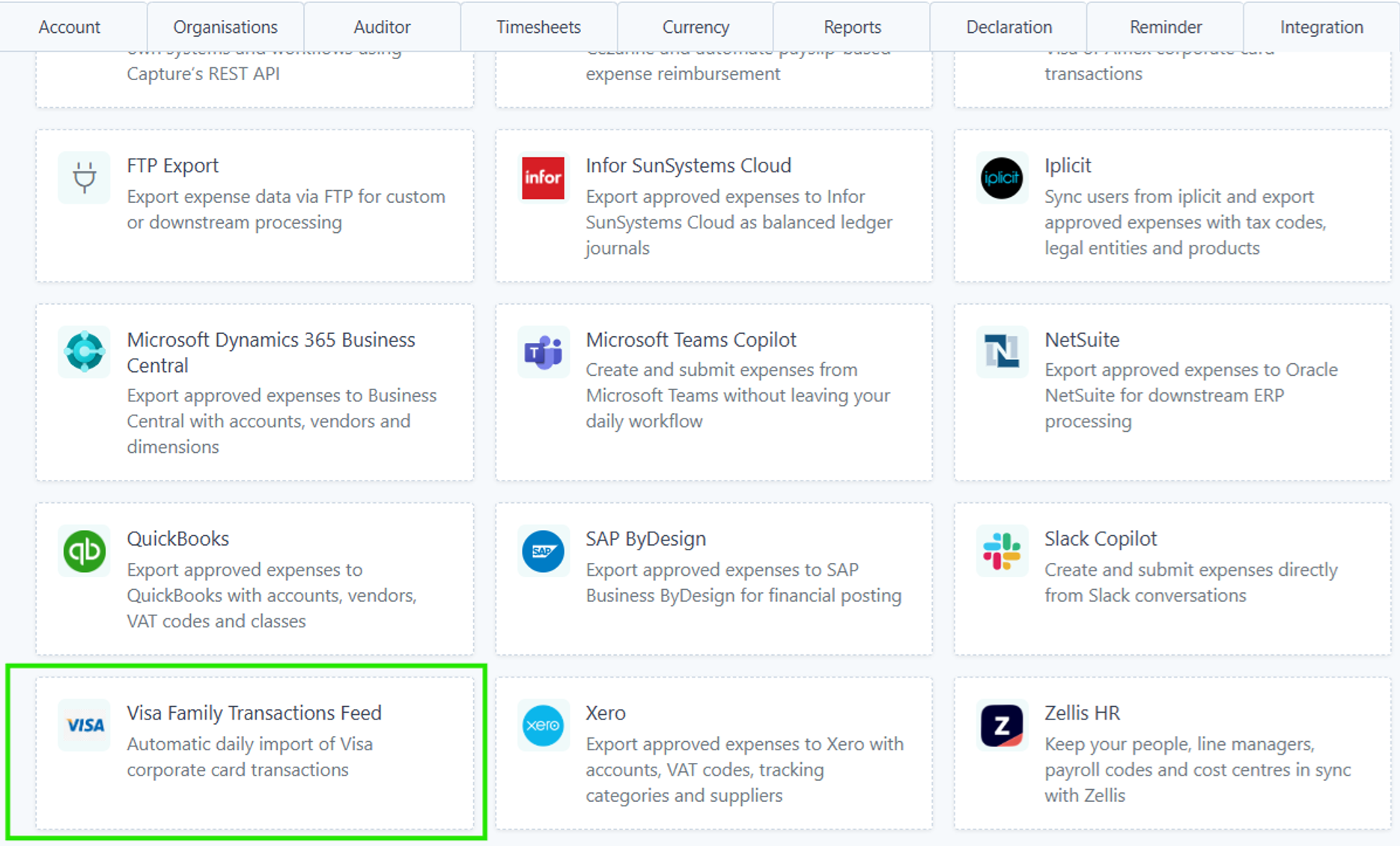
Go to Setup > Settings > Integrations.
Select Visa Family Transaction Feed.
Update the Description field, for example, with your card provider or organisation name.
Enter your Relationship Number.
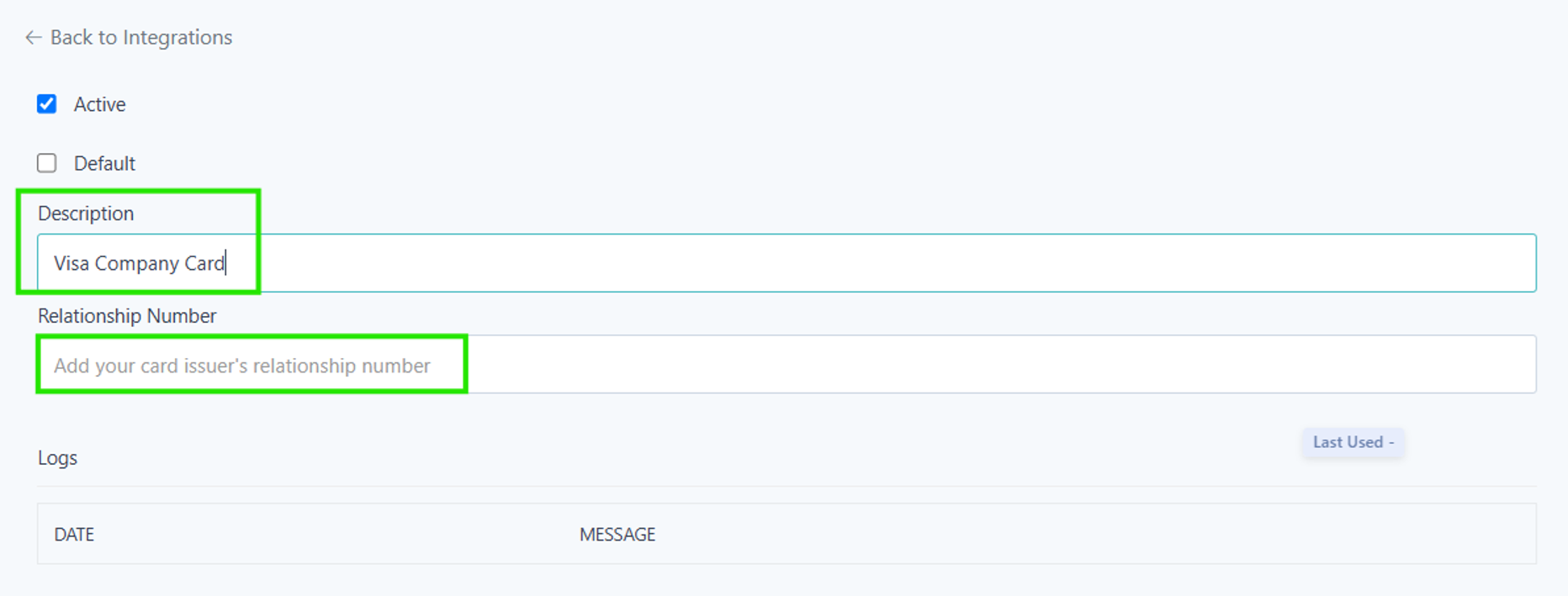
Click Save.
Connection activation
Once your card provider has activated the connection, your card transaction data will flow directly into the Banking area of Expenses.
AirPlus SFTP feed setup
Set up the connection and get your Organisation ID
Go to Setup > Settings > Integrations > select FTP Card Transactions.
Update the Description field, for example, with your Airplus or organisation name.
From the Bank Provider dropdown, select Airplus Mastercard.
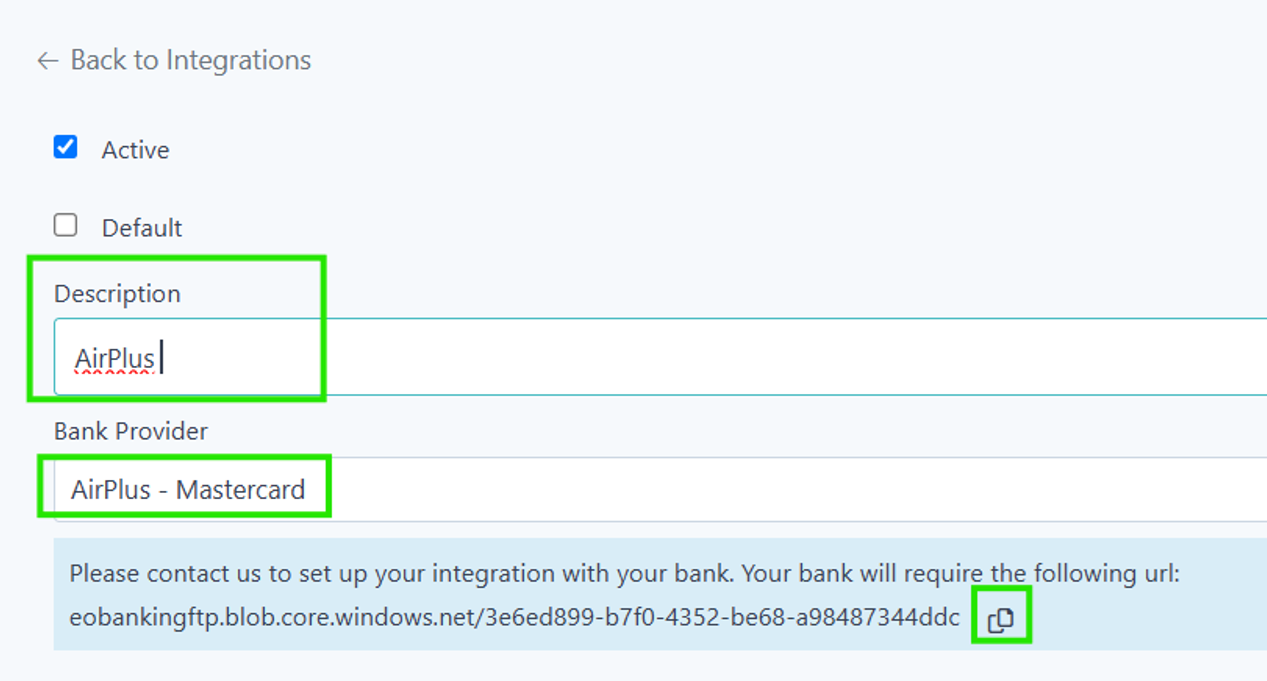
Click Save.
Your Organisation ID will then be displayed on a blue bar, which you will need to give to your card provider. Click the
icon to copy it.
Contact AirPlus
Contact your corporate card provider and request that they initialise a Mastercard SmartData connection with: Capture Expense – Capture Business Solutions Ltd.
When your provider configures the feed, they must ensure that the filename is prefixed with the Organisation ID you copied in step 5 above.
Connection activation
Once your card provider has activated the connection, your card transaction data will flow directly into the Banking area of Expenses.
AMEX
You can set up a link to American Express directly from Expenses. To do this, go to Setup > Settings > Integrations, select the Amex tile, then follow the on screen instructions.