Banking allows you to manage and view all credit card transactions across your organisation.
You can either connect to your corporate card account via Open Banking OR by importing bank statements. Once a statement is imported, the card holders will receive a notification requesting that they attach their receipts to their transactions.
Video: Open banking
These videos were recorded in Capture Expense. Some screens and labels may look slightly different in Expenses, but the steps remain the same.
Accessing the Connect Bank feature
Go to Setup > Settings > Account.
Ensure the Enable open banking option is selected.
Connecting your corporate credit card via open banking
Note: Expenses only supports Credit Card accounts and may not be compatible with all banks.
Go to Banking > Transactions.
.png)
Click the Connect Bank button in the side-menu.
If the button isn’t available, see Accessing the Connect Bank feature above.
The Connect your accounts app appears with an explanation about Moneyhub, which a third party that accesses your transactions.
Click Next. The next screen will display a list of providers.
.png)
Select a credit card bank / provider to connect to and a consent screen will appear for you to approve.
Consenting allows Expenses to access your account balance and transactions.
.png)
Enter your standard login details for the bank / credit card provider.
Once you have connected to the bank, the Transaction tab will refresh and the Credit Card transaction details that are synced with your bank will appear in the side-menu, along with a Moneyhub disclaimer.
.png)
You can now do any of the following:
Set the date of when you want to run the sync from. You can backdate, if necessary.
Remove any transactions by entering the last four digits of each affected credit card e.g. 1234, 5678, 0001 etc.
Note: If you have a different Credit Card Control account from Setup > Settings > Account, enter the other Credit Card control account in the Bank Control Account. This affects Export in Accounting.
Edit the Account feed:
You can start the feed from an historical date, which brings transactions through straight away.
Turn on the Account feed by clicking the Start icon:
The feed will run every four hours from the start date. The transactions will feed into the Transaction tab and check against user's name and their 4-digit card number set in their user account. Only new transactions come through.
Note: If you have selected both the Enable Open banking option and the Use Pending transactions option in Settings> Account tab, the transactions will appear more quickly, as the bank takes 2-3 days to process transactions from the card issuer.
Reconnect the Account feed.
Assigning a card holder to a transaction record
You would normally add the company's credit card details to the card holder's user account. But if you haven't done this or the card holder is missing any transactions, then they can be added retrospectively.
Note: If you have connected multiple accounts, you'll need to select the relevant account first before you can assign a user. By default, All Transactions is displayed in the side bar.
Select the No Card Holder transaction record.
Click the Assign button. The Assign Card Holder side menu appears.
Click + Add in the user's record. The transaction is assigned to that person.
Deleting a transaction from the transaction tab
Note: You can only delete one transaction at a time.
Select the Transaction record.
Click the Delete Transactions button, then Remove to confirm. The transaction record is deleted from the Transaction tab.
Exporting the transactions
You can export all of the transactions within the Transaction tab. This allows you to manage the transactions.
Ensure that none of the transaction records are selected.
Click the Export button. The .csv file is created. Any record that does not have a name is not a card holder. The file also details what stage the transaction is in. i.e. submitted ect.
Filtering transactions
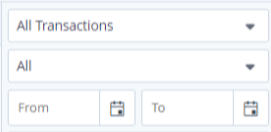
You can filter the list of transactions in the Transactions tab by the following:
Account
Status
All, Incomplete, Submitted, Rejected or Assign User: Any transactions which have not assigned a card holder.
From and To dates