The SunSystems Cloud integration is a one-way export of approved expenses into SunSystems Cloud (Infor ION), posted as a balanced journal. Posting is atomic, if any single line is rejected, the entire journal is rolled back and nothing is posted, so the ledger is never left half-written, or erroneous states.
Each expense is translated into a set of balanced journal lines:
Expense with no Vat (2 lines)
net / nominal (debit) line.
gross / creditor (credit) line.
Expense with Vat (3 lines)
Net / nominal (debit) line
Vat control account (debit) line
Gross / creditor (credit) line.
Prerequisites checklist
Access to the Infor ION Api Portal (to create the backend service and download the
.ionapifile)The Sun Systems posting header details:
Business Unit
Budget Code
Journal Type
Reporting Currency Account
Suspense/Error Account
(optional) currency codes that differ from the standard ISO code (e.g. a tenant that has sterling set up as GBP1 rather than GBP)
Analysis Dimension Codes
Backend Service Setup (API Portal)
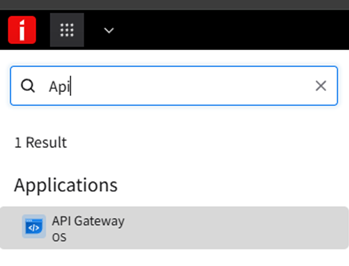
In the clients ION API Portal, search for and navigate to the API Gateway.
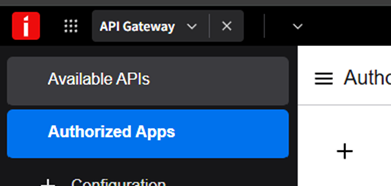
Click Authorized Apps, then the Add button ( + )
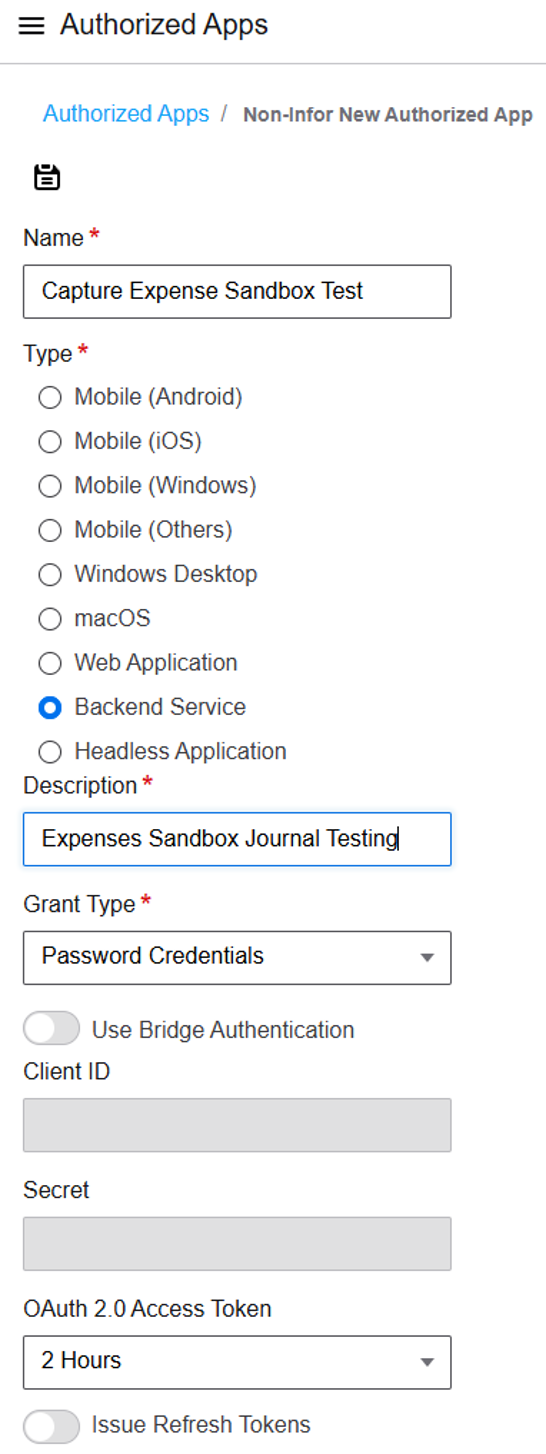
Enter a name for the service Set Type to Backend Service.
Enter a description.
Set the Grant Type to Password Credentials.
Set OAuth access according to your organisations IT security and access-management policies. There is no requirement to enable refresh tokens.
Save.
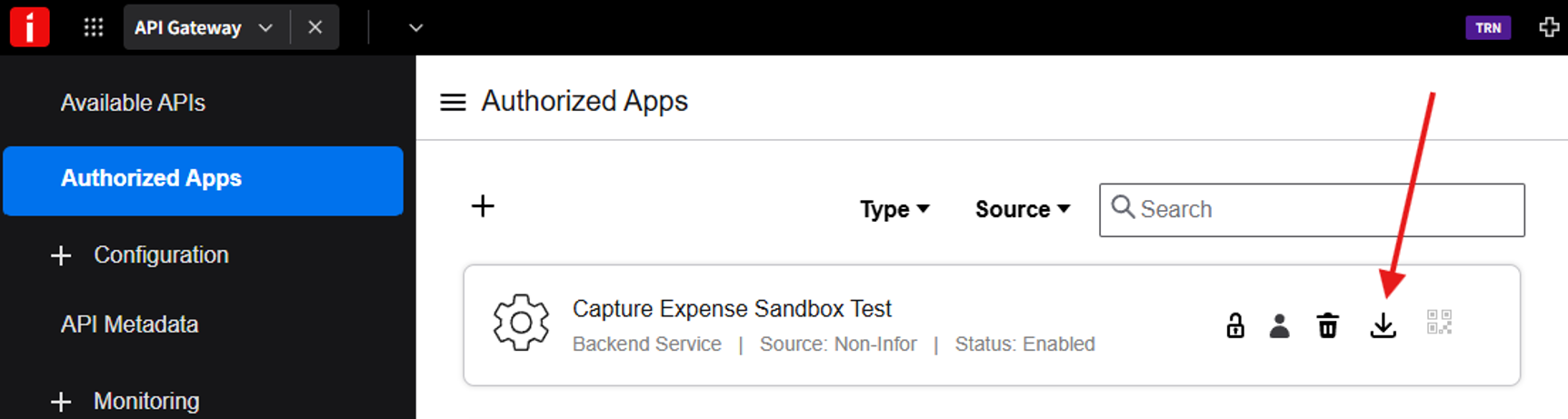
The backend service should then listed in the Authorized Apps page. Click the download button to start the credentials download process.
Create/attach a Service Account for the application. This will generate the credentials that we need to authenticate with.
Link it to a SunSystems users whose security roles allow for posting journals and reading storage / business objects.
The app/user must be authorised for the three ION suites we use:payload-v1 (journal posting)
storage-v1 (result files)
businessobject-v1 (duplicate checking).
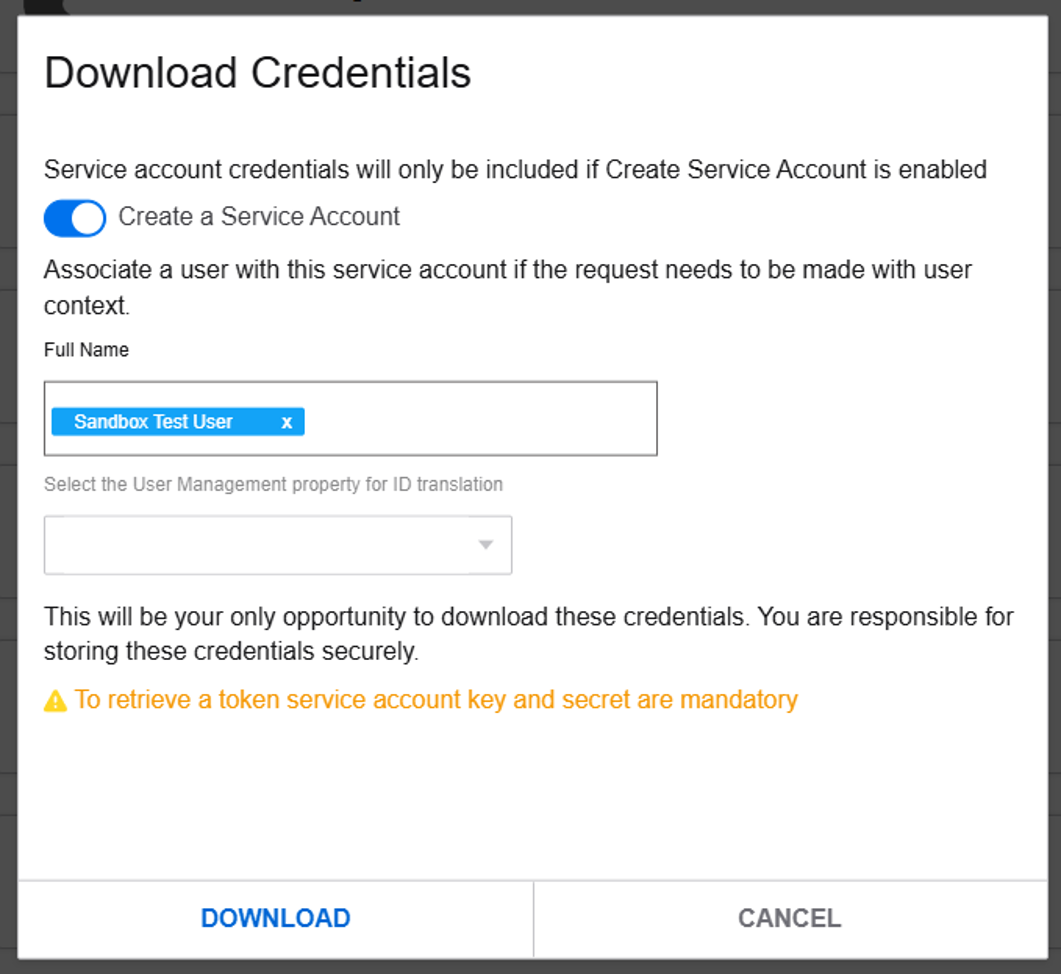
Click DOWNLOAD, a .ionapi credentials file will be generated and downloaded to your computer.
Organisation and integration setup
Organisation settings
Financial Year Start - drives the SunSystems accounting period (PPPYYYY). If this is wrong, every line posts to the wrong period.
Control Account - creditor fallback for non-card expenses (used when a user has no Supplier Code)
Control Account (Credit Card) - creditor fallback for card expenses (used when a user has no Supplier Code Card)
Control Account VAT - required if any exported expense carries VAT. Export will produce an error before posting if VAT is present and this field is blank.
Categories
Set the GL Code for each category, this is SunSystems nominal/P&L account codes (eg, 2050).
Users
Supplier Code = SunSystems creditor/supplier code for the person.
Supplier Code Card = supplier code for their credit card transactions.
Integration Settings Page
In Expenses, open the integrations page (Setup > Settings > Integration) and add Sun Systems Cloud.
Credentials Upload
Under the ionapi credentials section, add the .ionapi file.
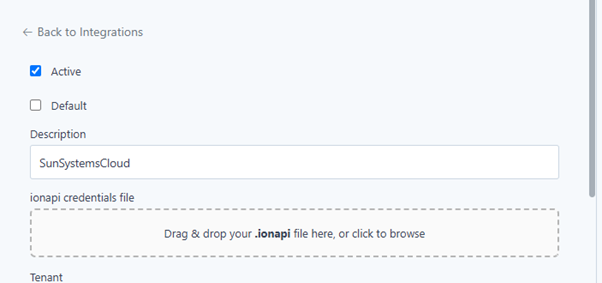
When you drop/upload the file, a validation check is performed to ensure this is a valid Backend Service .ionapi containing all the fields we require (ci, cs, saak, sask, pu, ot, iu, ti). An error shows if anything is missing. A bad file will never upload.


Posting header setup
Field | What to enter |
Business Unit | The Sun Systems business unit, posting will fail without this. |
Budget Code | Budget code to post against |
Journal Type | A valid journal type in the tenant, Sun Systems will reject an unknown or missing type |
Reporting Currency Account | Currency reporting account number |
Suspense / Error Account | Error/Reporting account number |
Custom Currency Mapping | Map Capture Home ISO code to the Sun Systems code (e.g. GBP → GBP1). Leave a row blank to post under the ISO code. |
Save and test
Click save and click Test connection. You should see, "Successfully connected to SunSystems Cloud."
Dimension mapping setup
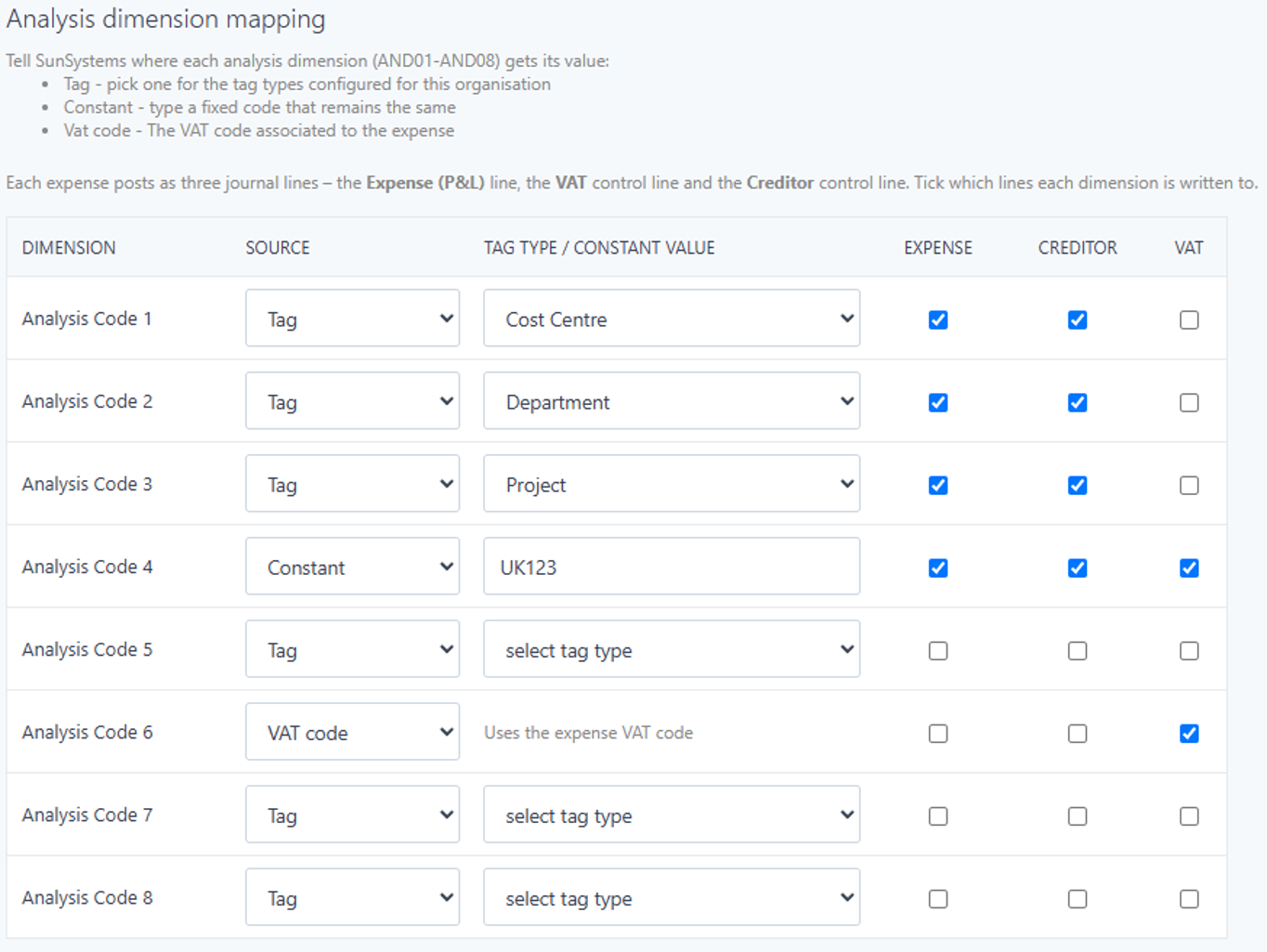
When expenses are exported to Sun Systems, Analysis Codes can be used to send additional information alongside each journal line, such as Cost Centre, Department or Project. You only need to configure the Analysis Codes that your organisation uses.
For each Analysis Code, choose where its value should come from:
Tag – Takes the value from a tag already assigned to the expense or claimant (for example, Cost Centre, Department or Project).
Constant – Always sends the same value on every export.
VAT Code – Sends the VAT code associated with the expense.
You can also choose which journal lines the Analysis Code should be included on:
Expense – The expense posting.
Creditor – The creditor (supplier/employee) posting.
VAT – The VAT posting.
Example
In the example screenshot above:
Analysis Codes 1–3 use Tag, so the Cost Centre, Department and Project are taken automatically from the expense or claimant.
Analysis Code 4 uses Constant, so the value UK123 is sent on every export. It is included on the Expense, Creditor and VAT journal lines.
Analysis Code 6 uses VAT Code, so the VAT code is sent only on the VAT journal line.
Analysis Codes 5, 7 and 8 are not configured, so they are not included in the export.
Export Format
When exporting claims, the sun systems integration export is named ‘SunSystems Cloud Journal (Infor ION)’.
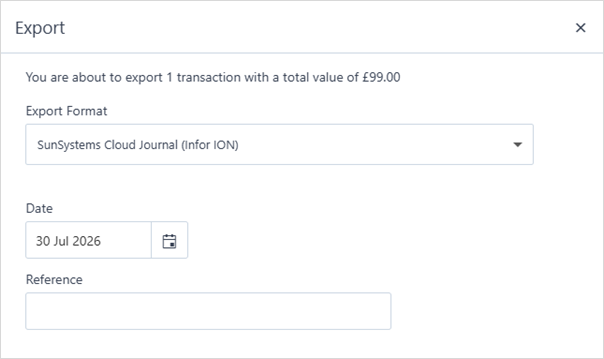
This can also be set as the default export for the organisation via Setup > Settings > Account and setting the Export format. Remember to save!