Expenses integrates with Xero to provide a simple way to report expenses.
Connecting to Xero
Note: You can automatically connect to Xero and create a new Expenses organisation by clicking the Sign Up link.
If you signed up through the Xero Marketplace, you’ll already have the connection in place. You can still use this to view any error logs or disconnect Expenses from Xero.
Go to Setup > Settings > Integration tab.
Select Xero.
.png)
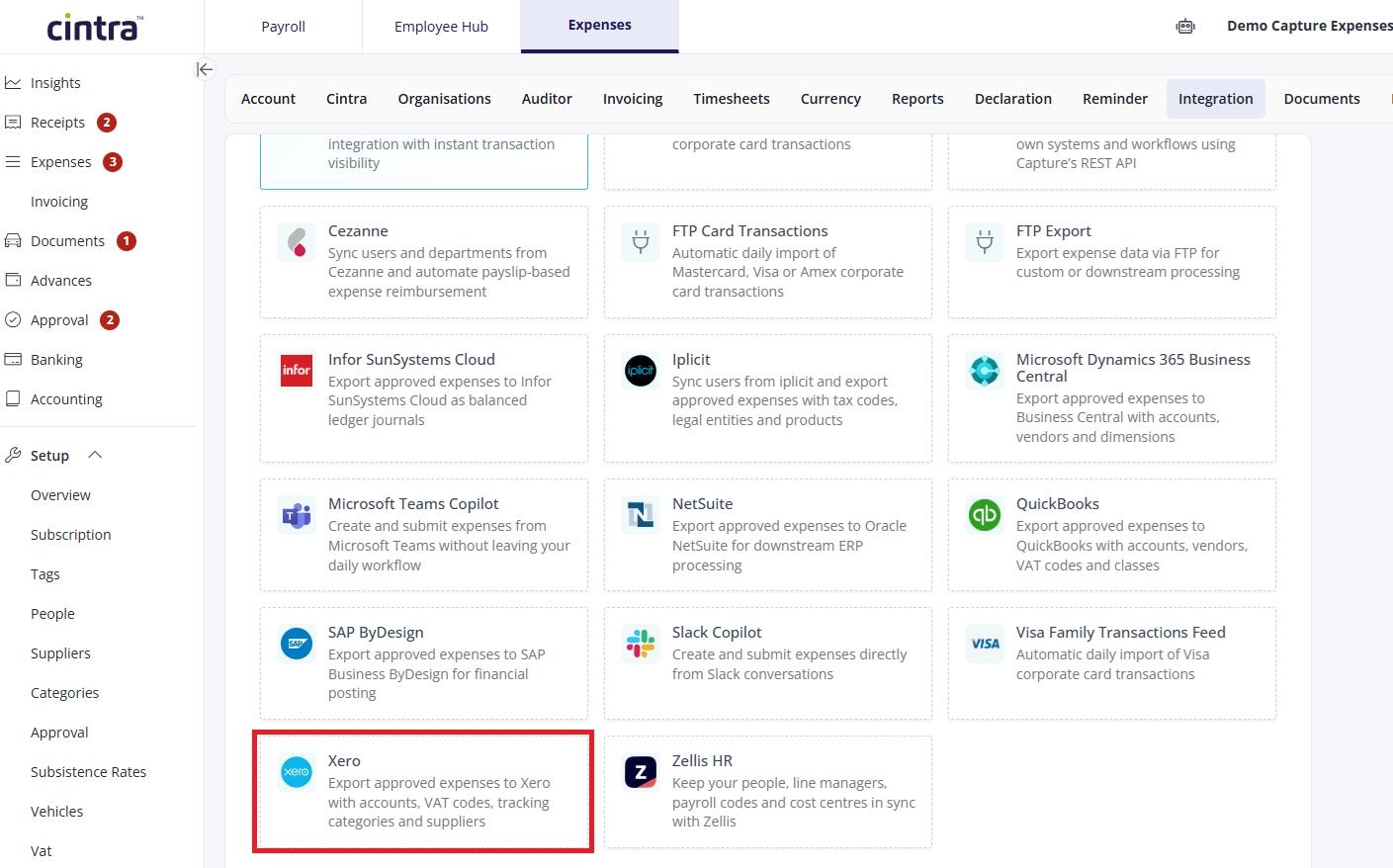
Click Connect to Xero. The Log in to Xero page appears.
Follow the instructions to connect your Xero organisation and provide Expenses with access. Once connected you can see your Xero organisation name.
Either:
Choose Xero from the Integration Type drop-down list and connect to other organisations, which will then appear in the list.
Remember to use the Default option, from which Expenses will use to sync records.
Click on the name to which you have access. You can then disconnect your organisation and view any logs.
Add multiple Xero connections, although Expenses uses only one at a time based on the Default checkbox.
Syncing tax records
Navigate to the VAT Records page.
Go to Setup > Vat.
Click Actions and select Sync VAT from the menu. The Xero tax records are displayed.
Continue to edited or remove the record(s) as required.
Note: Expenses must have the VAT code to post transactions into Xero.
Syncing category records
Go to Setup > Categories.
Click Actions and select Sync Categories from the menu. The Xero Category (Overhead) records are displayed.
Continue to edited or remove the record(s) as required.
Note: Expenses must have the GL code to post transactions into Xero. Remember to include the relevant GL code when creating additional Categories.
Mapping user accounts
Go to Setup > People.
Select the relevant account record.
Click Edit. The User Account details appear.
From the Xero Supplier drop-down list, select the relevant contact.
Click Save.
The contact is used to report on out of pocket expenses such as Purchase Bills to be reimbursed.
Exporting into Xero
Note: You must have a Finance user type to access this functionality.
When claims have been fully approved and are ready to be exported into Xero:
In Expenses, go to Accounting.
You can filter the list of claims by date, credit card, amount etc.
Use the circular checkbox to select the claims to be exported, then click Export.
.png)
If not already auto populated, from the Export Format dropdown select Xero Invoices.
Complete the date and reference, then click Export.
.png)
The claims will automatically transfer into your Xero system as Bills to Pay – Drafts.
Reviewing an Excel spreadsheet
If you would prefer an Excel spreadsheet to review and import manually into Xero:
Go to Setup > Settings > Integration tab > Xero.
Untick the Active tick box.
A copy of the export will go into your downloads.
.png)
Setting up Xero: a video guide
These videos were recorded in Capture Expense. Some screens and labels may look slightly different in Expenses, but the steps remain the same.