Once a trip has been created, you can assign expense claims to it. A claim can only be assigned to a trip if the selected category has subsistence rates enabled.
Assigning expenses to trips
Go to Expenses and select the relevant draft expense claim.
Click Edit from the right-hand action menu.
Select the relevant trip from the Trip dropdown.
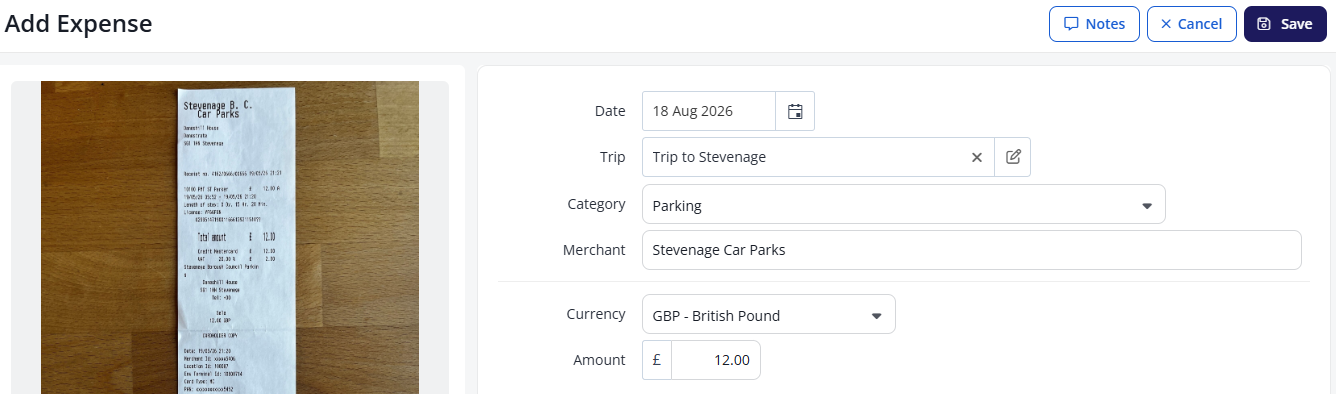
Check all fields are complete and click Save.
If the claim amount exceeds the allocated rate for the trip, a warning message is displayed. Edit the claim to bring it within the limit before submitting.
.png)
Note: You can assign multiple expense claims to the same trip, for example hotel, transport, and subsistence claims incurred during the same journey.
Editing a trip
To edit a trip from an expense claim, click the pen icon on the right side of the Trip field.
.png)
Checking a claim is assigned to a trip
Expense claims assigned to a trip display the trip name as a flag on the claim record.
.png)