Available in:
HR Essentials
HR Advanced
Who can do this:
HR Manager
About
Checklists allow you to automate processes by identifying and assigning activities to users. This can be used for a variety of processes, for example:
Onboarding employees
Conducting exit interviews
Managing a desk move
Identifying employee learning needs
This article will take you through the process of setting up Checklists templates.
First you need to set up Checklist Templates - take a look at the following article for more information: Checklist Templates.
Assigning Checklists
Checklists can either be automatically or manually assigned.
Automatic assignment is set on the Checklist Template. Read more about Checklist Templates here.
To manually assign a Checklist, go to Checklists > Assign New Checklist.
This will take you through the Assign Checklist wizard.
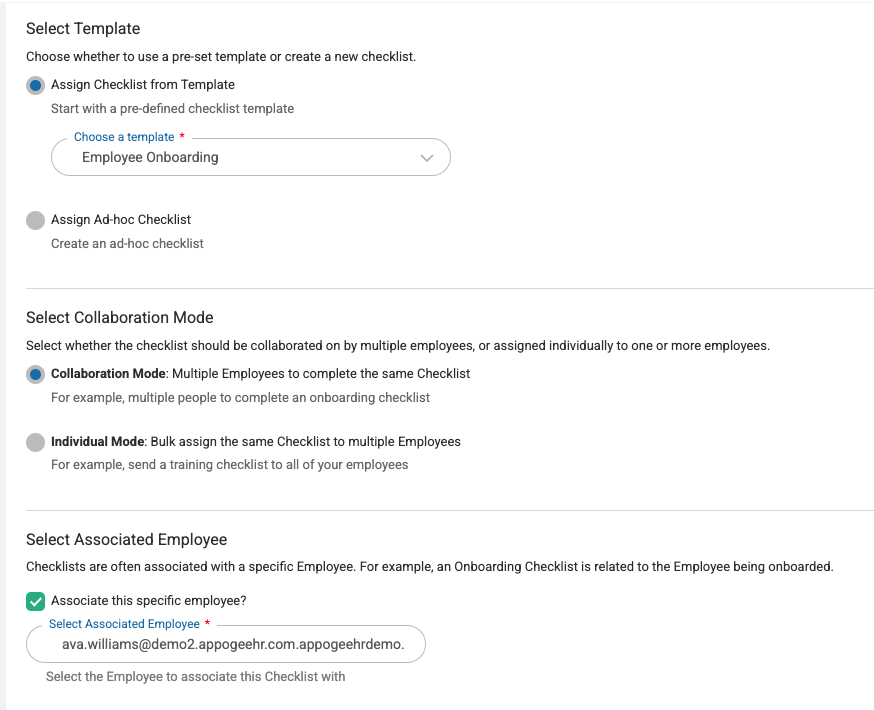
Step 1 - Getting Started:
Select Template
Choose your Checklist Template or create a Checklist ad-hoc (define the Checklist steps as part of this process).
Select Collaboration Mode
Choose whether multiple employees are to complete the same Checklist or to bulk assign the Checklist to multiple users.
Select Associated Employee
Set whether the Checklist is about a specific person.
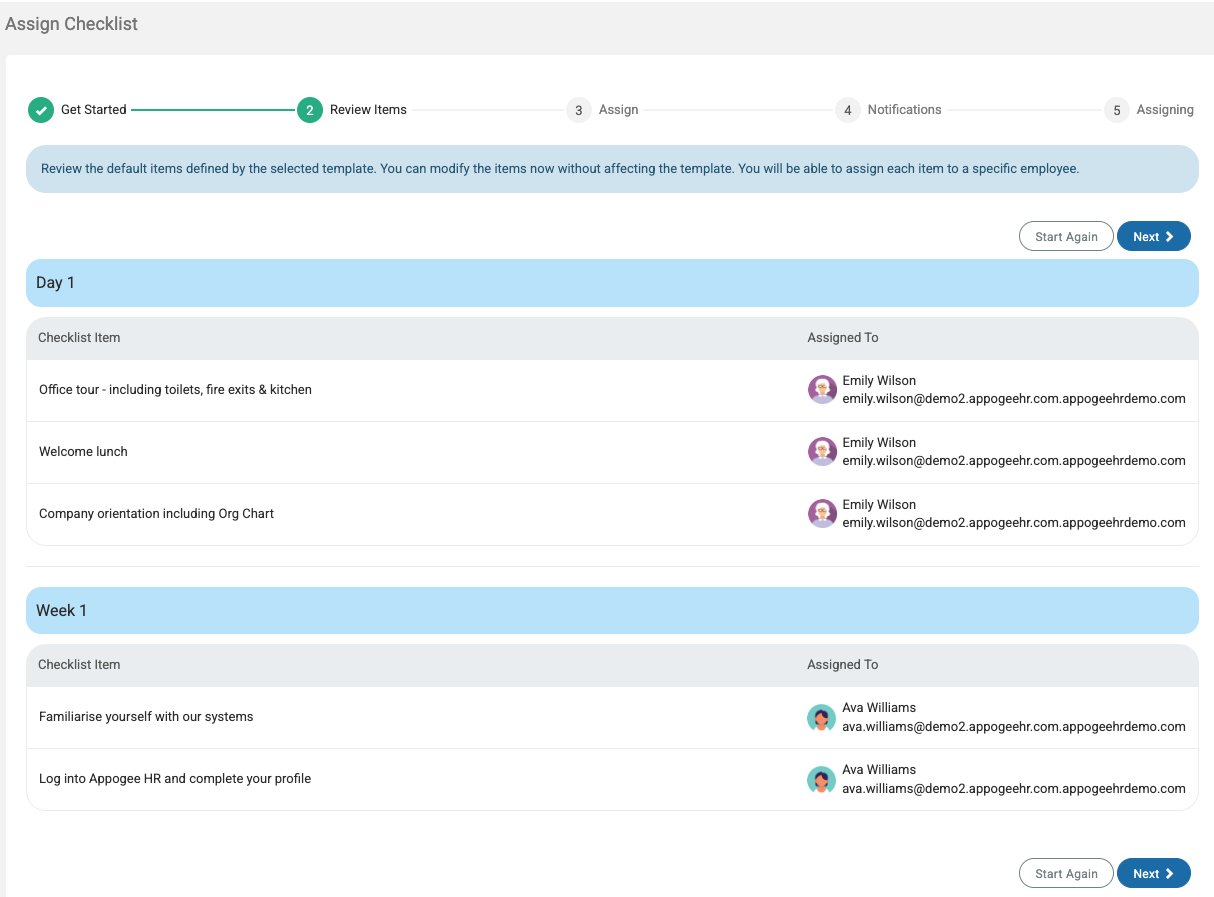
Step 2: Review Items
Optionally update the default items or assigned to for this specific Checklist. Note, if you have set the Checklist Template template to not allow override, you will not be able to edit anything at this stage.
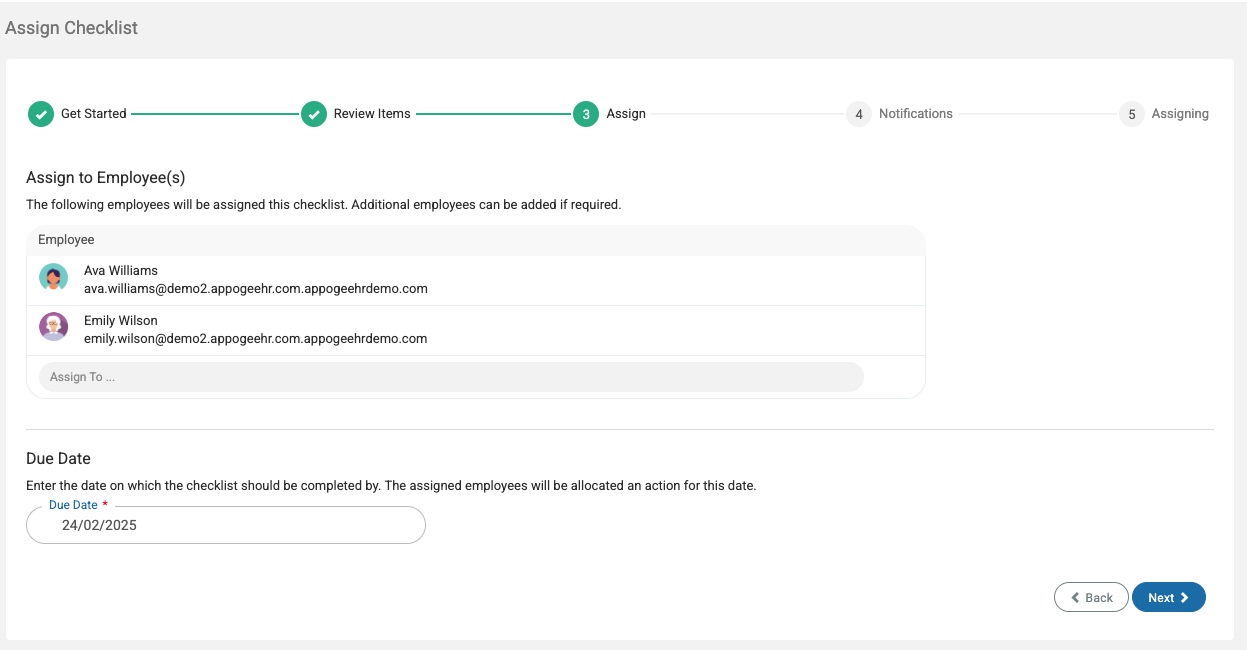
Step 3: Assign
Any users identified in the Assigned To column on the previous step will be automatically added to the share list, you can add any other additional employees at this stage too.
You can also set the Due Date on this page.
Step 4: Notifications
Any default notifications from the Checklist template will show here, you can also add any further notifications you need, as well as an Action Message.
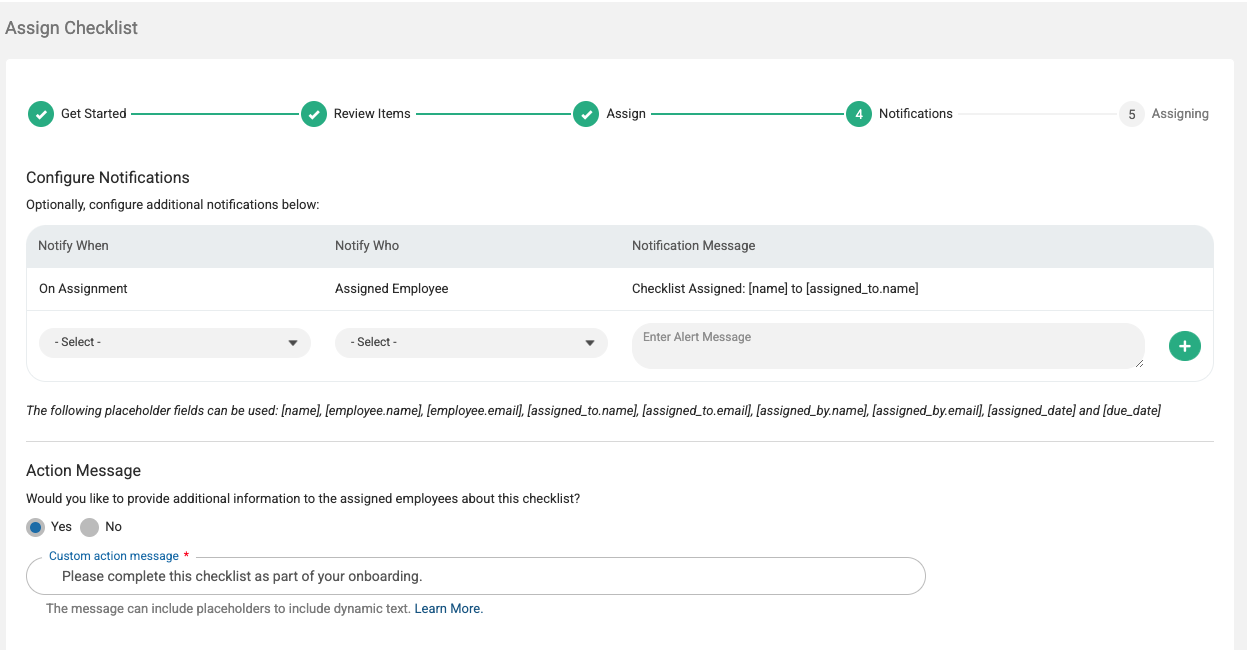
When you're happy with all the component parts, click Assign.