Available in:
Time
Who can do this:
HR Manager
Administrator
Introduction
During set up of the system, you may wish to import historic project data to Cintra People HR. This will populate your employees timesheets & project log pages so that you can accurately report on all project time, even that which took place before you started using Cintra People HR.
Using the tool
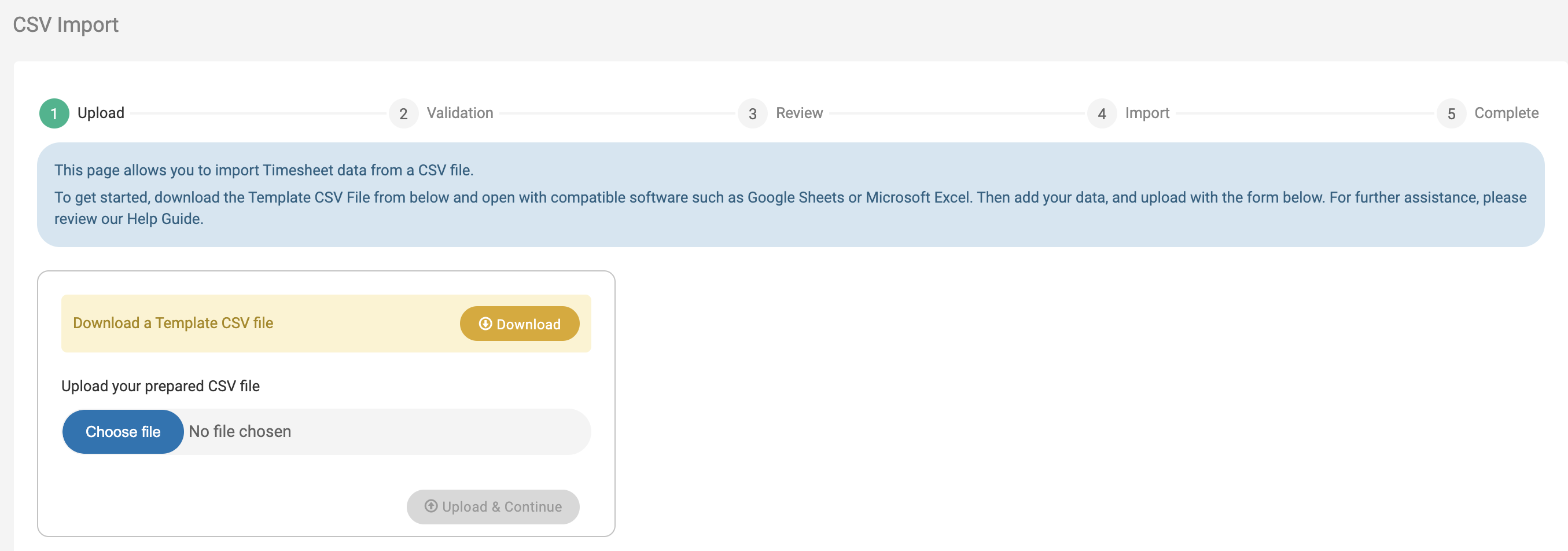
Go to Time > Config > CSV Import.
Click the Download button to download the template.
Fill out the template ensuring you add employee email, the date of the activity and the duration spent in minutes. You must add at least one entry in: Customer, Project & Task.
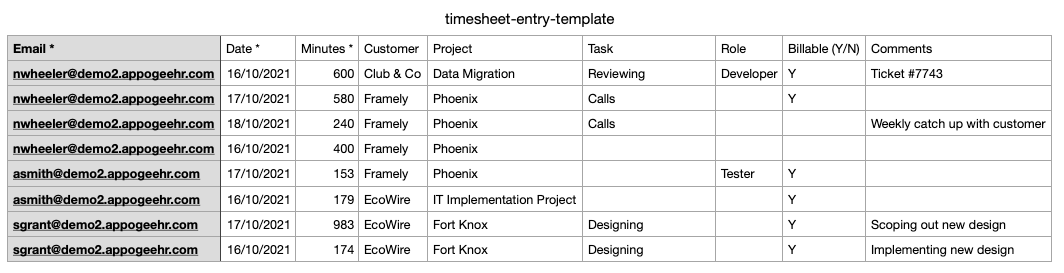
Once you have filled out the template, save it as a CSV file.
Click the Browse button to import the file to the CSV import tool, then click Upload & Continue.
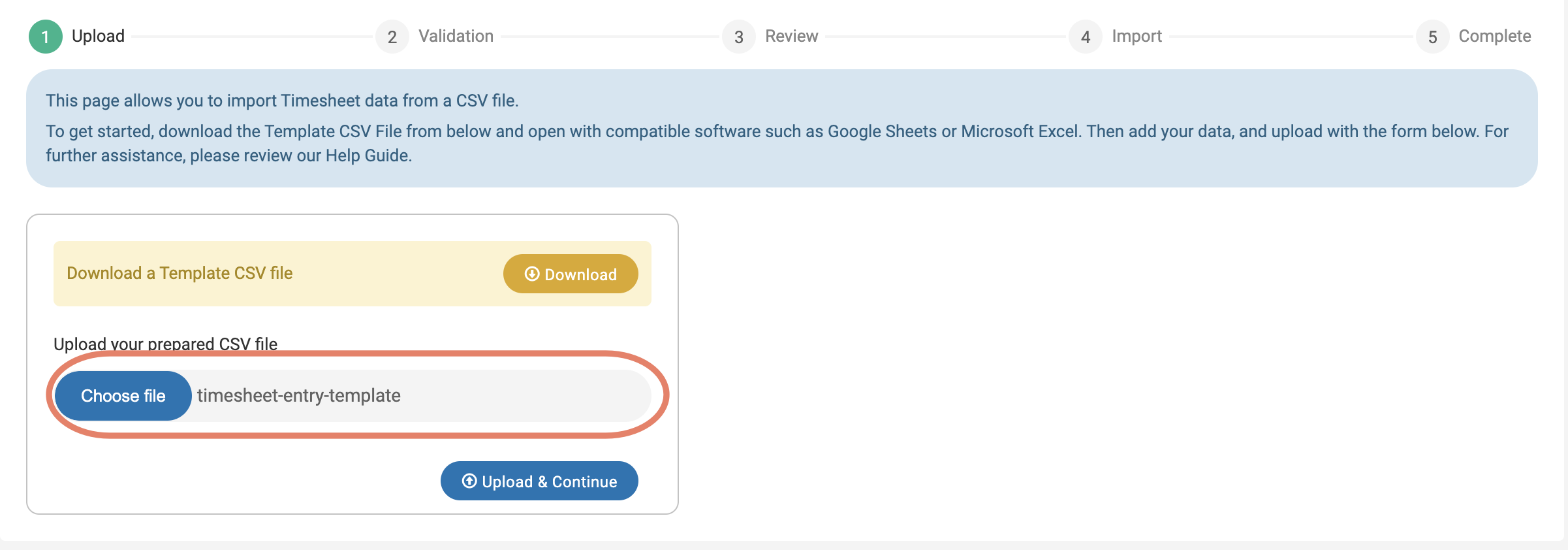
The tool will check the attachment and if there are any errors found, the system will present you with them.
For a list of errors, see below.
Once you have fixed any errors, re-save the file and repeat the upload process.
You will then receive a message to say the import has passed validation checks.
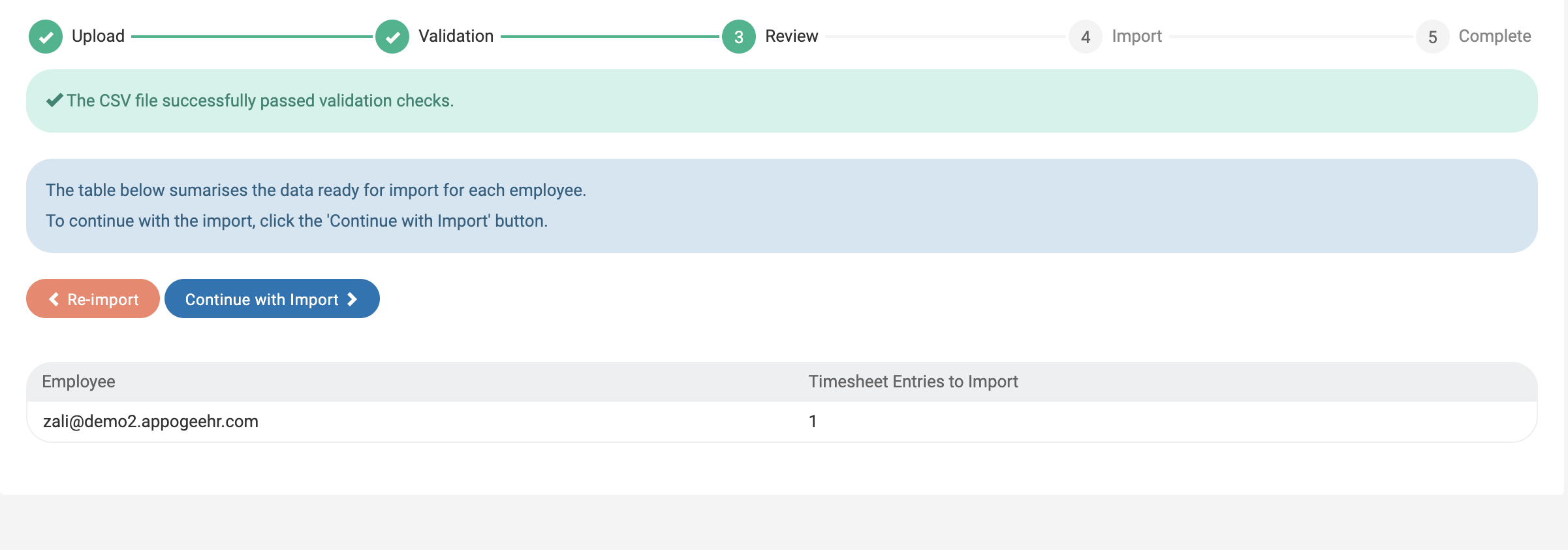
If you're happy with the data, click Continue.

Validation Errors
Below is a list of potential validation errors and what you need to do to fix them:
Error Message | Resolution |
Employee not found | Change the employee email address or add the employee to the system |
Employee not active | Change the employee status to active or joining |
Insufficient Access to employee | Employee data must be uploaded by a user who has access to the employee in question. This error shows if you are a Team Manager but do not manage the employee. Team Managers must have the Edit role |
It is not possible to import dates in the future | Change the dates to the past |
Minutes must be a positive number, less than 1440 | Change the number to a positive |
At least 1 of Customer, Project or Task must be provided | Input data into at least 1 of the Customer, Project or Task columns |
Project not found | Add the Project to the system or change it to one that has already been set up |
Project archived | Restore the Project to Active or change it to a different one |
Customer not found | Add the Customer name to the system or change it to one that has already been set up |
Customer not active | Restore the Customer to Active or change it to a different one |
Incorrect Customer for Project | Change the Customer to one that is associated with the Project or vice versa |
Task not found | Add the Task to the system or change it to a different one |
Task not active | Restore the Task to Active or change it to a different one |
Role not found | Add the Role to the system or change it to a different one |
Billable is mandatory if Project not provided | Ensure you add 'Y' or 'N' to the billable column |
Billable must be Y or N | Change the value in the Billable column to either 'Y' or 'N' |
Billable must match Project default. Leave blank to auto set | The billable status on the Project is different to what has been added to the template, either remove the value or change it to the opposite |
Duplicate Entry | Remove the entry |