Available in:
HR Essentials
HR Advanced
Time
Who can do this:
HR Manager
Introduction
If you have Location settings turned on, HR Managers will have access to the Location Report. This will show an overview of how many employees were marked as present in a location on any given day.
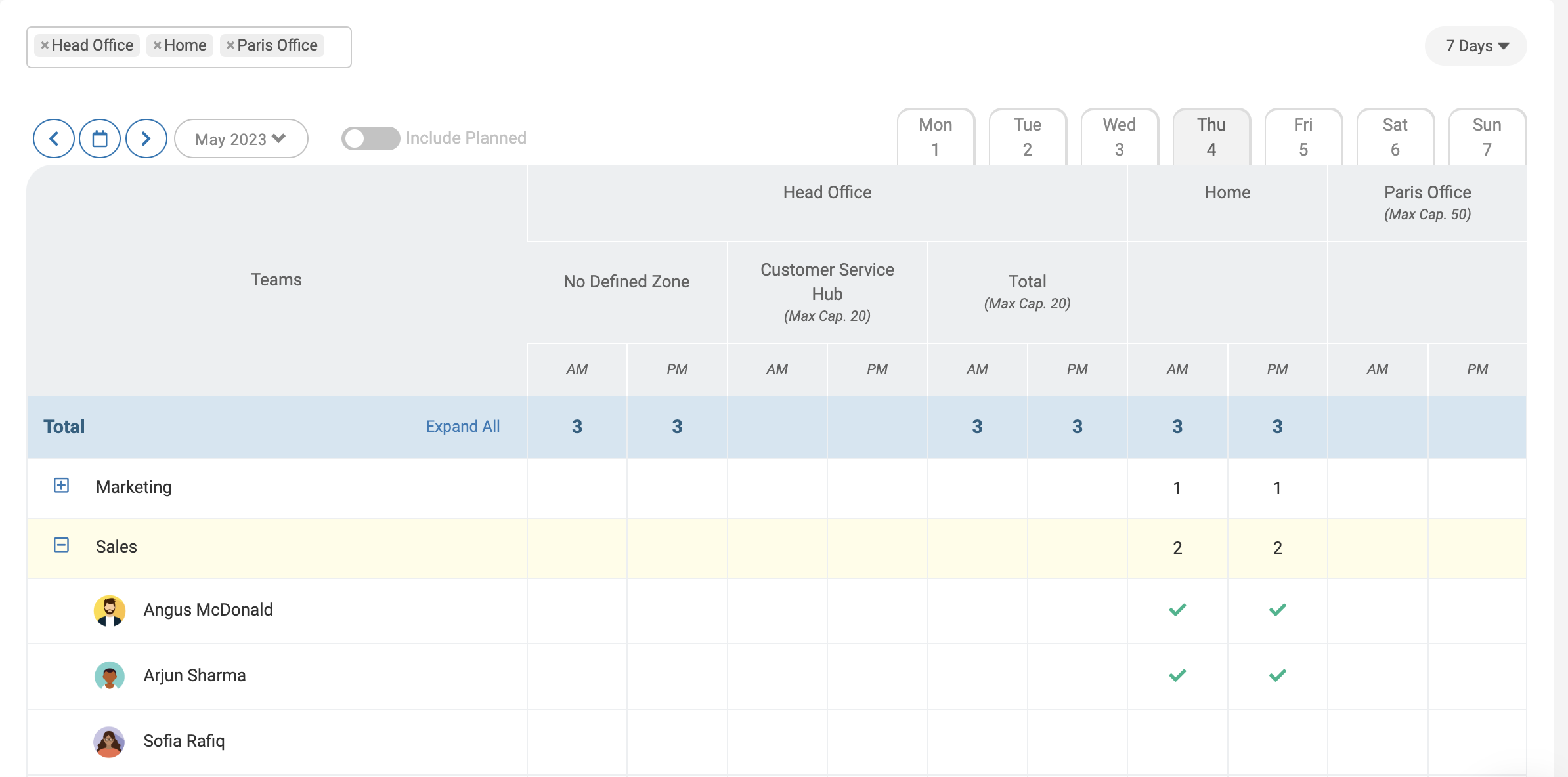
To view the report, go to Location > Report.
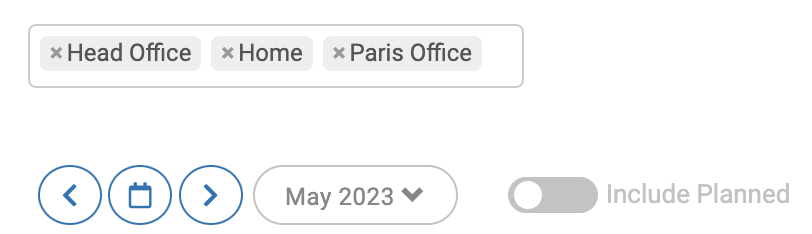
It will automatically filter to this week, with all locations and zones showing. However, you can use the filters at the top to view a different week/month or specific locations.
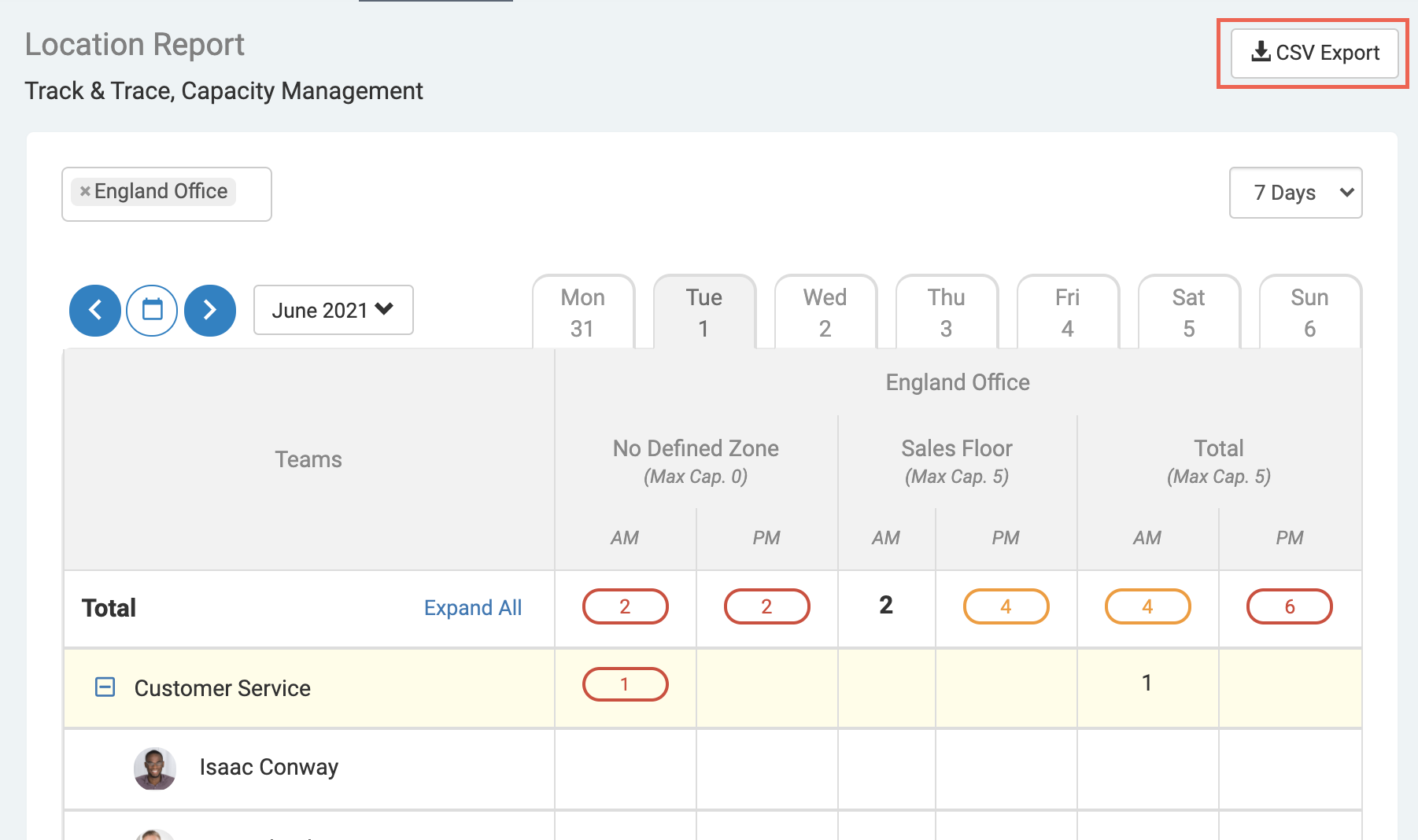
Capacity on any given day will be shown in the table.
If you have set up alert thresholds and max capacity for each zone or location and they have been reached, you'll be able to see this.
A zone or location close to the capacity will show in orange, and a zone or location at or above capacity will show in red.

Export
You're able to export the data from the Location report by clicking CSV Export in the top right corner.
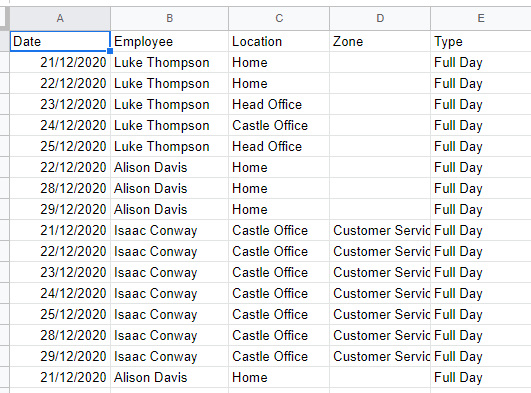
This will create a CSV version of the data represented on the screen, based on the date range selected.
Change the date range to export a different version of the report.