Available in:
HR Advanced
Who can do this:
Team Manager
HR Manager
About
The Progress Report shows the status of Performance Reviews over a specific time period. The progress report is filterable by Team, Review Template and Review Frequency and shows a snapshot of Review Progress.
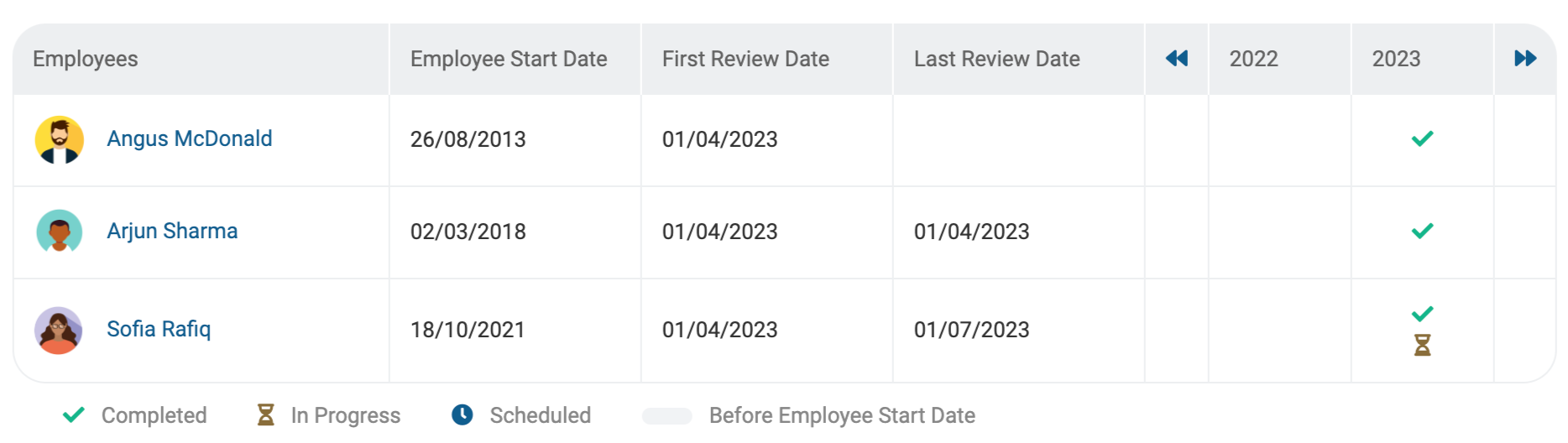
The employees' Start Date, First Review Date and Last Review Date are shown, to add context to the data.
Running the Progress Report
Go to Reviews > Reporting > Progress Report.
Select the Team, Review Template, Frequency and Year you'd like to see data for.
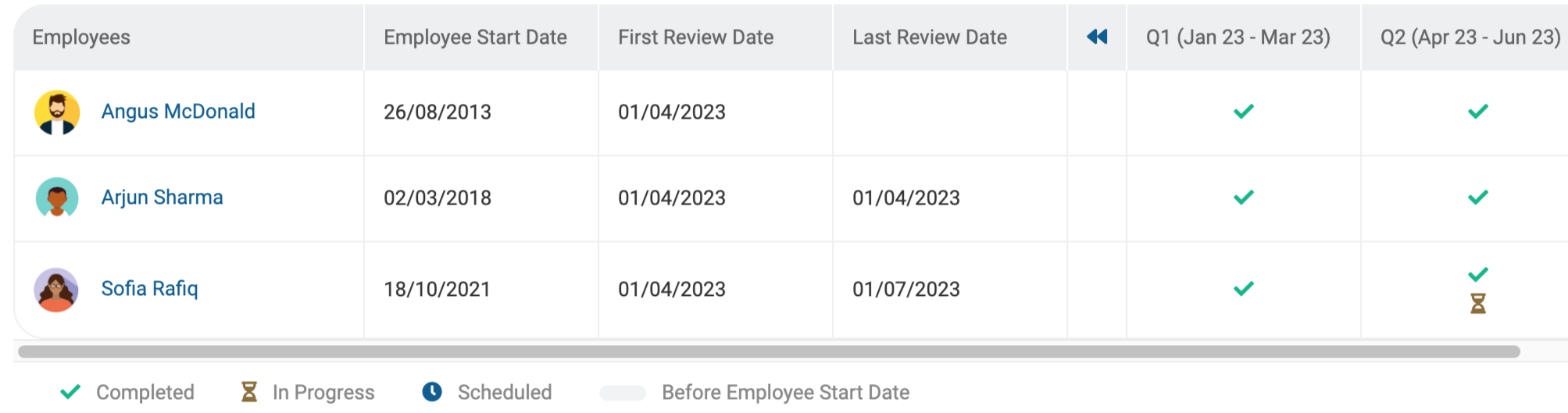
The results will show in the table - there is a key below the table to identify what each of the icons mean.
If a Review has been completed in the time frame selected, a tick will show.
If a Review is in progress, you'll see an hourglass.
Scheduled Reviews are identified by the clock icon.
Changing the Frequency will show you more detailed reporting:
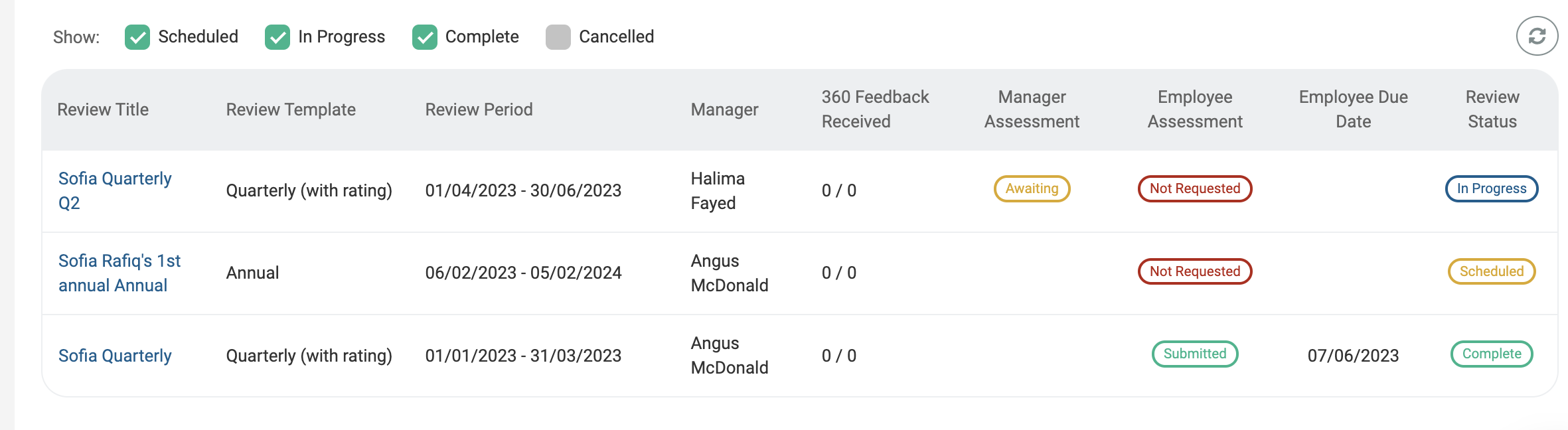
If you click on an Employee's name, you'll be taken to their Reviews page to see the Reviews that are either: Completed, In Progress or Scheduled.