You can recognise your employees and increase engagement by submitting shout-outs for them. If you think a colleague has done a good job, you're able to tell them, and inform everyone else that you value them.
Shout-outs associated with Goals
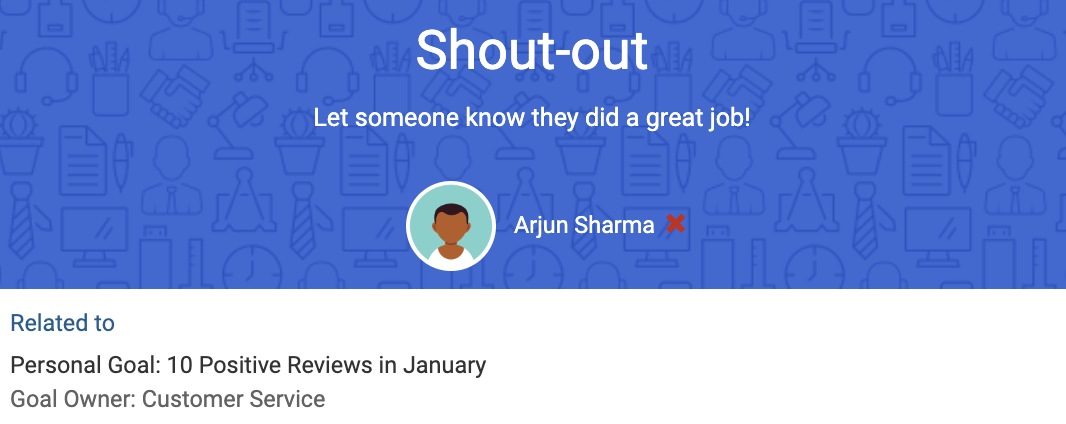
Shout-outs can be submitted as part of a Goal, you will need to be at least a Reader of the Goal in question and the person receiving your Shout-out also needs to be a collaborator on the Goal. For more information on Goal permissions, take a look at the following article: User Roles and Permissions.
To submit a Shout-out, open the Goal and click the medal icon in the top right corner of the Goal. A dialogue will appear where you can input the name of the person you are shouting out - you can Shout-out multiple employees if you like.
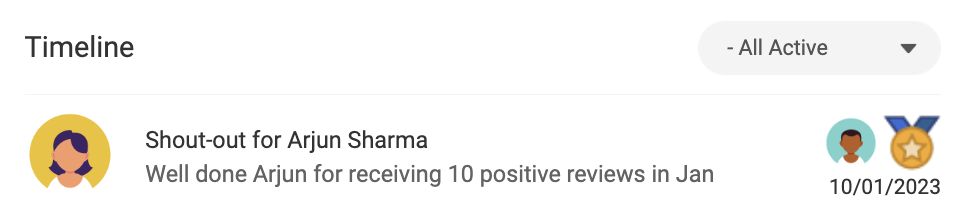
All Goal-associated Shout-outs will appear in the Goal Timeline.
Shout-outs not associated with Goals
For instances when there is not a specific Goal to associate a Shout-out to, you can submit by clicking New Shout-out at the top-right of the Shout-outs tab.
Follow the same steps as above to submit the Shout-out.
Viewing Shout-outs
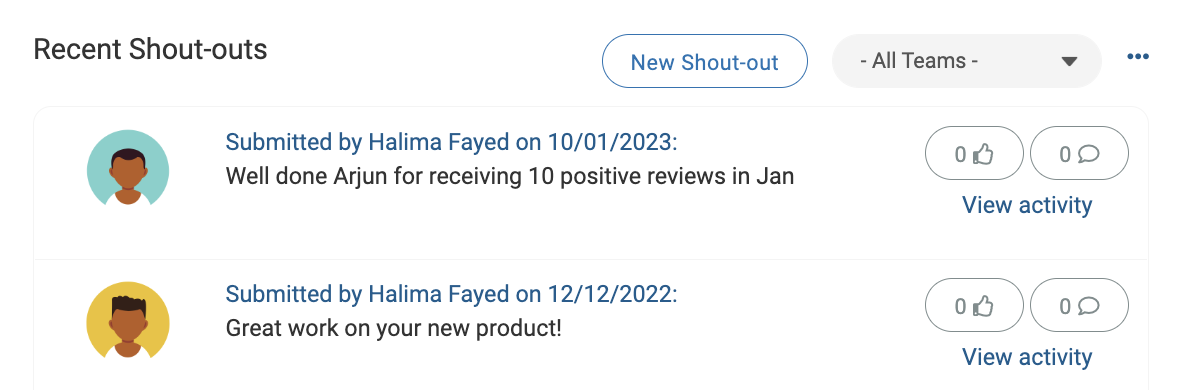
Shout-outs regardless of whether they're attached to a Goal or not can be viewed in the Recent Shout-outs widget of the Dashboard. This can be filtered to a particular team or all teams.
You can also view a larger list of Shout-outs by going to Reviews > Shout-outs.
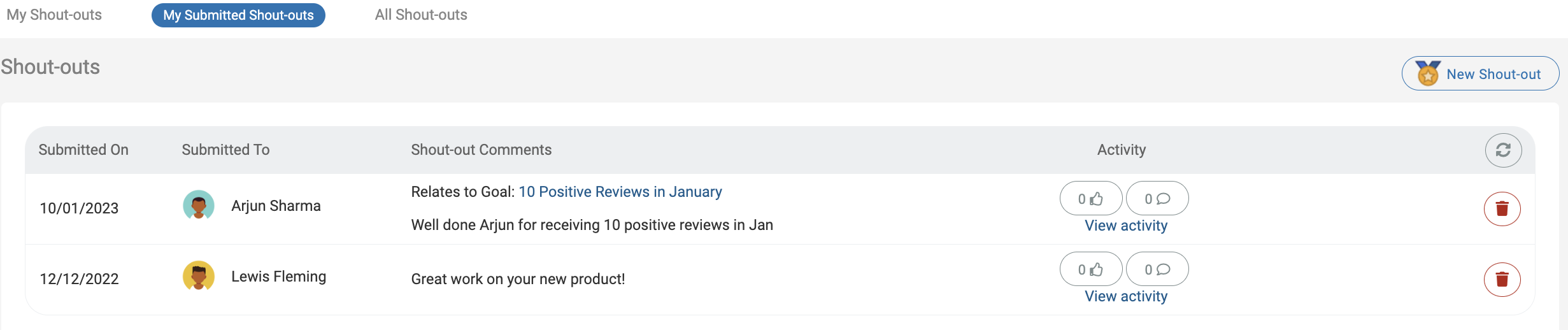
This page is split into 3 sections - My Shout-outs, My Submitted Shout-outs and All Shout-outs.
My Shout-outs will show you all the Shout-outs you've received from other employees.

My Submitted Shout-outs will show you all the Shout-outs you have submitted and to which employee they are related.
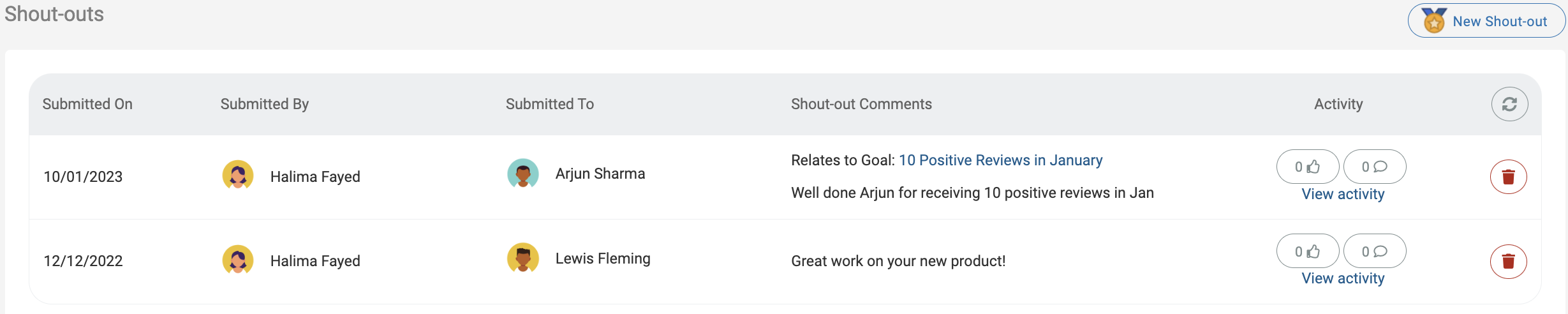
Finally, you can view all Shout-outs for the organisation by going to the All Shout-outs page.
Security Settings
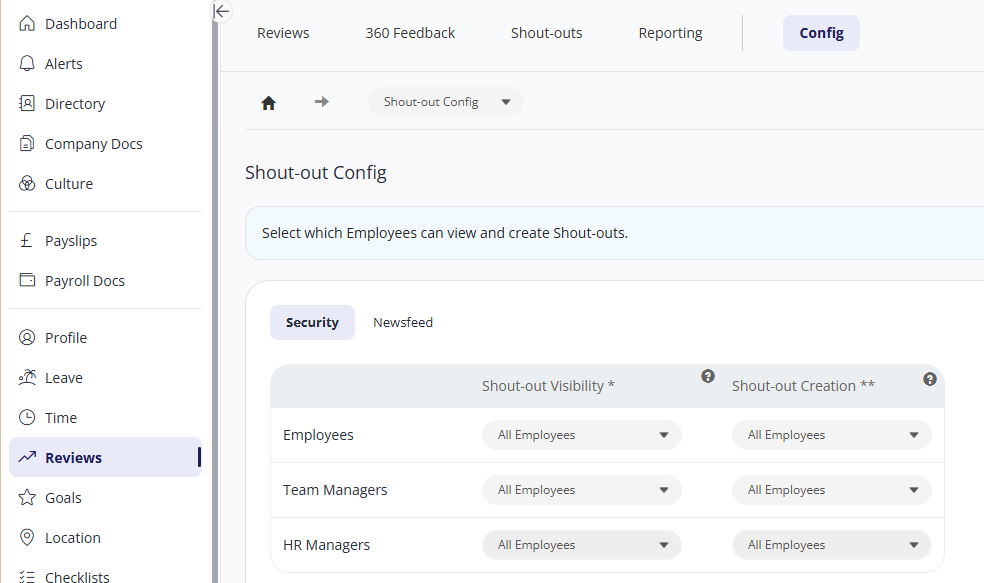
To control who can submit and view shout-outs:
Select Reviews in the side menu.
Select the Config tab.
Select Shout-out Config.
For employees, team managers, and HR managers, choose whether to allow them to create / view shout-outs.
For employees, “Team Members only” lets you set whether shout-outs are only visible by other users in their team.
For team managers, “Employees in Managed Teams” lets you can set whether shout-outs are only visible to employees within the manager’s team(s).
The Newsfeed tab also lets you set whether users can choose to add their shout-outs to the newsfeed.
Click Save after making any changes.