Available in:
Time
Introduction
You can view a breakdown of time spent across your Projects, Customers & Tasks from the Activities report.
This is split into an Employee Activity Report (available to Employees, Team Managers & HR Managers) and a Team Activity Report (available to Team Managers & HR Managers).
Employee Activity
Go to Time > Projects > Employee Activity.
Employees (and their managers) can view the Employee Activity page, which will show the breakdown of time spent on projects, with the default view being this week.
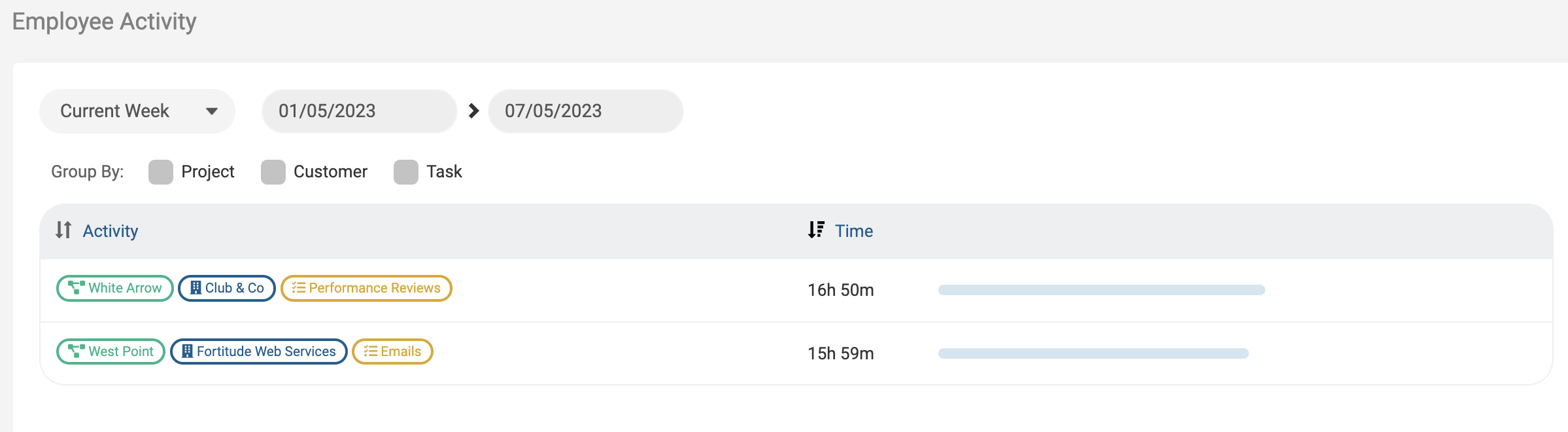
You can change the grouping by clicking the tick boxes to show you different information.
You can use the date picker and the dropdown to see a different time frame.
Team Activity
Go to Time > Projects > Team Activity.
HR Managers & Team Managers can view the Team Activity page, which will show the breakdown of time spent on projects.
Use the Team dropdown to select which team you want to view, or choose All Teams.
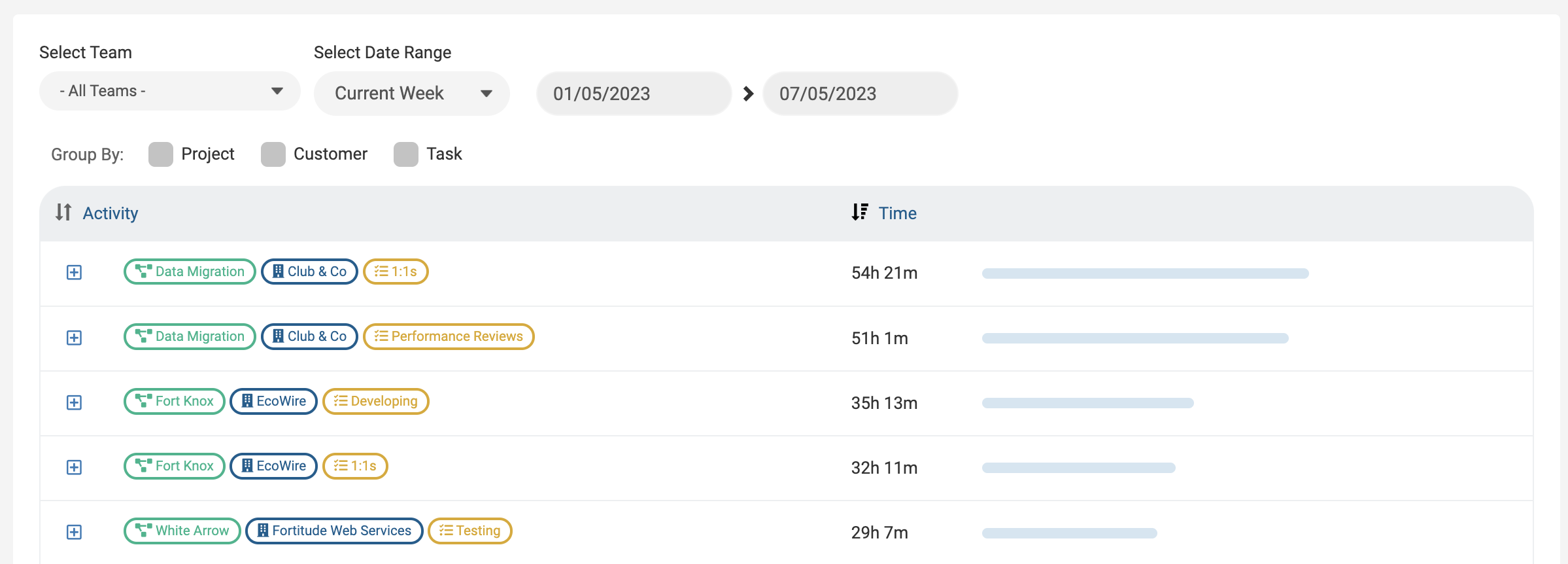
You can change the grouping by clicking the tick boxes to show you different information.
You can use the date picker and dropdown to see a different time frame.
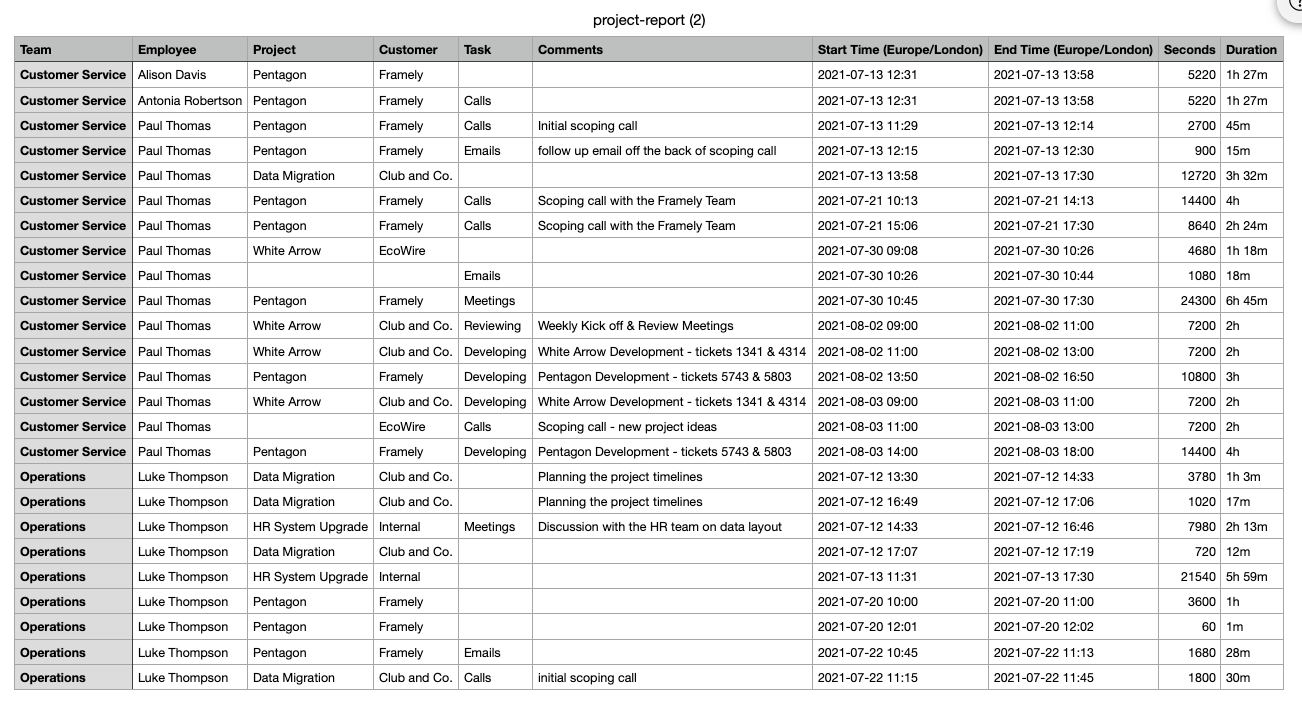
The Team Activity report is exportable to CSV.
Activity Report
Go to Time > Projects > Activity Report.
Here you'll be able to view all of the logged activity for each team and each employee against projects.
Use Team and Employee dropdowns to select which team and employee you'd like to view the activity for.
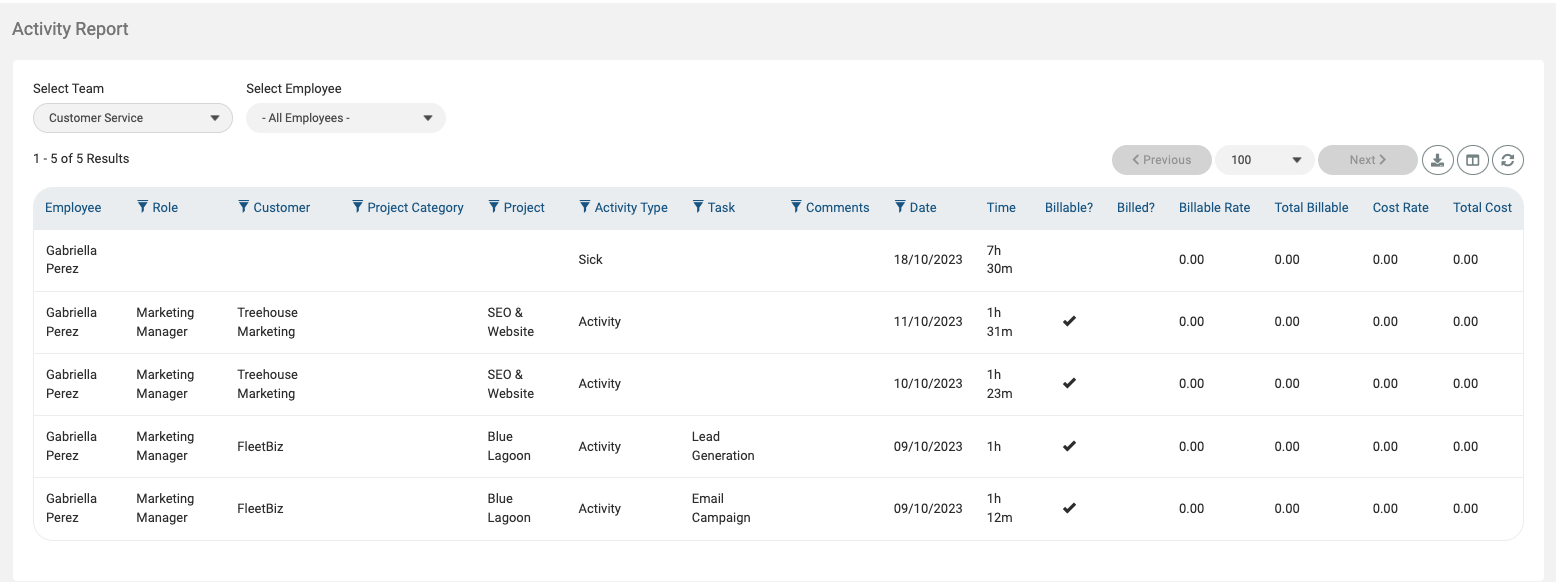
You can use the filter symbol beside the column headings to filter this report further.
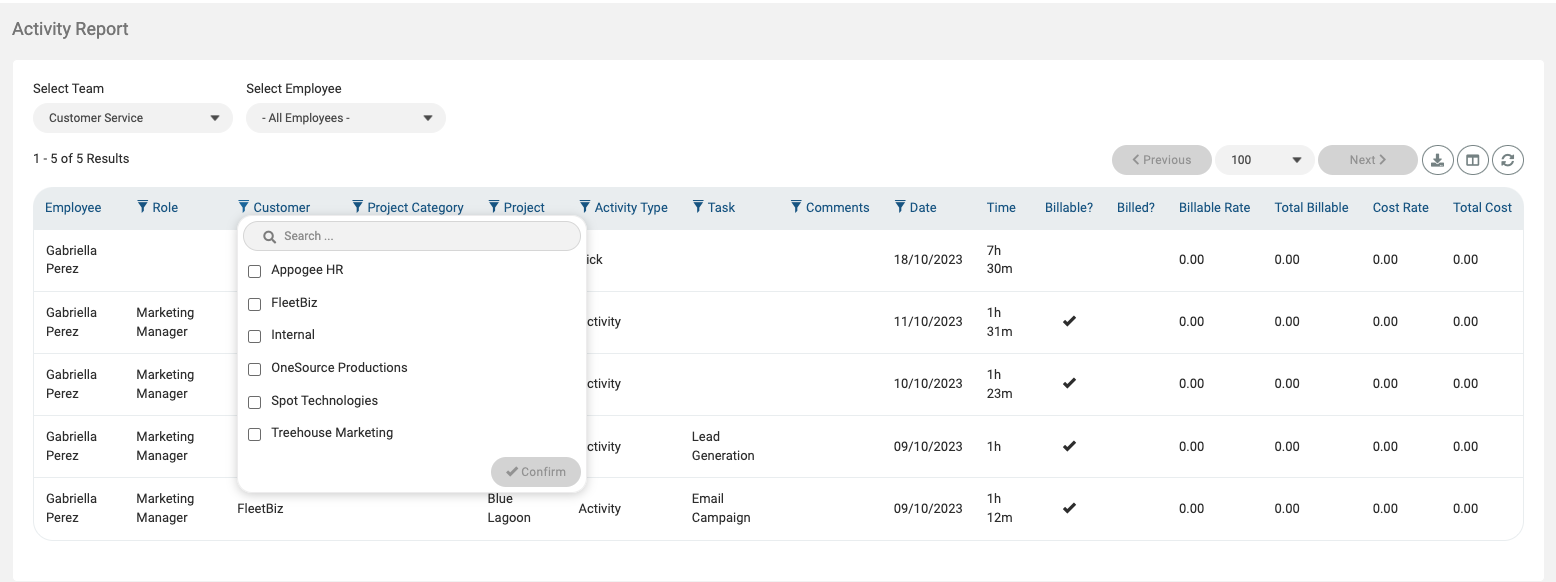
The Activity Report is exportable to CSV.
