Who can do this:
Administrator
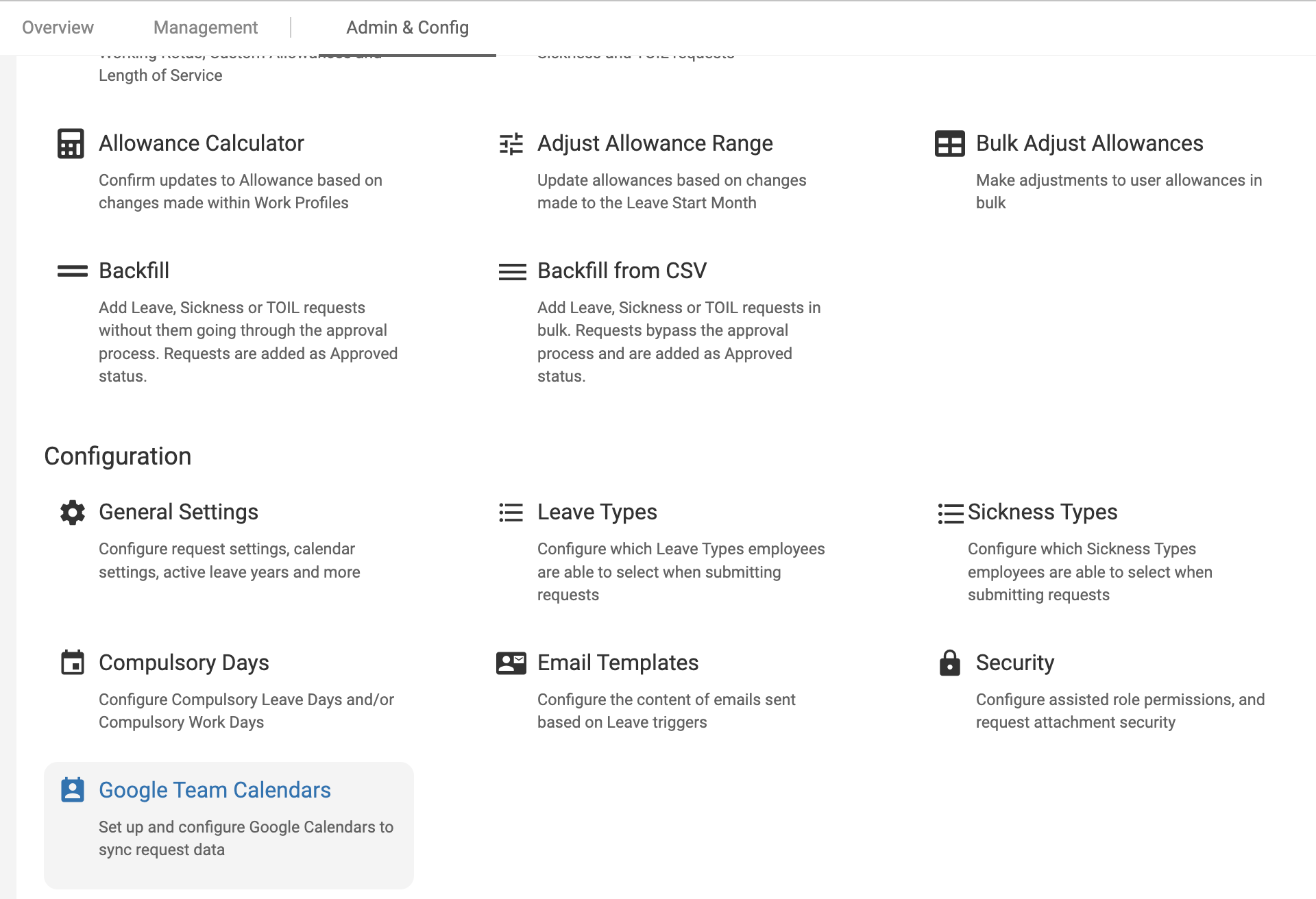
Go to Leave > Admin & Config > Google Team Calendars.
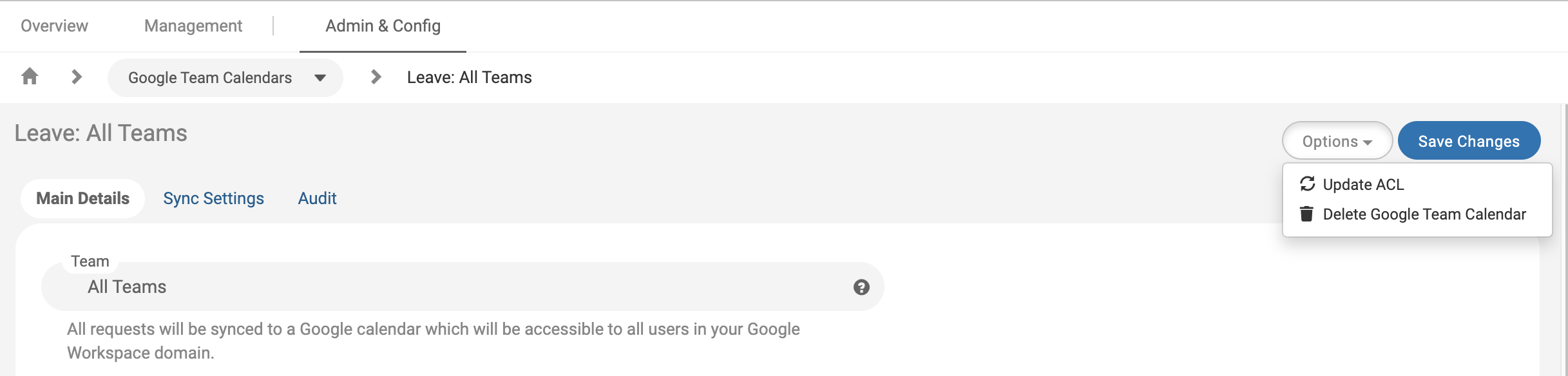
Open the affected calendar and click Options > Update ACL.
You will also need to check the following:
The Google Team Calendar in Cintra People HR has the correct Access Settings on the Access Settings tab.
If your Google Workspace domain has multiple domains, turn off the 'Allow others in the domain to manually subscribe to this calendar?' option in the Google Team Calendar Access Settings options as sharing in multiple domains is not supported by the Google Calendar API. The Access Settings tab is not available for Google Team Calendars which show 'all teams'.
The users are able to view the Google Team Calendar they have been given access to as per 1. above
Check for errors in the Logs.
The users are looking at the right place in Google Calendar for the Cintra People HR generated calendar (non owners should look under Other Calendars while owners under My Calendars)
The owner of the Google Team Calendar as shown in the Main Details tab can see the calendars in Google Calendar
The owner of the calendars has not changed the sharing settings in Google Calendar. Any changes they make to the calendar overrides any settings made by Cintra People HR
There are no other Google Workplace applications or global settings manipulating the Cintra People HR calendars