Applicable packages | Leave | Time | HR Essentials | HR Success |
|---|
Required Roles | Team Manager | HR Manager | Administrator | ADU Manager |
|---|
When the Integration with Slack has been setup (see this guide for details), users of the integrated Slack Workspace are able to use Slack commands to check information from Cintra People HR.
Currently, commands are available for the Leave and Time modules. To enter a command, simply type a forward slash into the Slack chat textbox, and Slack will auto-suggest available commands.
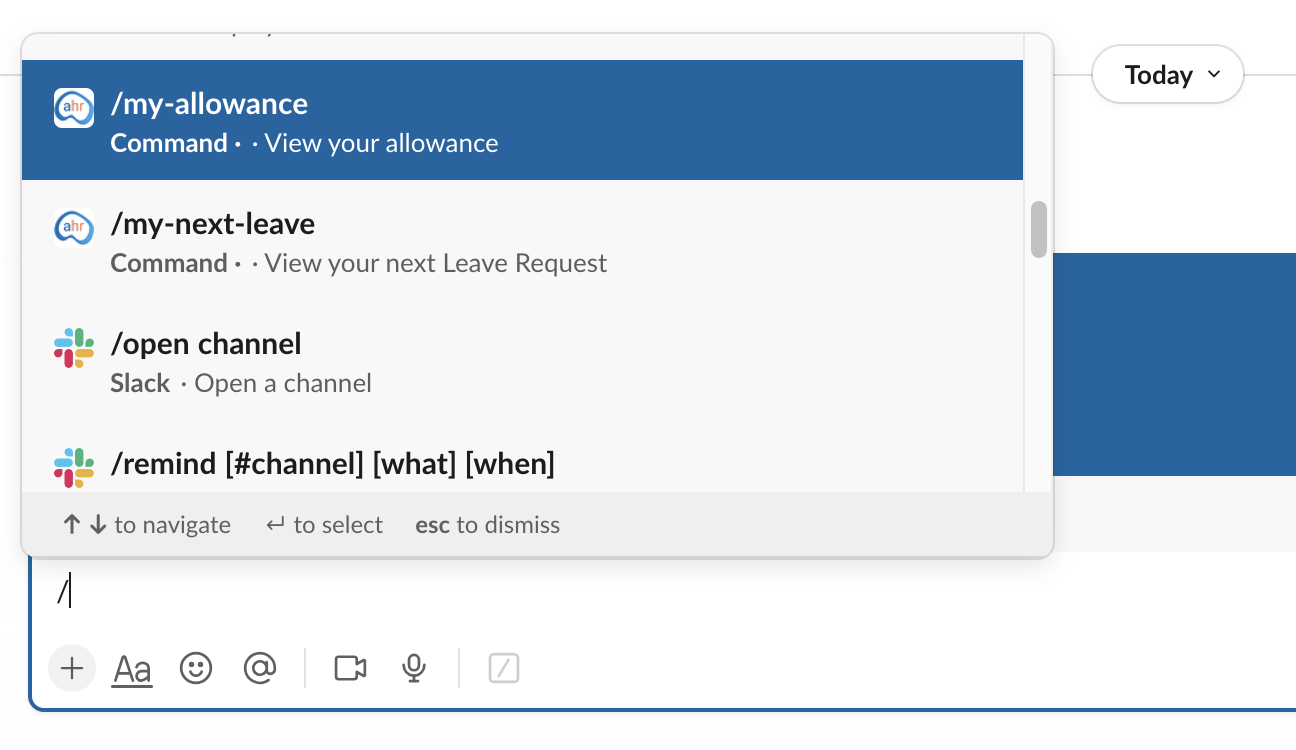
The commands are described below:
Leave Commands
Command | Description | Parameters (optional) |
/whos-off-today | Request information about who is off today for members of your team. | Team Name |
/whos-off-tomorrow | Request information about who is off tomorrow for members in your team. | Team Name |
/whos-off-this-week | Request information about who is off this week for members of your team. | Team Name |
If you do not know which Team you'd like to look up, Slack will present a dropdown of Teams you can choose from. | ||
/my-allowance | Request information about the current users allowance. | Hours |
/my-next-leave | Request information about the current users next Leave request | N/A |
These commands are available to all customers.
Time Commands
Command | Description | Parameters (optional) |
/clock-in | Use this command to clock-in. This will set the clock-in time for the current date and can be viewed from the Today page in Cintra People HR. | N/A |
/clock-out | Use this command to clock-out. | N/A |
/cancel-clock-out | Use this command to cancel a clock-out command. This will allow you to clock-out again at a later time. | N/A |
/start-break | Use this command to start a break period. This can be viewed from the Today page in Cintra People HR. | N/A |
/end-break | Use this command to end a break period. | N/A |
These commands are available to HR Essentials, HR Success and Time Tracker customers.
Performance Commands
Command | Description | Parameters (optional) |
/shout-out | Use the @ symbol followed by one or more employee names to tag them, then write your shout-out | Employee(s) name |
These commands are available to HR Success customers.
Further information:
Data Processing Agreement (Data Privacy and Data Subject requests)
Data Subject Requests for Slack integration
As for all Data Subject requests regarding Customer Data in Cintra People HR, it is your company's (the "Customer") responsibility to manage all subject data requests (i.e. request to access, transfer, or delete your data). If Cintra People HR receives any request from a user data subject in relation to Customer Personal Data, We will advise them to submit his/her request to Customer, and Customer will be responsible for responding to any such request including, where necessary, by using the functionality of the Services. An Cintra People HR user can contact their own HR Administrator(s) using the email address shown at https://app.appogeehr.com/your-hr-manager will provide support if needed to the Customer only and not to an end user. For more information see section 9 in our Data Processing Agreement.