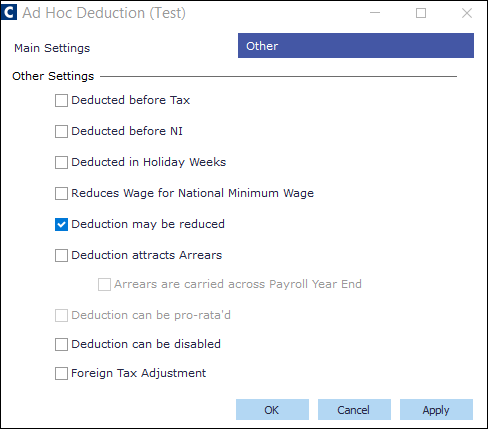
In order to record payments and deductions on a payslip, Cintra iQ allows you to set up adjustments in different categories. The category used will invoke specific calculation features.
Adjustment Headings are Payment (Addition) and Deduction headings. In order to record Payments and Deductions on a payslip, Cintra iQ allows you to set up adjustments in different categories. The category used determines how the payment or deduction heading is used. You can flag, within each adjustment heading, to say it is taxable, NIable etc.
Deduction Headings fall into a number of categories described below with specific processing features.
Note: If you are going to pay using Third Party Payments functionality to create BACS files, you will need to set up payees to be attached to Deduction Headings.
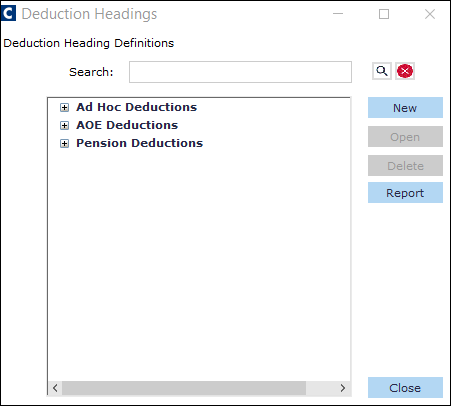
About the Deduction Heading window
Go to Cintra iQ: Payroll > Payroll Setup > Adjustments > Deduction Headings
Within the Deduction Headings window you can perform the following:
Create a new Deduction Heading definition.
Open an existing Deduction Heading definition.
Delete a Deduction Heading definition.
Report on the Deduction Headings.
Categories
These categories may vary, depending on how your system is set up.
Name | Description |
|---|---|
Ad Hoc Deduction | These deductions have no calculation features and are purely for periodic input of ad-hoc values such as Advances. No standard values can be attached to this heading. |
AOE Admin | If you choose to deduct an administration fee from employees for whom you are administering attachment of earnings orders you will need to create at least one deduction heading in this category. It is only the name that appears on the payslip that you are creating as the value, currently £1 is strictly controlled through legislation. |
AOE Deduction | You will need to create deduction headings that represent the name used on the payslip that represents the attachment of earnings order. You may choose to use the same heading for all AOE’s but usually it is preferable for employees that you create a heading that makes the deduction obvious, for example CSA, Council Tax or Court Order, etc. |
Employment Standard Deduction | This category is where the majority of your voluntary deductions are created and will include things like Union Fees, Give as you Earn, NIPSA, Uniforms, etc. |
Loan Deductions | Loan deductions are self-explanatory in that where you have an amount of money that you want to be deducted from an employee using standard values each pay period until it is exhausted, then a loan deduction will need to be used. |
Pension Deductions | Pension deduction headings can be viewed in the Adjustment Headings form but are created under Benefit Schemes. |
Buttons
Use the following buttons to perform various tasks.
Name | Description |
|---|---|
New | Click this button to create a new Deduction Heading. |
Open | Click this button to open a existing Deduction Heading. |
Delete | Click this button to delete a Deduction Heading. |
Report | Click this button to create a Deduction Headings Report. |
About the New Deduction Heading Form
As default, the Deduction Headings are NOT NIable, Taxable, pro-rated or subject to arrears processing, should the employee not earn enough for the heading to be deducted.
The New Deduction Heading form appears once you have clicked the New button in the Deduction Headings definition window.
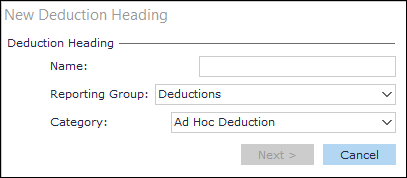
Name - Enter a unique name to identify the Deduction Heading.
Reporting Group - Select the Reporting Group that you want to show in this heading. These groups are created in Payroll > Payroll Setup > Adjustments > Reporting Groups.
Category- Select the category as described in the About the Addition Headings window section.
Once you have clicked the Next button on the New Deduction Heading form, the Deduction Heading details form appears. You can change these settings on the following tabs.
Main Settings tab
The Main Settings tab displayed relates to Standard Deductions. As with Addition headings, standard values can be held and conditional functions can be used to derive values.
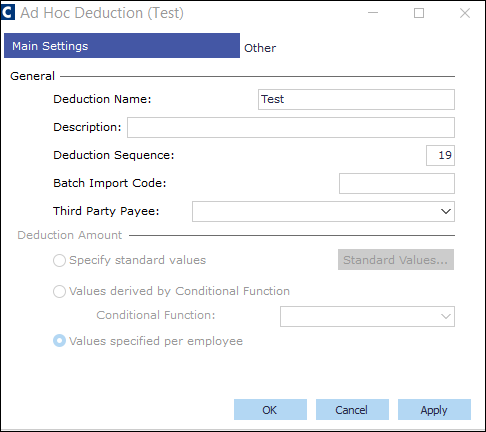
Note: If creating a heading from one of the alternate categories some of the fields are greyed-out as they are not used in the category.
Other tab