In Cintra iQ, you can create a statutory maternity pay (SMP), statutory paternity pay (SPP), or statutory adoption pay (SAP) claim for an employee going on parental leave. The claim holds the leave dates and evidence, calculates the statutory pay due, and is where you apply an occupational parental pay (OPP) scheme if your organisation has one.
All three claim types work in the same way. This article covers the steps they share and shows where they differ.
Before you start
Create a maternity, paternity, or adoption leave event in the employee's calendar. The calendar holds all of an employee's periods of absence, and the claim is based on this event. For more information, see creating a calendar event.
Open the claim
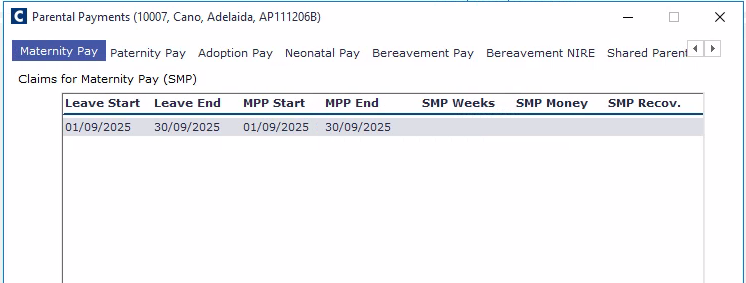
Go to Employment Record > Forms > Parental Payments.
Click the tab for the claim type, for example Maternity Pay.
Double-click to open the claim record. The claim window appears, for example SMP Claim.
Enter the leave dates
On the leave dates tab (for example, Maternity Leave Dates & KIT Days), enter the date the leave was requested.
Enter the date the evidence was received.
Enter the expected date. For adoption, enter the date the child is expected or placed.
Complete any other required dates, shown in the table below, and any others that apply. Fields with a red message must be completed before statutory pay can be paid.
Field | Maternity | Paternity (by birth) | Adoption |
|---|---|---|---|
Leave requested | Maternity leave requested | Paternity leave requested | Adoption leave requested |
Evidence | MAT B1 received | SC3 received | Evidence received |
Expected date | Expected date of birth | Expected date of birth | Child expected or Child placed |
Also required | None | Actual date of birth | Match notified |
KIT days | Yes | No | Yes |
Note: The pay schedule and statutory pay tabs become active once the required dates are entered. For maternity claims, you may see a warning if the MAT B1 received date is less than 21 days before the leave start date.
Create the payment schedule
Click the pay schedule tab, for example Maternity Pay Schedule.
Select the Payment scheme. This applies your OPP scheme to the claim.
Click Refresh Schedule. The payment details appear in the Payment Summary pane.
Click View Schedule to view or print the payment schedule.
If needed, click Weekly Payments to override the weekly payments.
If needed, select a Post for pension purposes.
Select pay partial weeks, if applicable. XX Confirm how this relates to the SAP/SMP/SPP/SBP/SHPP/SNCP Pay Up To Default setting in Employer Details.
Click OK to save.
Check the statutory pay
Click the statutory pay tab to view and edit the statutory payment details. On maternity and adoption claims, this tab is called Statutory Maternity Pay (SMP) or Statutory Adoption Pay (SAP). On paternity claims, it's called Paternity Leave Pay.