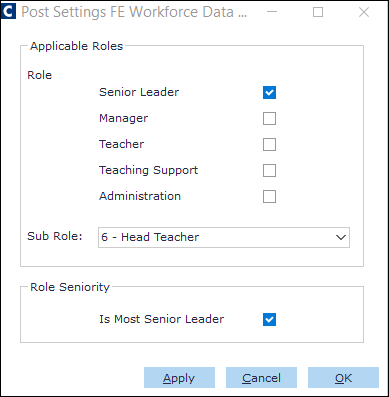
In order to build reliable data sets that will help improve policies pertaining to staff specialisms, pay, DfE programmes, and skill gaps within the Education sector, it is a mandatory requirement from September 2022 to collect Further Education workforce data for the 2021 to 2022 academic year.
Note: This screen has also been updated to reflect the new specification for FEWD return, including amendments to the main subject taught options for the 2023-2024 academic year.
Once you have entered the Teaching data in the FEWD_ Cintra.xlsx file's FEWD Application Data tab and/or the Post data in the FEWD_Import_POST_Cintra.xlsx file's CintraIQ FEWD Post Data tab, you need to save their worksheet as a .csv file and then it will be ready for import into the Cintra iQ database.
To import the FEWD_Cintra.csv file
Navigate to the Interface Definitions window.
Go to Cintra iQ: Tools > InterfacesEnter Education in the Search box.
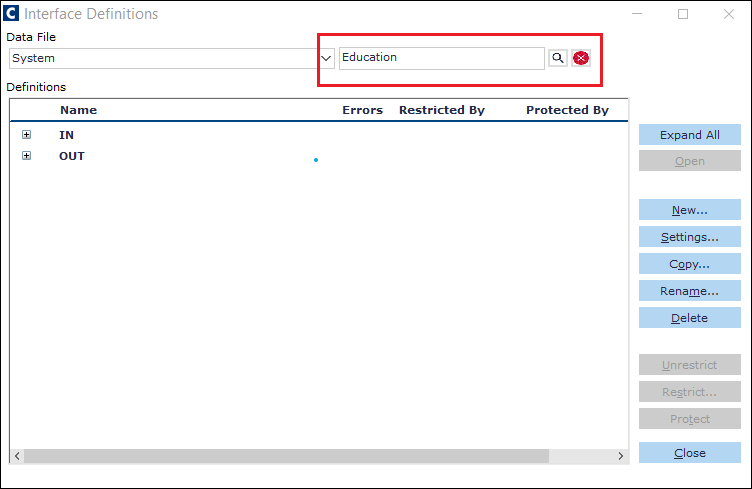
Click the Search icon. The two Further Education Workforce Data Import interfaces appear in the Definitions pane.
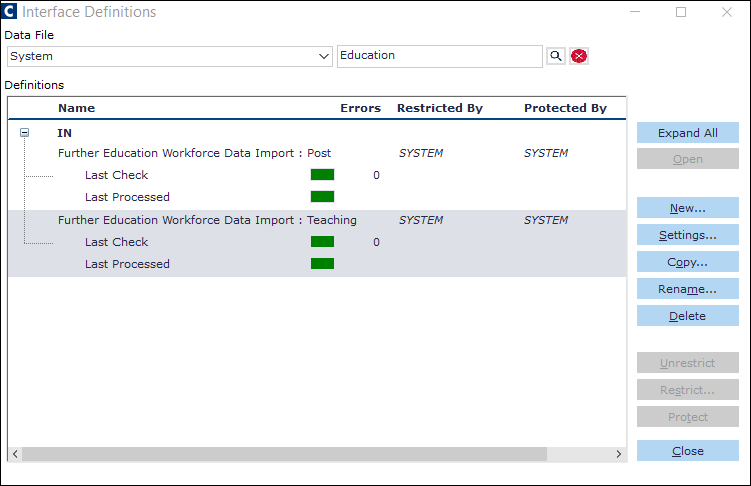
Ensure the Further Education Workforce Data Import: Teaching interface is selected in the IN section.
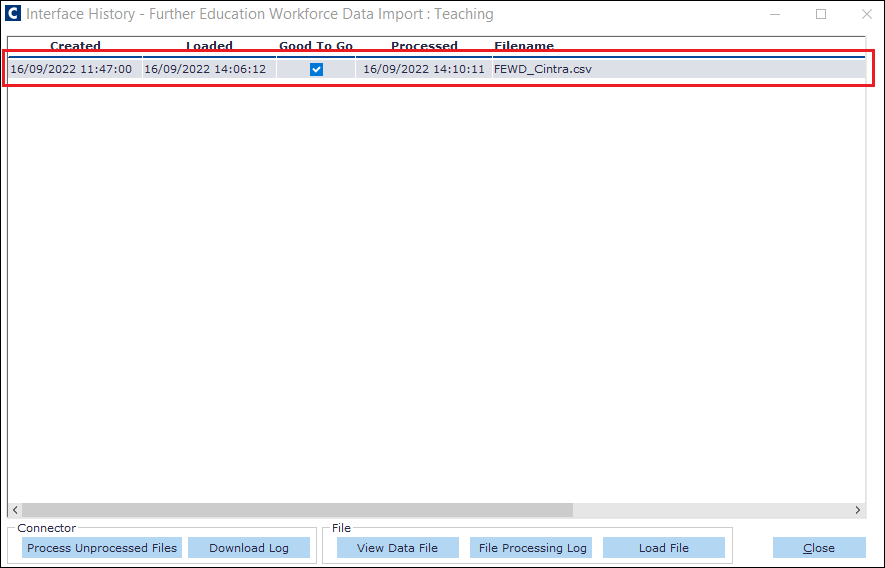
Click the Open button. The Interface History - Further Education Workforce Data Import: Teaching window appears.
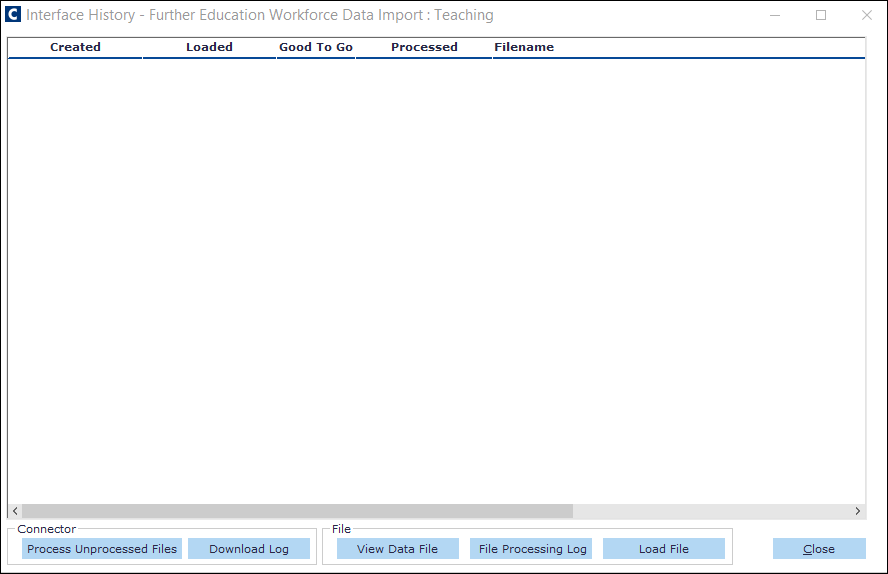
Click the Load File button. The Select File to Load window appears.
Search for the FEWD_CINTRA.csv file and upload it.
Click the Process Unprocessed Files button. The file is now imported into Cintra iQ.
To import the FEWD_Import_POST_Cintra.csv file
Navigate to the Interface Definitions window.
Go to Cintra iQ: Tools > InterfacesEnter Education in the Search box.
Click the Search icon. The two Further Education Workforce Data Import interfaces in the Definitions pane.
Ensure the Further Education Workforce Data Import: Post interface is selected in the IN section.
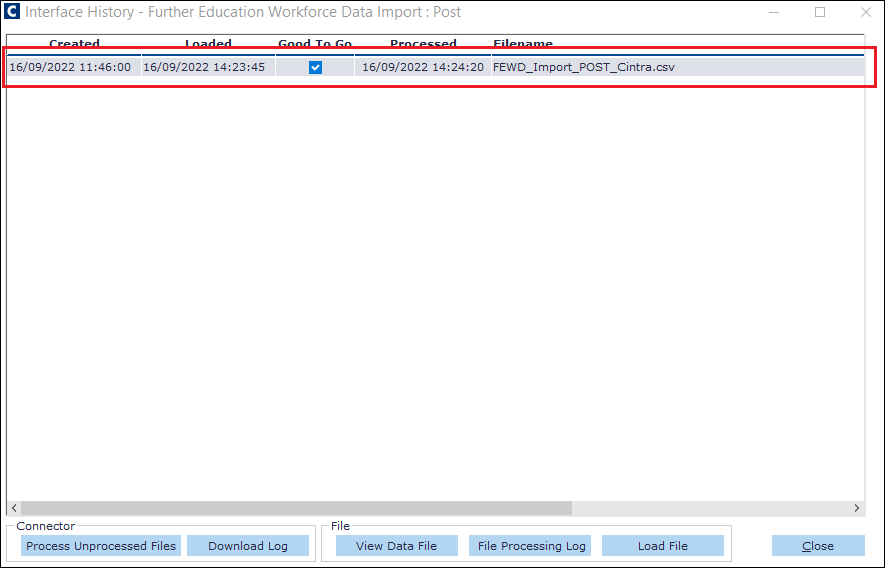
Click the Open button. The Interface History - Further Education Workforce Data Import: Post window appears.
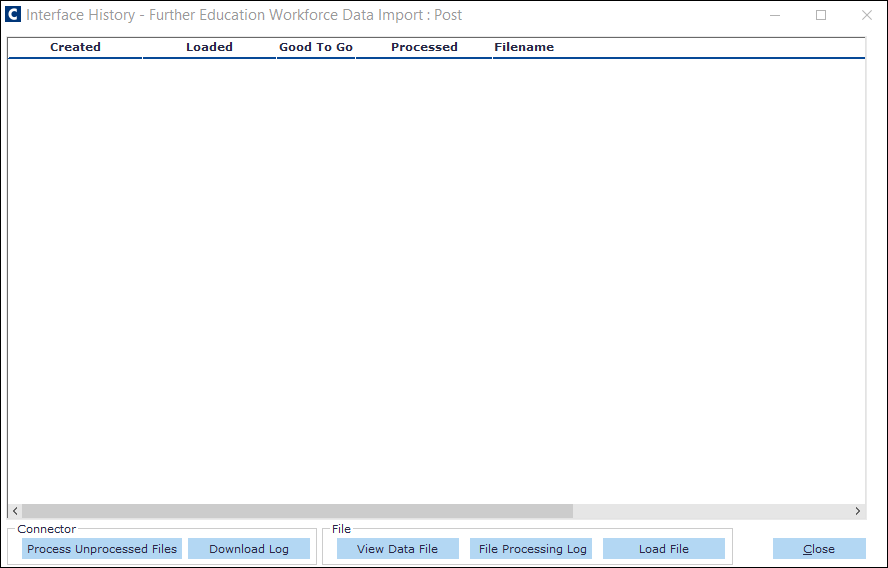
Click the Load File button. The Select File to Load window appears.
Search for the FEWD_Import_POST_Cintra.csv file and upload it.
Click the Process Unprocessed Files button. The file is now imported into Cintra iQ.
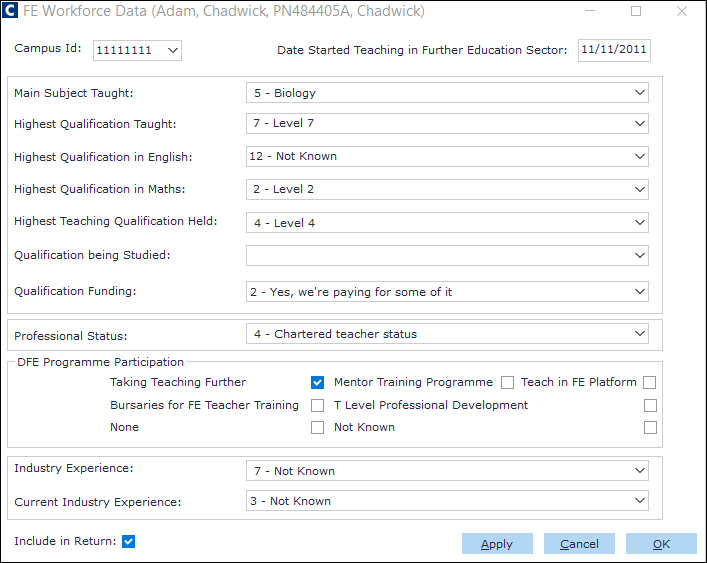
Important: You can make sure the Teaching data has been imported by checking the affected individual's personnel record. Go to Cintra iQ: People > Personal Record Forms > FE Workforce Data.
Important: You can check to make sure the Post data has been imported by checking the affected post's record. Go to Cintra iQ: Employer Setting Posts Post record Forms FE Workforce Setup.