If you are searching for help with MFA on Cintra People (formerly Cintra Cloud), view this article in the Cintra People Payroll help site.
The LoginTC app enhances the security of your Cintra iQ account by providing a 2FA / MFA process. You can use LoginTC as a phone app (iOS and Android) or as a Chrome browser extension. This article explains how to set up and use both, and what to do if something goes wrong.
Setting up the phone app
Downloading the app
For iOS (Apple) users:
Visit the App Store on your iOS device.
Search for "LoginTC".
Download and install the app.
For Android users:
Open the Google Play Store on your Android device.
Search for "LoginTC".
Download and install the app.
Activating the app
After installing the app, follow these steps to activate it:
Locate the LoginTC app on your device and open it.
Click the key icon to add a new activation.

You should have received an activation key via email. Enter this key in the designated field in the app.
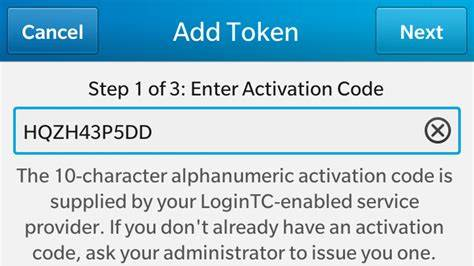
Once you enter the activation key, your app is set up to approve logins to Cintra iQ.
Setting up the Chrome extension
Installing the extension
Go to the LoginTC page on the Chrome Web Store.
Click Get.
Click Add extension to confirm.
Adding your token
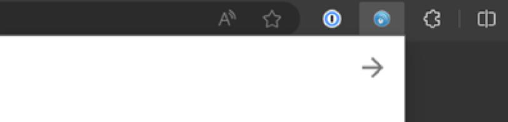
Once installed, click the LoginTC icon in your browser toolbar to open the extension.
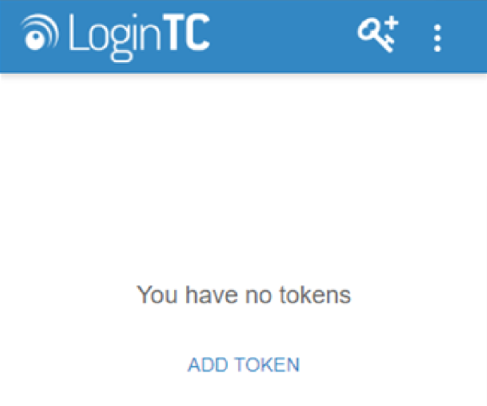
Click Add Token. (You'll see a brief tutorial the first time you open the extension.)
Enter the 10-character alphanumeric activation code provided to you via email.
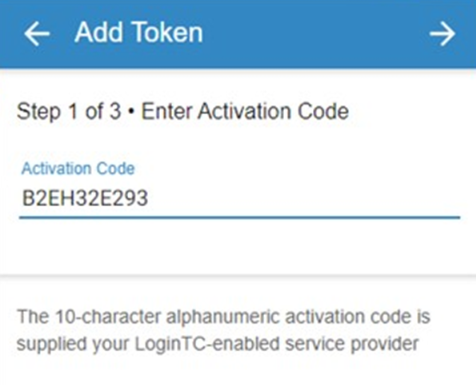
Press Enter.
Click Next. Your token is now loaded and you can log in using LoginTC.
Using LoginTC to log in
Once LoginTC is set up, you'll use it every time you log in to Cintra iQ:
Enter your username and password as normal.
LoginTC sends a notification to your phone app or Chrome extension.
Open the notification and click Approve.
Cintra iQ loads once the login is approved.
Troubleshooting
Lost or new phone?
If you need to set up LoginTC on a new device, contact your HR department or Cintra Support.
"Sign in failed. Please check your username and password and try again."
Make sure the account has been activated using the activation token provided by Cintra Support. If the account hasn't been activated with the token, the user won't be able to sign in.
Not receiving LoginTC notifications on your mobile device?
Check the following:
Notifications are enabled for the LoginTC app in your device settings.
The app has the required permissions.
The LoginTC app is open when you attempt to sign in, if prompted.
If the issue persists, contact your administrator or support.
Haven't received the LoginTC or Cintra email?
Check your spam or junk folder.
If you still can't find it, contact your IT department to confirm the email hasn't been blocked by your organisation's firewall, email filtering, or security policies.