Audit logs track every key action taken within your payroll system, such as changes to employee records, pay details, or settings, along with who made the change and when. They provide a transparent, time-stamped history that helps ensure compliance, support troubleshooting, and maintain data integrity.
The Audit Log is a useful tool to help you troubleshoot corrections.
Accessing the Audit Log
If you have permission to view the audit log, in Cintra iQ, go to Tools -> Audit Log.
Configuring the Audit Log
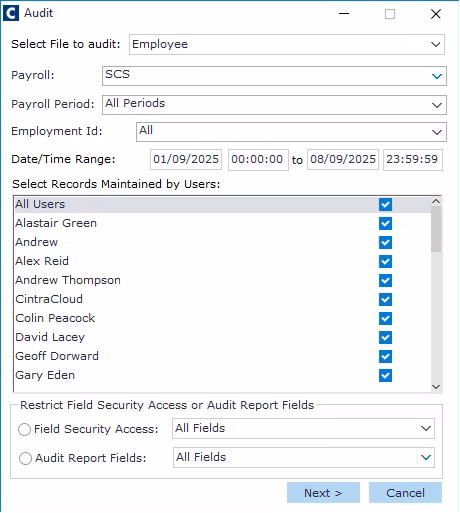
To run the report, you must enter the following information:
Select file to audit: Choose which area of the system you'd like to audit, such as employees, jobs, or company vehicle records.
Payroll: You can either audit on a specific payroll or ALL payrolls
Payroll Period: If you are auditing a specific payroll, you can select a specific period or all periods.
Employment Id: This field will change depending on what you are auditing. You can filter by a specific record, or keep at the default ALL.
Date/Time Range: You must enter a start and end date. You can also specify times to narrow the search. The maximum range is 60 days.
Select Records Maintained by Users: By default, all Cintra iQ users will be displayed, but you can untick any user you don't want to appear in the audit log report
Field Security Access / Audit Report Fields: Select one of these options, then select either ALL fields or a specific set of fields to appear in the audit log report.
Click Run to run the report.
Viewing the Audit
Once you run the audit log, all transactions which match the filters you applied will be displayed.
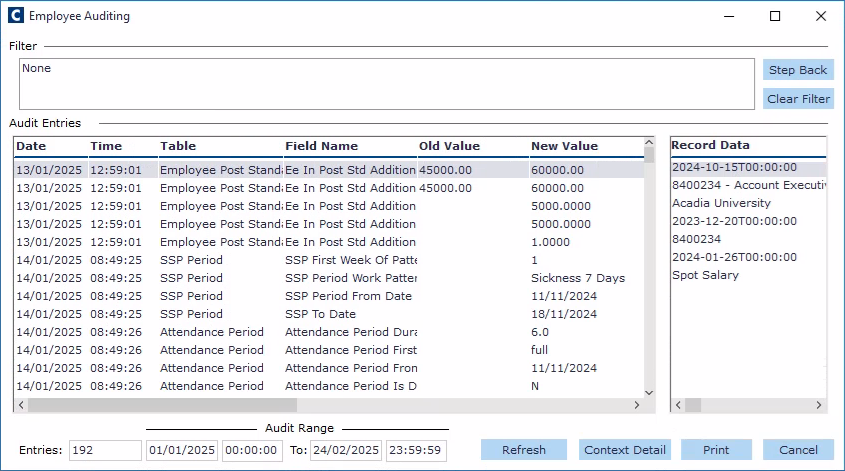
When you select any audit entry, the Record Data section will display more information about the data change. You can also view further information by clicking Context Detail.
If the change has been made by a user of Cintra People (Cintra Cloud). their name will be shown in the report.