Before you begin
This article explains what to do when multi-factor authentication (MFA) is enabled on your Self-Service account. You'll need a smartphone with an authenticator app installed, such as Microsoft Authenticator or Google Authenticator.
Before you begin, make sure you know the URL of your Self-Service site, and your username and password.
Setting up MFA for the first time
Please note the process for adding your account to an authenticator app may differ slightly, depending on which app you are using.
When you next log in to Self-Service with your username and password, you'll see a QR code that you need to scan using an authenticator app.
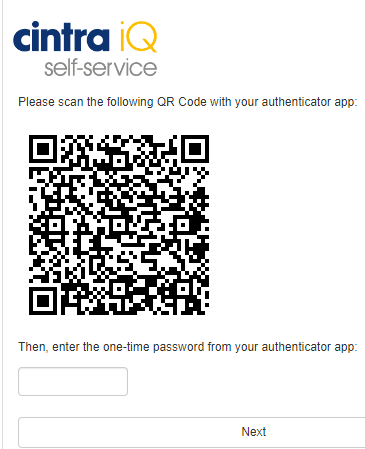
Open your authenticator app and select the option to add an account.
Select the option to scan a QR code, then scan the code shown in Self-Service.
Enter the code generated by the app into Self-Service, then continue.
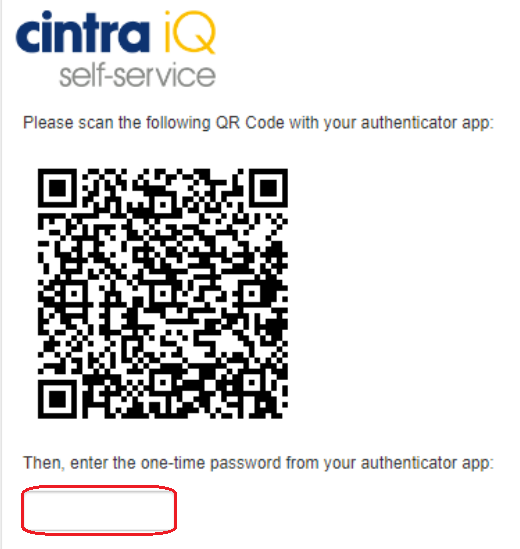
From now on, you'll be asked to enter the code from your authenticator app every time you log in. Make sure you use the Self-Service entry in the app, not any other account you may have set up.
Setting up MFA on the same smartphone you use to log in
If you're setting up MFA on the same smartphone you use to log in to Self-Service, you won't be able to scan the QR code with that device's camera. Follow these steps instead.
Open the Self-Service website on your smartphone and log in with your username and password.
Note the Account name shown on the screen.
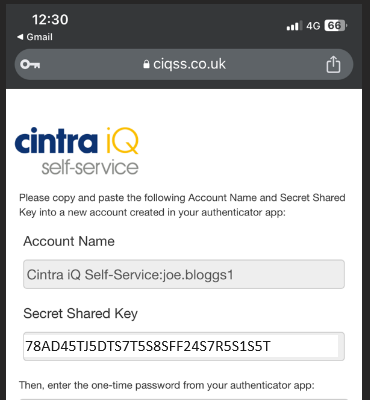
In your authenticator app, select the option to add a new account.
Select the option that lets you enter the code manually.
Copy and paste the Account name from Self-Service into the app, then repeat this for the Secret key.
Once you’ve finished, your authenticator app displays a one-time password.
Copy this code, paste it into Self-Service, then click Next.
From now on, you'll be asked to enter the code from your authenticator app every time you log in.
Resetting your MFA
If you lose access to your authenticator app, for example after changing phones, you'll need to ask your System Administrator to reset your MFA.
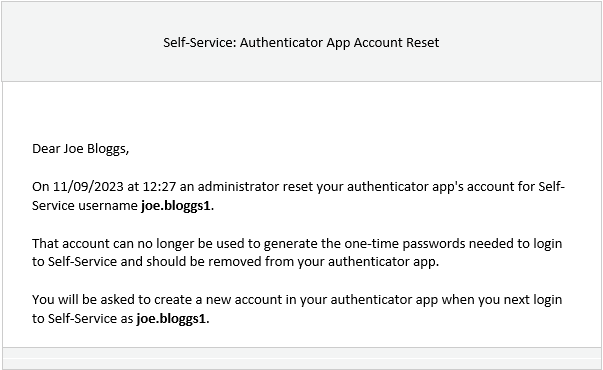
Once this has been done, you'll receive an email asking you to set up a new account in your authenticator app. Follow the steps above again to complete the setup.