Before you begin
Multi-factor authentication (MFA) adds a second layer of security to Self-Service logins, using a third-party authenticator app such as Microsoft Authenticator or Google Authenticator. This article explains how a System Administrator enables and configures MFA for their organisation.
Before you begin, make sure you have the relevant permissions, and that you know the URL of your Self-Service site.
Configuring MFA settings
Go to Cintra iQ Self-Service: Configuration > System Settings > Authentication.
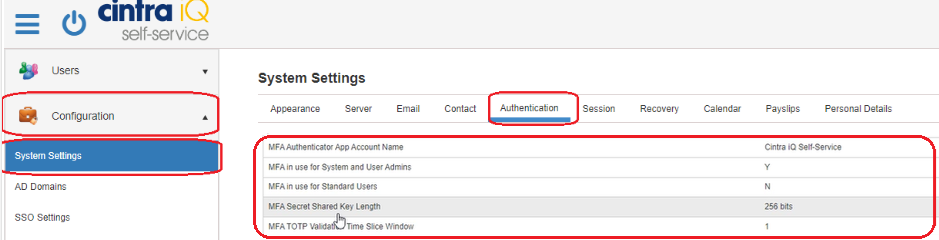
Within this screen, you can configure the following settings:
MFA Authenticator App Account Name: controls how the account appears within the authenticator app.
MFA in use for System and User Admins: enables MFA for admin users.
MFA in use for Standard Users: enables MFA for employees. Once this is set to Yes, any new employee account will have MFA enabled by default.
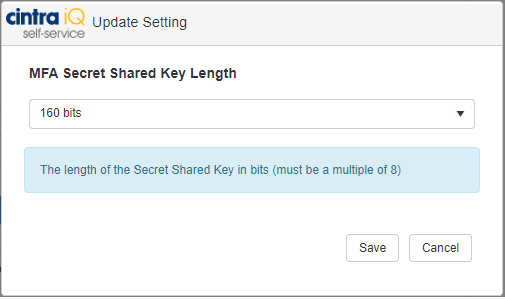
MFA Secret Shared Key Length: the length of the secret shared key, in bits. We recommend selecting the highest value allowed by the authenticator app being used.
MFA TOTP Validation Time Slice Window: the number of 30 second periods checked before and after the current period when validating a one-time password.
Resetting MFA for an employee
If an employee loses access to their authenticator app (for example, after changing phones), you can reset their MFA so they can set it up again.
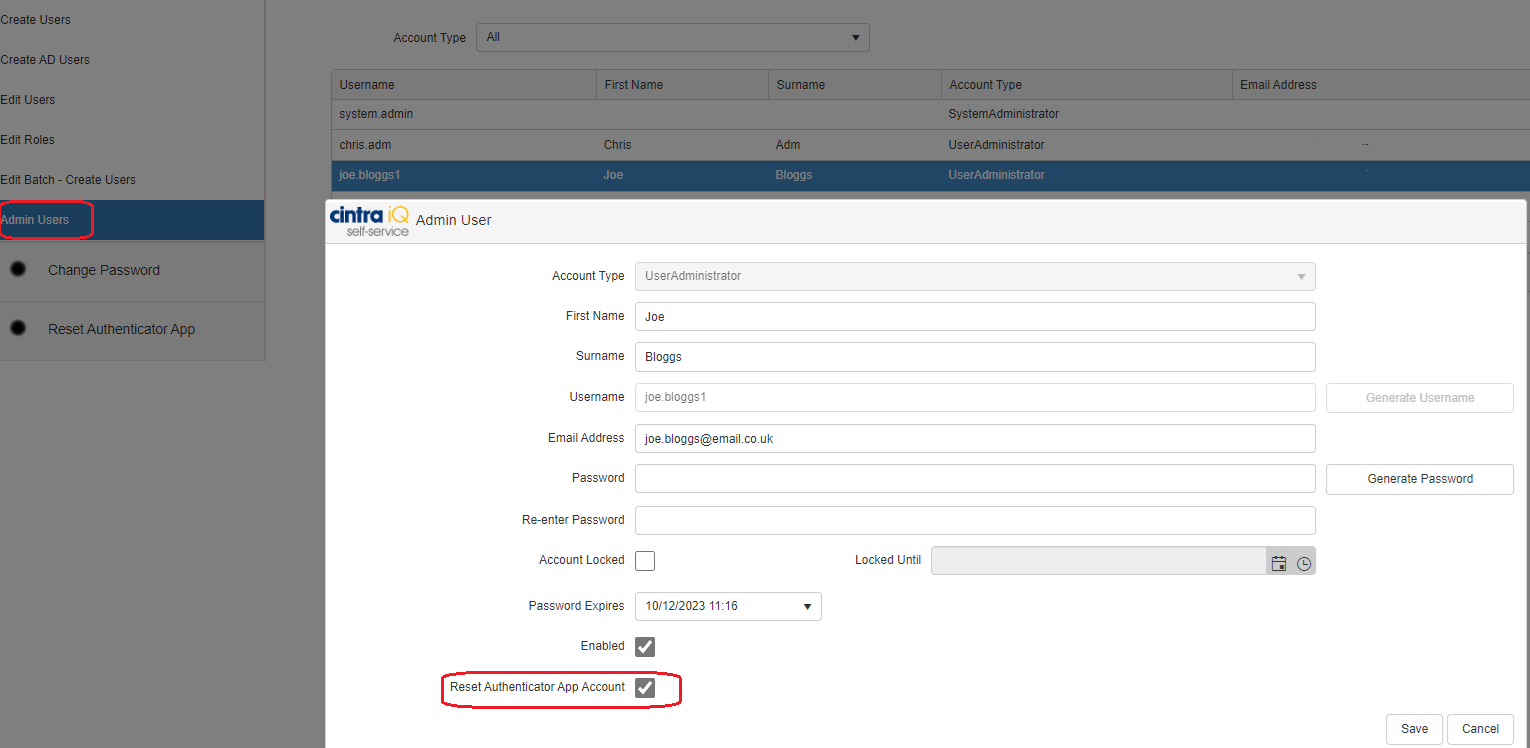
Go to Admin Users > Modify > Reset Authenticator App Account.
Select the Reset Authenticator App Account checkbox, then click Save.
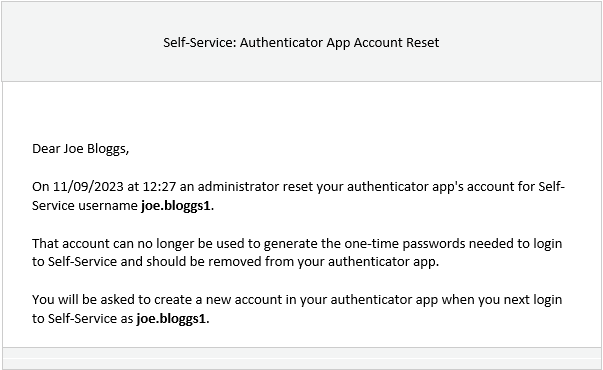
The employee receives an email asking them to set up a new account in their authenticator app. For what the employee sees and does next, see Setting up multi-factor authentication for your Self-Service account.