Salary grades are used by many organizations to help managers manage employees and establish appropriate pay increases for existing employees, while maintaining equity among the jobs in the company. Salary grades provide a structure for compensating employees and managing the payroll.
Grades within Cintra iQ can be either stand alone or linked via Pay Spines or Grade Additions to actual payments.
Name | Description |
|---|---|
Stand Alone Grades | Used to group types of staff without associating a monetary value to the grade, although it may be that the grade would be within a salary range.
|
Pay Spines | Are based upon a value for a point and each grade can represent either one or more points.
|
Grade Additions | Allow the attachment of a number of Addition Headings to a Grade, with their own specific value. This value can be either an annual amount or an hourly rate. Once the grade has been attached to the employee, then that employee automatically derives these values. |
Spine Point Additions | Are payments that can be attached to an individual spine point on a payslip. Once the spine point is attached to an employee, then the employee automatically attracts these values. For more information attaching spine points to employees, see How Do I Assign Spine Points to Posts? |
About the Grade Record form
Go to Cintra iQ: Employer Settings > Grades > Navigator > Right-click: New. The New Record: GRADE form appears. 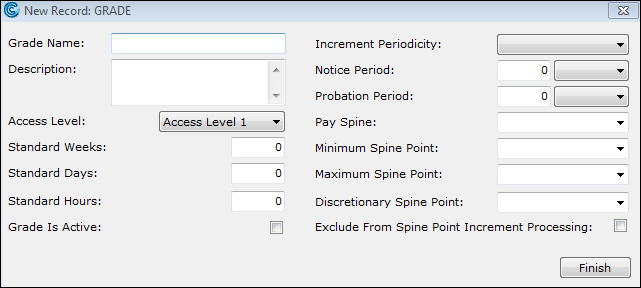
Fields
Name | Description |
|---|---|
Grade Name | Enter a name to identify the grade. |
Description | Enter a description to identify the grade. |
Access Level | This field is used for security purposes. |
Standard Weeks | This value automatically appears as it is usually identified at Job level. |
Standard Days | This value automatically appears as it is usually identified at Job level. |
Standard Hours | This value automatically appears as it is usually identified at Job level. |
Grade Is Active | This field is used to signify to the system that the grade can be used. If this is not selected then the system will not recognise this grade and ignore it against an employee. This check box is useful if setting up new grades before they are required, as you can leave this field blank until the grade is activated. |
Increment Periodicity | This field identifies when the next increment is due and is a drop down selection of: Annual, Six Monthly, Three Monthly, Three Yearly, Two Yearly. Please note that this is non user amendable. This is used when Anniversary Increment Processing is specified. So when an employee has been in post for this length of time the Increment Process will automatically be triggered. |
Notice Period | Enter the value for the Notice Period and select from the drop down whether the period is in days, weeks, months , or years. |
Probation Period | Enter the value for the Probation Period and select from the drop down whether the period is in days, weeks, months , or years.
|
Pay Spine | If the Grade is to be used in conjunction with Pay Spines, then you must select the Pay Spine to which the Grade is associated. |
Minimum Spine Point | Once the Pay Spine is selected, you can then associate the Grade to a single point or a range on the Pay Spine by selecting a Minimum and Maximum point.
|
Discretionary Spine point | This field is used as a break point within a range. For example, if your range of points is 1 to 10 and employees have an automatic increment between 1 and 5 but must have passed a test or meet certain criteria before moving up, then point 6 could be entered into the Discretionary Spine Point field, and the system would stop the incremental process at this point, thus requiring you to manually move the employee through the remaining points of the range on the employee's Grade History form. |
Exclude From Spine Point Increment Processing | Select this option to exclude the grade from the process of incrementing the spine point. If this is selected, then you would need to manually change an employee's point in their Post History record. |