Action output options set for a particular payroll, take precedence over any options set for a group. If you are producing output files, e.g. pension provider files, and you want the files to go to a different location for each payroll because you have a folder for each payroll, then you will set the action for each payroll rather than one action for each group. This is because you can only specify one file location for the group.
When you select any of the actions, you are presented with a Workflow Options window. This window has three types of layouts that contain either of the following:
Actions with No Outputs or Settings - This window describes that there are no outputs or settings to which to set actions.
Actions with Output Options Only - This window describes the various output options to which to set actions.
Actions with Outputs and Settings - This window describes the various outputs and settings to which to set actions.
Actions with No Outputs or Settings
The following actions require no outputs or settings defined:
Generate Timesheets
Calculation
Auto-enrolment
Payment Run
Submit FPS
Check HMRC Status
BACS Create
Journal Extract
Close Period
When you select any of the actions above you are presented with a Workflow Options window with no output of settings layout. 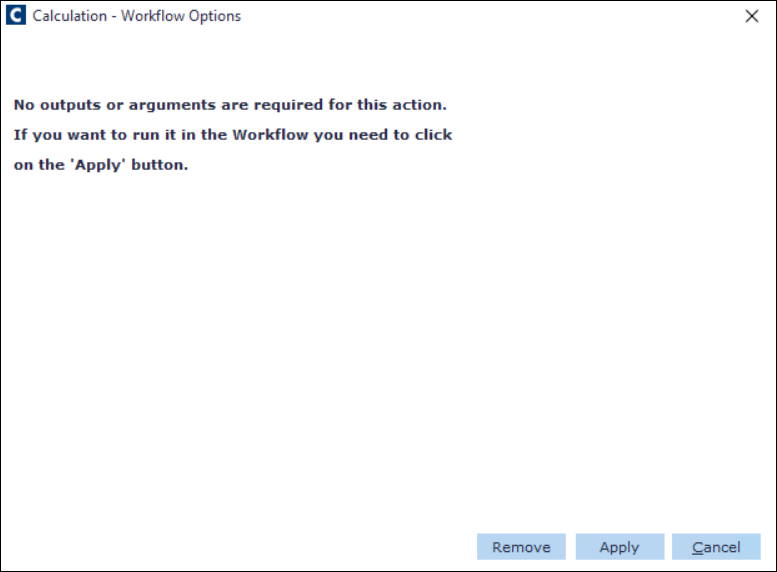
Actions with Output Options
Some actions require output options where an output is produced. e.g.
Calculation Exceptions
RTI Validation
Payslips
Gross To Net
Payroll Analysis
Produce P45 (Save to file and Email options available only.)
Generate PP Files
Altered Pay
Bank Detail Exceptions
Duplicate Name
Duplicate Bank Details
Corrections
AOE
Loan
Statutory Parental Payments
Payroll Period Employee Tasks
Mileage Claim
Summary Payslip
Company Sick Pay
Pension/Benefit
Payment
Deduction
Payment Run Details
The actions output set up includes a window that contains a series of Output Options:
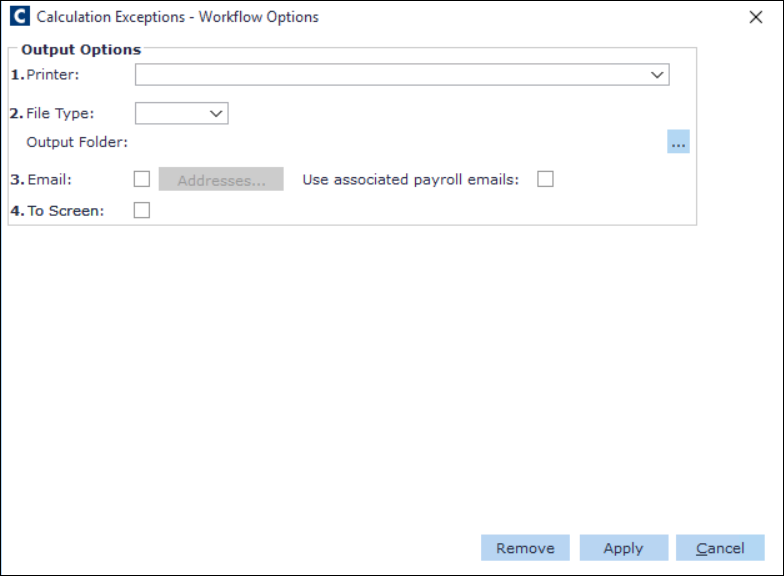
You can set an action to have various output options. The options available are:
Name | Description |
|---|---|
Printer | Choose this option if you want the report output to go directly to your selected printer. |
File Types | Choose this option if you want the report output to be saved as either a: PDF; Excel or CSV file. Whichever file type you select, you need to select the Output folder location by clicking the button. |
Choose this option if you want the report output to be emailed directly to a recipient.
| |
To Screen | Choose this option if you want to display the information as a new window on your screen (except for P45s). |
Actions with Settings
The following actions require some additional settings. The settings required for each of the following actions are different, and reflect the options that need to be set for each action.
Name | Description |
|---|---|
Payslips | The settings within the Payslips – Workflow Options window are similar to the settings you currently choose when printing payslips.
|
Publish Payslips | The settings within the Publish Payslips – Workflow Options window allow you to publish by Employment ID, Organisational Chart, Paypoint, or Surname. And allows you to Publish payslips with zero net pay. |
Gross to Net | The settings within the Gross To Net – Workflow Options window allow you to sort the report by either Employment ID, Surname, Organisation Unit, or Pay Point. |
Generate PP Files | You can produce the Auto Enrolment (AE) Enrolment and Contribution pension provider files in Payroll Workflow, against the desired payroll and send the files to the Pension Provider, by selecting the desired Pension Provider and Scheme. |
Altered Pay | The settings within the Altered Pay – Workflow Options window allow you to include starters and/or leavers in the report, set the threshold and/or threshold difference by percent or value. |
Duplicate Name | The settings within the Duplicate Name – Workflow Options window allow you to show duplicates from other payrolls linked to selected payrolls. You can also include one or more payrolls in the report. |
Duplicate Bank Details | The settings within the Duplicate Name – Workflow Options window allow you to show duplicates from other payrolls linked to selected payrolls. You can also include one or more payrolls in the report. |
Corrections | The settings within the Corrections – Workflow Options window allow you to select the report type and/or suppress results where net effect is zero. You can also include one or more adjustment headings in the report. |
AOE | The settings within the AOE - Workflow Options window allow you to select the sort order by Employment ID, Organisation Unit, Paypoint, Surname, Organisation Unit - Employment ID, Organisation Unit - Paypoint, Organisation Unit - Surname, Paypoint - Employment ID, Paypoint - Organisation Unit, Paypoint - Surname, Subtotals only - Organisation unit, Subtotals only -Paypoint. You can also include one or more addition headings in the report. |
Loan | The settings within the Loan – Workflow Options window allow you to select the sort order of the addition headings by Employment ID, Organisation Unit, Paypoint, Surname, Organisation Unit - Employment ID, Organisation Unit - Paypoint, Organisation Unit - Surname, Paypoint - Employment ID, Paypoint - Organisation Unit, Paypoint - Surname, Subtotals only - Organisation unit, Subtotals only - Paypoint. |
Statutory Parental Payments | You can select one or more statutory payments to report on. |
Summary Payslip | The settings within the Summary Payslip – Workflow Options window allow you to sort the records by Employment ID, Organisation Unit, Paypoint, Surname, Organisation Unit - Employment ID, Organisation Unit - Paypoint, Organisation Unit - Surname, Paypoint - Employment ID, Paypoint - Organisation Unit, Paypoint - Surname, Subtotals only - Organisation unit, Subtotals only -Paypoint. |
Company Sick Pay | The settings within the Company Sick Pay–Workflow Options window allow you to Include All records or only include records where Employee is on less than full pay. |
Pension/Benefit | The settings within the Pension/Benefit – Workflow Options window allow you to Report on individual schemes, All pension scheme summary or All benefit scheme summary. You can select one or more pension schemes to report on. |
Payment | The settings within the Payment – Workflow Options window allow you to report on one or more adjustment headings. |
Deduction | The settings within the Deduction – Workflow Options window allow you to report on one or more adjustment headings. |
Pay Element Report | The settings within the Pay Element Report - Workflow Options window allow you to report on pay elements within Cintra iQ such as the employee's additions and deductions. |
Pay Variance | The settings within the Pay Variance - Workflow Options window allow you to report on a value or percentage threshold, set the threshold difference, and include starters and/or leavers. |