After an expense claim has been approved you can export the data to a third party.
For more information on export formats and setting a default, see Company settings.
Exporting claims
Go to Accounting > Export tab.
Click the checkboxes by one or more claims.
.png)
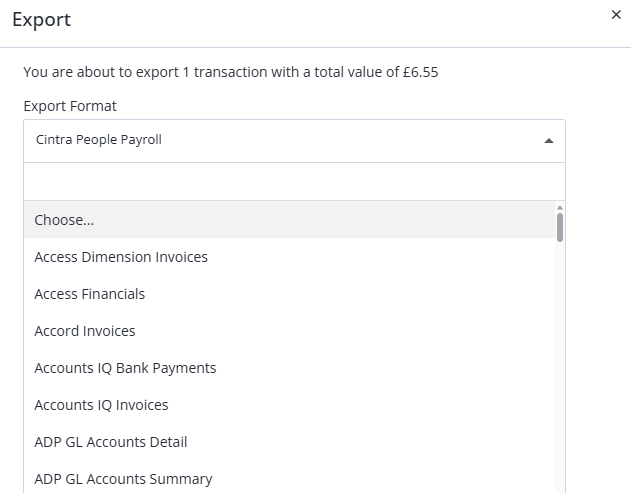
Click Export. The total number and value of expenses will be displayed and you must choose:
Export format: For a full list, see Export formats below.
Date and reference number (if required)
When you click Export, you will be asked to click Update to flag the expenses as having been exported.
The claims will then be removed from the Claims tab and marked as complete. The export files will be saved to your download folder.
The export file includes VAT data for each claim. If you need to reconcile VAT, you can filter by VAT code in your accounting software after export.
Note: Within the Claims tab, you can also review a claim, add a VAT receipt, split rows, add a note, or attach a receipt to a claim before you export.
Exporting claims to Cintra People Payroll
If you are using Expenses within Cintra People, you can export data directly to a payroll, where the user’s expenses reimbursement can be added to their wage.
The Export tab displays all employee payments which have not yet been paid, whereas the History tab lists all expenses which have been exported for payment.
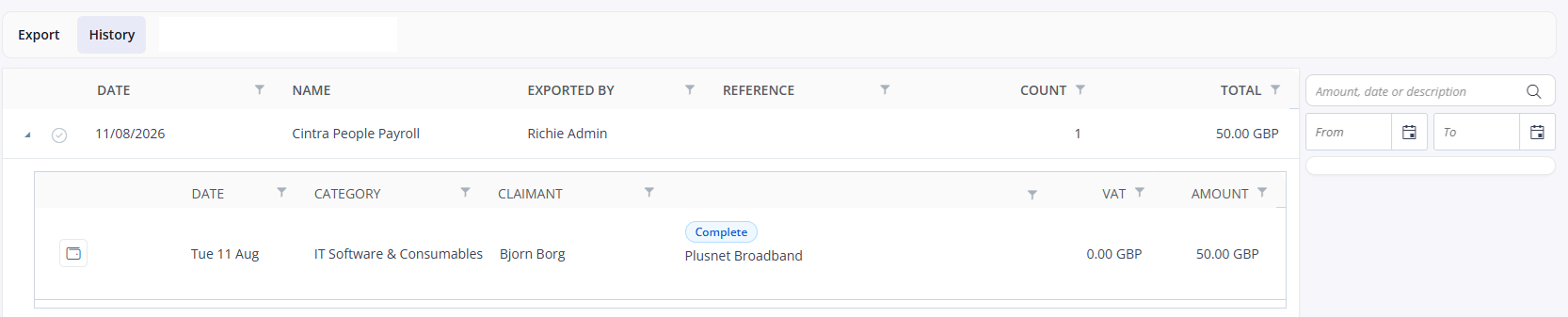
To export an expense to Payroll for payment:
In Accounting > Export tab, tick the box(es) beside the payment(s) you wish to export.
Click Export.
Select “Cintra People Payroll” from the Export Format drop-down.
Edit the date and reference as required.
Click Export. A message will inform you whether the export was successful.
If the export is successful, the payment(s) will move to the Payments tab.
Common reasons for failed exports include the employee not being present in the payroll, not having a current payslip, or if the payroll is currently locked.
Export formats
To view an up-to-date list of the latest export formats:
Go to Accounting > Export tab.
Click Export.
Click Export Format.