NOTE: This article applies to customers licensed to use Cintra People HR Essentials or HR Advanced
Once you have set up the Talent Hub integration, you will be able to start adding new hires into Cintra People HR. Any user who is marked in Talent Hub as Hired status will be able to be imported, joining up the stages in your hiring process and ensure there are no transposition errors or missed steps. For details on how to set up the Talent Hub integration, take a look at the following article: Enabling the Talent Hub Integration.
You'll be able to sync the following details across from Talent Hub into Cintra People HR:
Name
Telephone Number
Email Address
Start Date
Job Title
Start by logging into Talent Hub and navigating to your project. Head to your Pipeline, and then click Hired.
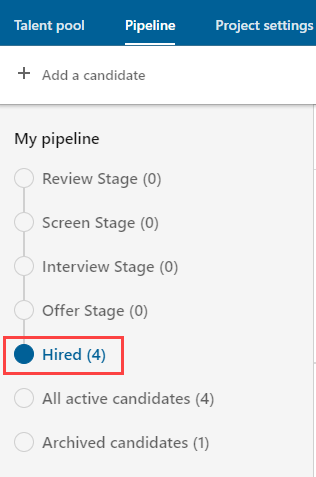
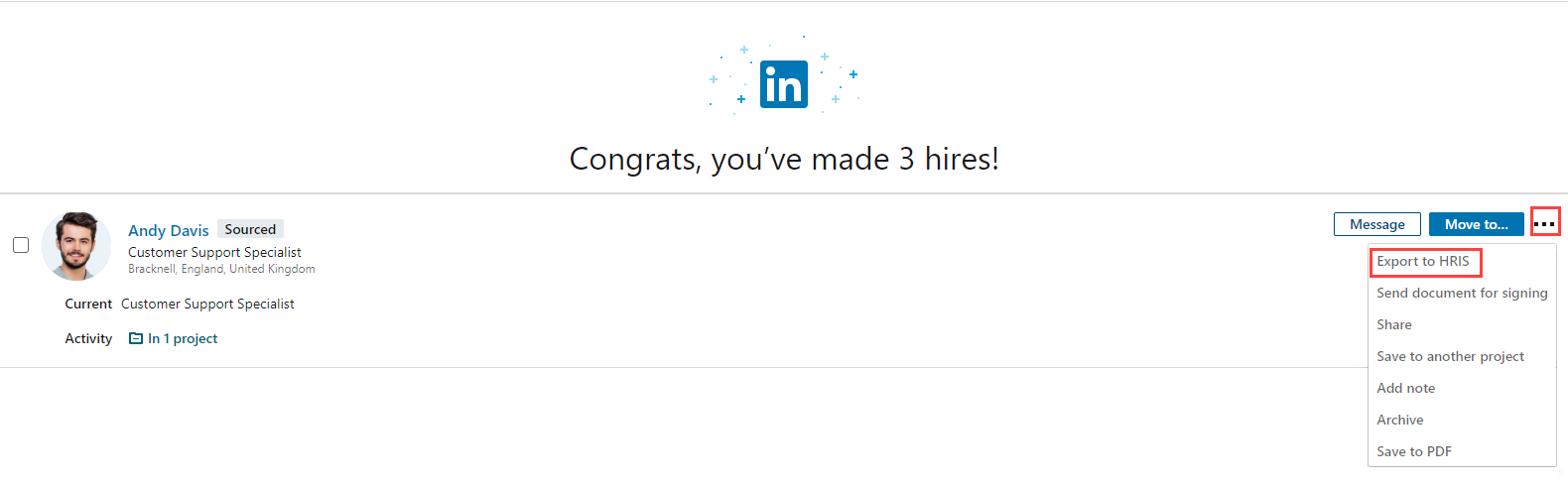
You'll be shown a list of your hires for that project. Find the user you would like to export into Cintra People HR and click the three dots next to their name, then Export to HRIS.
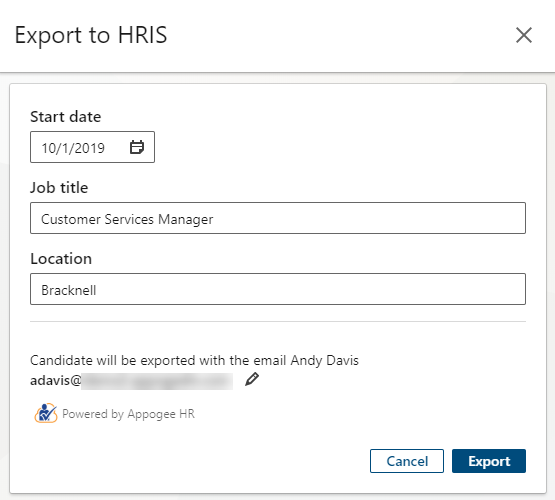
A new view will appear, which will prompt you to fill in the new starter's information. Select their start date, and fill in the job title, location and email address. Double check you are exporting to the correct HRIS, by checking it says 'Powered by Cintra People HR' then click Export.
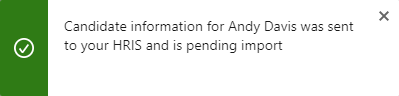
Once the user has been exported to Cintra People HR, you will receive the following notification in Talent Hub.
Open Cintra People HR, and go to Organization > Employees. This employee will now show in the Offer Accepted Category.

Click on their name to go through the process of adding this user to Cintra People HR. For step by step details on how to do this, take a look at our article: Adding new employees which will enable you to assign them into teams and set up an onboarding portal where appropriate.