Introduction
Domains are addresses that share a common suffix under the control of an organization.
For instance, name@domain.com.
Cintra People HR supports updates to the primary domain of the system which you can use if you want to merge another organisation into one Cintra People HR system, or if you need to change the primary domain you use.
There are different methods to configure domain updates depending on system type. Select the type applicable to your configuration:
Username and Password Systems
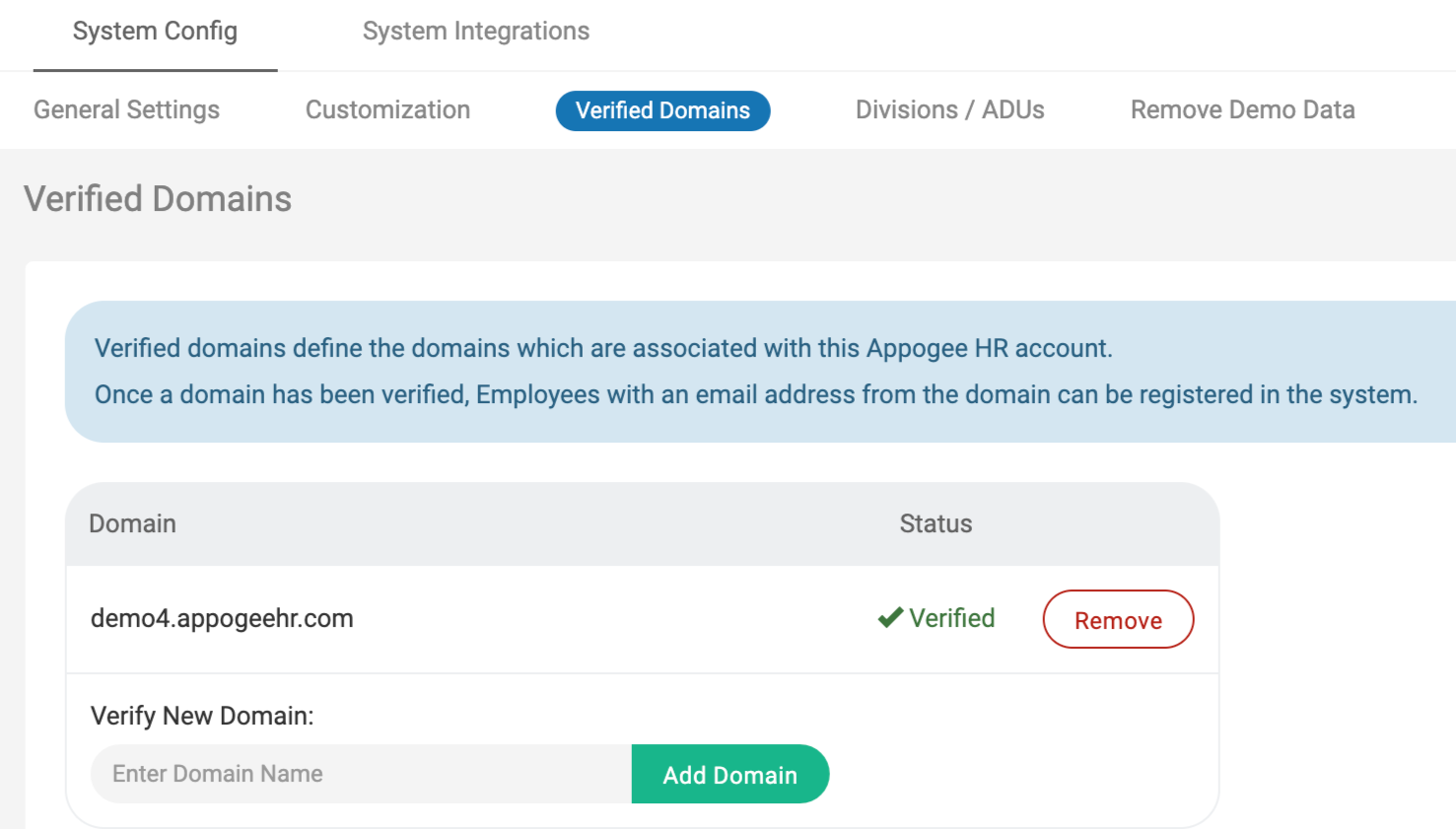
Add the new domain to the verified domains list by going to System Config > Verified Domains.
.png)
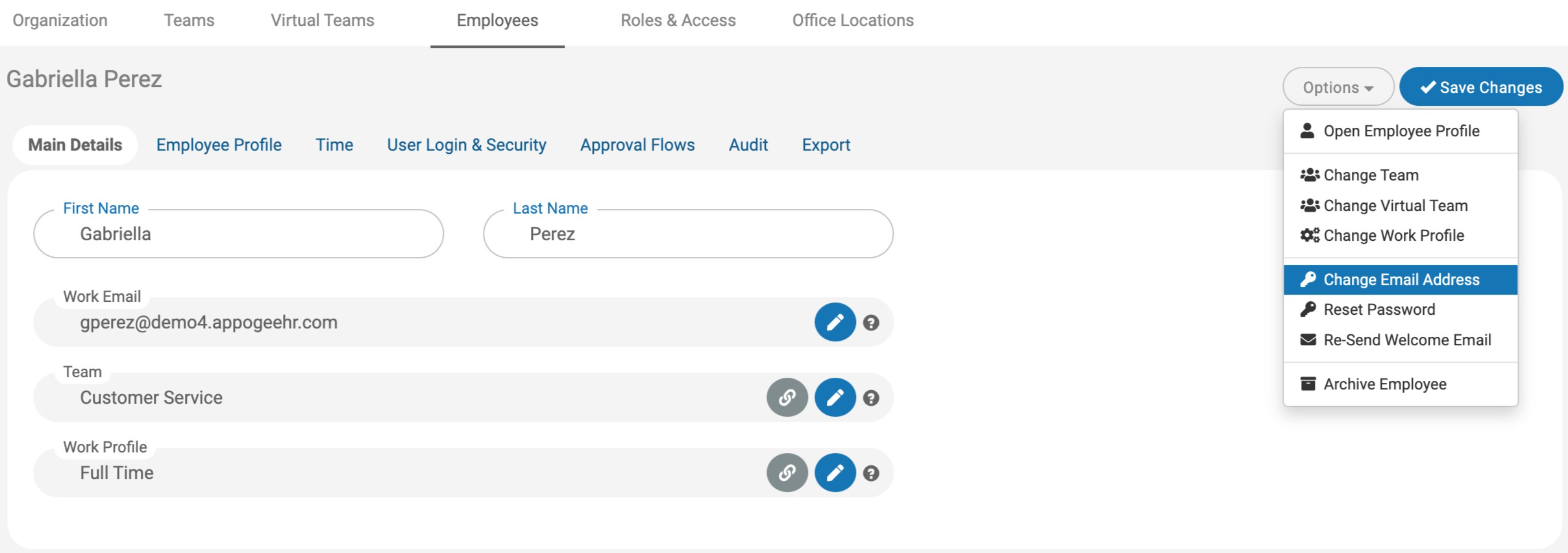
Go to Organisation > Employees to update the employees' email addresses. Open the employee account and click Options.
Google Workspace Integrated Systems
There are 2 scenarios when to update a domain when a system is integrated with Google Workspace:
Creating a new Google primary domain in a new Google Workspace account
-
Add the new domain to the verified domains list by going to System Config > Verified Domains.
.png)
-
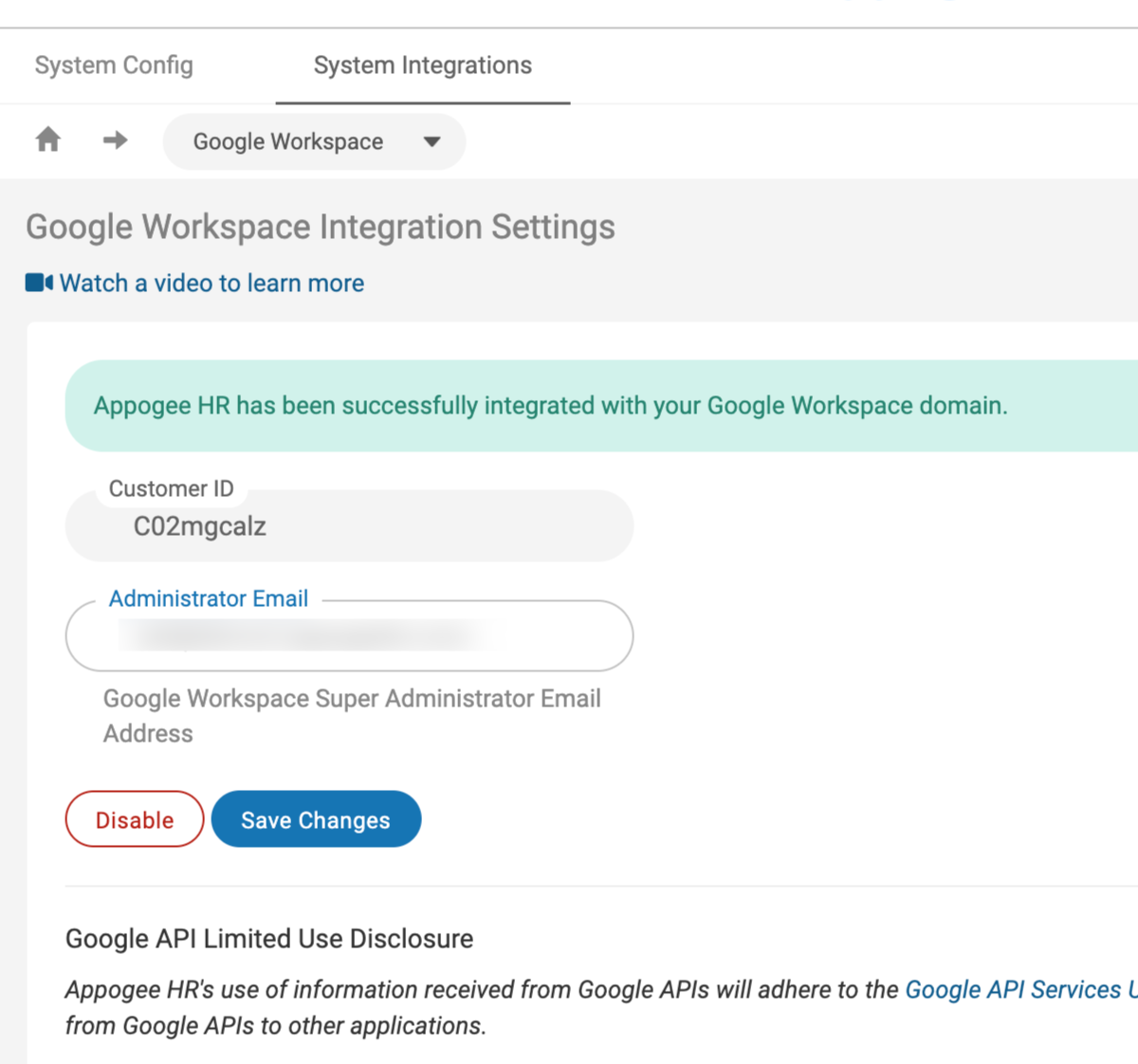
Disable integration of the current Google Workspace account by going to System Config > System Integrations > Google Workspace and integrate with the new one.
-
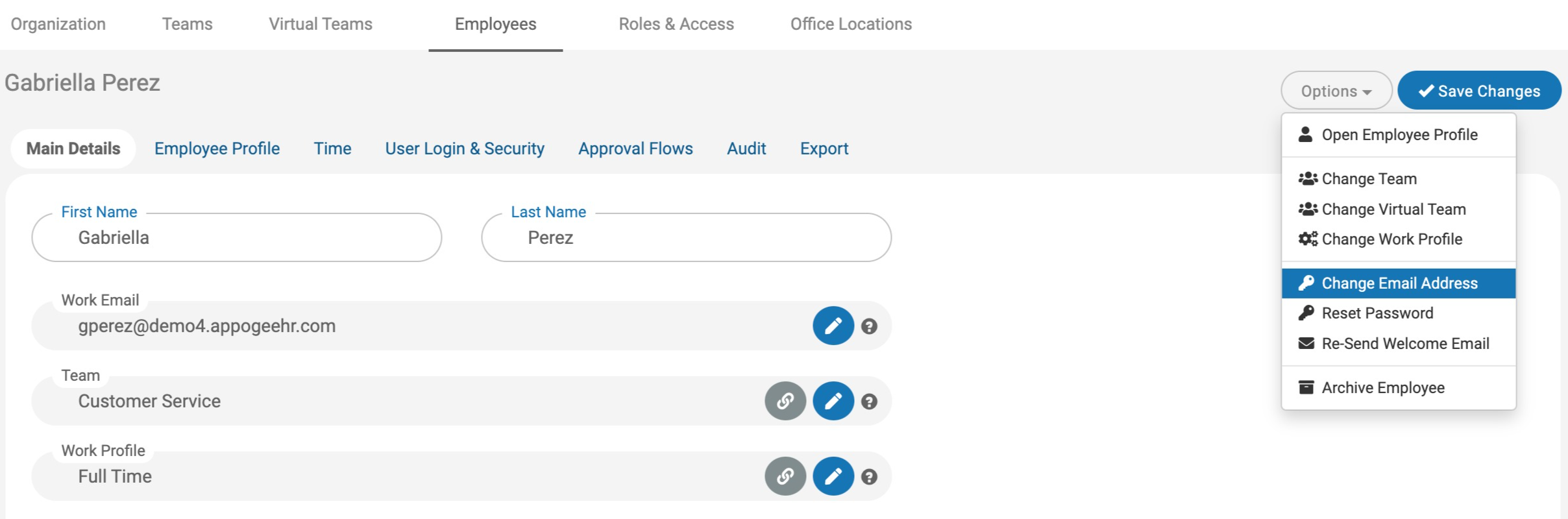
Update the email addresses for the employees with the new domain on the user profile by going to Organization > Employees > Open an employee > Options > Change Email Address.
-
When the employees sign in with their updated email address they will become Google Workspace users.
Updating the primary domain in the existing Google Workspace account
-
Update the appropriate changes to the domain in Google Workspace admin console (admin.google.com).
-
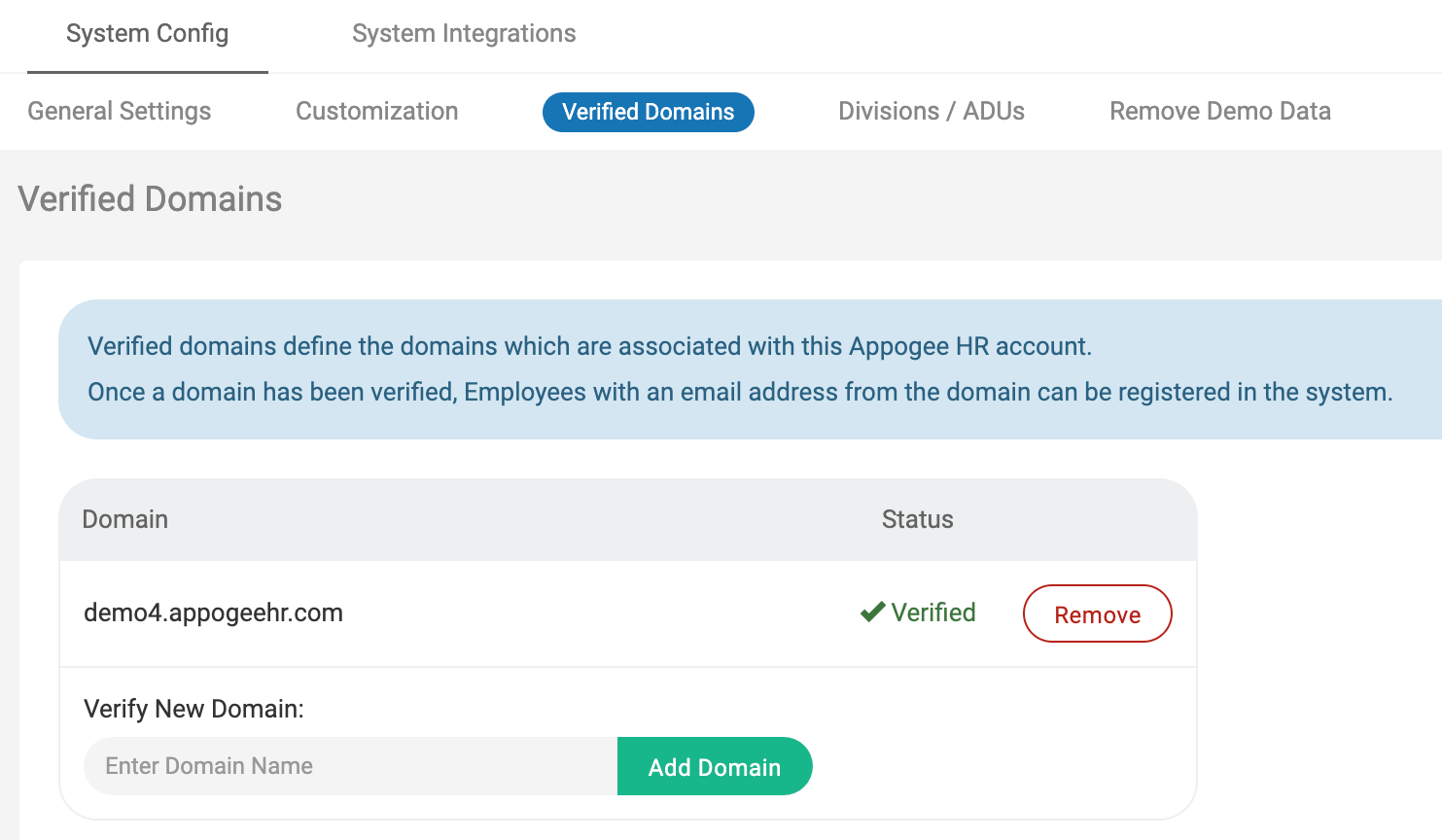
Add the new domain to the verified domains list by going to System Config > Verified Domains.
-
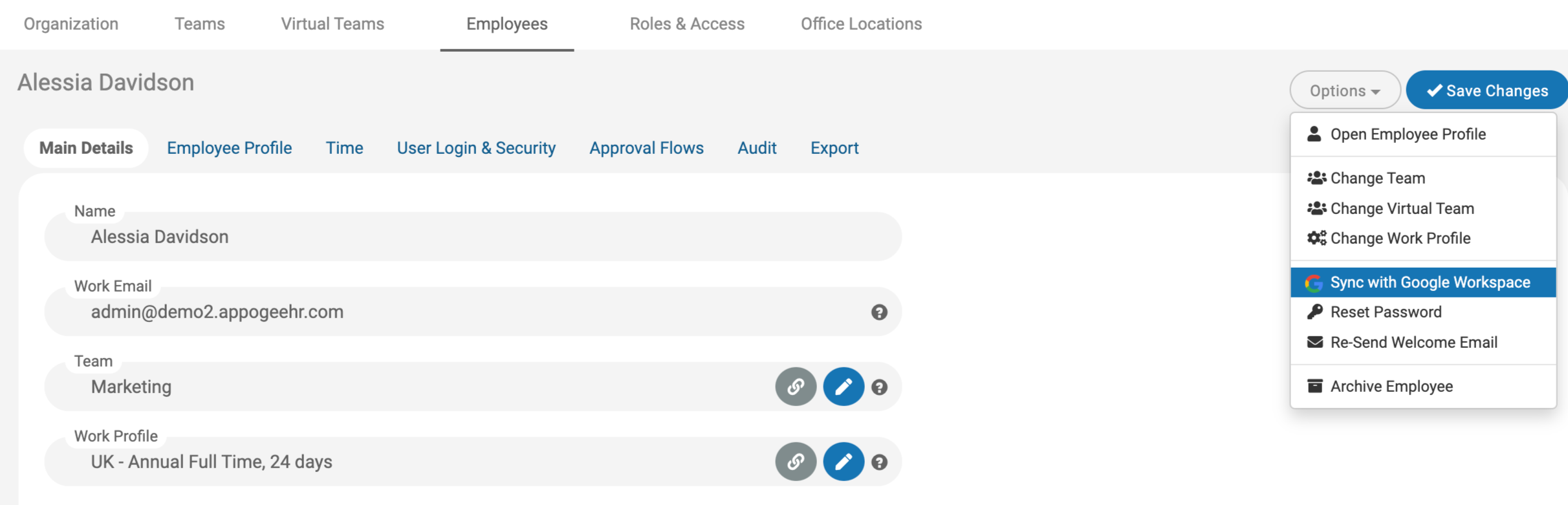
Go to Organization > Employees > open an Employee > Options > Sync with Google Workspace.
Office 365 Integrated Systems
There are 2 scenarios when to update a domain when a system is integrated with Office 365
Creating a new Office primary domain in a new Office 365 portal account
-
Add the new domain to the verified domains list by going to System Config > Verified Domains.
-
Disable integration of the current Google Workspace account by going to System Config > System Integrations > Office 365 and integrate with the new one.
-
Update the email addresses for the employees with the new domain on the user profile by going to Organization > Employees > Open an employee > Options > Change Email Address.
-
When the employees sign in with their updated email address they will become Google Workspace users.
-
Updating the primary domain in the existing Office 365 portal account :
Update the appropriate changes to the domain in the Office 365 (portal.office.com).
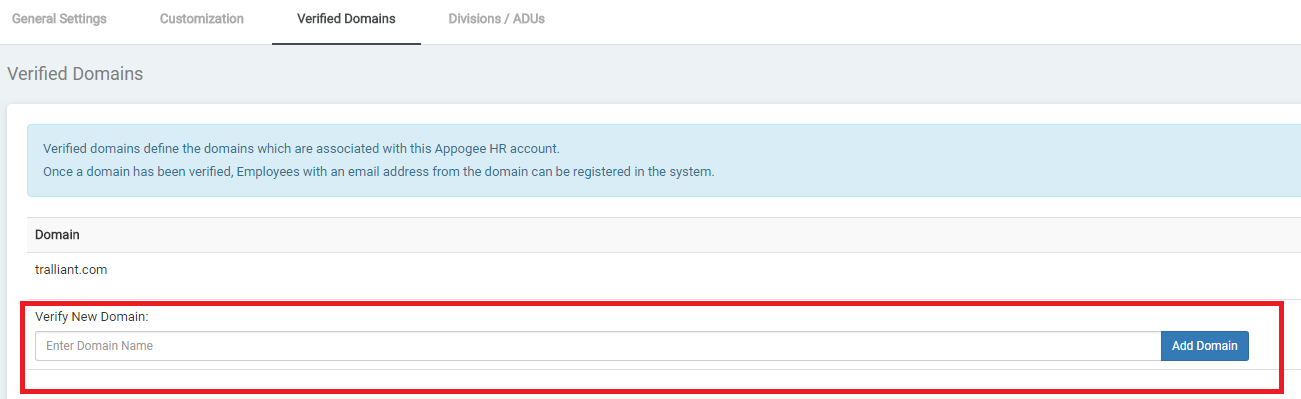
Add the new domain to Verified Domains list on Cintra People HR under System Config.
-
On the user profile, click Options > Sync with Office 365.
.png)
-
Add an alias/secondary domain in the existing Office 365 account
Update the appropriate changes to the domain in the Office 365 portal (portal.office.com).
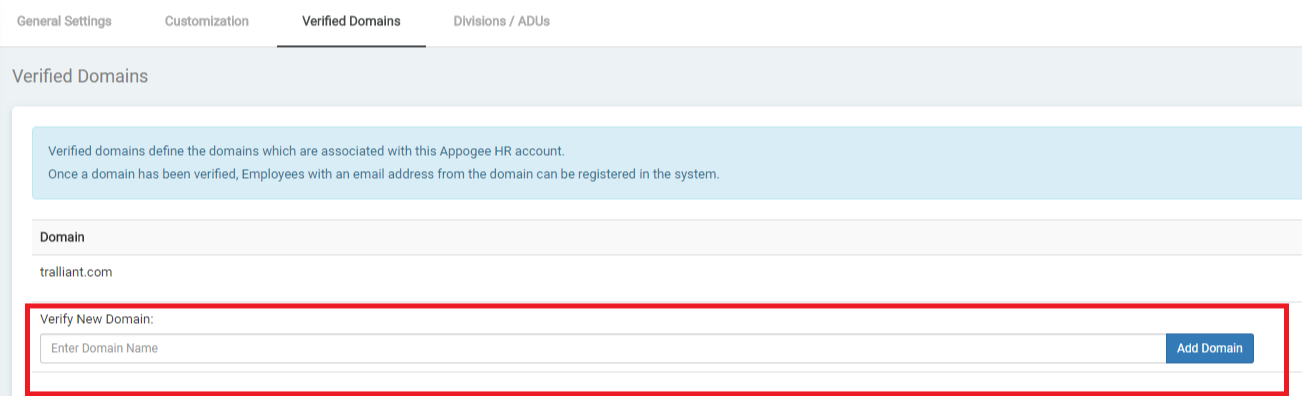
Add the new domain to the verified domains list on Cintra People HR.
-
On the user profile, click Options > Sync with Office 365.
.png)
For more information, see Verified domains.